Laptops are made to go anywhere, which is exactly why they so often end up on a kitchen table with a dining chair, a window behind them and someone hunched over them for hours. None of that is comfortable for long. The good news is that the UK has clear, practical guidance on how to set up a screen and a desk, written by the Health and Safety Executive, and almost all of it can be applied to a laptop with a few simple pieces of kit. This guide takes that guidance and applies it, part by part, to working on a laptop at home or in the office.
What the guidance says
The Health and Safety Executive, the HSE, is the UK's regulator for health and safety at work. Its guidance on display screen equipment, often shortened to DSE, comes from the Health and Safety (Display Screen Equipment) Regulations 1992. The HSE's leaflet on the subject makes clear that display screen equipment includes laptops, as well as desktop screens and touch screens.
Who the rules cover
The regulations apply to employers whose workers use screens daily, as a significant part of their normal work, for continuous periods of an hour or more. The HSE calls these workers DSE users. For DSE users, an employer must:
- assess the workstation and reduce the risks it finds;
- make sure the controls are in place;
- provide information and training;
- provide an eye and eyesight test on request, and special glasses if they are needed;
- review the assessment when the user or the equipment changes.
Home working is covered too. The HSE says employers should make sure people working at home can achieve a comfortable, sustainable posture, that they may not need office furniture to do it, but that their own equipment should be checked. Where someone works at home and in the office, the assessment should cover both. If the assessment says a piece of equipment is needed, the HSE says the worker cannot be charged for it. The regulations do not apply to people who use a screen only occasionally or for short periods, and some parts, such as eye tests, are not an entitlement for the self-employed.
Why it is worth following anyway
The HSE says some people experience fatigue, eye strain, upper limb problems and backache from overuse or improper use of screens, and from poorly designed workstations. It adds that the controls it describes may still be useful for people the regulations do not cover. So if you are self-employed, a student or simply spend your evenings on a laptop, the same advice applies. If you are an employee and something aches, tell your employer: the HSE says a report of pain or discomfort is one of the things that should lead to a workstation assessment.
The rest of this guide follows the HSE's advice in the order you would set up a desk. Where it says what the guidance says, those are the HSE's points; where it mentions a piece of kit, that is one way of meeting them.
Screen height and distance
The HSE's posture guidance puts the top of the screen level with your eyes and about an arm's length away, with the screen directly in front of you so you do not twist your back. Its leaflet puts it as forearms roughly horizontal and eyes at the same height as the top of the screen.
The laptop problem
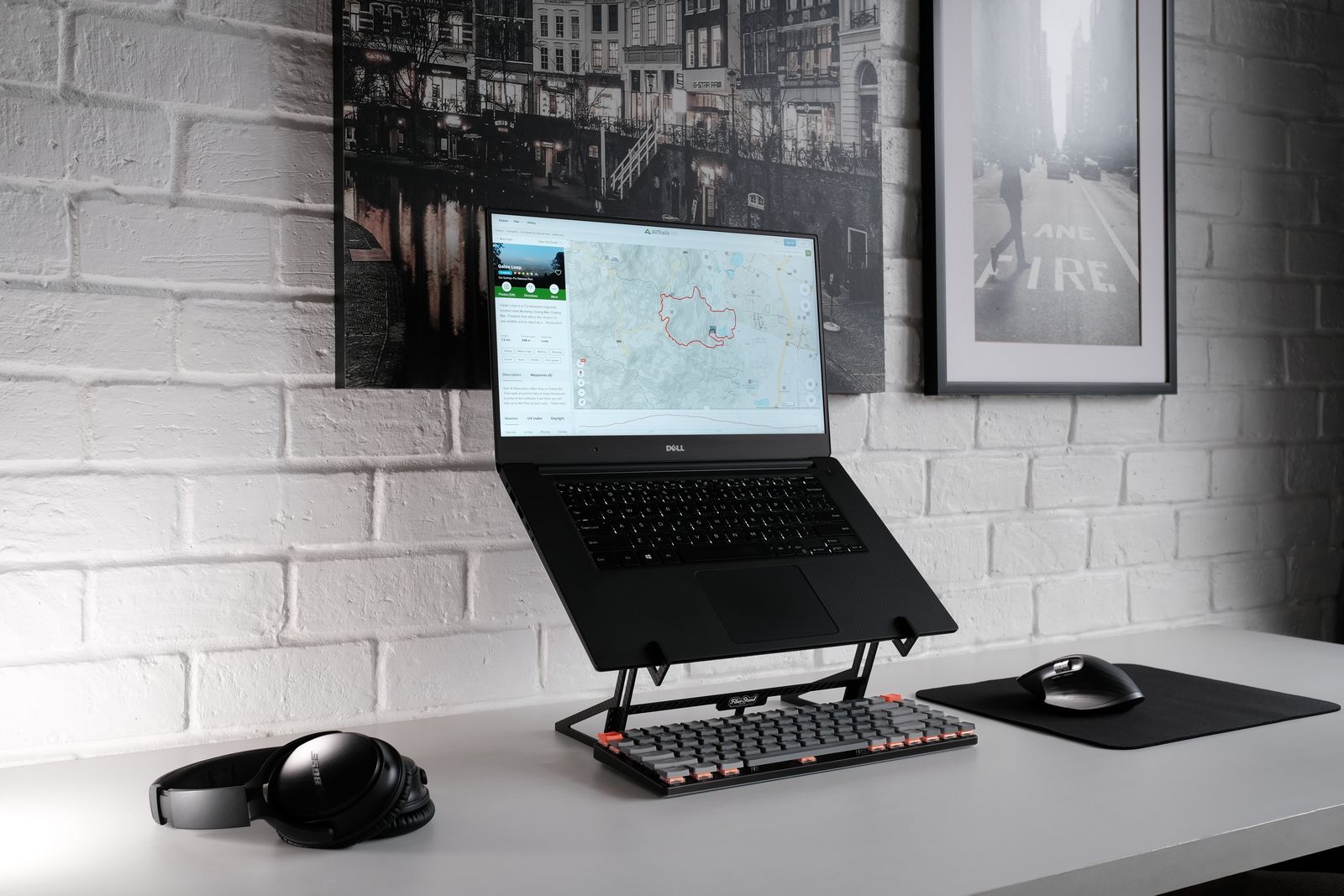
A laptop flat on a desk cannot meet both points, because its screen is fixed to its keyboard. The HSE's answer for laptops is to use a separate keyboard and mouse so the screen can be raised on a laptop riser or similar. Its leaflet suggests a docking station or firm surface with a full-sized keyboard and mouse wherever possible, and notes that raiser blocks are commonly used for screen height.
In practice that means a stand. Adjustable laptop stands let you set the exact height and angle for a desk you use every day. Foldable aluminium stands pack flat for people who move between desks. The guide to choosing a laptop stand explains how to measure for one.
Set the chair first
The HSE's workstation checklist gives a useful order: adjust the chair height so your arms are in the right position, then adjust the screen height if necessary. Raise the screen first and you will be adjusting it again once the chair is right.
With a separate monitor
If you use a monitor as well as the laptop, the same rules apply to it: top of the screen at eye level, about an arm's length away, straight in front if it is the one you look at most. Monitor risers lift a monitor that sits too low and leave space underneath for the keyboard or papers. If you use both screens, raise the laptop so its screen sits beside the monitor at a similar height rather than down on the desk, so you are not constantly looking down to one side.
When you are away from the desk
The HSE's leaflet has a short section on portable computers. It says the same controls apply, and adds two points. The first is carrying: think about the strain of carrying heavy equipment and papers, which matters if your laptop, charger and files travel with you every day. The second is time: more changes of activity may be needed if you cannot bring the risks of prolonged use and awkward postures down to a suitable level, which is often the case on a train or at a hotel table. A foldable stand and a compact keyboard in the bag let you rebuild a reasonable set-up wherever there is a table.
Reading the screen comfortably
The HSE's leaflet adds a few points about the screen itself:
- Characters should be sharp, in focus and steady. If they flicker or move, the screen may need servicing or adjusting.
- Adjust brightness and contrast to suit the lighting in the room.
- Keep the screen surface clean.
- Choose text large enough to read easily when you sit in a normal, comfortable position, rather than leaning in.
- Choose colours that are easy on the eye. The HSE gives the example of avoiding red text on a blue background, or the other way round.
If you work from papers as well as the screen, the HSE suggests a document holder to avoid awkward neck and eye movements. Document holders keep a page upright beside the screen, at roughly the same distance and height, so your eyes move across rather than up and down.
Keyboard, mouse and wrists
With the laptop raised, the typing moves to a separate keyboard and mouse. The HSE's checklist says the keyboard should be separate from the screen, unless the task makes that impracticable, which is the case on a train but rarely at a desk.
The keyboard
The HSE's guidance for keyboards comes down to a few points:
- Put the keyboard just below elbow height, with your forearms roughly horizontal.
- Leave a space in front of the keyboard to rest your hands and wrists when you are not typing. The checklist suggests pushing the screen further back to make room.
- Keep your wrists straight when typing, keep a soft touch on the keys and do not overstretch your fingers.
- A keyboard that tilts can help, though the tilt does not have to be built in.
- A keyboard with a matt finish reduces glare and reflection, and the keys should be kept clean so the characters stay readable.
Wireless keyboards keep the desk free of cables. The checklist notes that people using thick, raised keyboards may need a wrist rest; wrist rests sit in front of the keyboard and give the heel of the hand somewhere soft to rest between bursts of typing. They are for resting on, not for leaning on while you type.
The mouse
For the mouse, the HSE's leaflet and checklist say:
- Keep it within easy reach, as close as possible, for example right beside the keyboard, so it can be used with a straight wrist. The posture guidance puts it in line with your elbow.
- Sit upright and close to the desk, so you are not working with your mouse arm stretched out.
- Move the keyboard out of the way if you are not using it.
- Support your forearm on the desk or the arm of the chair, do not grip the mouse too tightly, and rest your fingers lightly on the buttons.
- Check the surface suits the mouse; a mouse mat may be needed. Learn to adjust the pointer speed in the laptop's settings.
Wireless mice suit most people. The checklist also says that if someone is having problems, they should try a different device. Ergonomic and vertical mice hold the hand in a more upright, handshake position, which some people find more comfortable over a long day. The guide to ergonomic mice and keyboards explains what they are for and who they suit. If you want to buy the two together, keyboard and mouse sets match each other and often share one receiver.
Plugging in a keyboard, mouse, monitor and charger can use up a laptop's ports quickly. A docking station connects them all through one cable, which also makes it easy to take the laptop away at the end of the day. The guide to USB-C hubs and docks explains how to choose.
Chair, feet and posture
The chair decides where everything else goes, so it is worth getting right. The HSE's posture guidance describes a good seated position:
- The seat height supports the front and back of your thighs equally. If it does not, a cushion can raise you.
- There is a gap of two to three centimetres between the front of the seat and the back of your knee.
- The back of the seat gives good support to your lower back, or a cushion adds it.
- Your shoulders are relaxed. Sit high enough that you do not need to shrug them.
The checklist adds that the small of your back should be supported by the backrest, with a straight back and relaxed shoulders, and that your feet should be flat on the floor without too much pressure from the seat on the backs of your legs. If your feet do not reach, a footrest may be needed. The HSE's leaflet says a footrest may be helpful particularly for smaller users. Footrests raise the feet to meet the floor you need, which often matters most when a chair has been raised to bring the arms level with a desk.
At home
Most people working from home do not have an office chair, and the HSE accepts they may not need one to work comfortably. What matters is that you can reach the position above. A dining chair with a firm cushion to raise the seat, a second cushion behind the lower back and a footrest can get surprisingly close. A soft sofa cannot, because it lets you sink and slump.
In the office
The checklist asks whether an office chair is stable and has working adjustments for seat height and for the seat back's height and tilt, with castors or glides. It notes that the arms of a chair can stop you getting close enough to the desk, and that anything under the desk should be moved so there is room for your legs.
Room to move
The checklist says there should be enough room to change position, move, stretch and fidget, and that cables should be tidy and not a trip or snag hazard. Laptop desks often have a charger, a hub, a monitor lead and a lamp flex trailing to one socket. Under-desk cable trays lift the plugs and spare cable off the floor and out of the way of your feet.
Light and glare
Glare on a screen makes you squint, lean and tip your head to see past the reflection, so it undoes much of the work you have done on the chair and the screen height. The HSE's guidance is practical.
Placing the desk and screen
The HSE's leaflet says to arrange the desk and screen to avoid glare or bright reflections, which it says is often easiest if the screen is not directly facing windows or bright lights. Adjust curtains or blinds to keep out intrusive light. The checklist adds that blinds with vertical slats can be more suitable than horizontal ones.
Finding where a reflection comes from
The checklist has a simple trick: put a mirror in front of the screen to see where reflections are coming from. Then you can move the screen, move the desk, or shield the screen from the source. It also notes that dark text on a light background is less prone to glare and reflections than the other way round.
Room lighting
Lighting should be neither too bright nor too dim to work comfortably, and you should be able to control it with blinds or light switches. The checklist suggests shading or moving light sources, or adding local lighting such as a desk lamp, while making sure the lamp itself does not cause glare by reflecting off walls or other surfaces. It also says shiny surfaces on the desk can reflect light, and suggests mats or blotters to reduce it. A large desk mat under the keyboard and mouse does that job on a glossy or glass desk.
Anti-glare filters
Anti-glare films and filters for laptop screens exist, and laptop screen protectors include them. The HSE's checklist is clear on where they come in: only if moving the screen, the desk and the blinds does not work, it says to consider anti-glare screen filters as a last resort. Sort out the room first.
Breaks
However good the set-up, sitting still in front of a screen for hours is tiring. The HSE's guidance on breaks is one of its most useful parts.
What the law says
Employers must plan work so that DSE users have breaks or changes of activity. The HSE says there is no legal rule on how long or how often breaks should be. In most jobs, screen work stops naturally for other tasks, such as going to meetings. Where a job has no natural changes of activity, the employer should plan rest breaks. Ideally, the HSE says, users should be able to choose when to take them.
Short and often
The HSE's advice is to take short breaks often rather than longer ones less often. Its example is that five to ten minutes every hour is better than twenty minutes every two hours. A break should let you get up from the desk and move around, or at least stretch and change posture. Its leaflet adds three more points:
- Stretch and change position.
- Look into the distance from time to time, and blink often.
- Change activity before you get tired, rather than to recover once you are.
The HSE notes that break-reminder software can help, though it does not take away an employer's duty to plan the work. Most laptops have a timer or focus feature that can do the same.
Your eyes
The HSE says screen work does not cause permanent damage to eyes or eyesight, but that long spells can bring tired eyes, discomfort, temporary short-sightedness and headaches. For DSE users, an employer must provide an eyesight test on request and pay for it. If the test shows you need glasses specifically for screen work, the employer pays for a basic pair; if your ordinary glasses are suitable, it does not have to.
Questions people ask
Does the HSE guidance apply when I work from home?
Yes, if you are an employee who uses a screen daily for an hour or more at a time. Your employer's assessment should cover home as well as the office, and you may be able to complete it yourself after training.
Does my employer have to buy me a stand or a keyboard?
If the workstation assessment says you need a piece of equipment, the HSE says you cannot be charged for it. Ask for an assessment if you do not have one.
How high should my laptop screen be?
With the top of the screen level with your eyes, about an arm's length away, once your chair is set with your forearms roughly horizontal. That usually needs a stand and a separate keyboard and mouse.
Is working on the sofa bad for me?
For short spells it is fine. For long ones, you cannot reach the posture the HSE describes. If you must, take more breaks, and use a firm lap desk rather than resting the laptop on cushions.
I am self-employed. Does any of this apply?
The legal duties are an employer's, so things like paid eye tests are not an entitlement. The HSE's advice on posture, light and breaks works just as well for you.
Where to go next
The pieces that make the biggest difference are a laptop stand, a separate keyboard and mouse, and a footrest if your feet do not reach the floor. For more on each:
- How to choose a laptop stand: measuring for the right height
- Ergonomic mice and keyboards: what they are for and who they suit
- How to choose a USB-C hub or docking station: one cable for the whole desk
- Portable monitors and screen extenders: a second screen at the right height