Many modern laptops have only two or three ports, and some have just one, which is also used to charge them. A USB-C hub or docking station turns one of those ports into many: sockets for older USB plugs, a screen, a network cable, a memory card and a charger. Choosing one is mostly about matching it to what your laptop's port can actually do, because two USB-C ports that look identical can behave very differently. This guide starts there, then explains the difference between a hub and a dock, the sockets worth having, what decides how many screens you can run, and how charging through a hub works.
Check your laptop's ports first
USB-C is the name of the plug and socket: small, oval and reversible. It says nothing about what travels through it. The same shape is used for ports that carry fast data, video and charging, and for ports that carry only slower data. A hub cannot add anything the laptop's port does not provide, so the first job is to find out what yours does.
The three things a USB-C port can carry
- Data. The organisation that looks after the USB standards, USB-IF, now names speeds plainly: USB 5Gbps, USB 10Gbps, USB 20Gbps, USB4 40Gbps and USB 80Gbps. Older names such as USB 3.1 and USB 3.2 Gen 2 describe the same speeds and are still found on spec sheets.
- Video. Many USB-C ports can send a picture to a screen using DisplayPort Alt Mode, a standard from VESA, the body behind DisplayPort. Some USB-C ports cannot send video at all.
- Power. USB Power Delivery lets a charger and a laptop agree how much power to send. Most USB-C laptops charge this way, but not every port on every laptop accepts a charger.
Thunderbolt and USB4
Some USB-C ports are also Thunderbolt or USB4 ports, which carry data, video and power together at high speed. Intel, which created Thunderbolt, lists Thunderbolt 4 at 40Gbps with support for two 4K screens and laptop charging up to 100W on one port. Thunderbolt 5 runs at 80Gbps, rising to 120Gbps in one direction with its Bandwidth Boost, and supports two 8K screens. Intel's comparison gives USB4 a minimum of 20Gbps, and USB-IF says USB4 works with Thunderbolt 3 hosts and devices. A hub made for an ordinary USB-C port works in a Thunderbolt or USB4 port; a Thunderbolt dock needs a Thunderbolt or USB4 port to give its best.
How to find out what your port does
Look at the symbols printed beside the port. A lightning bolt marks Thunderbolt, the DisplayPort symbol marks video, and USB logos may show a speed or a battery symbol for charging. Many laptops have no symbols at all, so the surer way is the laptop's own specification page.
- On a Mac, Apple's page "Identify the ports on your Mac" shows each port by shape and symbol, and tells you to check About This Mac and then the specifications page for your model.
- On a Windows laptop, search for the exact model number on the maker's website and read the ports section. Windows also warns you: if you plug a screen into a port that cannot run it, it may show a message saying the display connection might be limited.
Which port to plug the hub into
If your laptop has more than one USB-C port, they are not always the same. On some laptops only one of them carries video, or only one accepts a charger, and the others carry data alone. A hub plugged into a data-only port will still give you its USB sockets, but its screen socket will stay blank and its charging socket may do nothing. Once you know which port does what, keep the hub in that one, and use the others for things that only need data.
Write down what each port does: its speed, whether it carries video, and whether it charges. The rest of this guide comes back to all three. The guide to USB-C explains the standards in more depth.
Hub or dock: the difference
The words are used loosely, and some products called hubs behave like docks. As a working rule:
A hub
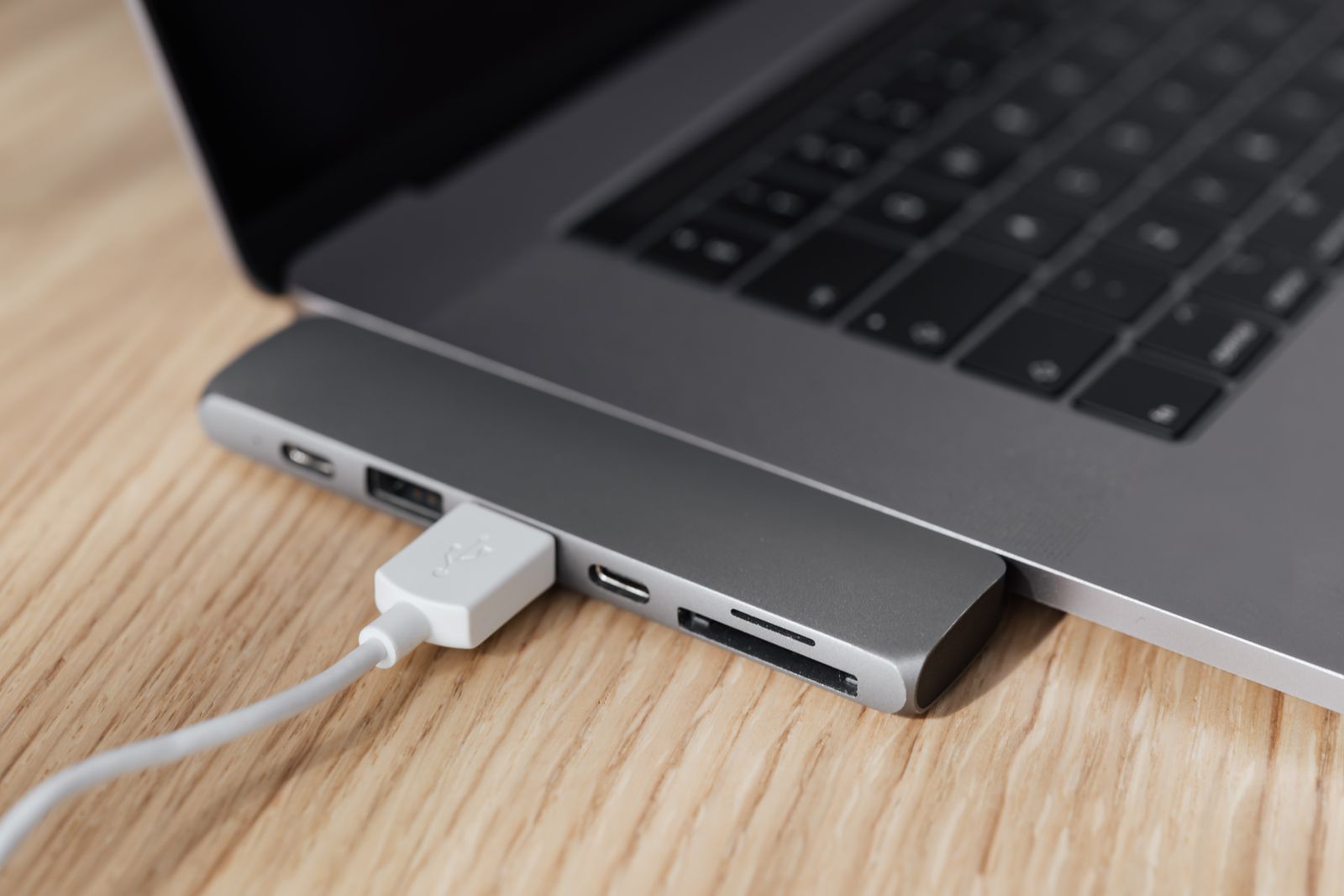
USB-C hubs are small, light and usually hang off the laptop on a short cable. Most take their power from the laptop, and many have a USB-C socket where you can plug in your charger so it passes power through to the laptop as well. They typically offer a few USB sockets, an HDMI socket for a screen and a card reader. A hub is the choice for a bag, for working in different places, and for a laptop that needs just a few more sockets.
A dock
Laptop docking stations are larger and stay on the desk. They usually have their own power supply, charge the laptop through the one cable that connects them, and offer more sockets: several USB ports, a network socket, audio, and outputs for one or more screens. Everything at the desk stays plugged into the dock, and you connect or disconnect the laptop with one cable. A dock is the choice for a home office or a desk you return to every day, and close to essential if you keep a closed laptop in a stand beside a monitor.
Choosing between them
Three questions usually settle it:
- Do you work in one place or many? A hub travels in a laptop bag; a dock with its own power supply does not.
- Do you use a monitor every day? If you do, a dock that charges the laptop and runs the screen through one cable saves plugging in three or four leads each morning.
- How many things do you connect? Two or three things suit a hub. A keyboard, mouse, monitor, network cable, printer and charger together suit a dock.
Plenty of people end up with both: a dock on the desk and a small hub in the bag.
Docks come in two main kinds. USB-C docks work with any laptop whose port carries video and charging. Thunderbolt docks use the extra speed of a Thunderbolt or USB4 port to run more screens and faster sockets at once. Some docks also run extra screens through driver software you install on the laptop, rather than through the port's own video output; the maker's page says which systems the software supports.
Single adapters
If you need only one thing, a single adapter is smaller and simpler than a hub: USB-C to HDMI adapters for a screen or television, Ethernet adapters for a wired network, SD card readers for a camera's card, or USB-C to USB-A adapters for an older plug. If your laptop has the older, larger USB-A sockets rather than USB-C, USB-A hubs add more of those.
The sockets to look for
Start from the things you actually plug in, then choose a hub or dock with a socket for each, plus one spare. The common sockets are these:
| Socket | What it is for | What to check |
|---|---|---|
| USB-A | Memory sticks, mouse and keyboard receivers, printers, older drives | The speed: 5Gbps or 10Gbps for drives, any speed for a mouse |
| USB-C (data) | Newer drives, phones, and accessories with USB-C plugs | That it carries data, not only power in |
| USB-C (power in) | Your laptop's charger, passed through to the laptop | How many watts it passes on |
| HDMI | Monitors, televisions and projectors | The resolution and refresh rate it supports |
| DisplayPort | Computer monitors, especially fast ones | The resolution and refresh rate it supports |
| Ethernet | A wired network or broadband connection | The speed it is rated for |
| SD and microSD | Camera and drone memory cards | Whether both slots can be used at once |
| Audio | Wired headphones or a headset | Whether it handles a microphone as well |
How many sockets you need
Make a list of everything you plug in during a normal week, not just a normal day: the mouse receiver, the keyboard receiver, a memory stick, a phone cable, a printer, a camera card, a webcam. Then add one spare, because something new always turns up. A keyboard and mouse that connect by Bluetooth need no socket at all, which can be the difference between a small hub and a larger one.
USB-C sockets on a hub
Many hubs have two USB-C sockets that do different jobs: one for data and one only for the charger. They are usually marked, often with "PD" for the charging socket. Plug the charger into the wrong one and the laptop will not charge; plug a drive into the charging socket and it will not appear.
HDMI versions and refresh rate
The HDMI socket on a hub is where small differences matter most. HDMI 1.4 handles a 4K picture at up to 30 frames a second, written as 4K at 30Hz. HDMI 2.0 raised that to 4K at 60Hz. A hub that says "4K at 30Hz" will show a sharp 4K picture, and films look fine, but moving the mouse and scrolling feel less smooth than on the laptop's own screen. For a 4K monitor you work on all day, look for 4K at 60Hz. On a lower-resolution monitor, such as 1080p, either will run it at 60Hz. You will also need HDMI cables or DisplayPort cables rated for the resolution you want.
Ethernet and card readers
A wired network socket is worth having if your Wi-Fi is unreliable where you work, or for large uploads and video calls where a steady connection matters. Card readers matter to anyone who takes photos or video on a camera; check whether the hub has full-size SD, microSD or both.
Screens: one, two, and what limits it
Running external screens is where most hub disappointments happen. Four things decide what you get, and the lowest of them wins.
1. What the laptop supports
Every laptop has a maximum number of external screens, set by its graphics, and no hub can raise it. Apple's specifications for the 13-inch MacBook Air with the M2 chip, from 2022, list one external display. Its page for the MacBook Air with the M4 chip says it supports up to two, and that using a supported hub or daisy-chaining displays can enable up to two displays over a single Thunderbolt port but does not increase the maximum number of displays you can connect. Check your own model's specification page before buying a hub with two screen outputs.
2. Whether the port carries video
The hub's screen sockets work only if the laptop's port sends video through DisplayPort Alt Mode, Thunderbolt or USB4. Microsoft's support page for the "display connection might be limited" message says the laptop, the display and the cable must all support it, and suggests connecting the screen directly to the laptop to test.
3. How the hub shares the connection
Inside a USB-C cable there are four high-speed lanes. VESA's standard lets video use some or all of them and leaves the rest for USB data. Some hubs give all four lanes to the screen so they can run 4K at 60Hz, and their USB sockets then fall back to the older, slower USB 2 speed. Others split the lanes, keeping fast USB but limiting the screen. A good listing says what each socket runs at when a screen is connected.
4. Two screens from one plug
Hubs with two HDMI sockets on a single USB-C plug usually use a DisplayPort feature called multi-stream transport. Windows laptops can use it to show different things on each screen. Hub makers' own support pages say macOS does not use it to extend the desktop, so on many Macs both screens show the same picture. If you want two separate screens on a Mac, look at a Thunderbolt dock, or a dock that runs screens through its own driver software, and check that your Mac supports two external displays at all.
When the screen does not work
Apple's advice for a display that stays dark through a hub or dock is to connect it to a port on the Mac itself, which tells you whether the problem is the hub. The same test works on any laptop. USB-C to DisplayPort adapters and HDMI adapters are a simple way to run a second screen from a second port when the hub cannot. The guide to connecting a laptop to a monitor or TV covers the whole subject, and portable monitors are an option if you want a second screen that travels.
Charging through the hub
A hub with a charging socket lets the laptop charge and use the hub through one port. A dock with its own power supply does the same through its one cable. Both rely on USB Power Delivery.
How much power USB-C can carry
USB-IF says USB Power Delivery was limited to 100W, at 20 volts with cables rated for 5 amps, until version 3.1 added an Extended Power Range of up to 240W at 48 volts. The wattage printed on your laptop's own charger tells you what the laptop is designed for.
The hub keeps some for itself
A hub that passes power through uses part of it to run itself and anything plugged into it, so the laptop receives less than the charger supplies. Hub and laptop makers' support pages say so, and the hub's listing should state how many watts it passes on to the laptop. If the hub passes on less than your laptop needs, the laptop may charge slowly or not at all under heavy work. Microsoft's support page lists a charger connected through a hub or dock among the causes of the Windows "slow charger" message, and a charging cable that does not meet the power needed among the causes of a laptop not charging. If that happens, plug the charger straight into the laptop and the hub into another port.
The cable matters
Certified USB-C cables carry a logo with their power rating: 60W for cables rated at 20 volts and 3 amps, and 240W for cables rated for the Extended Power Range. A 60W cable will limit a charger and laptop that could manage more. USB-C to USB-C laptop cables rated at 100W or 240W remove that limit.
The charger
Use a charger with a UK three-pin plug. Electrical safety advice for anyone buying electrical goods online is to check for one, and the Office for Product Safety and Standards warns that cheaply made chargers can overheat, catch fire or cause electric shocks. USB-C laptop chargers come in power levels from small to large; the guide to laptop chargers explains how to match one to your laptop. Stop using any charger, cable or hub that is damaged, smells hot or gets too hot to touch.
Hubs without a charger plugged in
A hub with no charger connected takes its power from the laptop, and so does everything plugged into it. A mouse receiver uses very little; a portable drive uses more. On battery, a busy hub shortens the time until you need to plug in.
Questions people ask
Will any USB-C hub work with my laptop?
Its USB sockets will work in almost any USB-C port. Its screen sockets need a port that carries video, and its charging socket needs a laptop that charges over USB-C. Check your laptop's specification page first.
Why do my two screens show the same picture?
Usually because the hub splits one video signal in a way the laptop does not use to extend the desktop, which hub makers say is common on Macs. A Thunderbolt dock or a dock with its own display software is the usual answer, if your laptop supports two screens.
Why does my laptop say it is charging slowly?
The hub keeps some power for itself, the cable may be rated lower than the charger, or the charger may be too small for the laptop. Try the charger straight into the laptop to see which.
Does a hub slow down my files?
Each socket has its own speed, and all the sockets share the one connection to the laptop. On some hubs, the USB sockets slow down while a 4K screen is connected. For a fast drive, plug it into a fast socket or straight into the laptop.
Do I need a hub, or will an adapter do?
If you only ever plug in one thing, such as a screen or a network cable, a single adapter is smaller and has less to go wrong. Once you need two or more, a hub saves carrying a bag of adapters.
Can I use a hub with a MacBook?
Yes. Check which ports are Thunderbolt or USB4 on Apple's specification page for your model, and how many external displays it supports, before choosing one with screen outputs.
Where to go next
All the hubs, docks and adapters are in hubs, docks and adapters, with USB-C hubs for the bag and docking stations for the desk. For the connections around them:
- USB-C explained: ports, cables, power and video
- How to connect a laptop to a monitor or TV: the cables and settings
- Laptop chargers explained: watts, USB-C charging and UK plugs
- How to choose a laptop stand: the other half of a desk set-up