A laptop is the one thing almost every student needs, and it goes everywhere: lectures, the library, the kitchen table, the train home at the end of term. It gets carried more, charged in more places and used in more awkward positions than most laptops, and it usually has to last the whole course. A few well-chosen accessories make it easier to use and much less likely to be broken or lost. This guide goes through them in order: the essentials, carrying, charging, working well in the library and at home, and keeping it going without spending much.
The essentials
You do not need much. Most students manage well with five things, and some of them you may already have.
- Something to carry it in. A padded sleeve, a backpack with a laptop compartment, or both.
- A charger you can leave in the bag. So the one at home stays plugged in by the desk.
- A mouse. Long essays and spreadsheets are much easier with one than with a trackpad.
- Headphones with a microphone. For recorded lectures, online seminars, revision in noisy places and calls home.
- The right adapter. For a presentation on a projector, a memory stick or a screen in your room.
Beyond these, a stand for the desk in your room and a power bank for long days are the two that make the biggest difference. The accessories for students range gathers the kinds of things in this guide in one place.
Before term starts
The weeks before term are the time to get the kit together, not the first morning of lectures. Charge the laptop fully, install the updates, and set it up with your university account if they have sent you the details. Try the mouse, the headphones and any adapter you plan to use, so you know they work before you need them. Put the laptop's model name and serial number somewhere safe, away from the laptop, because you will need them if it is lost, stolen or needs a repair.
Things you can probably leave out
It is easy to buy more than you need. A large docking station, a second monitor and a cooling pad are useful later for some students, but few need them in the first week. Wait until you know how you actually work, where you study and what your course asks of the laptop, then add the things that would help.
Check what your laptop has first
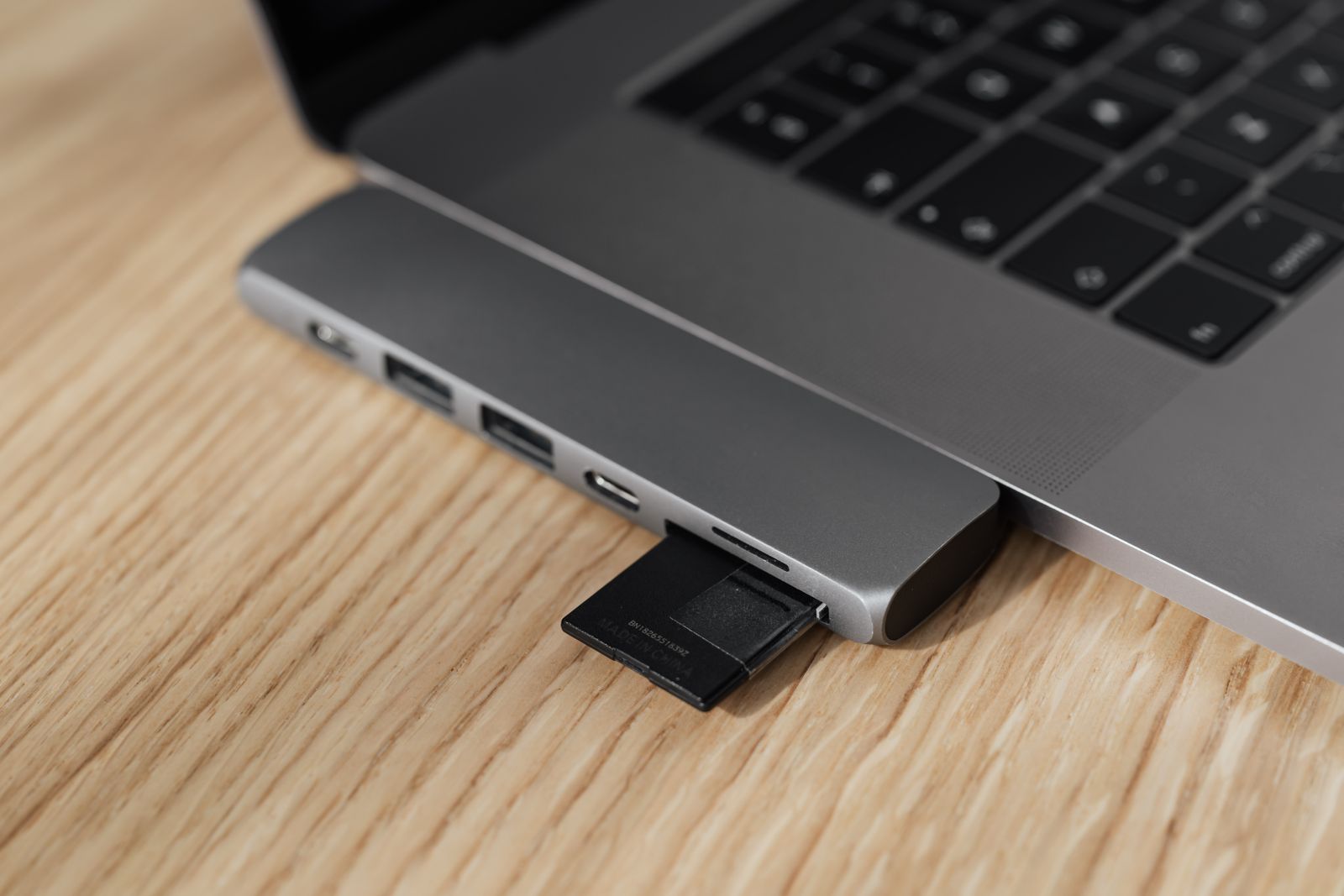
Before buying anything that plugs in, look at the sides of your laptop and note what sockets it has. Many newer laptops have only USB-C, the small oval socket, so anything with the older, larger USB-A plug will need an adapter. Some have HDMI for a screen; many thin ones do not. Your laptop maker's specifications page lists the ports, and it is worth reading before you buy a mouse with a USB-A receiver or a projector adapter you cannot plug in.
Carrying it safely
Most damage to a student's laptop happens between places. It gets dropped from a desk, squashed in an overfull bag, rained on between buildings, or knocked by a water bottle that leaks.
Sleeve, backpack or both
A padded laptop sleeve protects the laptop on its own and inside any bag. It also lets you take the laptop out in the library without bringing the whole bag. A laptop backpack with a padded compartment carries everything else as well, spreads the weight across both shoulders, and keeps your hands free on a bike or a busy pavement. For a long walk to campus with books, a backpack is the comfortable choice. Many students use both, so the laptop stays in its sleeve even inside the backpack.
Choose the sleeve by measuring the laptop, not just by its screen size, because two laptops with the same screen can be different shapes. The guide to choosing a laptop sleeve or bag explains how.
Keeping drinks and the laptop apart
A leaking water bottle or coffee cup is one of the most common ways a student laptop dies. Carry drinks in an outside pocket, not in the main compartment, and keep the laptop in its sleeve. A tech pouch keeps the charger, mouse and cables together, stops them pressing on the laptop's lid, and makes it easy to check nothing is left behind.
Bikes, buses and rain
If you cycle to campus, a backpack keeps the weight centred and both hands on the handlebars, where a bag on one shoulder swings round on every corner. A waterproof bag or a rain cover is worth having in a wet climate, because a laptop sleeve keeps out knocks but not a downpour. On buses and trains, keep the bag on your lap or between your feet rather than in a luggage rack, so it cannot be knocked off or picked up by someone else at the next stop.
Locks and keeping track of it
Laptops left on library desks while someone goes to the toilet or the café are an easy theft. Take it with you, or ask a friend to watch it. Laptop cable locks tie a laptop to a desk leg, but they need a lock slot on the laptop, and many thin laptops have none. Check yours before buying one. A sticker or skin on the lid makes your laptop easy to tell apart from the identical one on the next desk.
Flying home
If you fly between home and university, the Civil Aviation Authority's advice is that phones, tablets and laptops should normally be taken with you in the cabin, and that power banks must always go in the cabin, never in checked luggage, with no more than two per person. Power banks should not be charged during the flight, and any battery that is damaged, overheating or swollen should not be carried at all. Airlines set their own limits, so always check with yours before you travel. The guide to charging a laptop on the move goes into power banks and flying in more detail.
Charging around campus
Lecture rooms often have few sockets, and the ones in the library are taken by mid-morning. Planning for that saves a lot of low-battery panic.
A second charger
The charger that came with the laptop tends to live by the desk at home. A second one in the bag means you never have to unplug and pack it each morning, and never forget it. Most newer laptops charge over USB-C, and USB-C laptop chargers come in different wattages. Check the wattage on your laptop's original charger or its specifications and choose one with at least that. A charger with more watts than the laptop needs is fine, because the laptop draws only what it asks for, and a larger one can often charge a phone too. The guide to laptop chargers explains the numbers.
The UK plug
Choose a charger with a UK three-pin plug. That is the standard plug described in the Plugs and Sockets etc. (Safety) Regulations 1994: three rectangular pins, a fuse, and made to fit the sockets in UK homes and halls. A charger with a foreign plug in a travel adaptor is not made for UK sockets. Unsafe and counterfeit chargers are a known problem: the government's Office for Product Safety and Standards has published safety reports on counterfeit USB-C and laptop chargers. A charger that buzzes, smells of burning, gets very hot or has a damaged cable should not be used again.
Power banks
A laptop power bank keeps a laptop going through a long day away from a socket. It needs to be one made for laptops, with a USB-C output that gives enough watts for your laptop; a small phone power bank will not charge most laptops. Power banks are heavy for their size, so they suit long days more than a short trip to a lecture.
Start the day full
The simplest way to avoid hunting for a socket is to start each day with a full battery. Charge in the evening while you are in the room and awake, and unplug when it is full, rather than leaving it on charge all night. Turn the screen brightness down a little and close programs you are not using during long days, and the battery goes further. If your laptop has a battery-saving mode, it is worth switching on in a long lecture.
Charging safely in halls
Halls and shared houses are full of devices charging at once. The London Fire Brigade's advice on batteries and chargers is to never cover chargers or charging devices, which includes using your laptop power lead in bed, and not to leave things charging long after the charge is complete. Charge on a desk or a table, not on a duvet or a sofa. If a laptop battery or a power bank swells, gets very hot or is damaged, stop charging it, turn it off, do not try to open it, and contact the maker.
Working in the library and at home
Hours of reading and writing on a laptop at a low desk, hunched over a small screen, are hard on the neck and shoulders. A few things make a big difference, and most of them fold small enough to take to the library too.
Raise the screen
The HSE's guidance on display screen equipment is written for people at work, but its advice suits anyone who spends long hours at a laptop. It suggests using a separate keyboard and mouse so the laptop screen can be raised on a riser. A foldable aluminium stand lifts the screen nearer eye level and folds flat into a bag, so it works in the library as well as in your room. The guide to setting up a laptop desk explains the heights and distances.
A mouse and keyboard
Once the screen is raised, the laptop's own keyboard is too high to type on comfortably, so a separate mouse and keyboard go with the stand. Wireless mice with a small receiver or Bluetooth are the easiest to carry. In a quiet library, choose a mouse with quiet clicks; a loud keyboard or mouse is noticed by everyone on the same table. At home, a full-size keyboard with a number pad helps with statistics and spreadsheets.
A bigger screen in your room
For long essays, coding or data work, a second screen in your room makes life much easier: the reading on one screen, the writing on the other. A monitor or a TV can be connected with an HDMI cable, or a USB-C to HDMI adapter if the laptop has only USB-C. With a monitor on the desk, the laptop can sit to one side on its stand, and the screens can be set at a comfortable height in front of you. The desk set-up guide covers where to put them.
Headphones and calls
Headsets with a microphone are useful for online seminars, recorded lectures and group calls, and they let you listen without disturbing anyone. A microphone near your mouth also sounds clearer than the laptop's own in a busy kitchen. A webcam cover gives peace of mind in a shared room; on a MacBook, Apple advises using only a very thin one, or taking it off before closing the lid, because a thick cover can damage the screen.
Presentations
Seminar rooms usually have a projector or a big screen with an HDMI cable. If your laptop has no HDMI socket, a USB-C to HDMI adapter is the thing to keep in your bag. Try it before the day you present, with the laptop's display settings, so you know which way round it works. A small USB-C hub does the same job and adds USB-A sockets and a card reader as well.
Breaks
The HSE suggests short breaks often, rather than longer ones less often, getting up to move around or at least stretch and change position. During revision that is easy to forget. Getting up every so often to refill a drink or walk round the room is good for concentration as well as your back.
Looking after it on a budget
A laptop that lasts the whole course is the cheapest one. Most of what keeps it going costs very little.
Keep it clean
Crumbs in the keyboard, a greasy screen and dust in the vents all shorten a laptop's life. A laptop cleaning kit with a soft brush, a microfibre cloth and a screen spray covers most of it. Switch the laptop off and unplug it first. A keyboard cover keeps crumbs and small spills out of the keys if you eat at your desk, though on a MacBook it should be thin, for the same reason as a camera cover. The guide to cleaning a laptop safely explains what to use and what to avoid.
Let it breathe
Laptops used on beds and duvets for hours run hot, and heat is hard on batteries. Apple's safety information, for example, says not to use a laptop on a pillow, blanket or other soft material that can block its ventilation, and the same is true of any laptop. If you work in bed, a lap tray or a flat board under the laptop keeps the vents clear.
Look after the battery
Batteries wear with time, and heat speeds that up. Keep the laptop out of hot cars and direct sun, and do not leave it charging under a pillow or in a closed bag. Many laptops have a setting that stops charging below full or learns your routine, which can help the battery last longer; look in the battery or power settings.
Back up your work
The most expensive thing on a student laptop is the work on it. Use your university's cloud storage, or a spare drive, and save copies regularly. A laptop can be replaced; a dissertation the night before the deadline cannot.
Keep it up to date
Install the updates your laptop offers, for the operating system and for the programs you use. They fix faults and close security holes, and a laptop that has missed months of updates is the one that refuses to start properly on the morning of a deadline while it catches up. Set updates to install overnight or at a time you are not working, and restart the laptop now and then rather than only ever closing the lid. A password or fingerprint on the laptop, and on the screen when it wakes, keeps your work and accounts safe if it is left on a desk or taken.
Buy for the laptop you have
Accessories bought for the wrong laptop are money wasted. Check your laptop's ports before buying anything that plugs in, its measurements before buying a sleeve, and the wattage of its charger before buying a spare. If you are likely to change laptops during your course, choose things that move easily between them: a USB-C charger, a Bluetooth mouse and a padded backpack will suit most laptops, where a hard-shell case fits only one model.
Spend where it matters
If money is tight, the order to buy in is a sleeve or padded bag first, because it protects everything else, then a second charger, then a mouse. A stand and a keyboard are the next step when you start spending long evenings at a desk.
Questions people ask
Do I need a laptop bag if I have a backpack?
A backpack with a padded laptop compartment is enough for many students. A sleeve inside it adds protection and lets you carry the laptop on its own in the library.
Can I take a power bank on a plane?
Yes, in your hand luggage only. The Civil Aviation Authority says power banks must never go in checked luggage, allows two per person, and says not to charge one on the flight. Check your airline's own limits too.
Which charger should I buy as a spare?
One with a UK three-pin plug, the right connector for your laptop, and at least the wattage of the charger that came with it.
Is it all right to charge my laptop on my bed?
Fire services advise against it. The London Fire Brigade says never to cover chargers or charging devices, including using a laptop power lead in bed. Charge on a desk or table.
Do I need a keyboard and mouse as well as a stand?
For a stand to help, yes. Raising the laptop puts its own keyboard too high to type on comfortably, so a separate keyboard and mouse are what make a stand work for long sessions.
What do I need to plug into a projector?
Usually an HDMI connection. If your laptop has only USB-C, a USB-C to HDMI adapter or a hub with HDMI will do it.
Where to go next
For more on each part of the kit list:
- How to choose a laptop sleeve or bag
- Charging a laptop on the move: power banks and car chargers
- Setting up a laptop desk that is kind to your back
- How to clean a laptop safely
Delivery is included in every price and tracked to your door.