Laptops are now good enough to play most games, and many are sold for exactly that. What lets them down is usually not the chip inside but everything around it: a flat keyboard built for typing, a trackpad that was never meant for aiming, small speakers, and a body that gets hot when the graphics are working hard. A few accessories fix most of that. This guide explains what each one does, what to look for, and how to keep the laptop cool enough to keep playing well.
Why accessories help with games
A laptop is a compromise. Its keyboard has to be thin, its trackpad has to sit in the middle, and its fans have to fit in a case a couple of centimetres thick. That is fine for work, but games ask more of every part.
- Aiming and moving. A trackpad is fine for a slow strategy game but hopeless for anything where you aim. A mouse is faster and more precise, and a gaming mouse adds extra buttons where your thumb rests.
- Pressing several keys at once. In many games you hold one key to move, another to run and press a third to jump. Some laptop keyboards cannot register every combination. A gaming keyboard is built to.
- Playing from the sofa. Racing, sports and many adventure games are made for a controller, and play better with one.
- Hearing and talking. Footsteps, directions and team chat are clearer through a headset than through laptop speakers, and a headset microphone keeps the game's own sound out of your voice.
- Heat. A laptop that gets too hot slows itself down to protect its parts, which shows up as stutter and lower frame rates.
Playing on a bigger screen
Many people who game on a laptop end up connecting it to a monitor or a TV for longer sessions. A bigger screen at the right distance is easier on the neck than leaning over a laptop, and the laptop can then sit to one side with its vents clear. Most gaming laptops have an HDMI socket, and many also send a picture from a USB-C port. A fast monitor shows more frames each second than a TV built for films, but only if the laptop and the cable can send them, so check what your laptop's port supports before buying a cable. When the laptop drives an outside screen, a separate keyboard and mouse, or a controller, become essential rather than nice to have.
None of these accessories makes a laptop faster than it is. They let you use the speed it already has. The accessories for gamers range brings them together.
Where you play
Think about where the laptop sits when you play. At a desk, a mouse, a keyboard and a stand give you a set-up much like a desktop computer. On a sofa or a bed, a controller and a headset are more comfortable, but the laptop then sits on a soft surface, which is the worst place for its cooling. More on that below.
Gaming mice
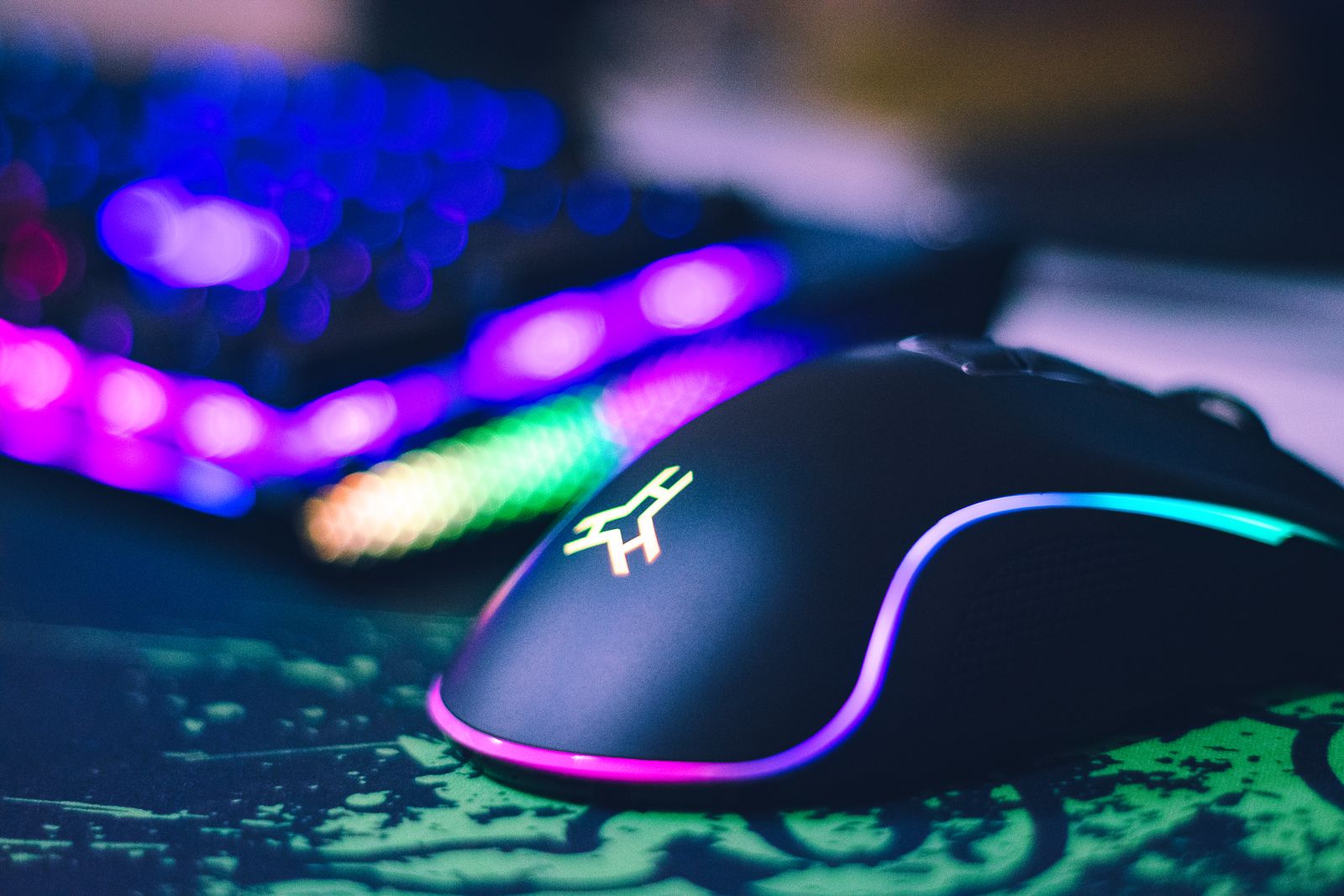
Gaming mice are built to track quickly and exactly, to respond without delay, and to stay comfortable through long sessions.
The sensor
Every modern mouse uses an optical sensor that photographs the surface under it many times a second. Gaming mice use faster, more accurate sensors that do not lose track when you move the mouse quickly. The sensitivity is given as DPI or CPI, the number of dots the pointer moves for each inch the mouse moves. A higher number is not better in itself. What matters is that you can set it, usually with a button on the mouse or in its software, so the pointer moves the distance you want. Many players use a lower setting for careful aiming and a higher one for menus.
Polling rate
The polling rate is how often the mouse tells the laptop where it is. Gaming mice commonly report 1,000 times a second, and some more. A higher rate makes movement smoother and more immediate on screen, though the difference above that common setting is small for most people.
Shape, weight and buttons
The shape matters more than any number on the box. A mouse that suits a claw grip, where the fingertips arch over the buttons, feels wrong in a palm grip, where the whole hand rests on it. Check the size against your hand, and whether it is shaped for the right hand or for either. Lighter mice are quicker to flick across the mat; heavier ones feel steadier. Side buttons under the thumb are useful for reloading, pushing to talk or going back in a web page. More buttons suit games with many abilities, but they can get in the way if you do not use them.
Software and settings
Most gaming mice come with software to set the sensitivity steps, change what each button does and set the lighting. Many store those settings on the mouse itself, so they travel with it to another computer. The software is often made for Windows only, so if you play on a Mac, check the product page; the main buttons, the scroll wheel and the sensitivity button usually work without it.
Wired or wireless
A wired gaming mouse never needs charging and never drops out. A wireless one with its own USB receiver is now quick enough for most players, and gives you a tidy desk. Bluetooth mice are fine for everyday use but are usually not the choice for fast games, because the link is built to save power rather than to respond fastest. The guide to choosing a wireless mouse explains receivers and batteries.
The mat
A gaming mouse works best on a proper surface. A cloth mat gives control and a little grip; a hard mat lets the mouse glide faster. Large mouse mats and desk mats cover enough of the desk for wide sweeps, and for the keyboard as well.
Gaming keyboards
Gaming keyboards are built to register every key you press, however many at once, and to feel the same on the millionth press as on the first.
Mechanical or membrane
Most laptop keyboards, and many cheaper keyboards, use a membrane: a rubber sheet under the keys that closes a circuit when pressed. Mechanical keyboards have a separate switch under every key. They feel crisper, the point at which a key registers is clearer, and they last longer. The switches come in three broad kinds:
- Linear switches move smoothly straight down with no bump. Many players like them for fast repeated presses.
- Tactile switches have a small bump you feel at the moment the key registers, without a loud click.
- Clicky switches have the bump and an audible click. They are satisfying to type on and noisy for anyone sharing the room, or listening on your microphone.
Rollover and anti-ghosting
These two terms describe how many keys a keyboard can register at once. Anti-ghosting means the keyboard does not invent or lose presses when several keys are held together. N-key rollover means every key is registered no matter how many are down. For games where you move, run and act at the same time, look for one or both on the product page.
Size and layout
A full-size keyboard has a number pad on the right. A tenkeyless keyboard drops the number pad, which brings the mouse closer to the keyboard, and many players prefer that because the right arm sits more naturally. Smaller layouts drop the function row and arrow keys as well, which saves space but means using a second key to reach them. For a UK layout, check for the pound sign on the 3 key and a tall Enter key; many gaming keyboards are sold with a US layout. The guide to choosing a keyboard explains layouts in more detail.
Wired or wireless keyboards
A wired keyboard is the usual choice for games, because it never needs charging and never drops a key press. Wireless gaming keyboards with their own USB receiver are made to respond quickly and suit a tidy desk or a keyboard used from the sofa. A Bluetooth keyboard is handy for typing but, like a Bluetooth mouse, is not built for the fastest response. Some keyboards offer all three, with a switch on the back.
Lighting, keycaps and rests
Backlighting helps you find keys in a dark room, and many keyboards let you light only the keys a game uses. On a mechanical keyboard, the keycaps can be pulled off and changed for replacement keycaps in another colour, material or profile. Keep the loose keycaps and the puller away from young children, as they are small enough to swallow. A wrist rest in front of a tall mechanical keyboard keeps the wrists from bending upwards during long sessions.
Controllers
Many games on a computer play just as well, or better, with a controller: racing, football, fighting, platform and many adventure games are designed for one. PC controllers connect to a laptop by a USB cable, by their own wireless receiver, or by Bluetooth.
On Windows
Most modern games on Windows expect a controller laid out like an Xbox one: two sticks, a cross-shaped direction pad, four face buttons, two shoulder buttons and two triggers. Microsoft's developer documentation describes the system Windows games use to read this kind of controller as XInput, and an older system as DirectInput. Many PC controllers have a switch or a button combination to choose between them. If a game does not see your controller, switching it to XInput mode is usually the first thing to try. Many games and game launchers also have their own controller settings, where buttons can be changed.
On a Mac
Apple's support page on game controllers says a Mac can pair with Xbox, PlayStation "or other Bluetooth games controller", using the same steps for any Bluetooth controller: put the controller into pairing mode, then choose it in Bluetooth settings. It also says that features such as lights or an audio socket vary by controller and by the app. So a Bluetooth controller is the safer choice for a Mac; check the product page lists macOS if you play on one.
Comfort and layout
Controllers come in two common layouts. On one, the left stick sits above the direction pad, which many players find natural for games where you move with the stick most of the time. On the other, the two sticks sit side by side below the buttons. Neither is better; it is what your thumbs are used to. Look for grips that fill your hands, triggers that press smoothly, and vibration if you like to feel the game. Some controllers have extra paddles on the back, which let you press buttons without taking a thumb off the stick.
Wired, receiver or Bluetooth
A cable is simplest and never needs charging. A controller with its own receiver usually pairs instantly and responds quickly. Bluetooth leaves the ports free and works with phones and tablets too. Rechargeable controllers save on batteries; those that take AA batteries can be swapped in seconds when they run out mid-game.
Headsets
Gaming headsets are headphones with a microphone on an arm, made to be comfortable for hours and to make the direction of a sound easy to tell.
How they connect
- 3.5mm plug. One combined plug carries sound in and out. Most laptops have a single combined socket that takes it. Headsets with two plugs, one for the headphones and one for the microphone, need a splitter on a laptop with one socket.
- USB. The headset has its own sound chip, which can mean clearer sound and often a volume wheel and a mute button on the cable. It needs a free USB port or an adapter.
- Wireless with a receiver. A small USB receiver gives a fast, steady link without a cable across the desk.
- Bluetooth. Convenient and works with a phone, but Bluetooth sound arrives slightly behind the picture, which some players notice in fast games.
If your laptop's own socket hisses or picks up noise, a USB sound card gives a cleaner headphone and microphone connection from a USB port.
Comfort and the microphone
Comfort decides whether you keep wearing a headset. Look at the weight, the padding on the band and the ear cushions, and whether the cups sit round the ear or on it. Glasses wearers usually find soft cushions that close round the ear more comfortable. A microphone that folds up to mute, or has a mute button, saves fumbling mid-game. The guide to microphones and headsets covers microphones in more detail.
Choosing it as the sound device
When you plug in a USB or wireless headset, the laptop usually switches to it, but not always. If the sound still comes from the speakers, or your friends cannot hear you, open the sound settings on the laptop and choose the headset as both the output and the input. Many games and chat programs also have their own audio settings, and they need the headset picking there too.
Surround sound
Many headsets offer virtual surround, which uses software to make sounds seem to come from around you through two speakers. Some players find it helps them place footsteps; others prefer plain stereo. It is worth trying both.
Keeping it cool
Games work a laptop harder than anything else most people do. The chip and the graphics heat up, the fans speed up, and if the heat cannot get out, the laptop slows itself down to protect its parts. That is when a game that ran smoothly at first starts to stutter after twenty minutes.
The basics
The most important thing is free airflow. Most gaming laptops draw air in through vents underneath and push it out through the back or sides. Play on a hard, flat surface, never on a duvet, a cushion or your lap for long, and keep the vents clear of anything that blocks them. Apple's safety information for its laptops, for example, says not to use them on a pillow, blanket or other soft material that can block ventilation, and the same applies to any laptop. Dust in the vents also traps heat, and the guide to keeping a laptop cool explains how to keep them clear.
Cooling pads and stands
Laptop cooling pads are flat stands with one or more fans that blow air up into the laptop's underside. They raise the back of the laptop so air can get underneath, and the fans add a little extra flow. Cooling stands with fans do the same and lift the screen higher. Clip-on fan coolers fix to the side vent and draw hot air out. Whether any of them help depends on where your laptop takes its air in, so check the vents before choosing: a pad blowing at a solid panel does little.
A cooling pad will not turn an overheating laptop into a cool one. What it does well is keep air moving under a laptop that is working hard, and give it a stable, raised surface, which on its own often makes a noticeable difference.
Plug it in
Many laptops run their graphics slower on battery to make the charge last. For games, plug in. On Windows, Microsoft's support page explains that the power mode is under Start, Settings, System, then Power and battery, with a choice of Best performance, Balanced and Best power efficiency. Best performance gives games more speed and makes more heat, so it is worth pairing with good airflow. Some gaming laptops also come with their own maker's software for fan and performance settings.
Breaks
Long sessions are hard on the eyes, wrists and back as well as the laptop. The HSE's guidance for people who use screens at work suggests short breaks often, rather than longer ones less often, getting up to move or at least stretch. The same habit helps after a long evening of games.
Questions people ask
Do I need a gaming mouse, or will any mouse do?
Any mouse is better than a trackpad for games. A gaming mouse adds a faster sensor, a higher polling rate, adjustable sensitivity and extra buttons, which matter most in shooting and action games.
Why does my controller not work in a game on Windows?
Many games expect an Xbox-style controller read through XInput. If your controller has a mode switch, set it to XInput, then check the game's own controller settings.
Does a cooling pad really help?
It helps most when the laptop takes in air from underneath, by lifting it and adding airflow. It cannot fix blocked or dusty vents, or a laptop used on a soft surface.
Is a wireless headset too slow for games?
A headset with its own USB receiver is made for games and responds quickly. Bluetooth headsets can lag slightly behind the picture, which some players notice.
Can I play on my TV with the laptop?
Yes, with an HDMI cable if the laptop has an HDMI socket, or a USB-C to HDMI adapter if it sends video over USB-C. A controller and a wireless headset then let you play from the sofa.
Can I use a mechanical keyboard in a shared room?
Yes, but choose linear or tactile switches rather than clicky ones, which are much louder.
Where to go next
For the detail on each part of the set-up:
- How to keep a laptop cool
- How to choose a wireless mouse
- How to choose a keyboard for your laptop
- Microphones and headsets for calls and recording
- How to connect a laptop to a monitor or TV, for playing on a bigger screen
Delivery is included in every price and tracked to your door.