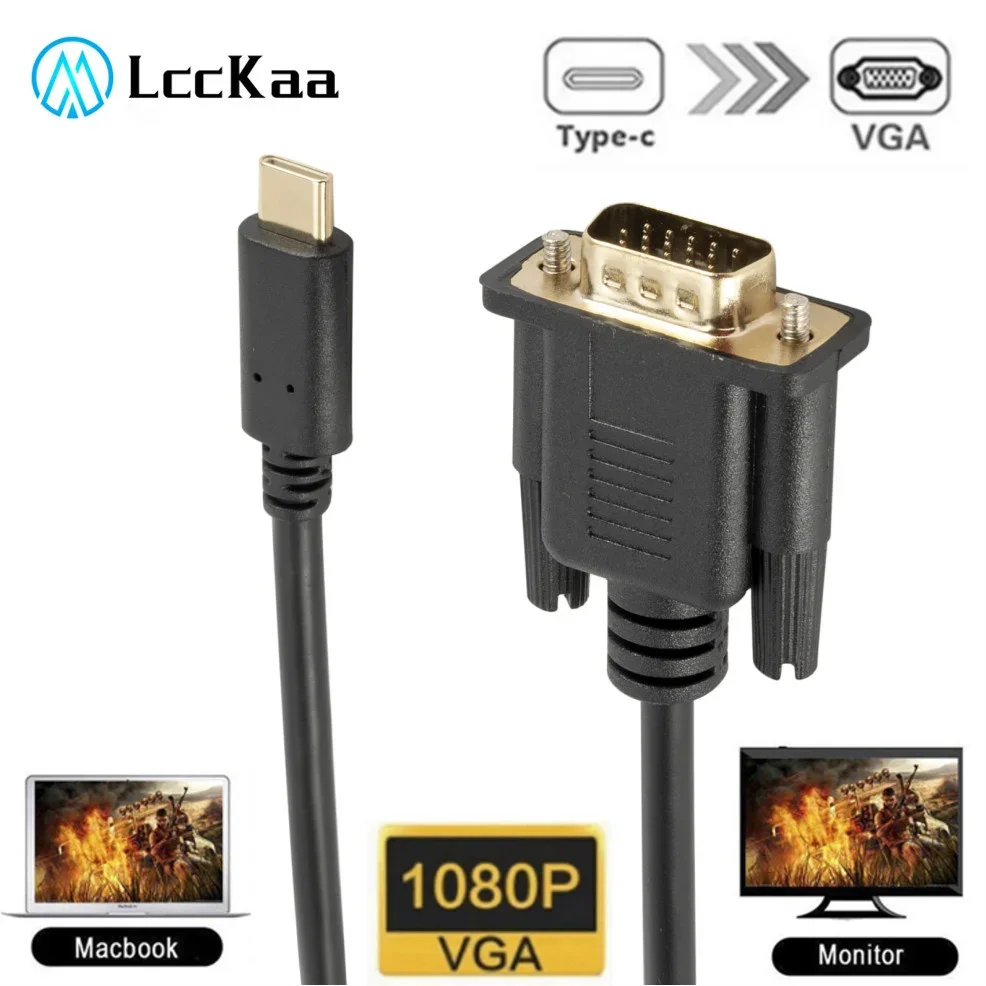
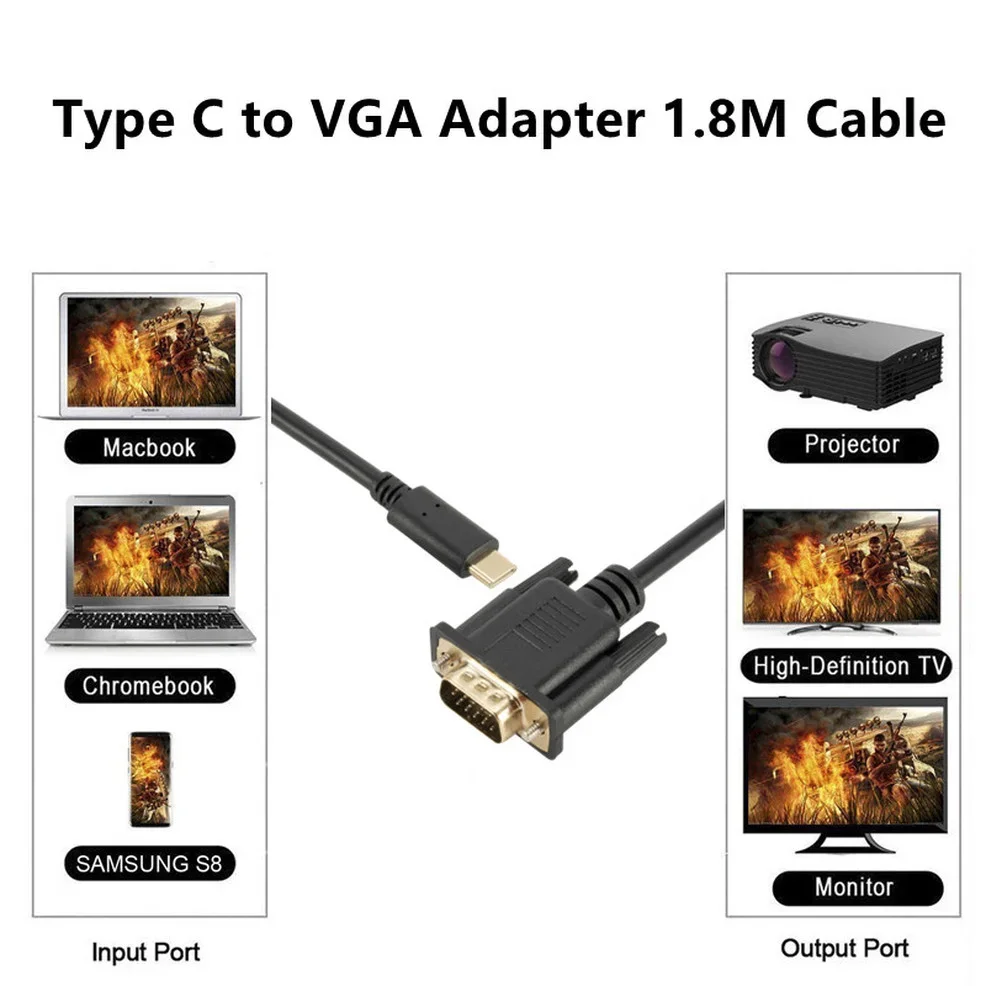
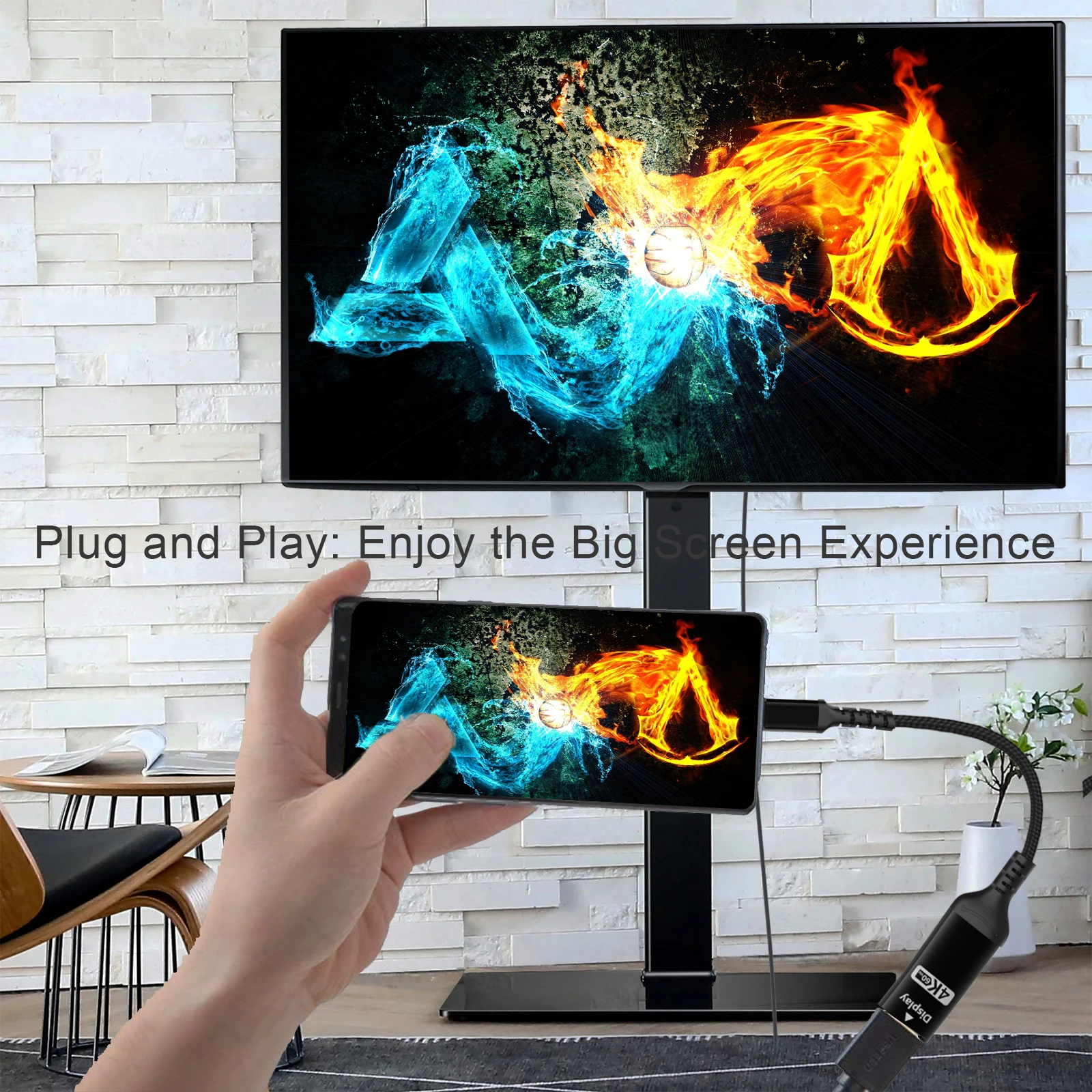
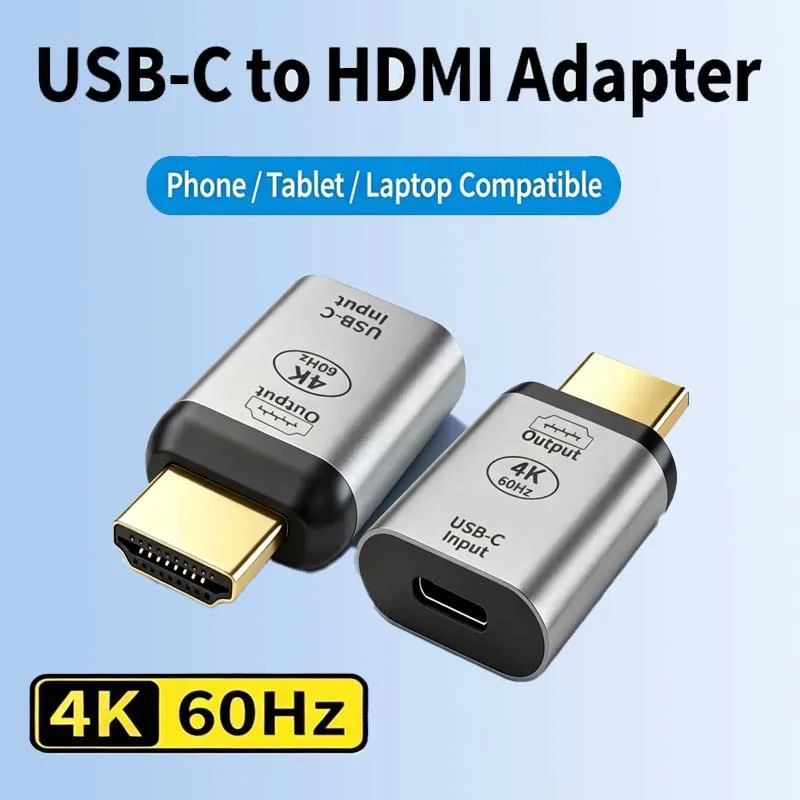
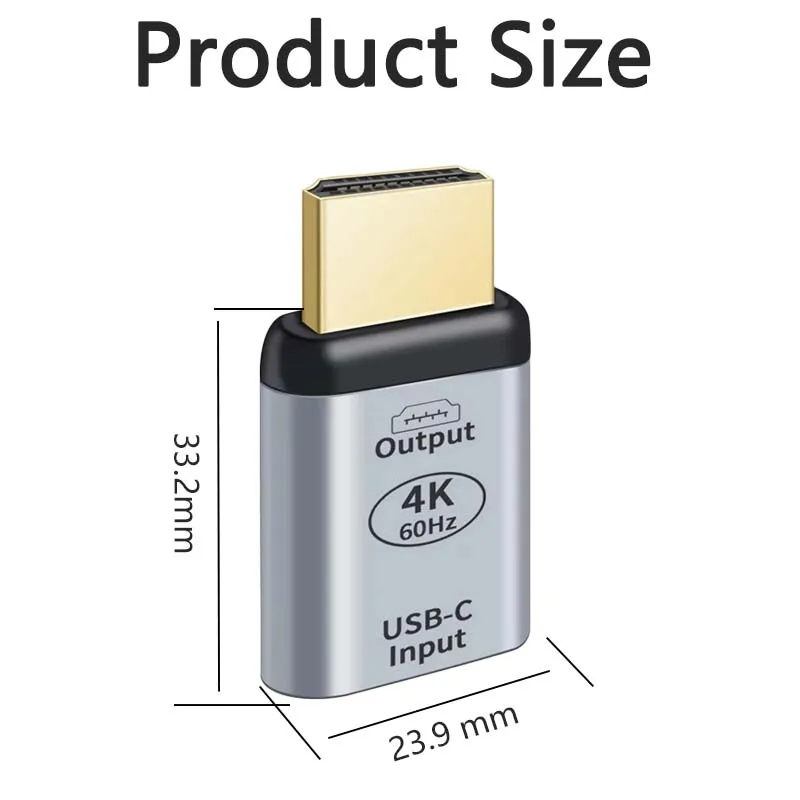
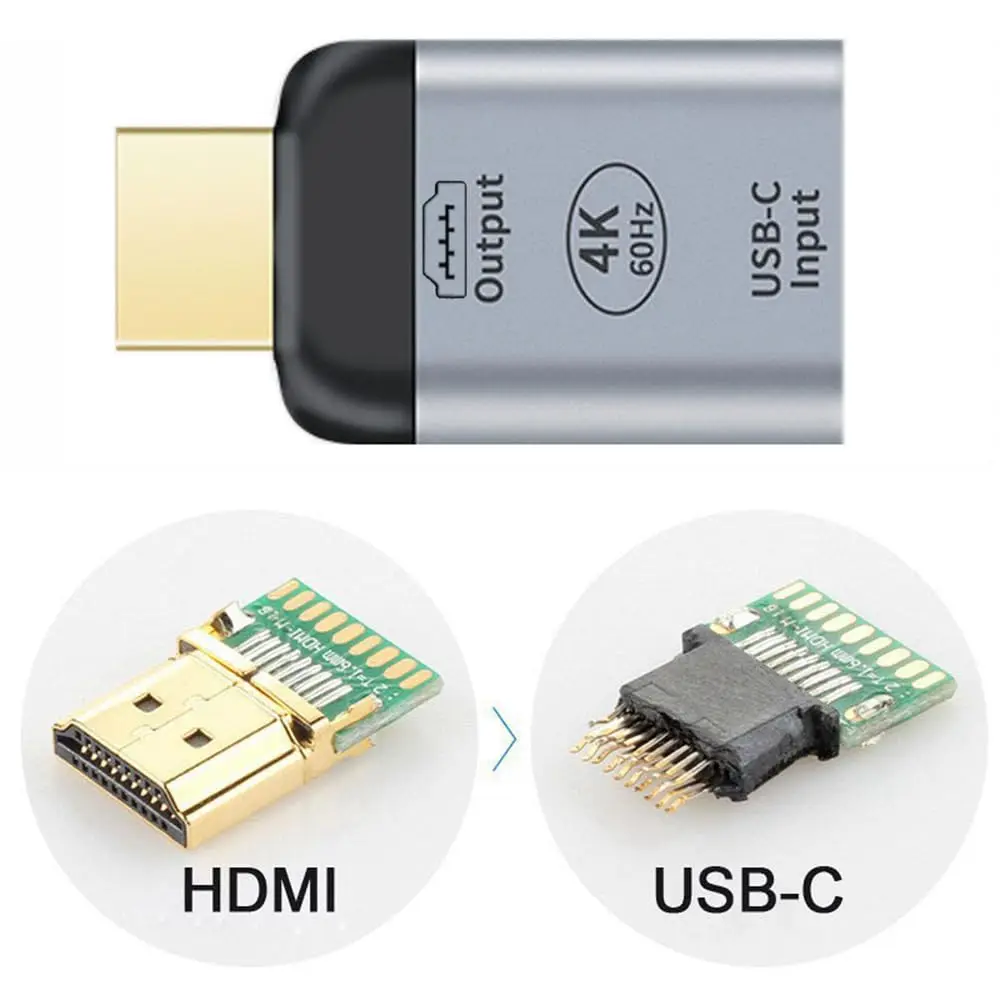
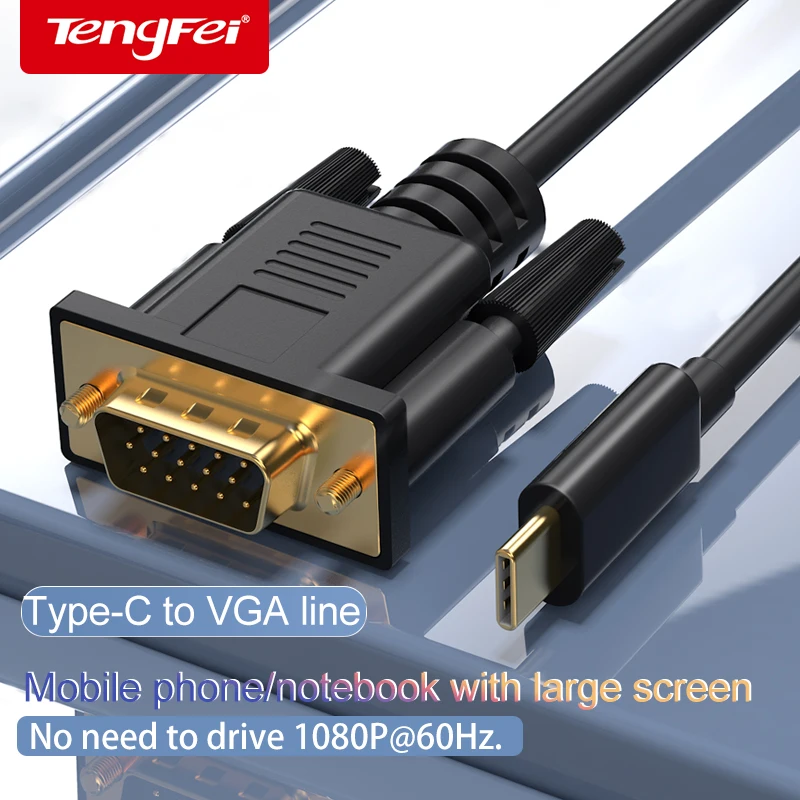
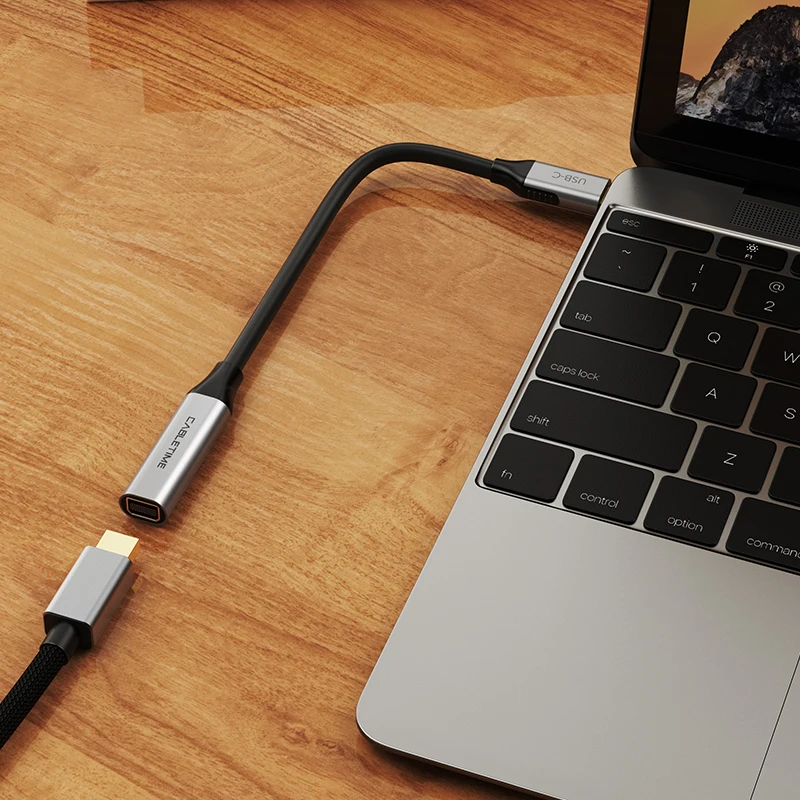
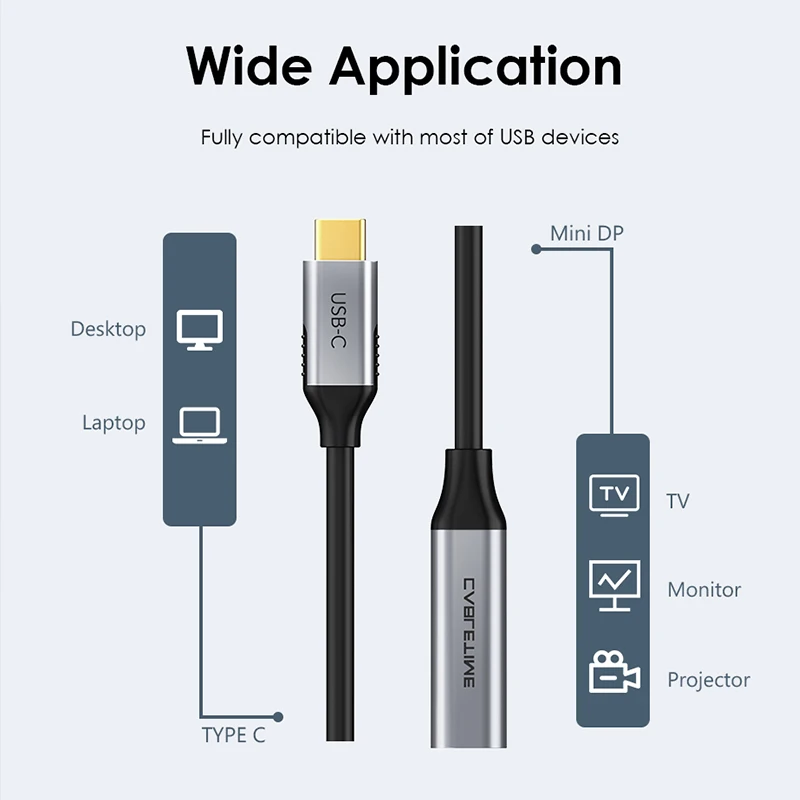
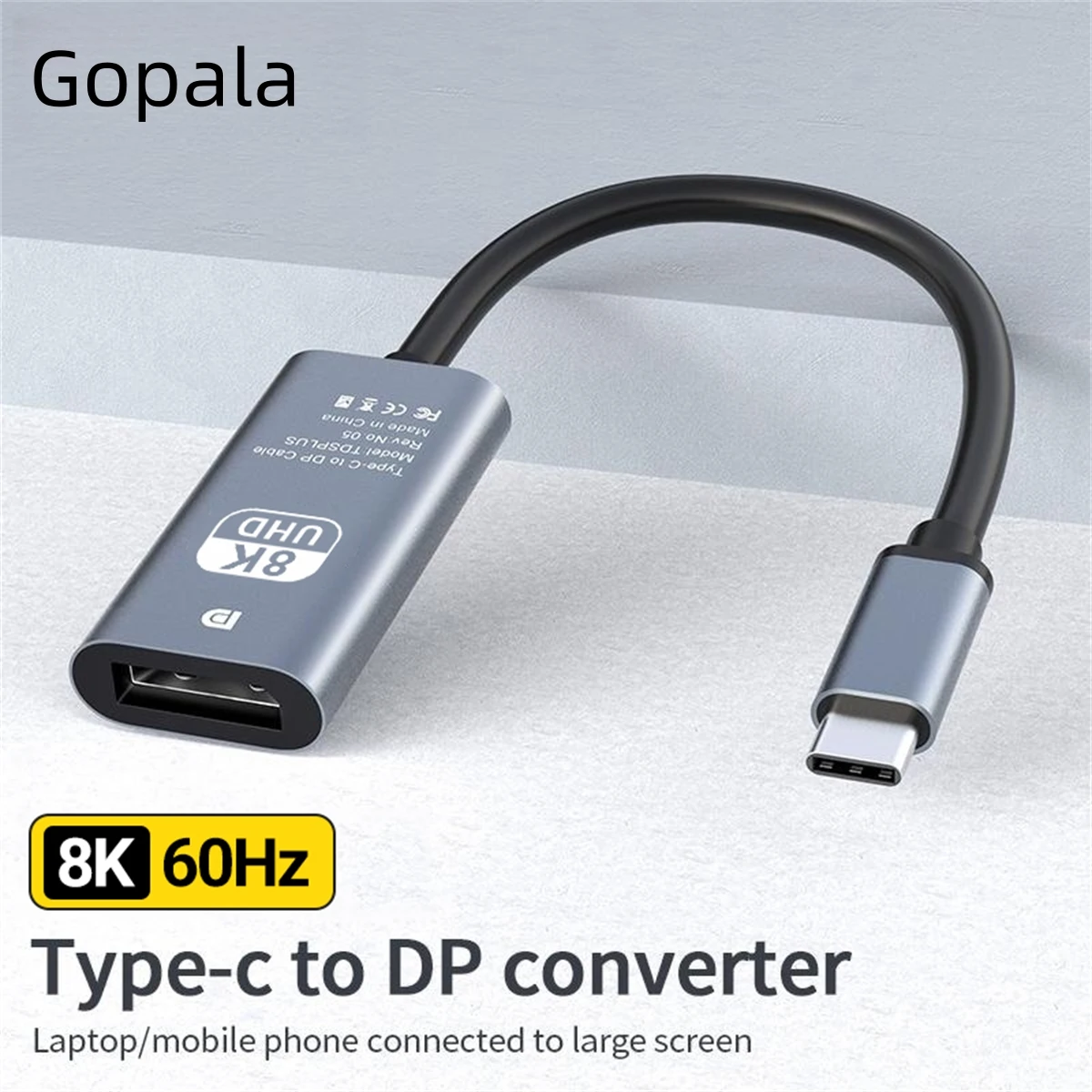
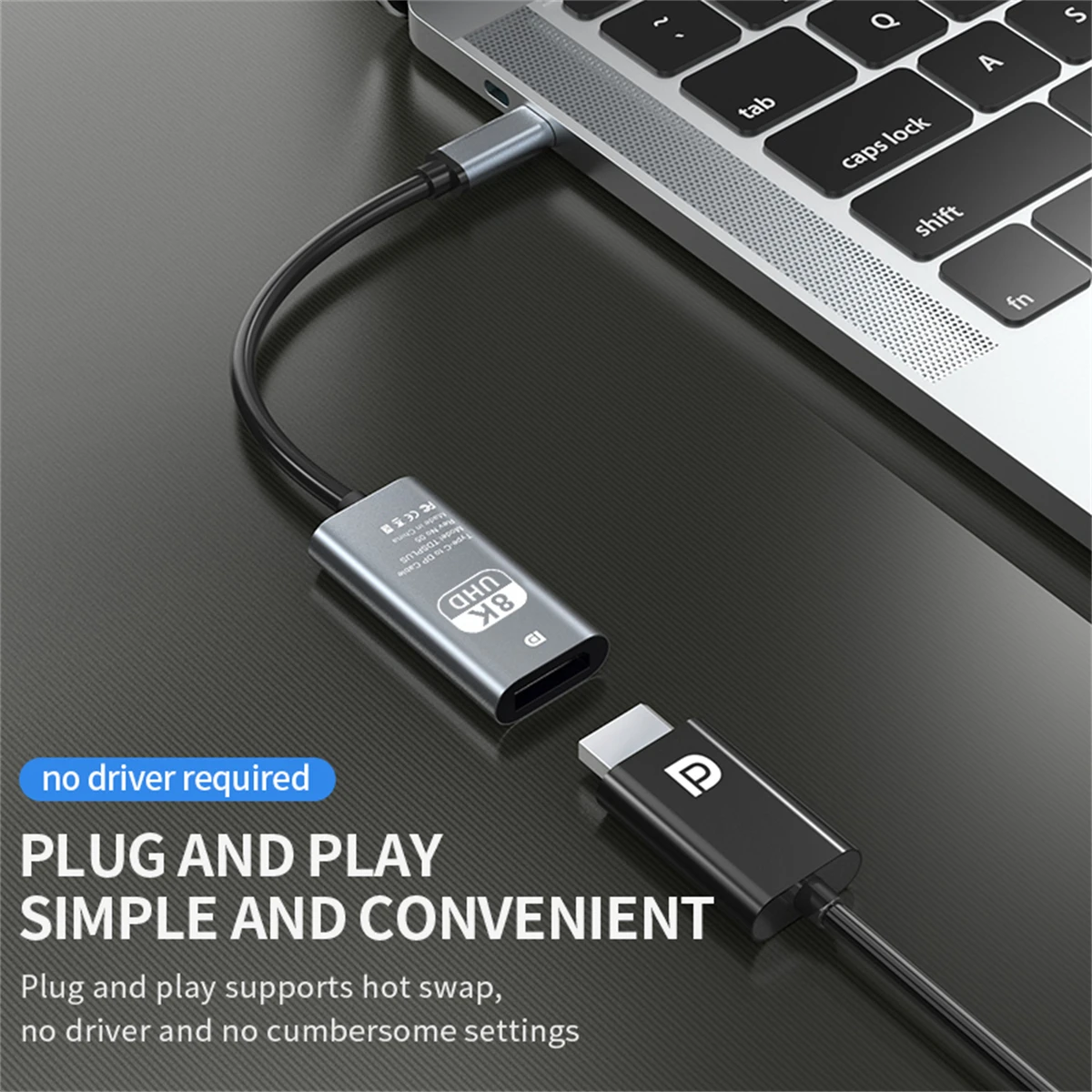
One screen from a USB-C port
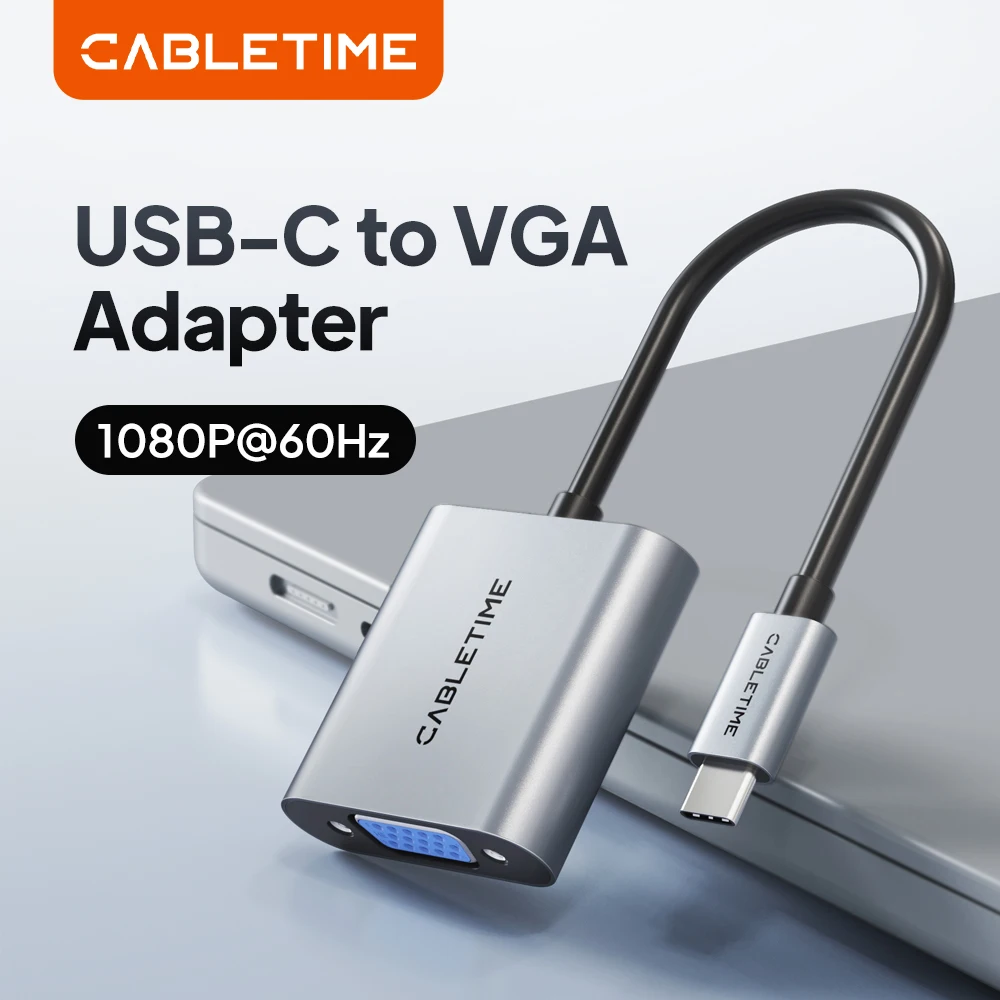
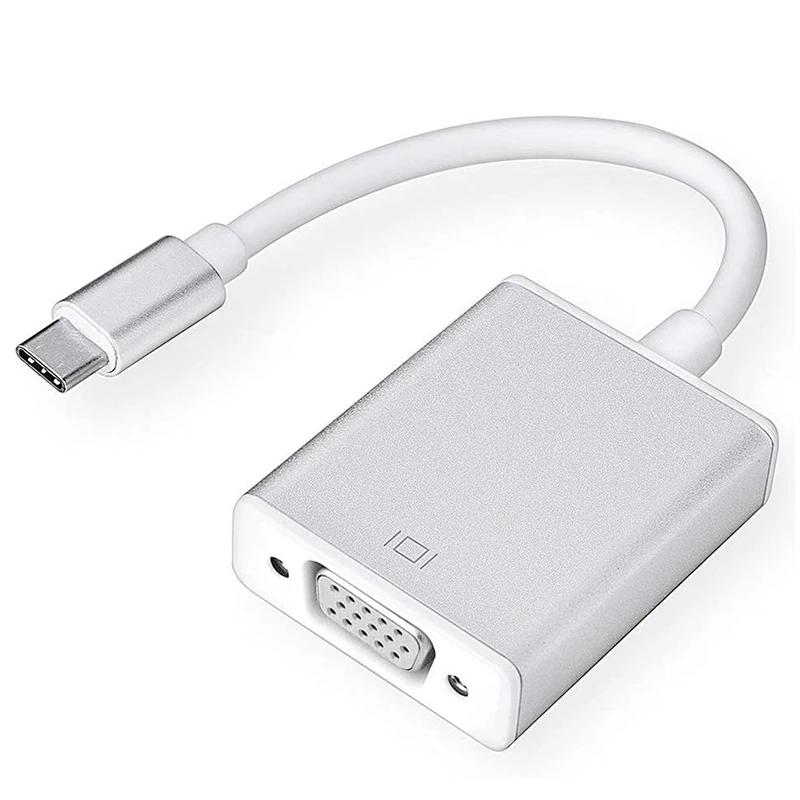
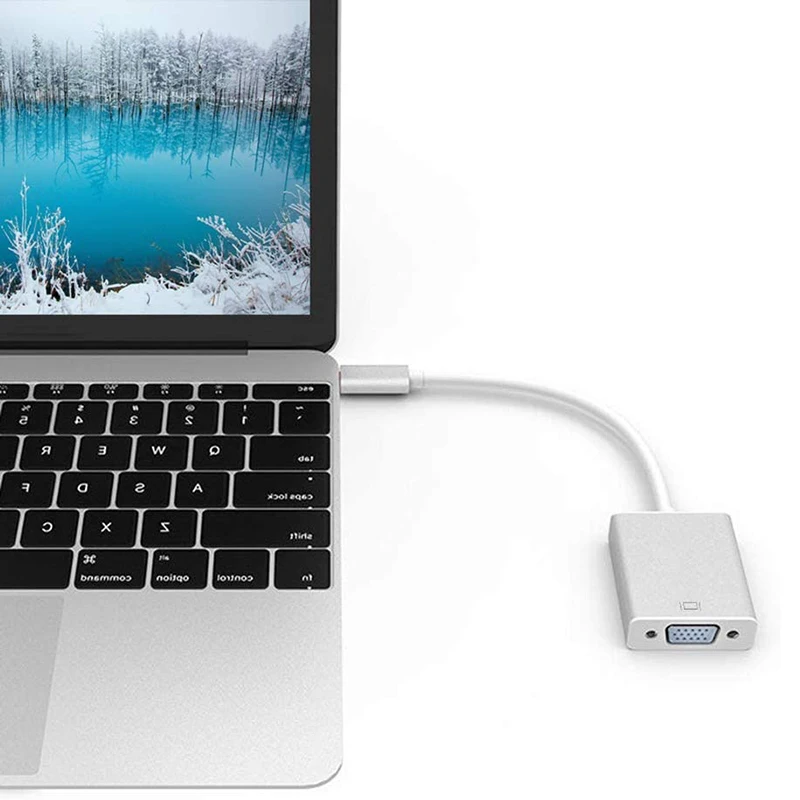
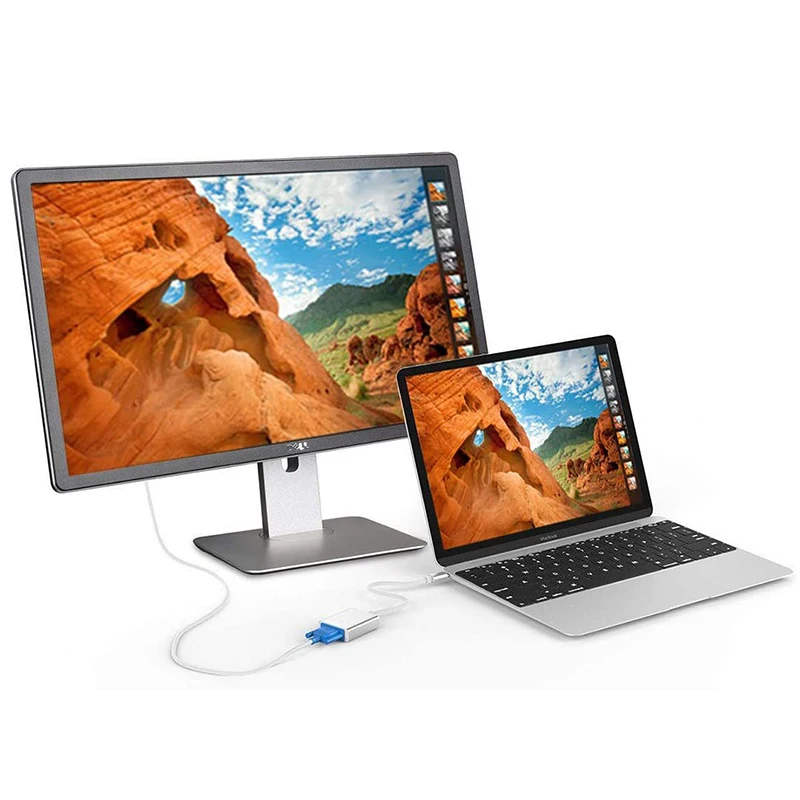
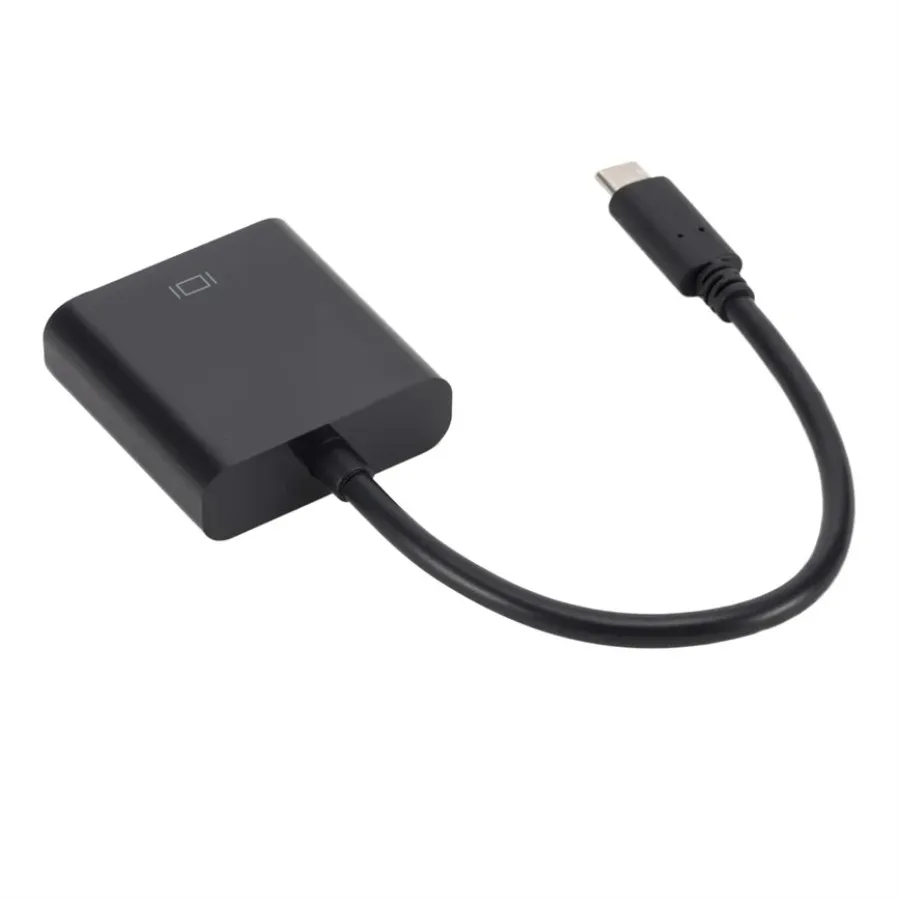
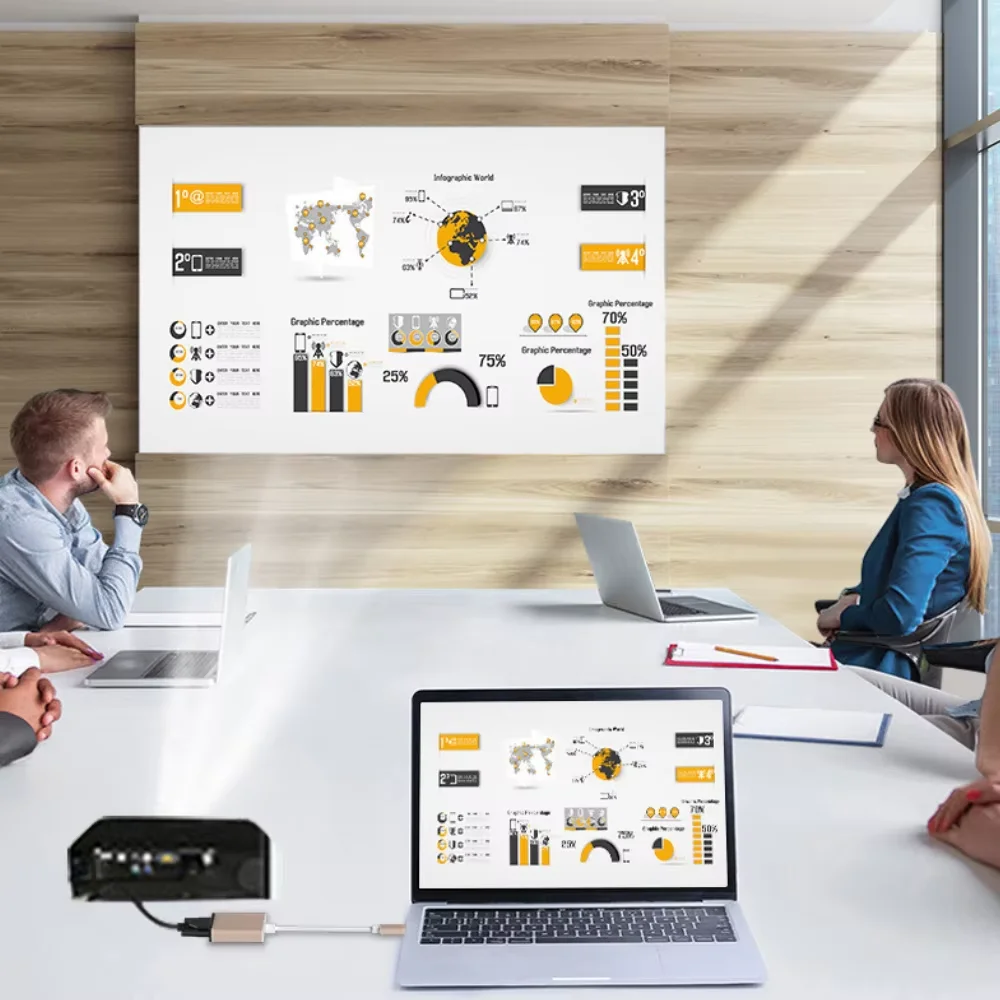
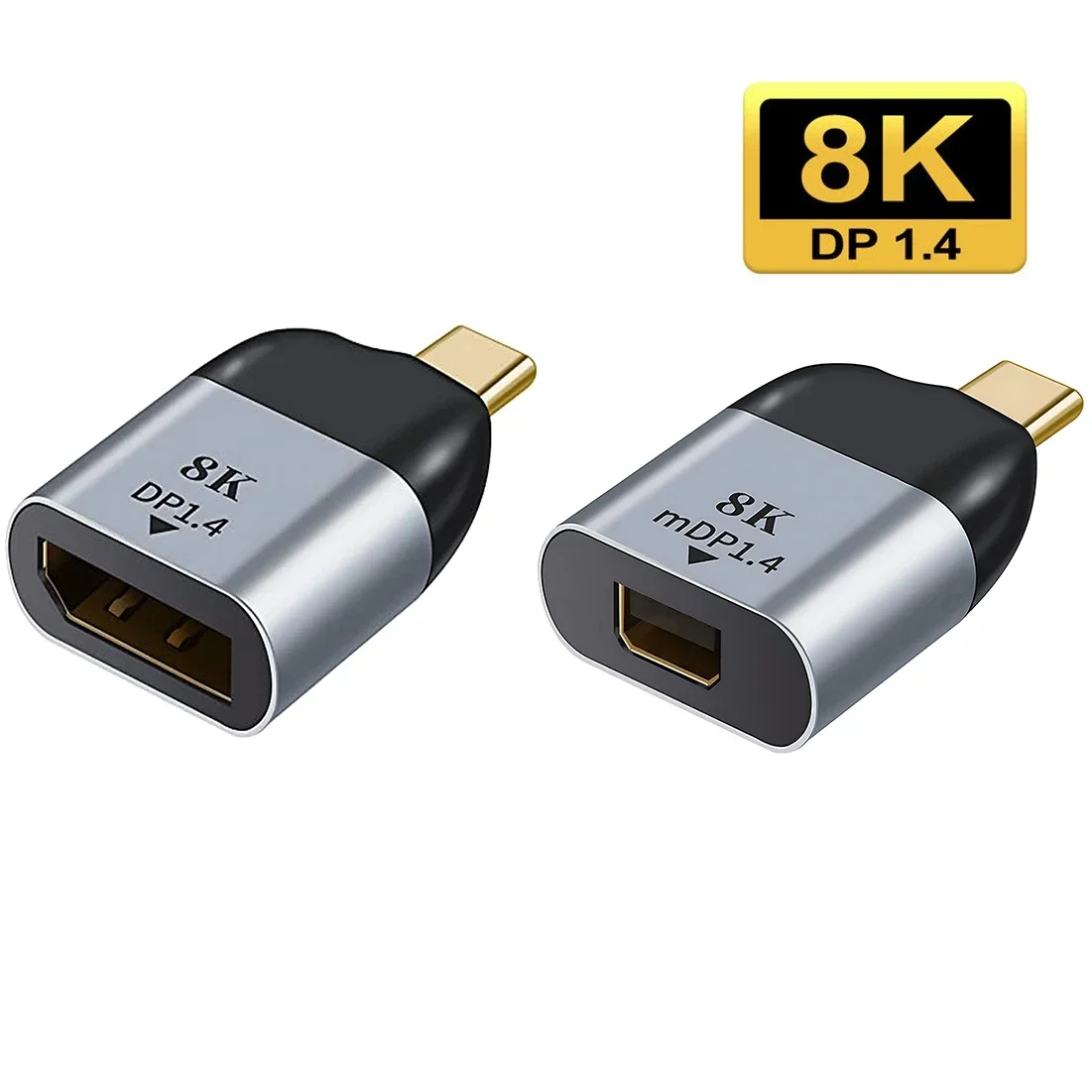
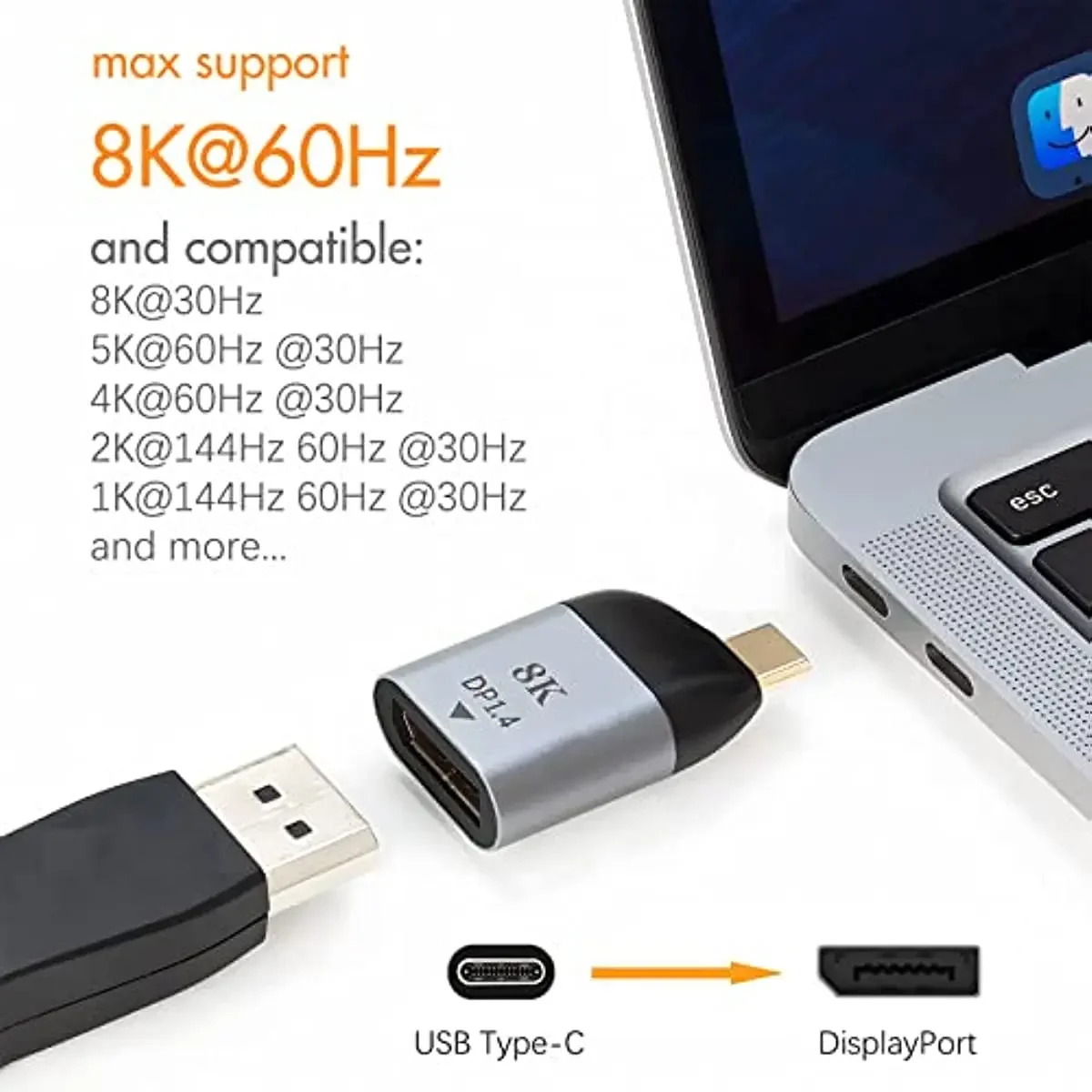
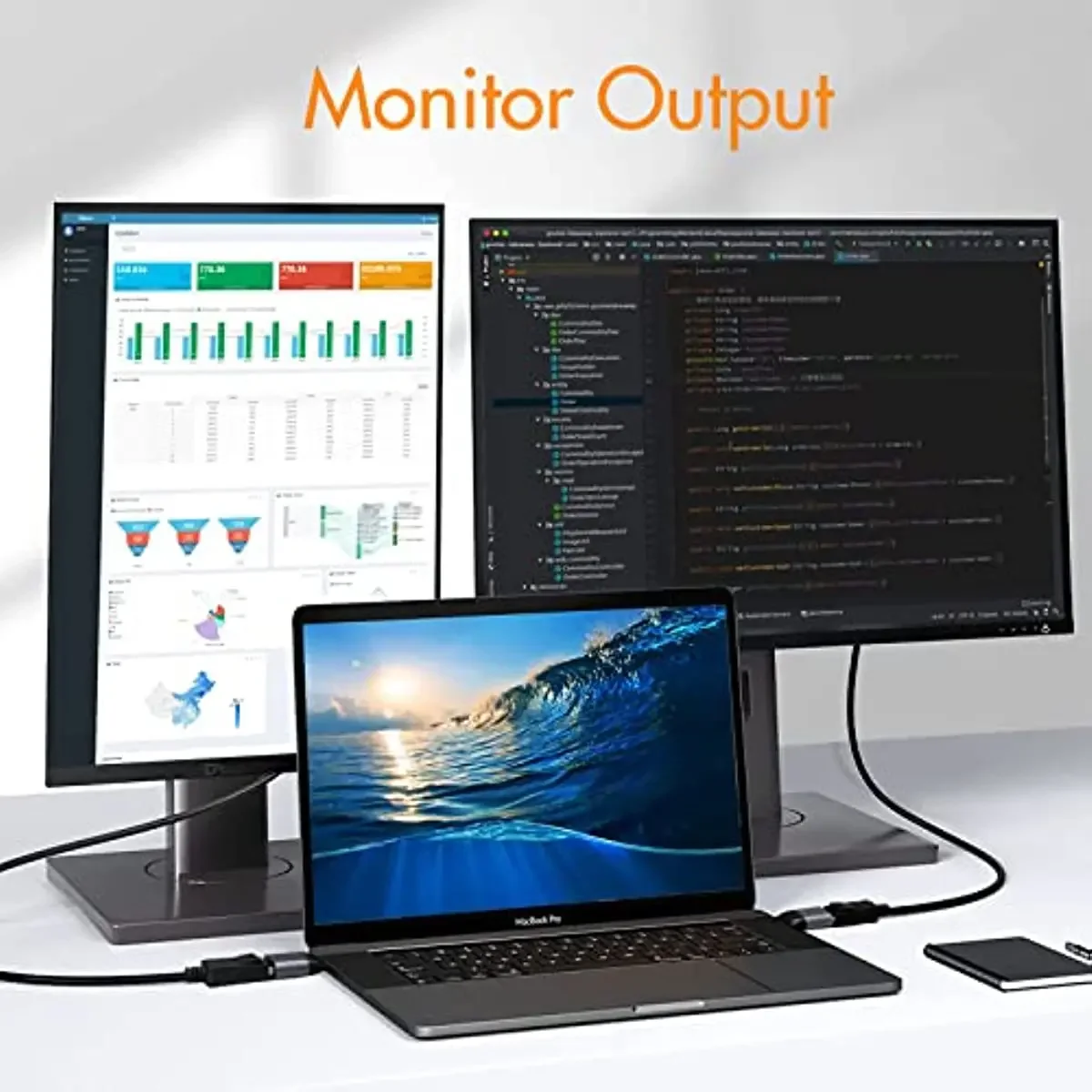
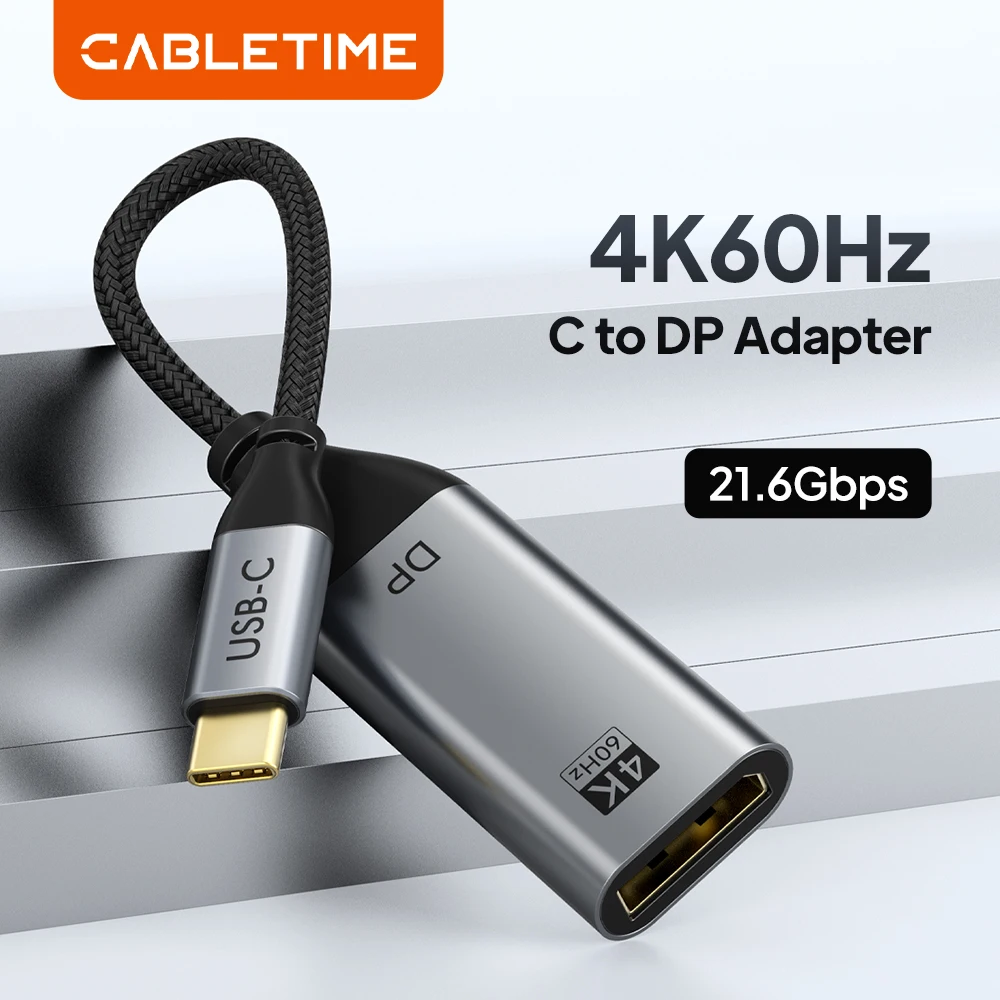
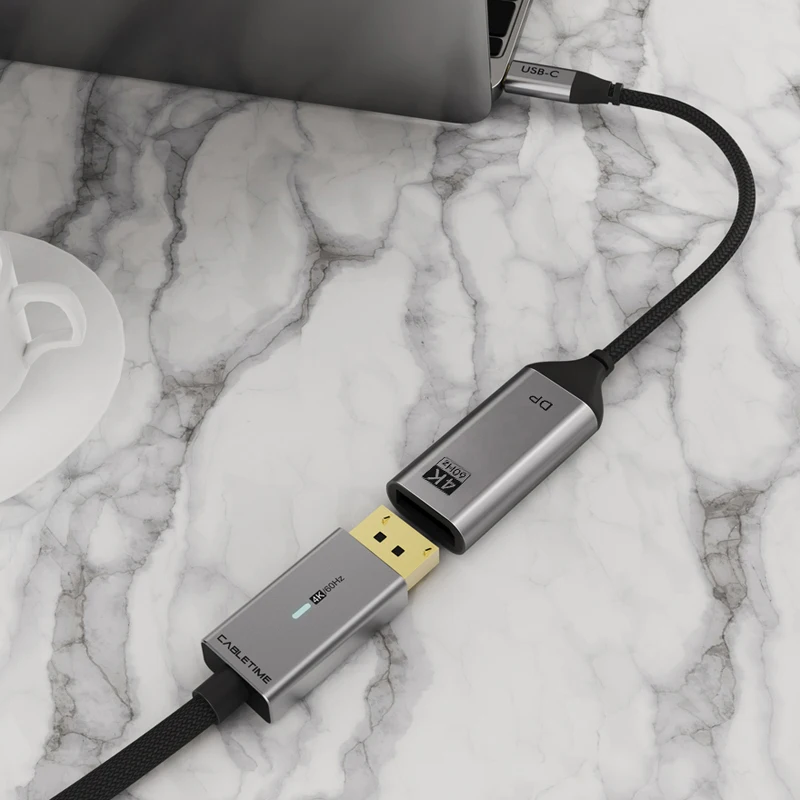
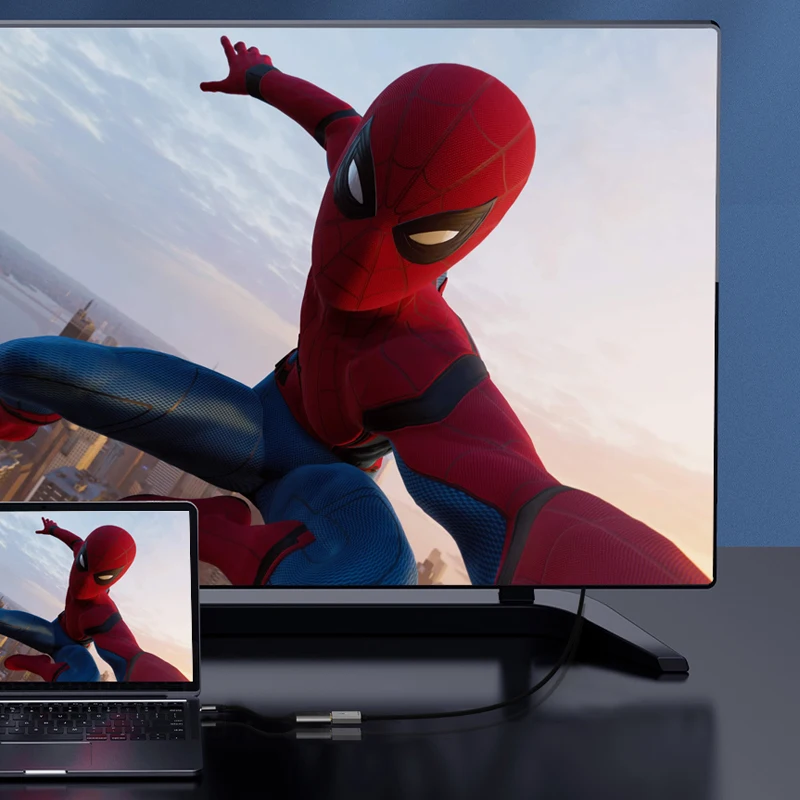
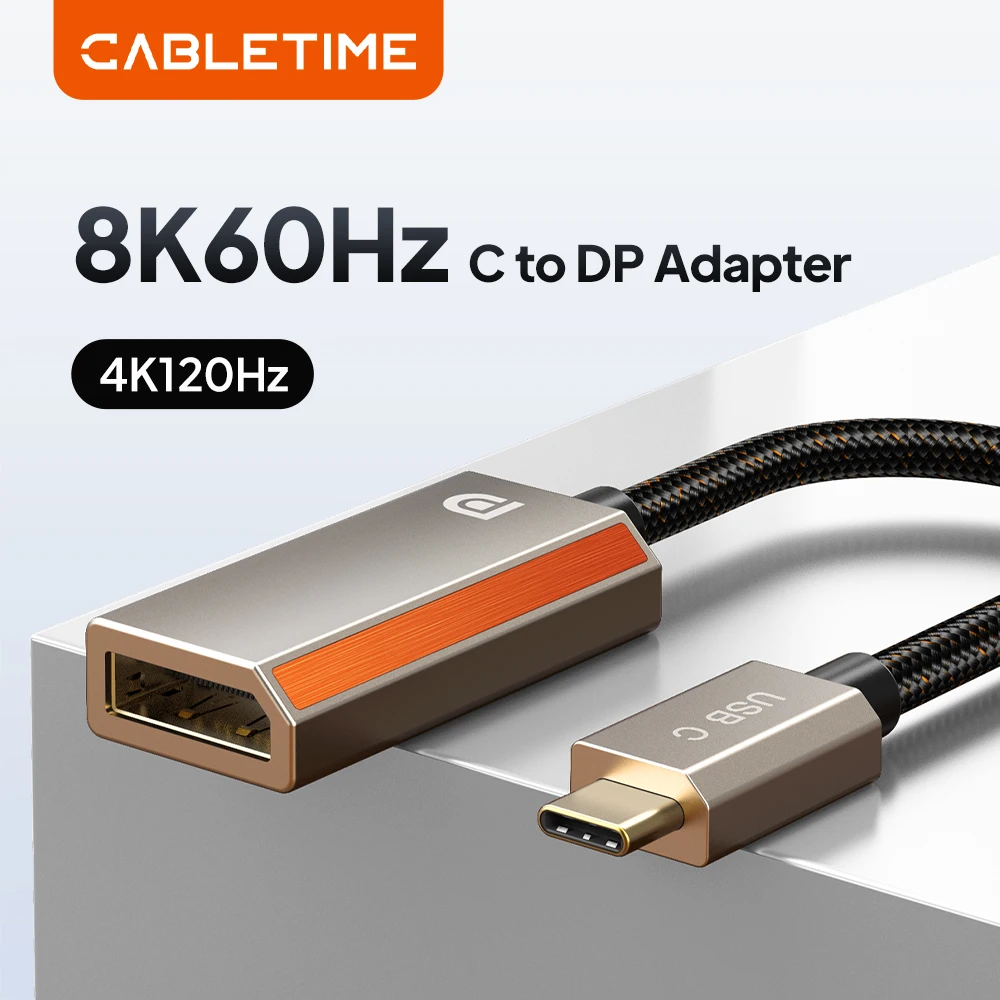
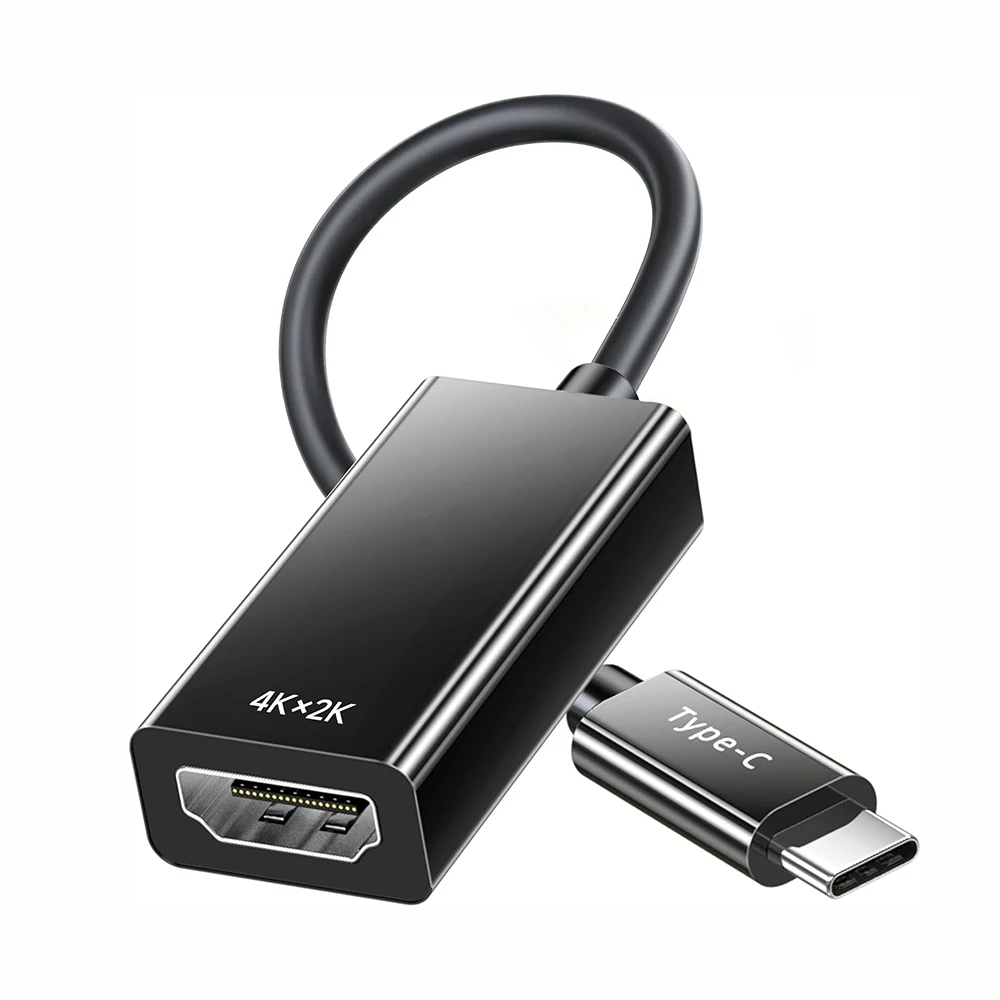
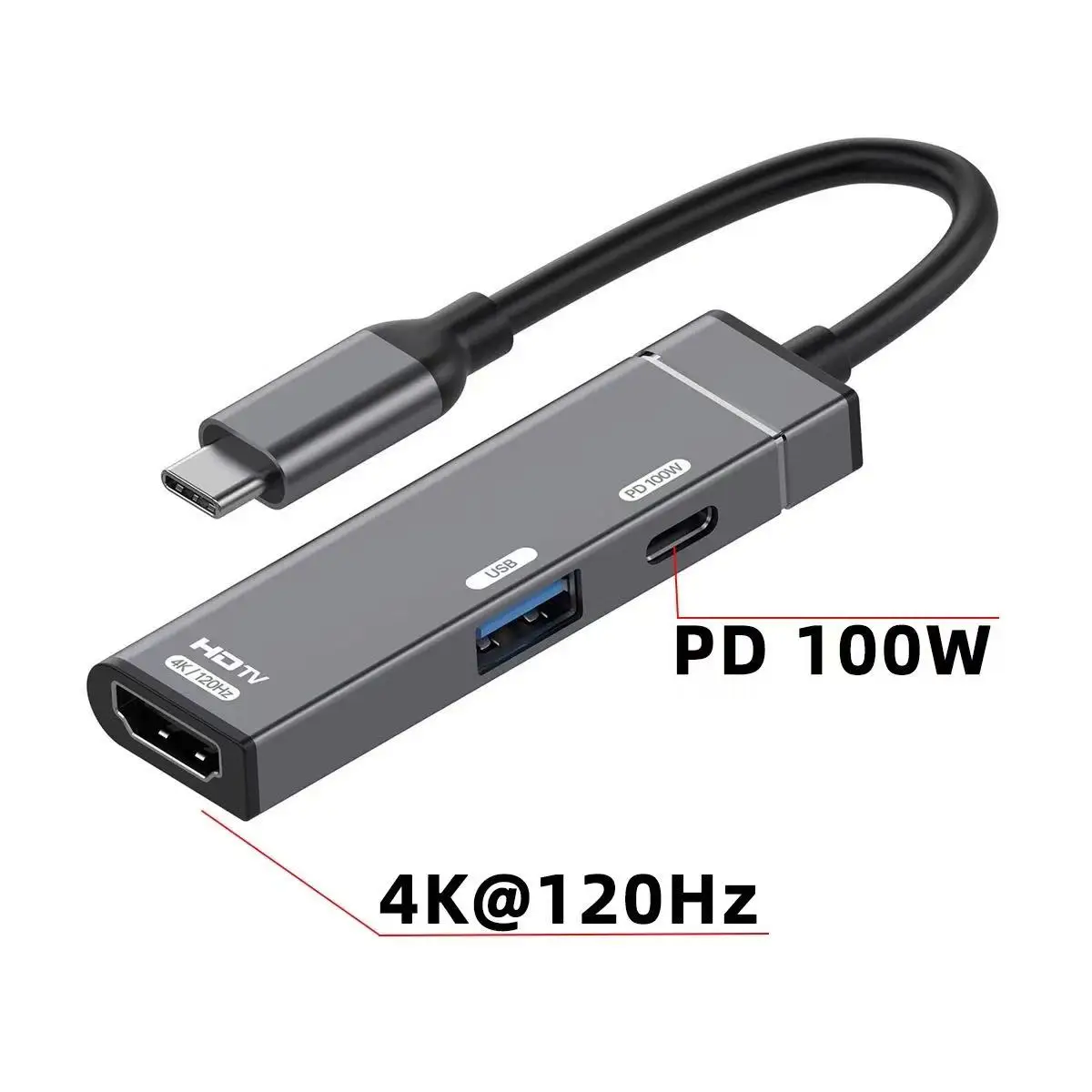
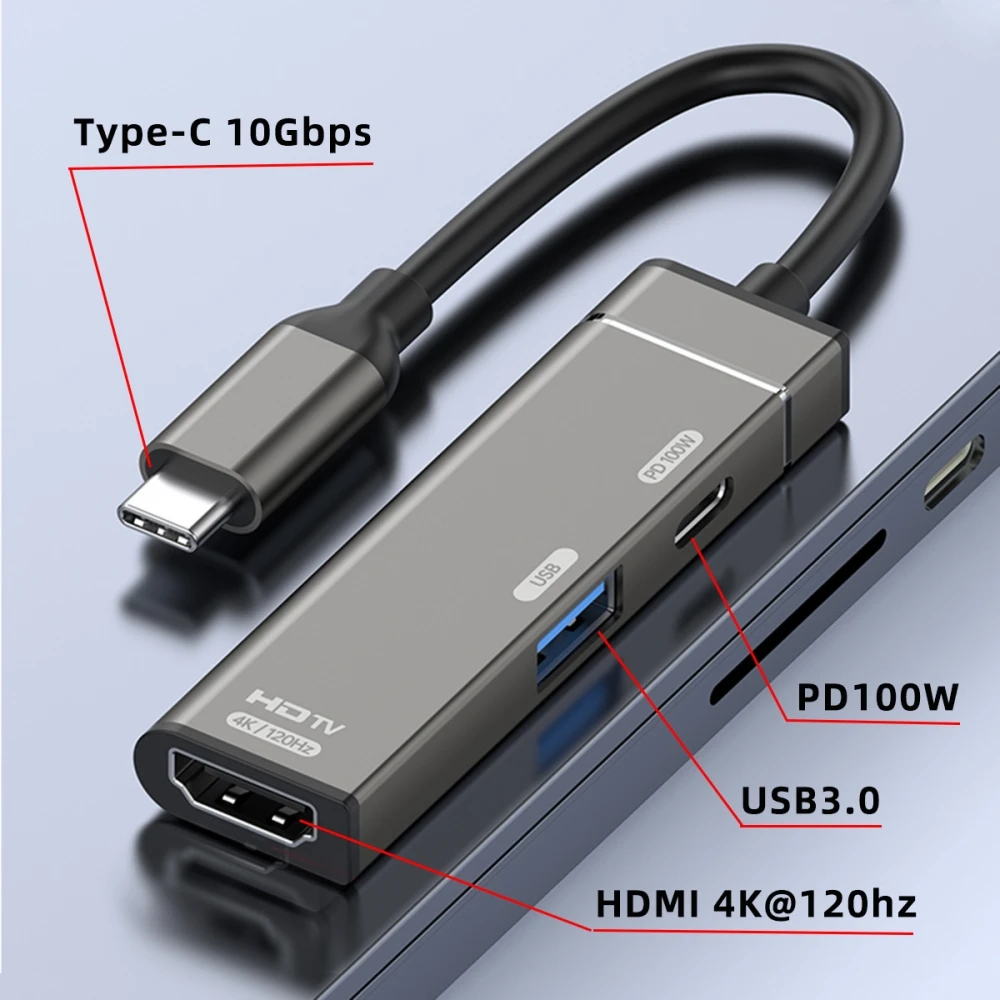
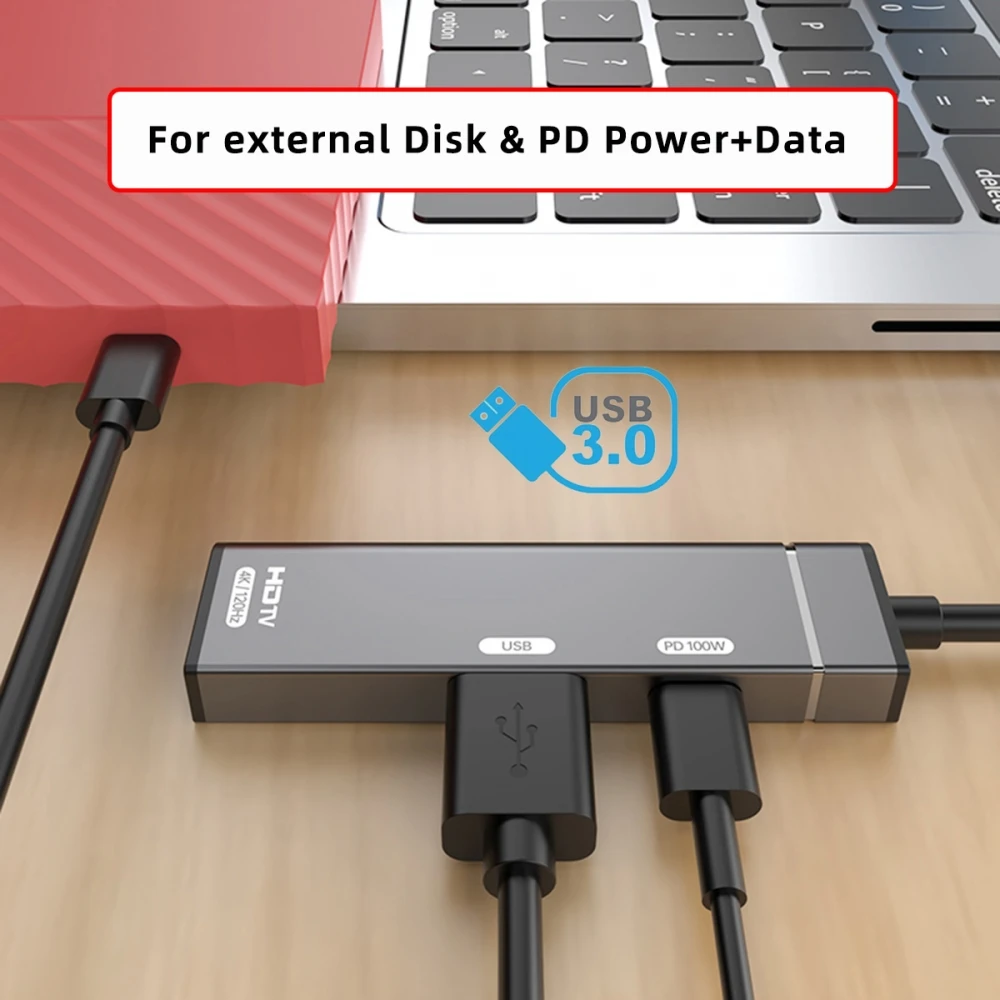
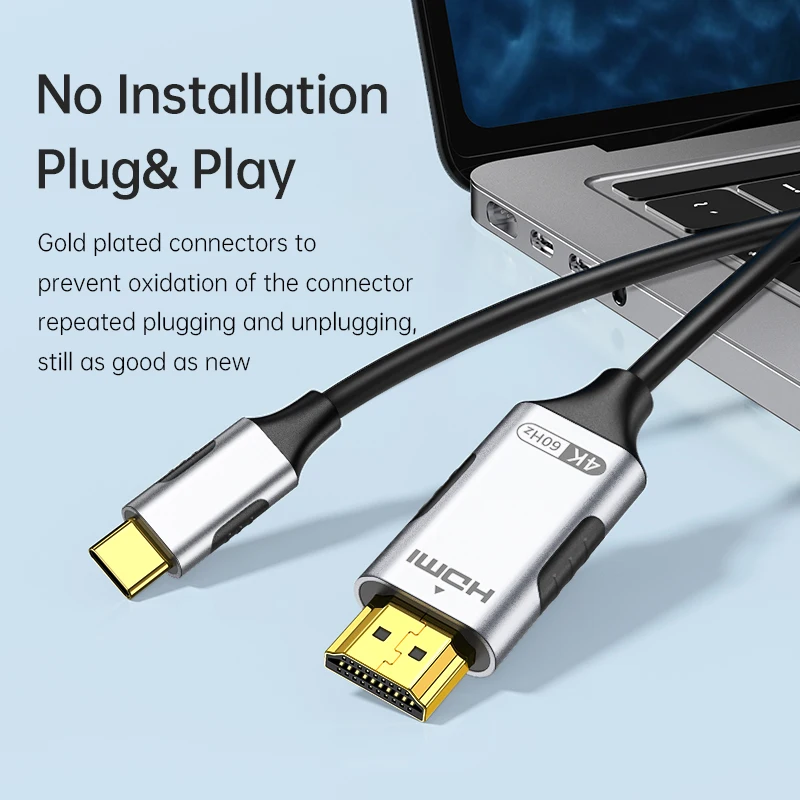
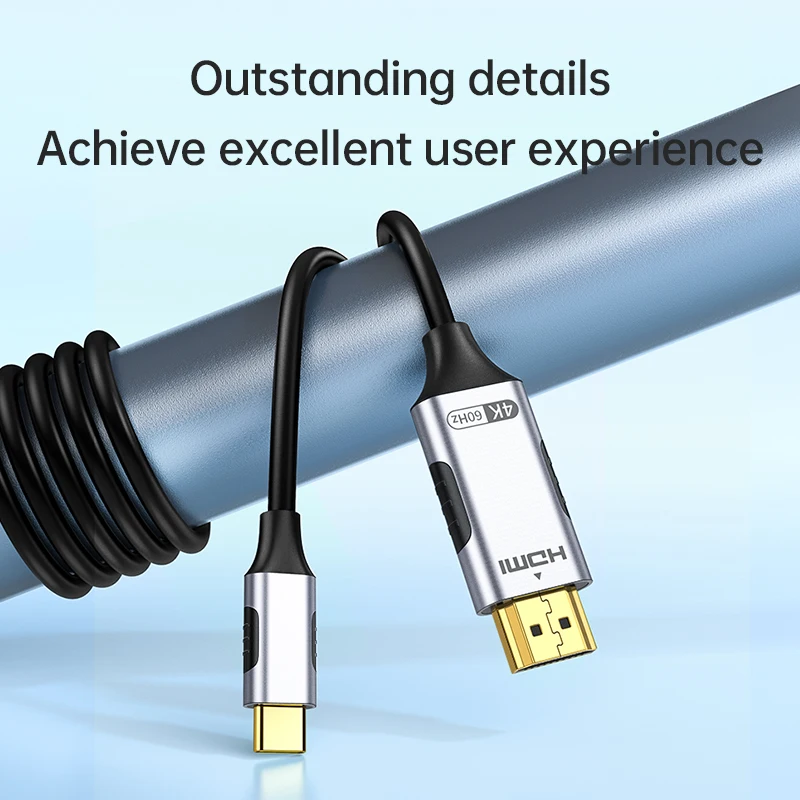
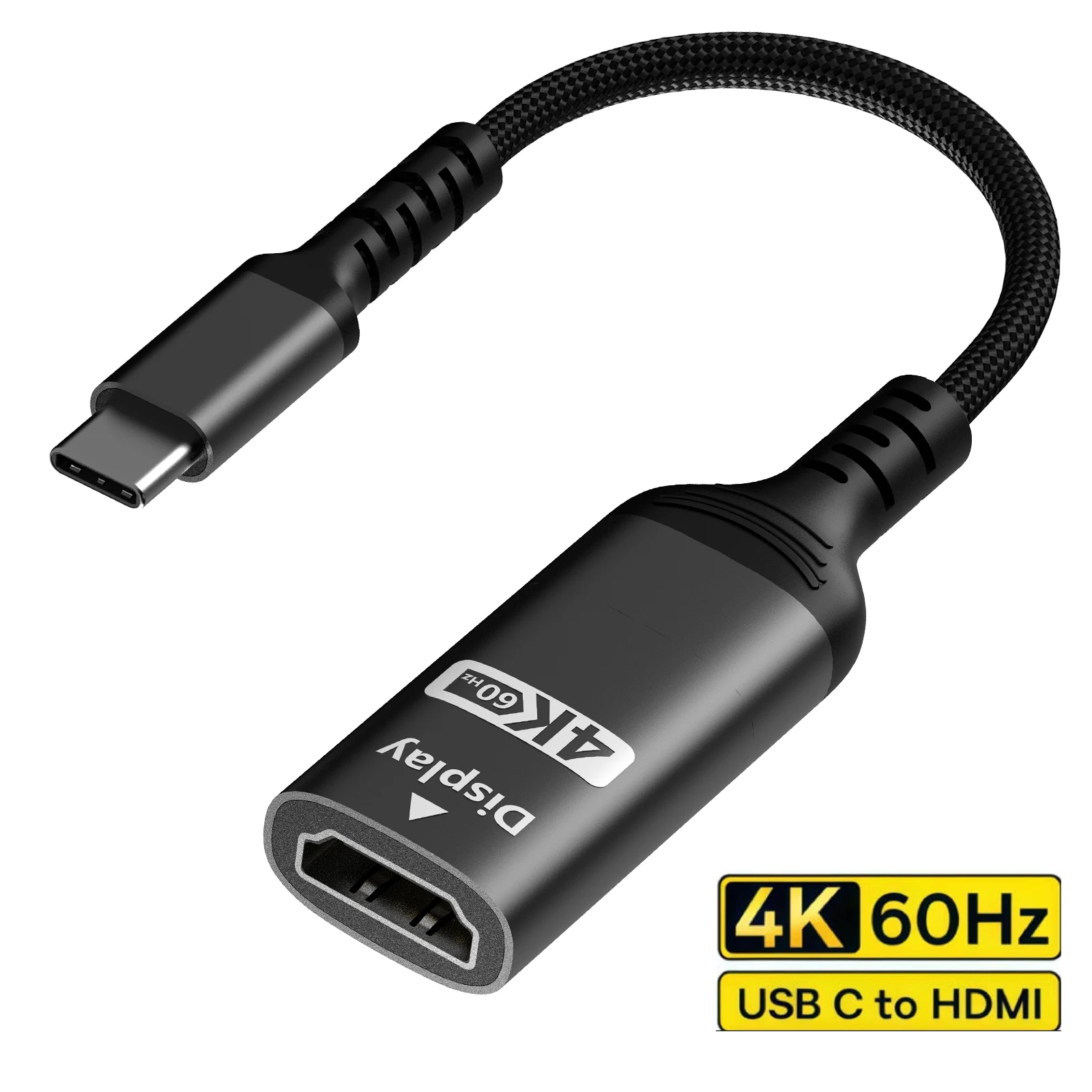
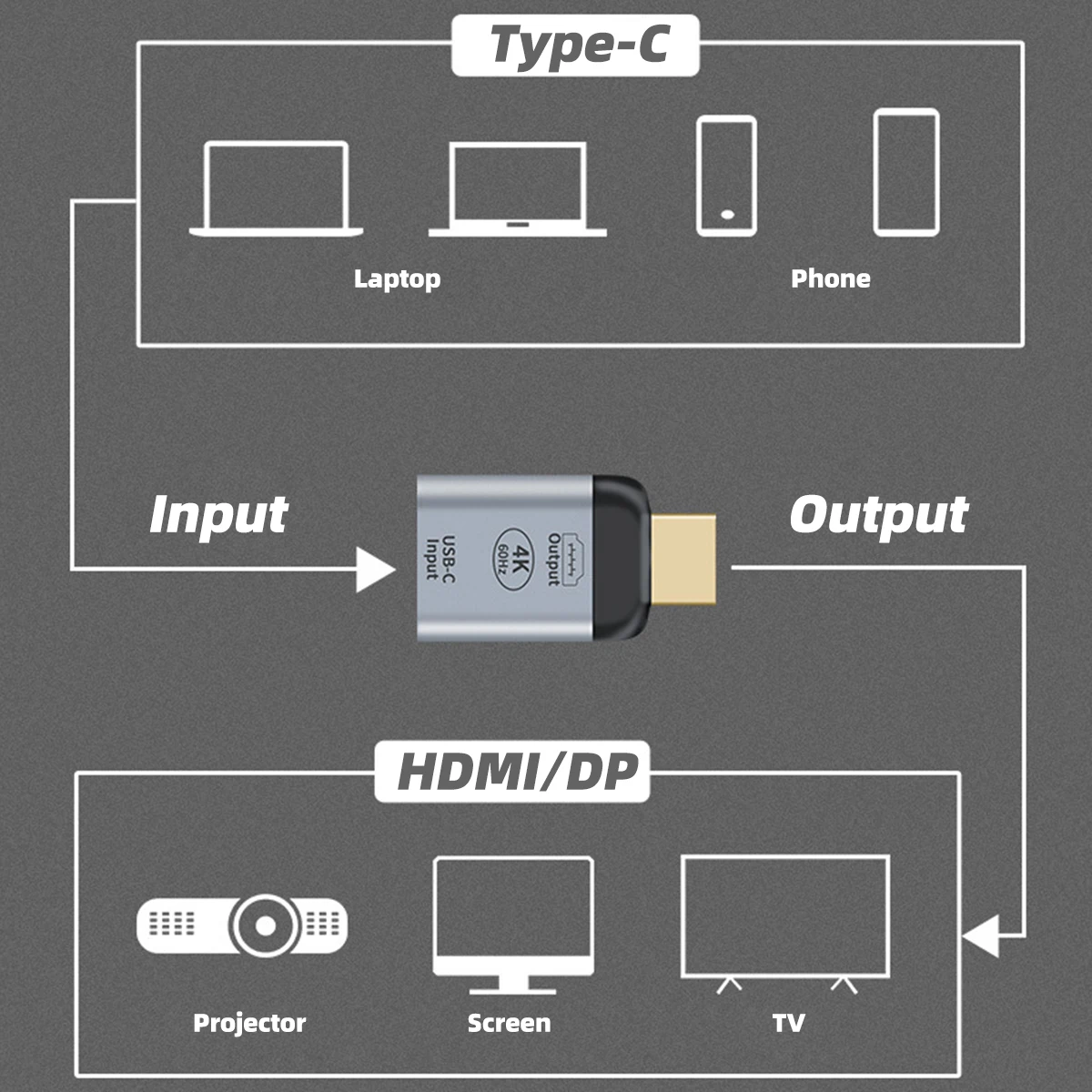
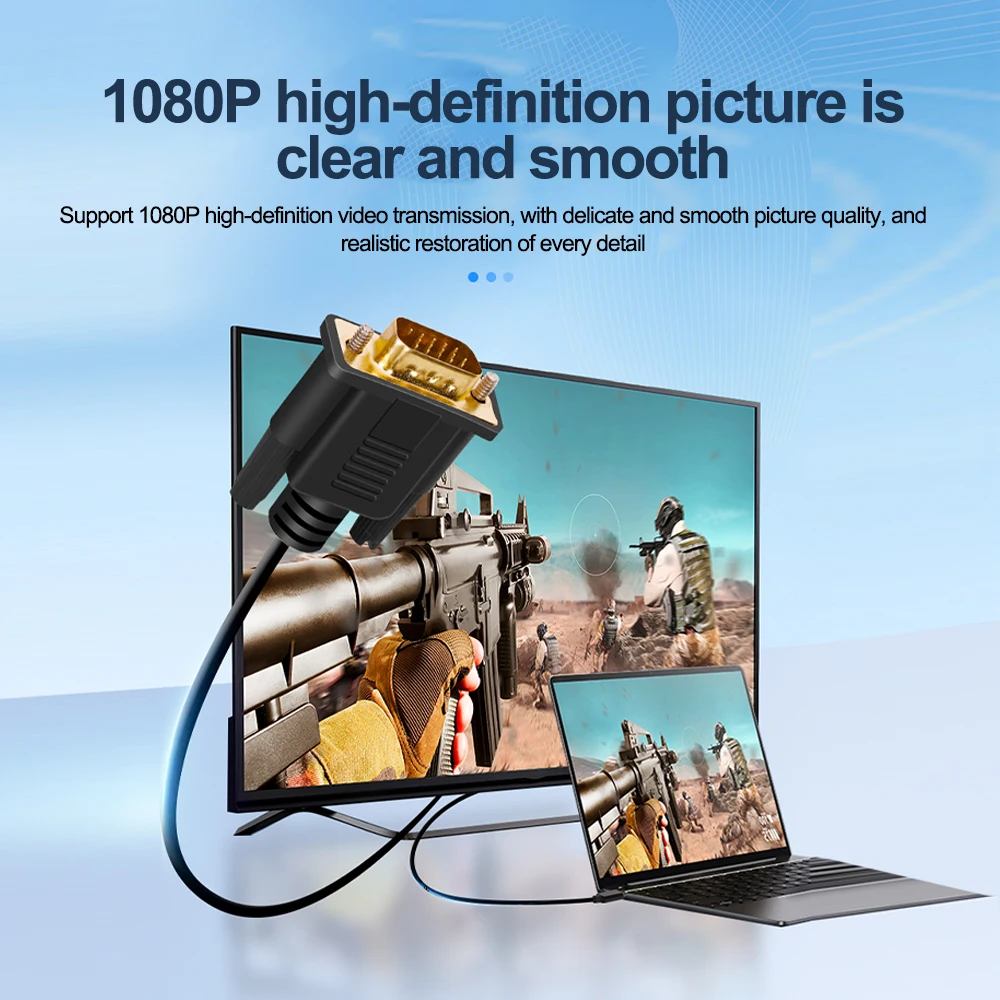
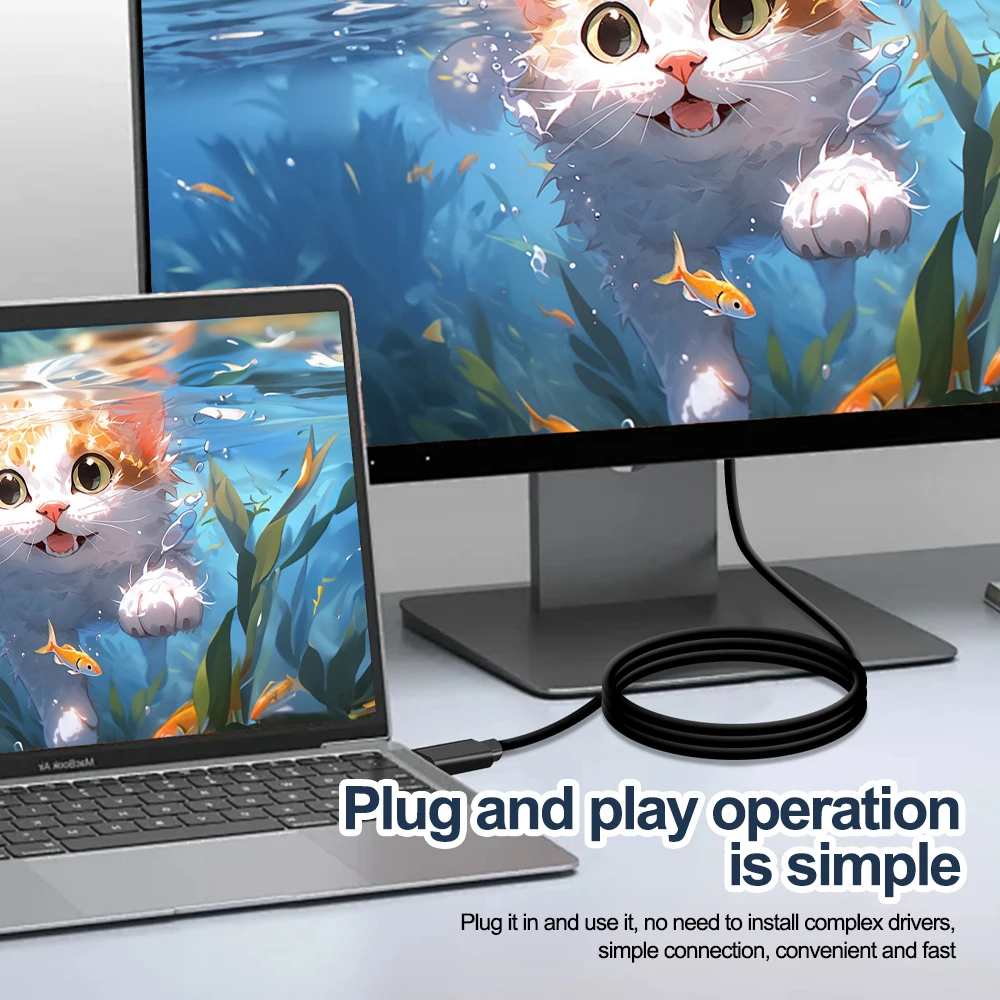
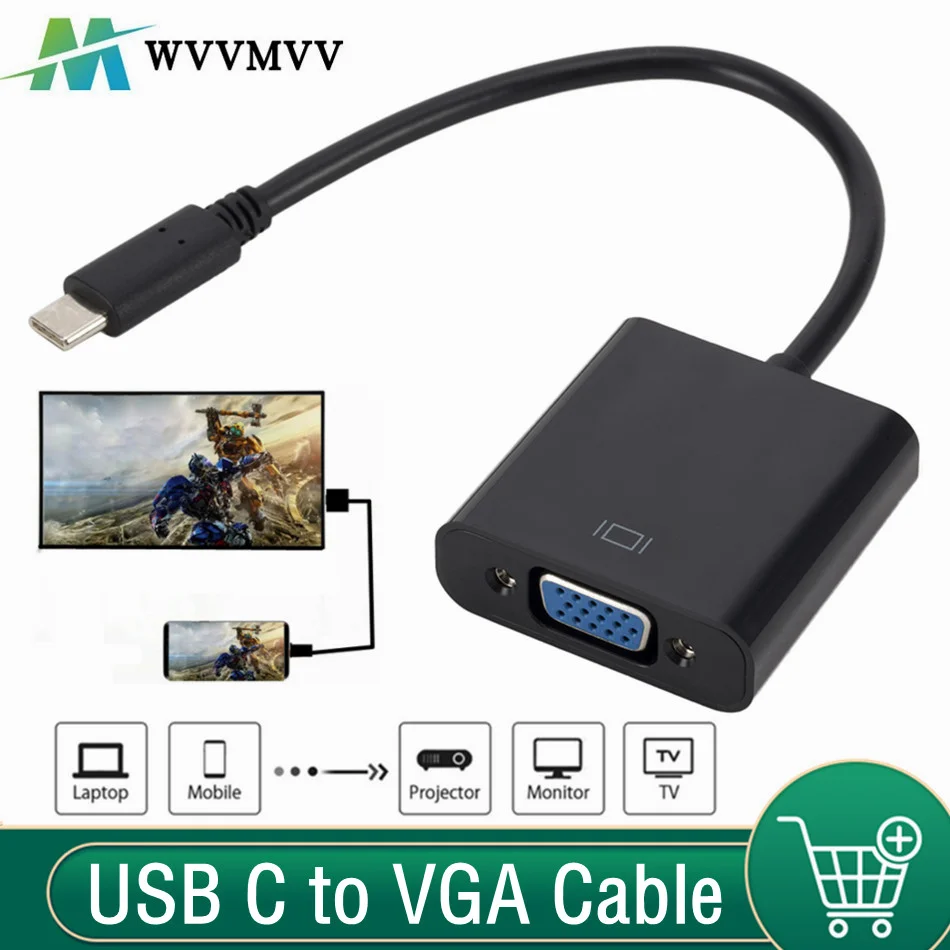
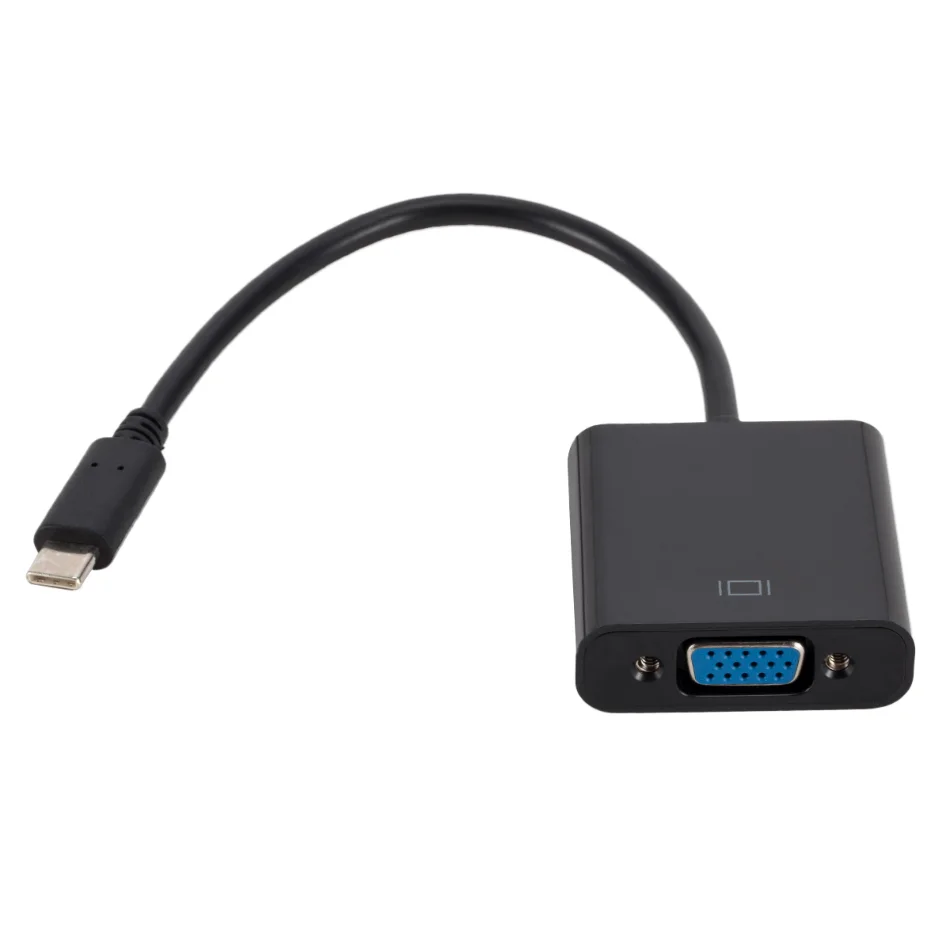
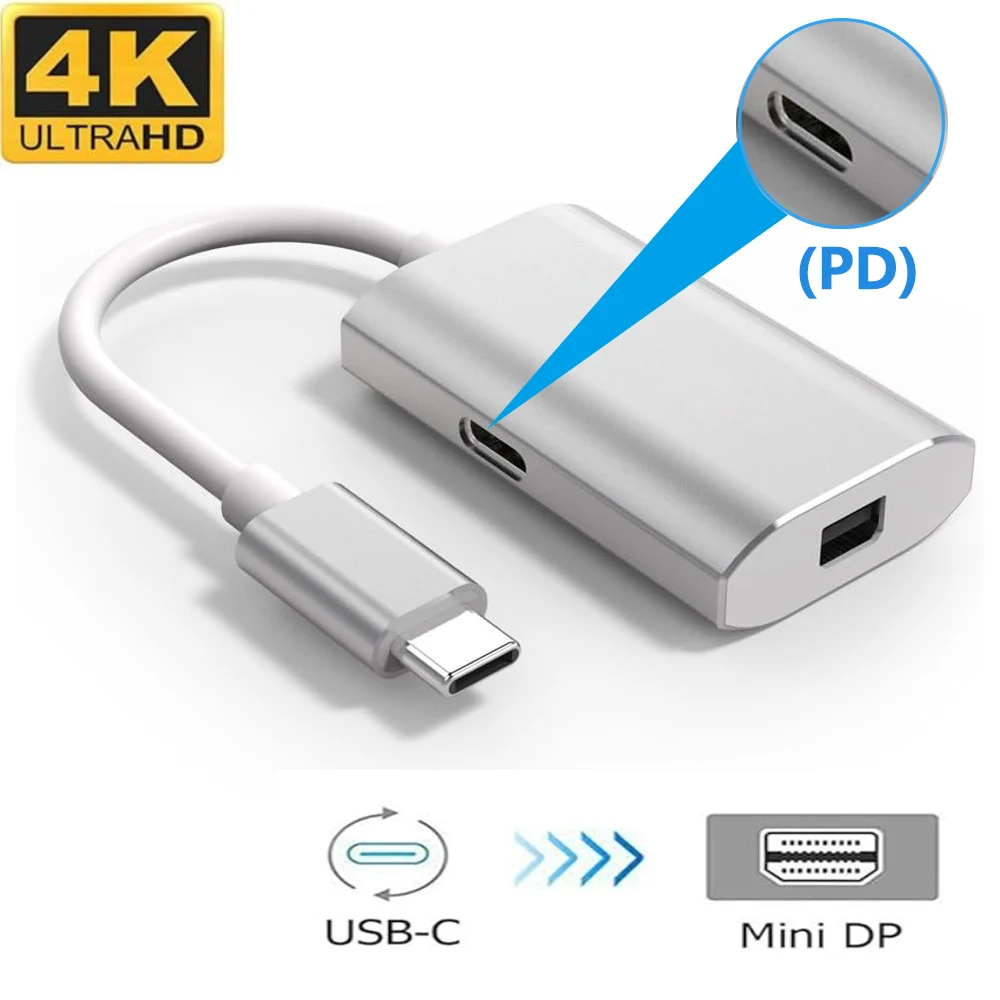
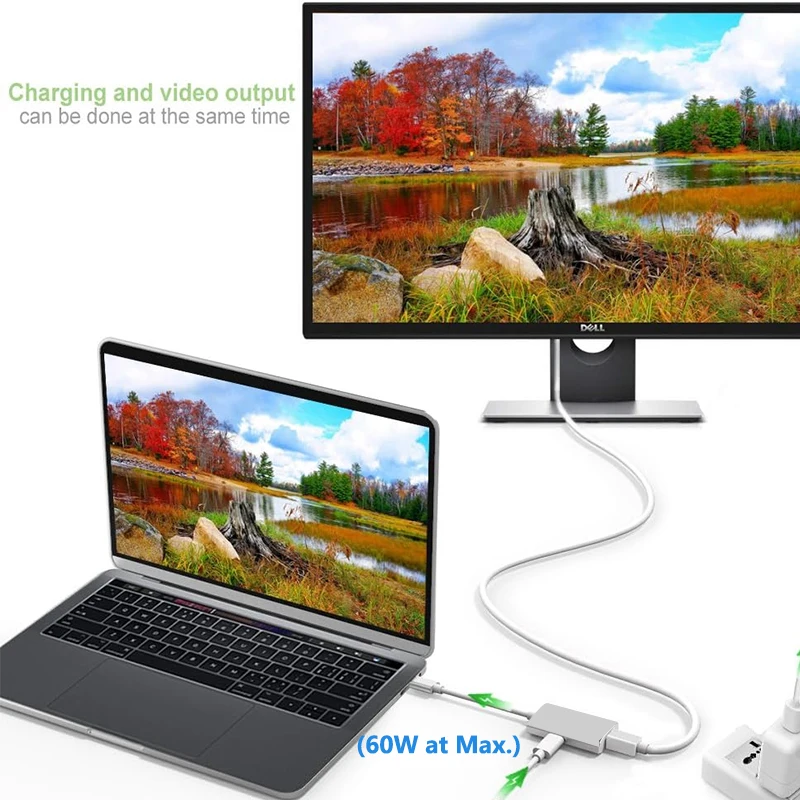
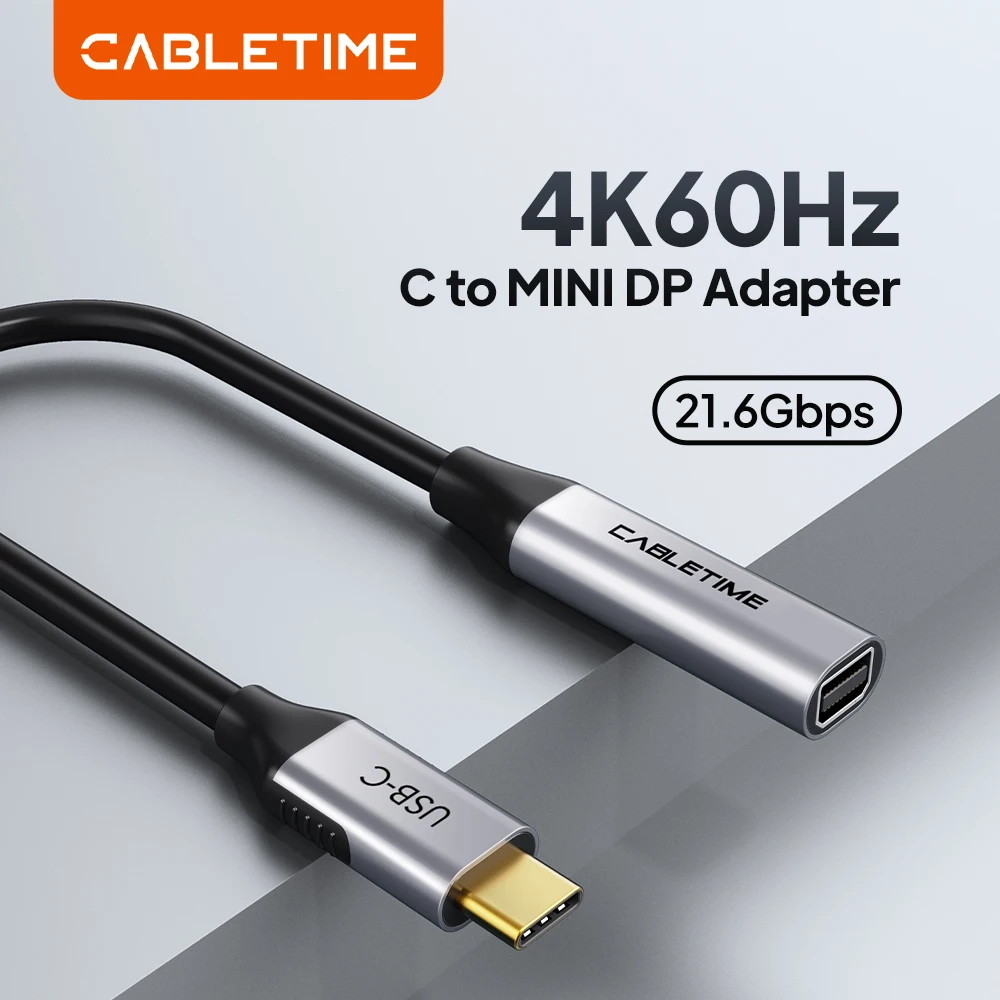
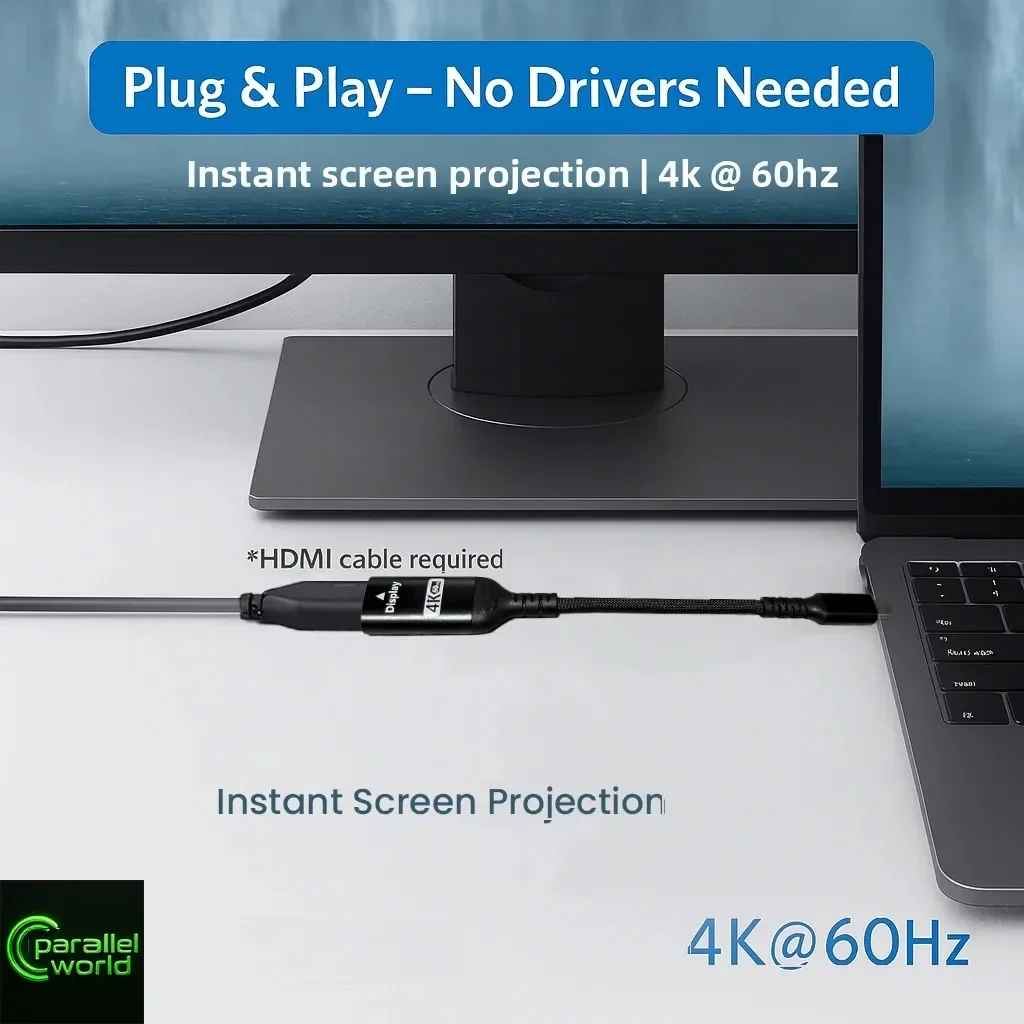
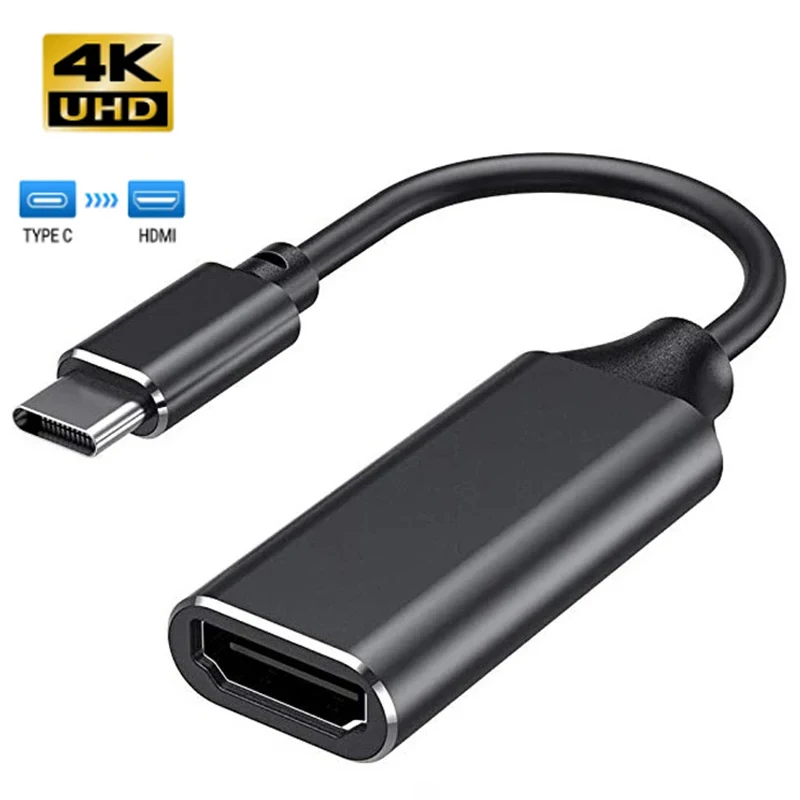
A display adapter takes the picture from your laptop's USB-C port to the socket on a monitor, TV or projector. It is the simplest way to add one screen: no box on the desk, nothing to set up, small enough to live in a laptop bag. If you need a screen plus other sockets, a USB-C hub does both.
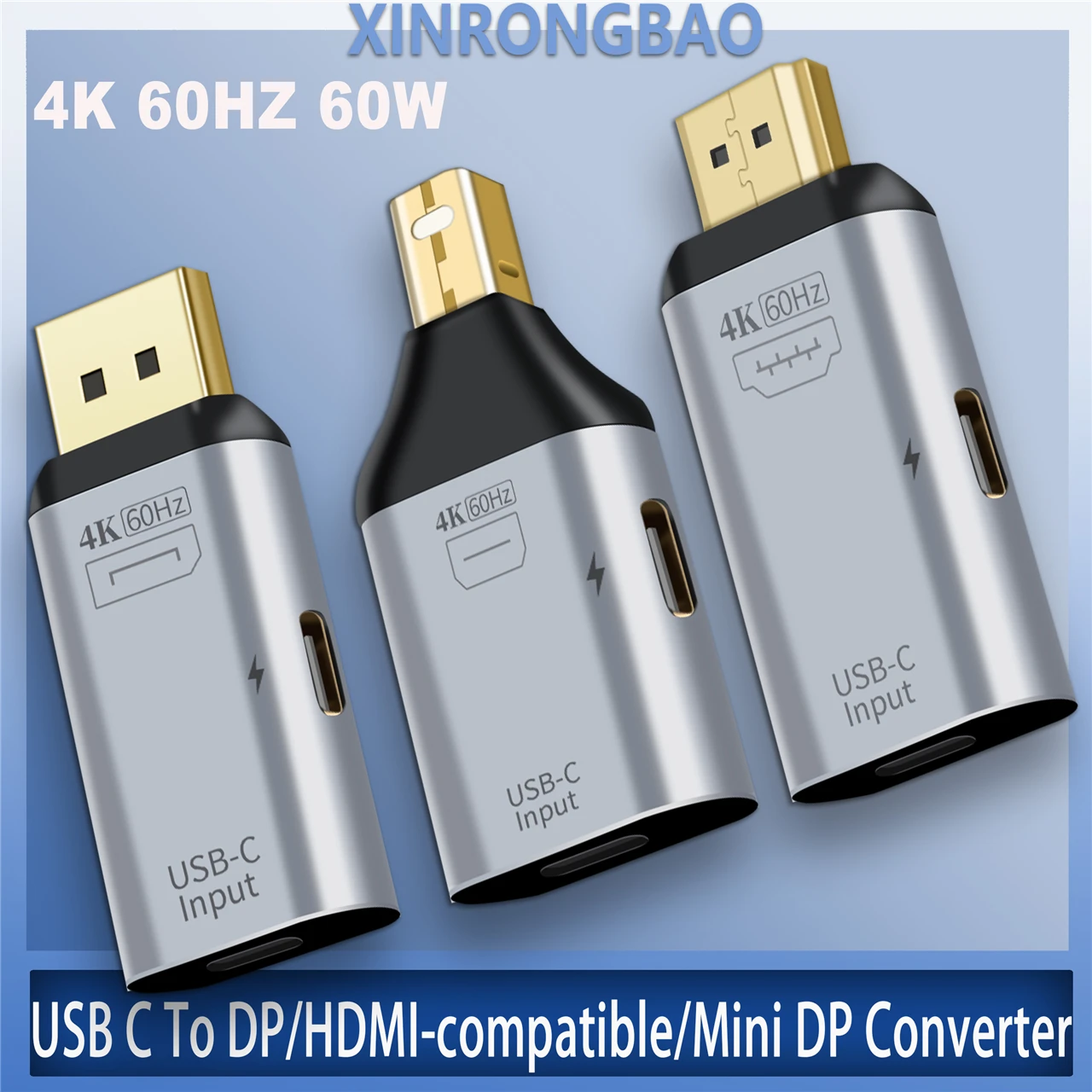
The three ranges
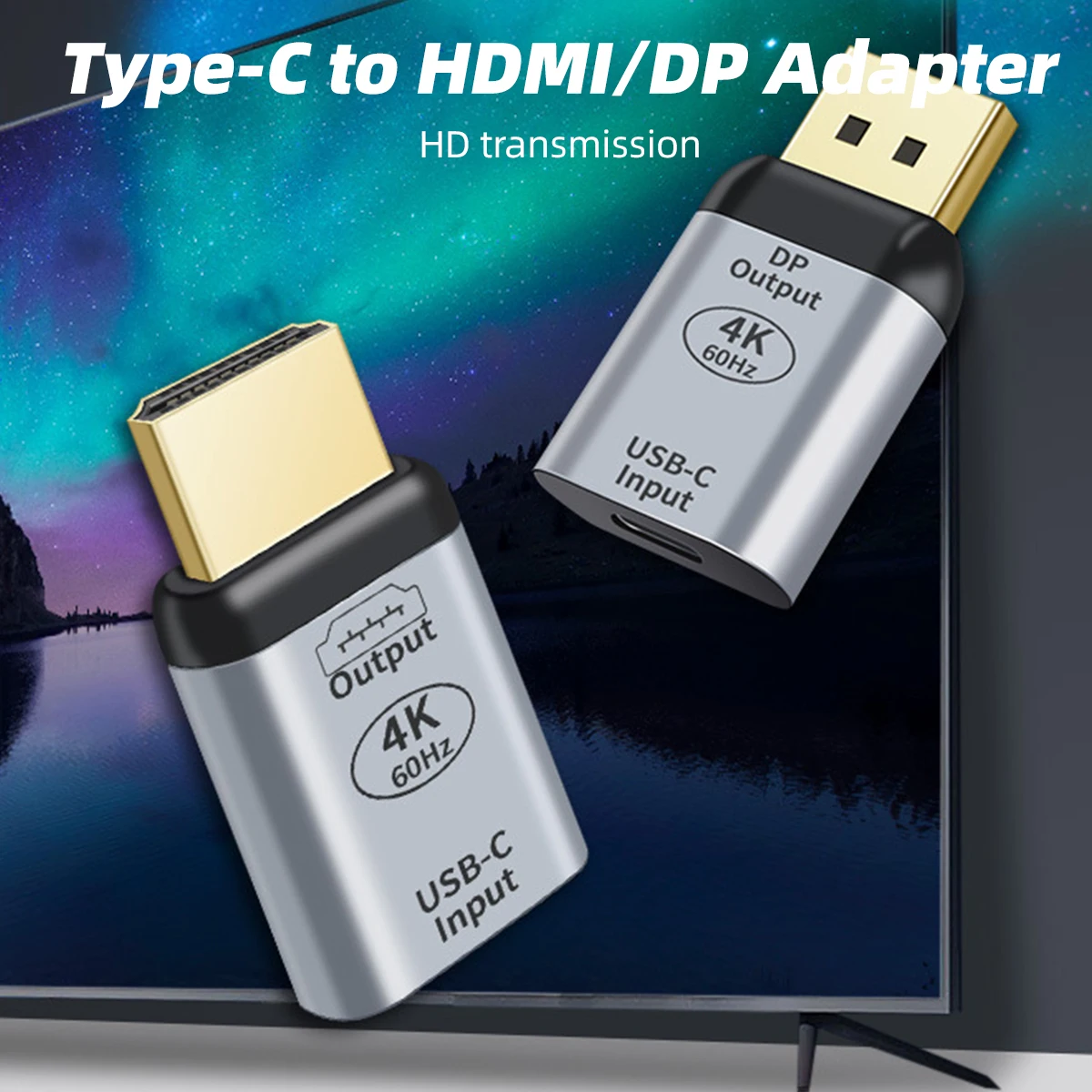
Some adapters here switch between two or three of these, so one adapter covers an HDMI TV and a DisplayPort monitor.
Will it work with your laptop?
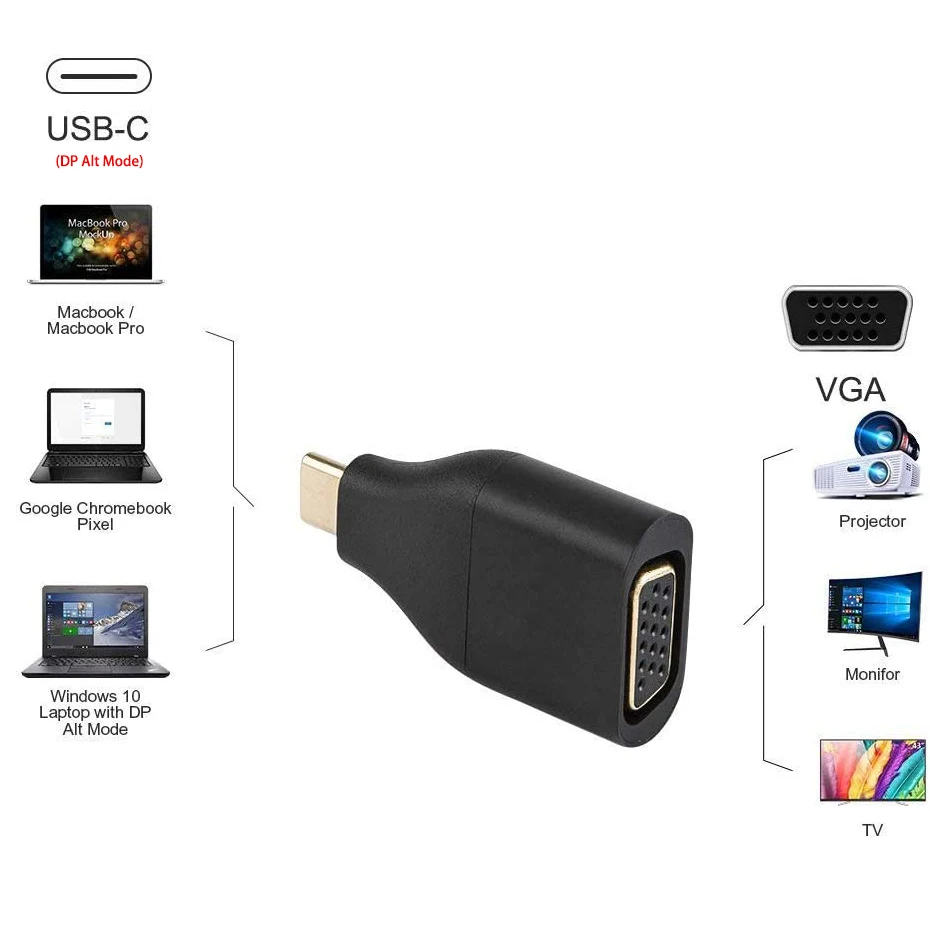
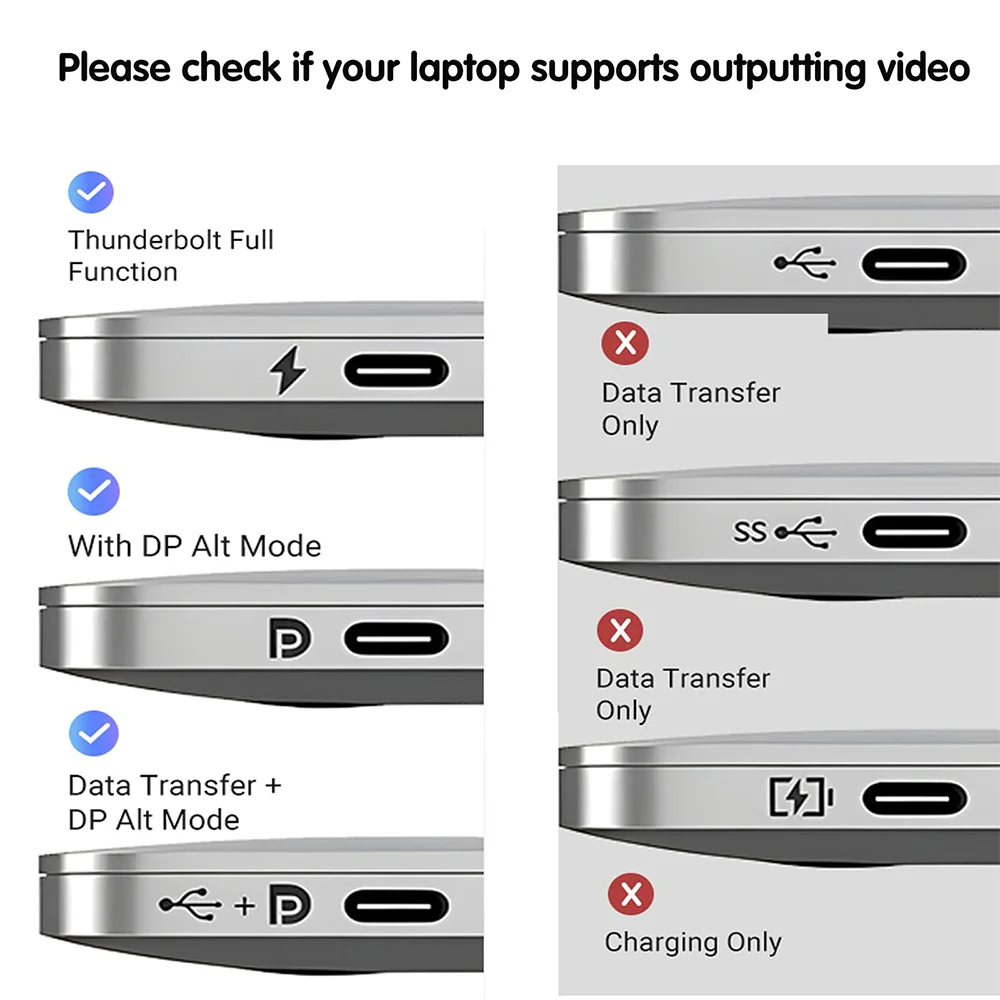
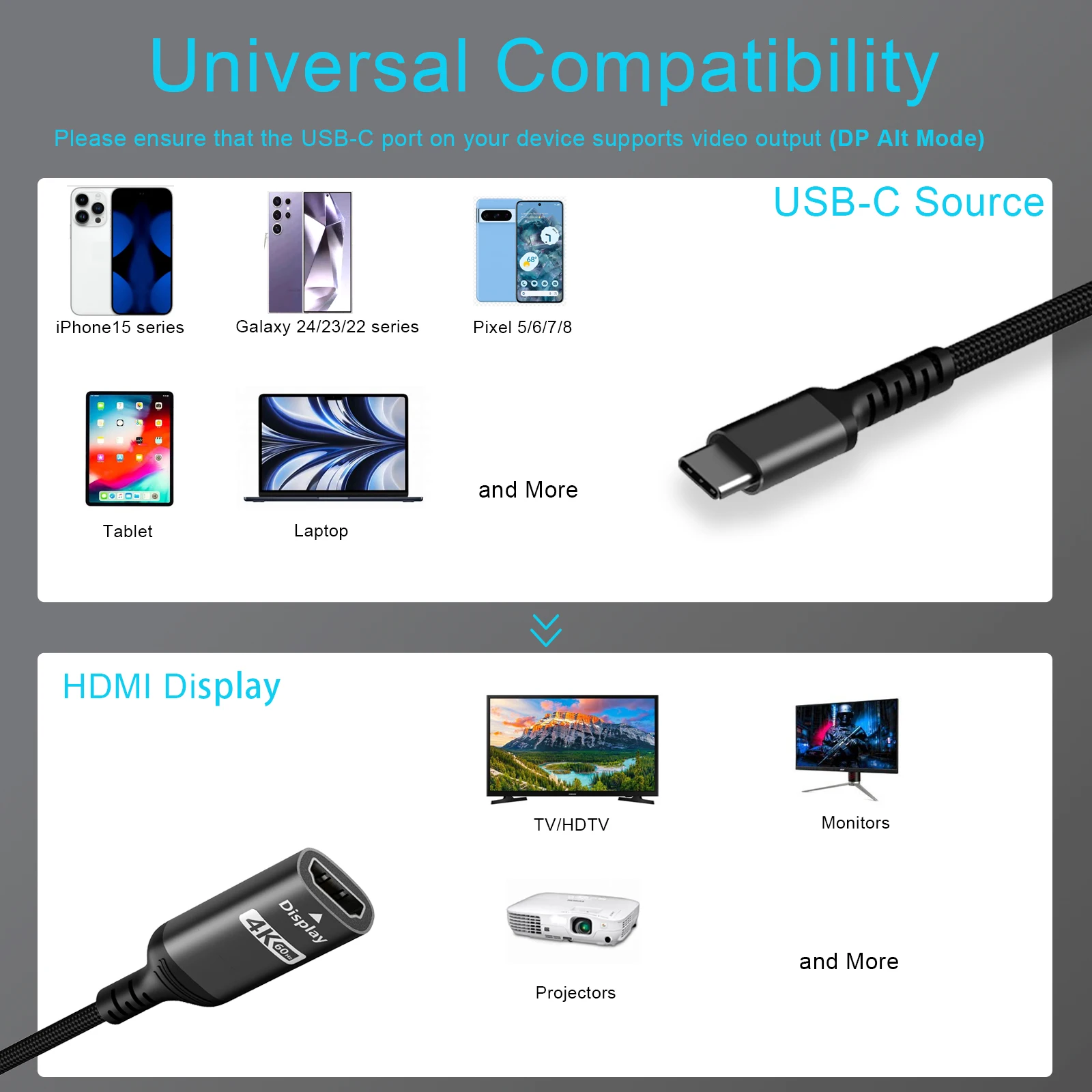
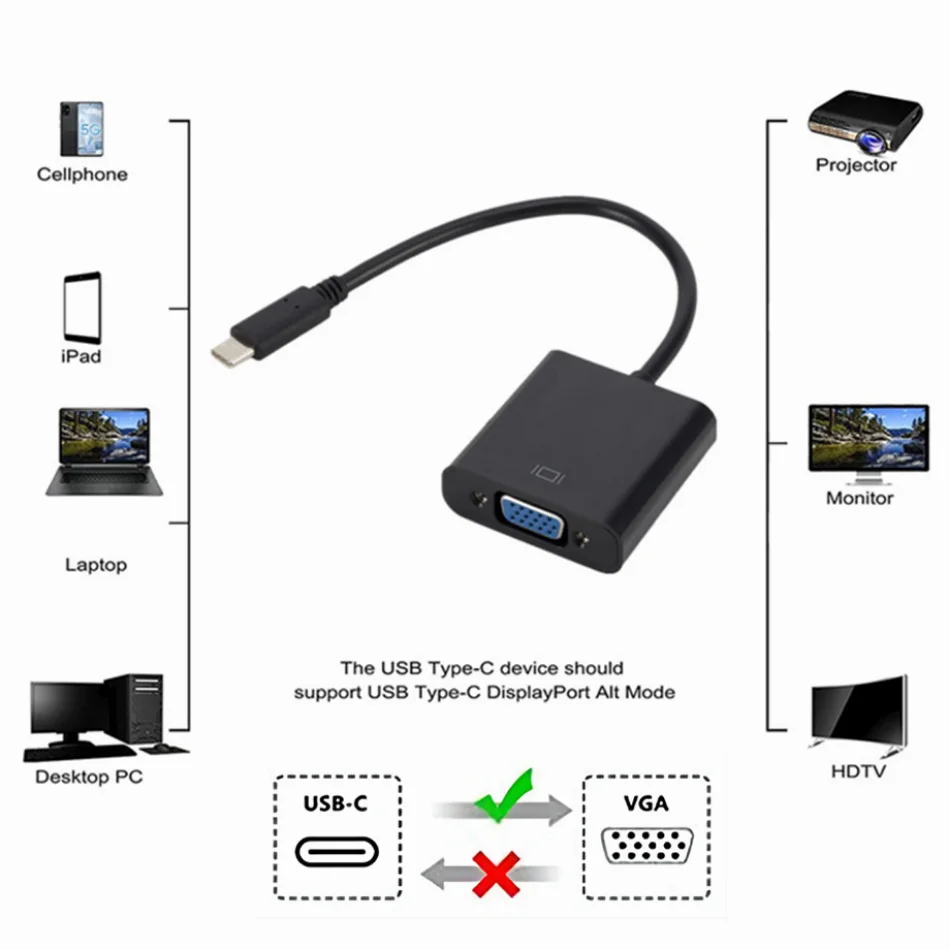
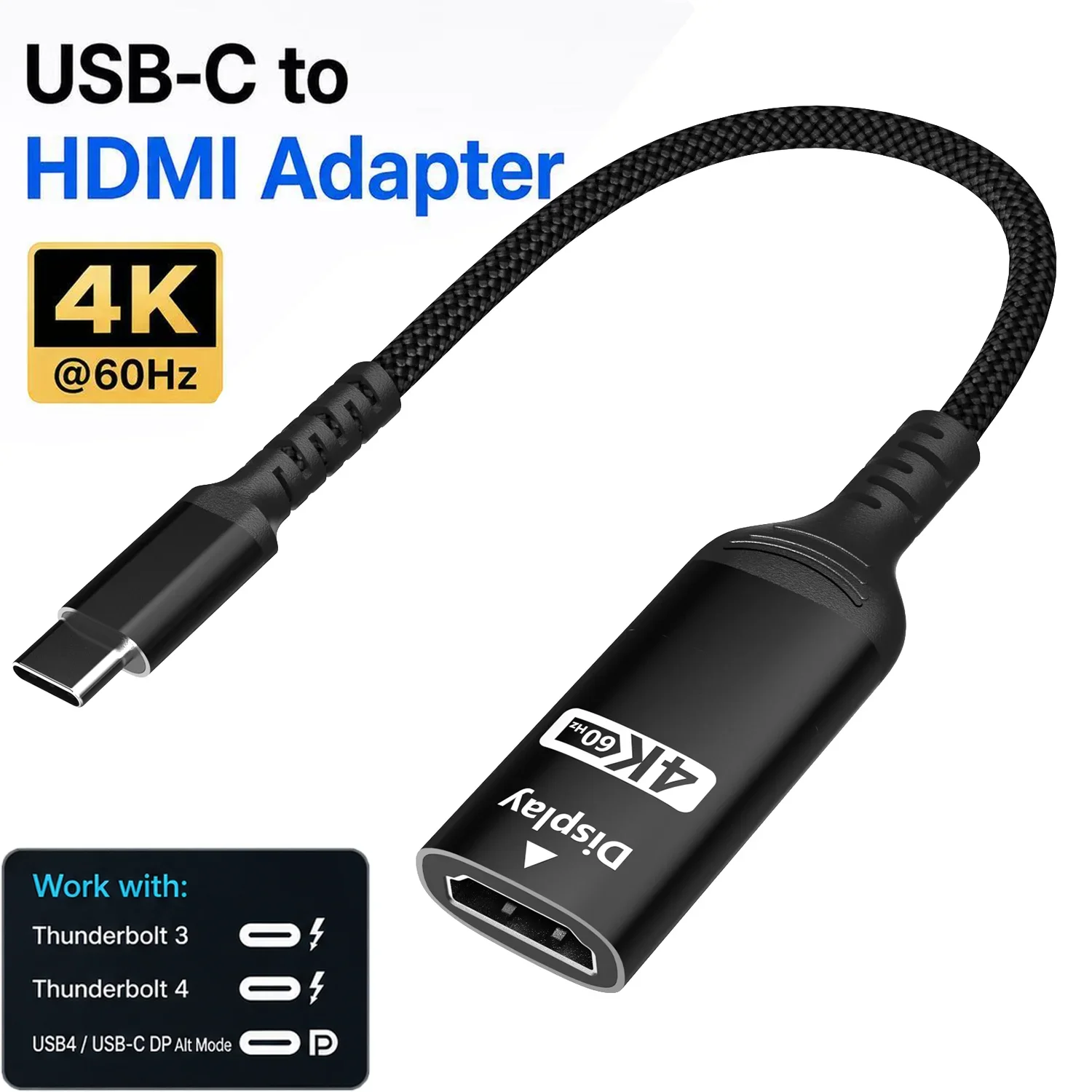
The adapter needs a USB-C port that carries video. That means DisplayPort Alt Mode, which is what passes the picture down the USB-C cable, or a Thunderbolt or USB4 port. Your laptop's specification page says which ports do this, and many laptops mark them with a small DisplayPort or lightning symbol. A USB-C port that only charges and moves data will not give a picture through any adapter.
Choosing by the screen
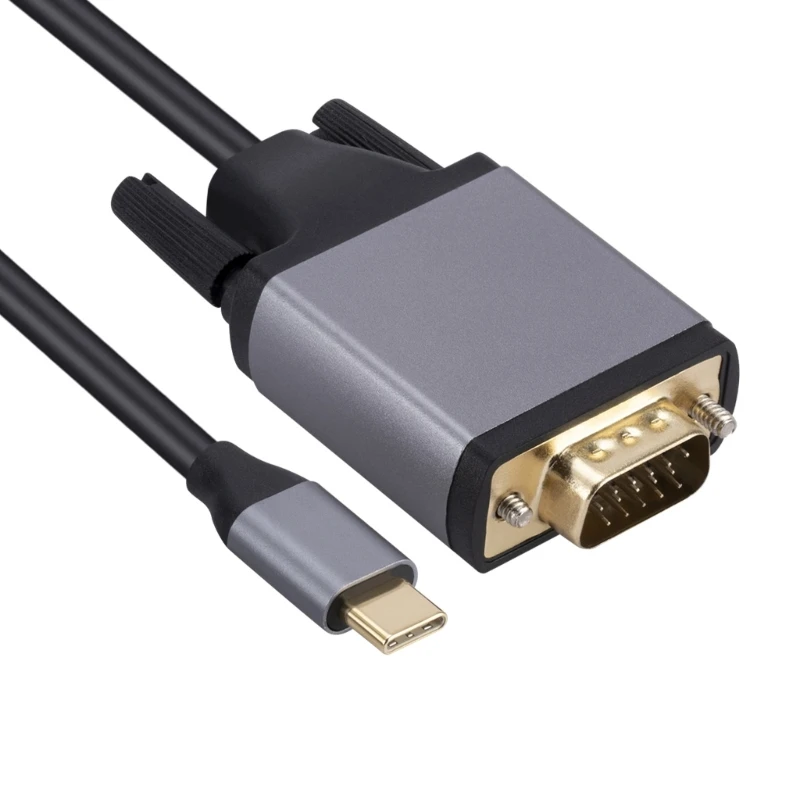
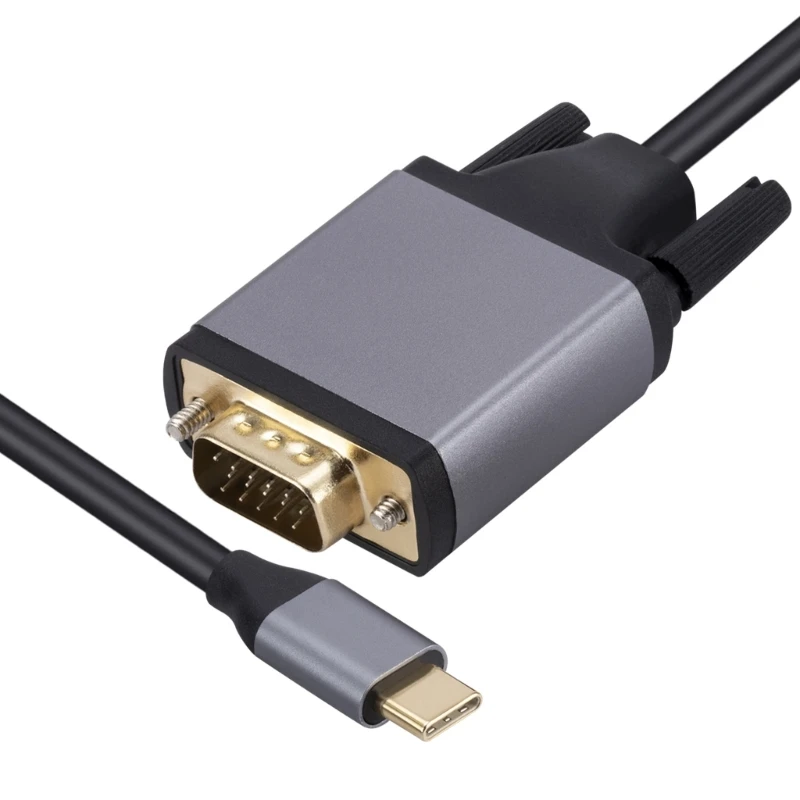
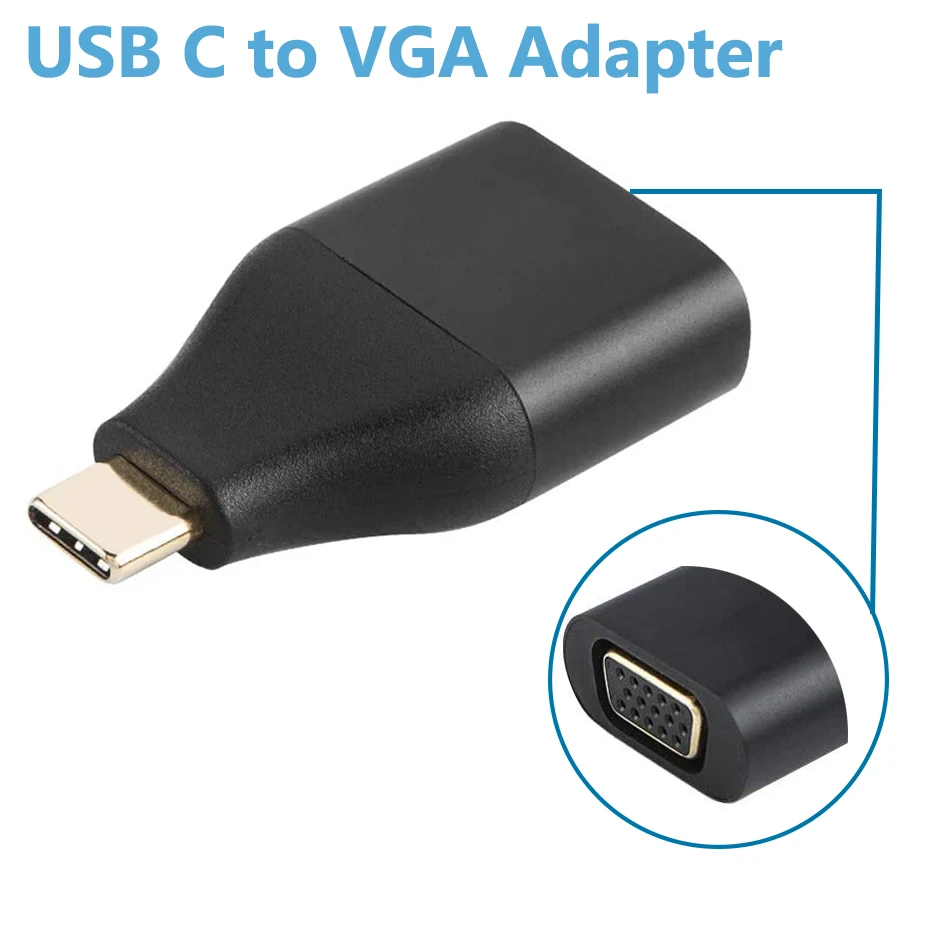
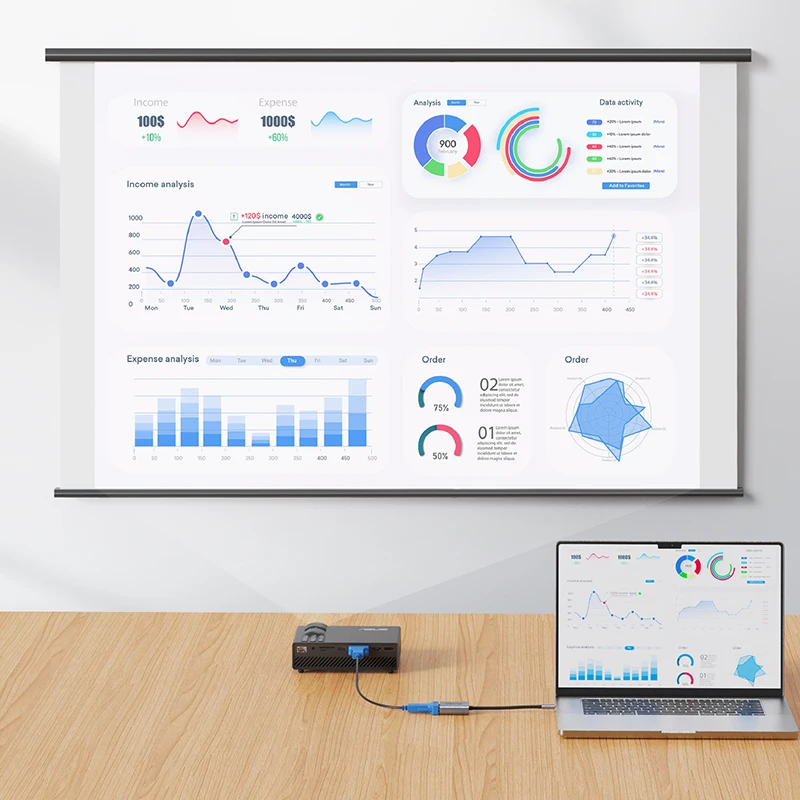
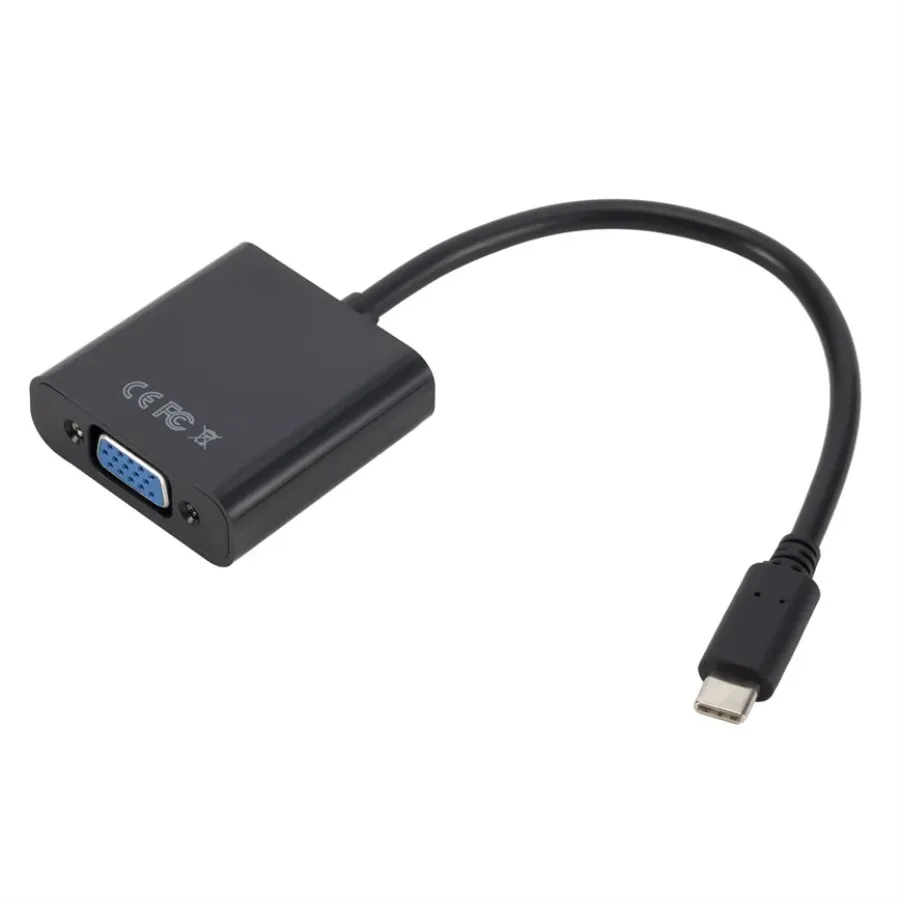
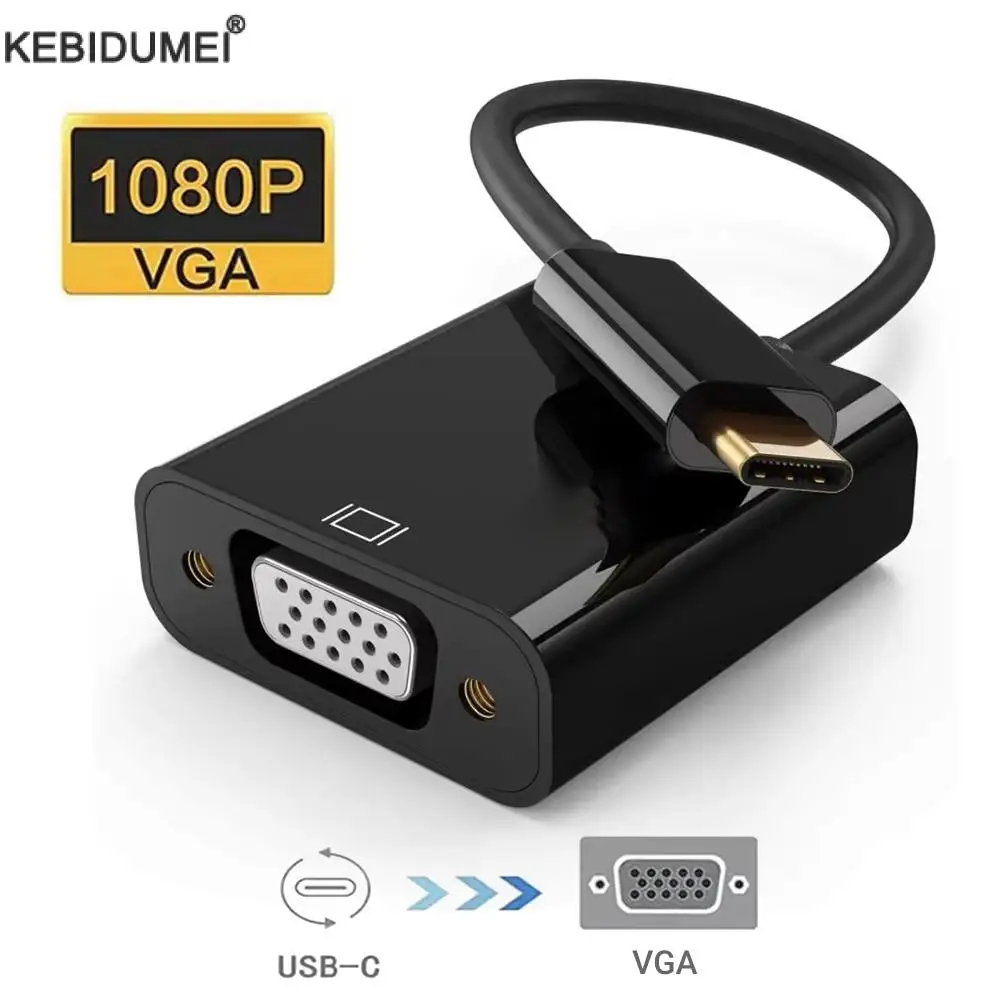
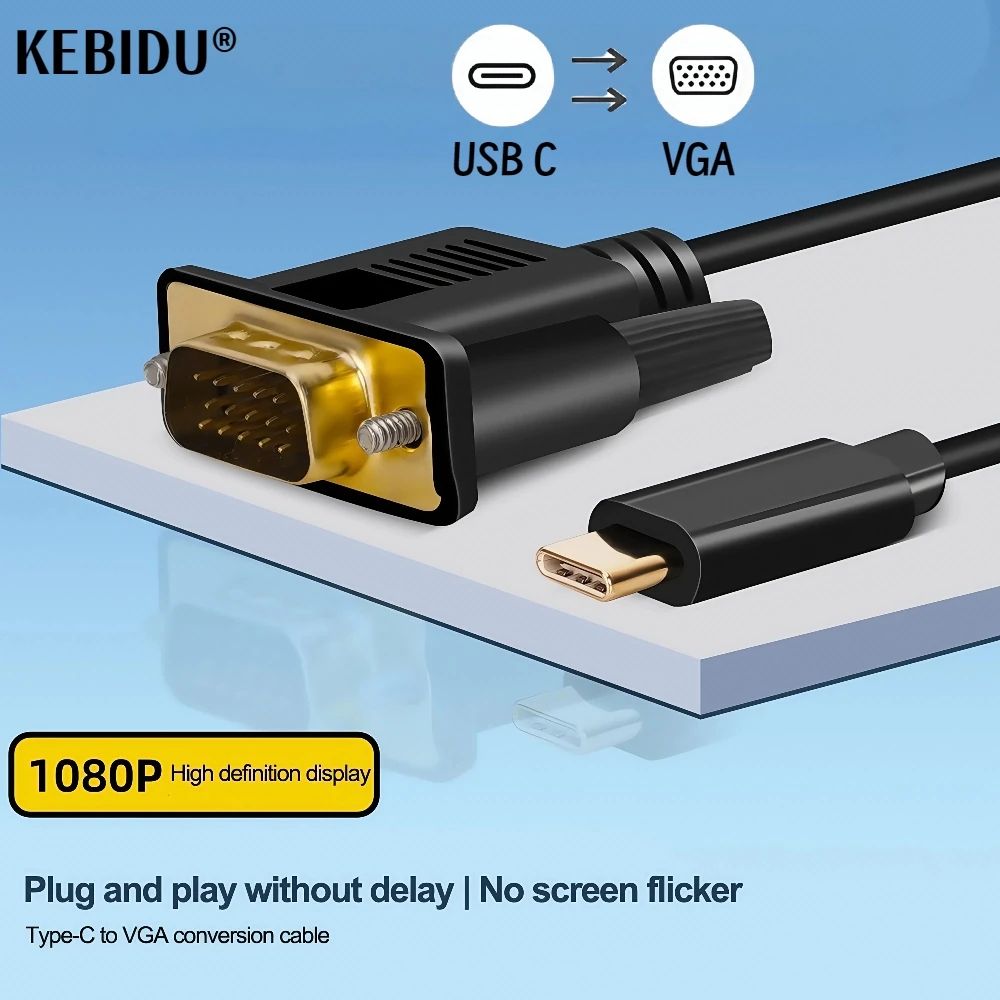
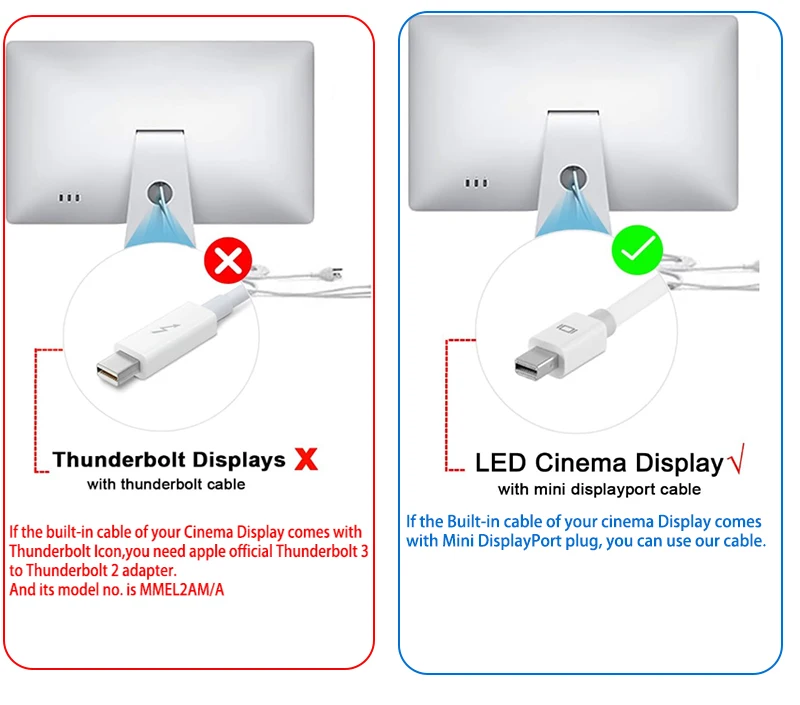
Look at the socket on the back of the screen first. A TV means HDMI. A recent monitor usually has both HDMI and DisplayPort: DisplayPort is often the one for the highest refresh rates. A projector in a school hall or meeting room may only have VGA. Then match the adapter's figures to the screen: 4K at 60Hz for a 4K monitor you will work on, 1080p for an older screen.
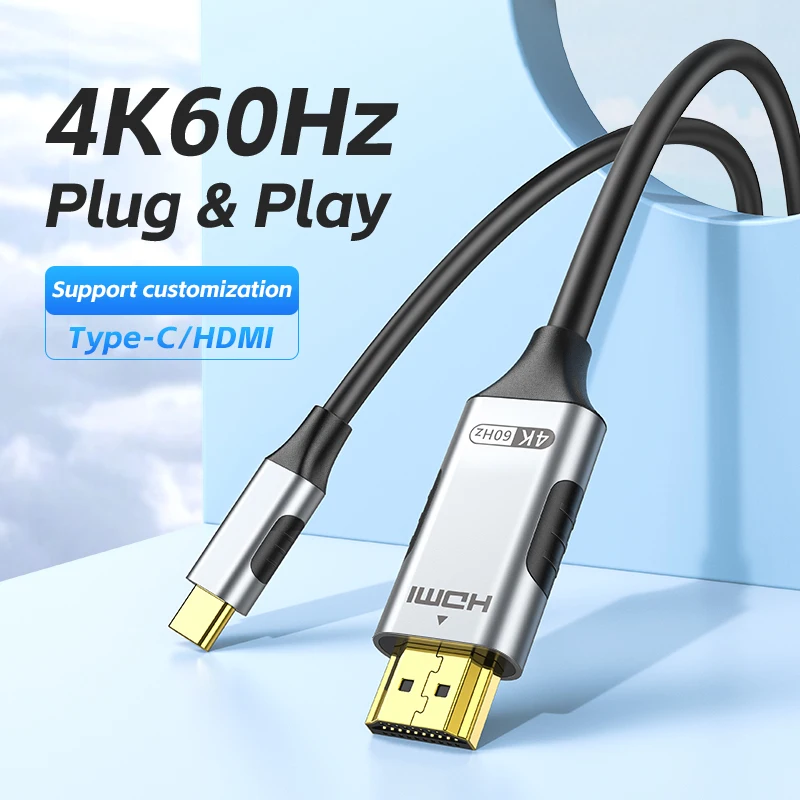
The figures on HDMI adapters follow the HDMI versions set by HDMI Licensing: HDMI 1.4 handles 4K at up to 30Hz, and HDMI 2.0 added 4K at 60Hz. An adapter only reaches its top figure if the laptop, the cable and the screen can all do it. The laptop also sets how many screens it can run: a MacBook Air with M1 or M2 runs one external display.
Questions people ask about display adapters
Mirror or extend?
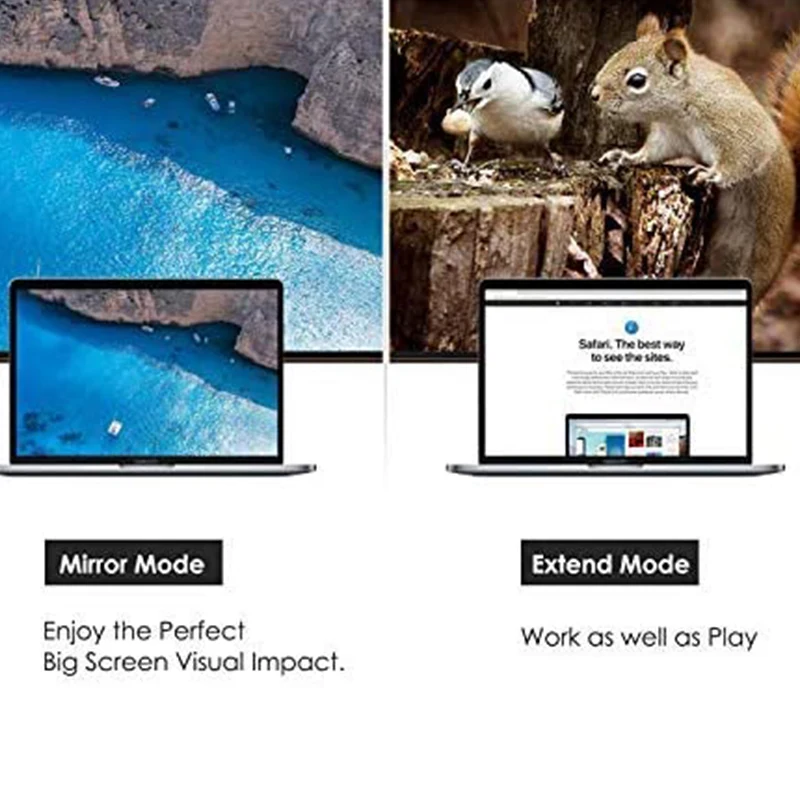
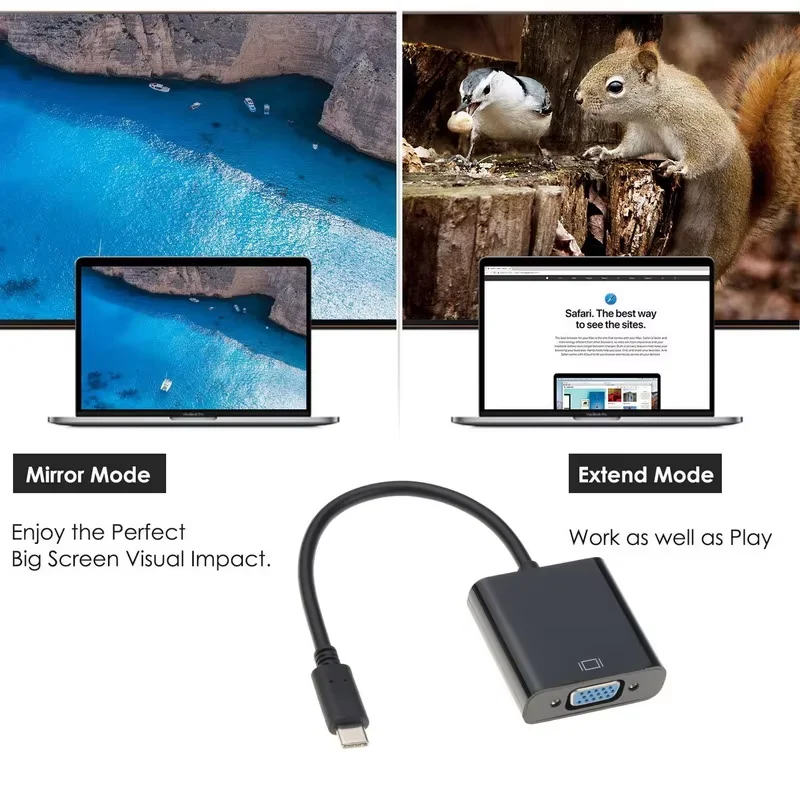
Either. On Windows, press the Windows logo key and P, then choose Duplicate or Extend. On a Mac, use System Settings, then Displays.
Adapter or cable?
A USB-C to HDMI cable does the same job with one lead. An adapter lets you use the HDMI cable already at the screen.
Does sound go through?
HDMI and DisplayPort carry sound. VGA does not. Our guide how to connect a laptop to a monitor or TV goes through each step.
More to look at