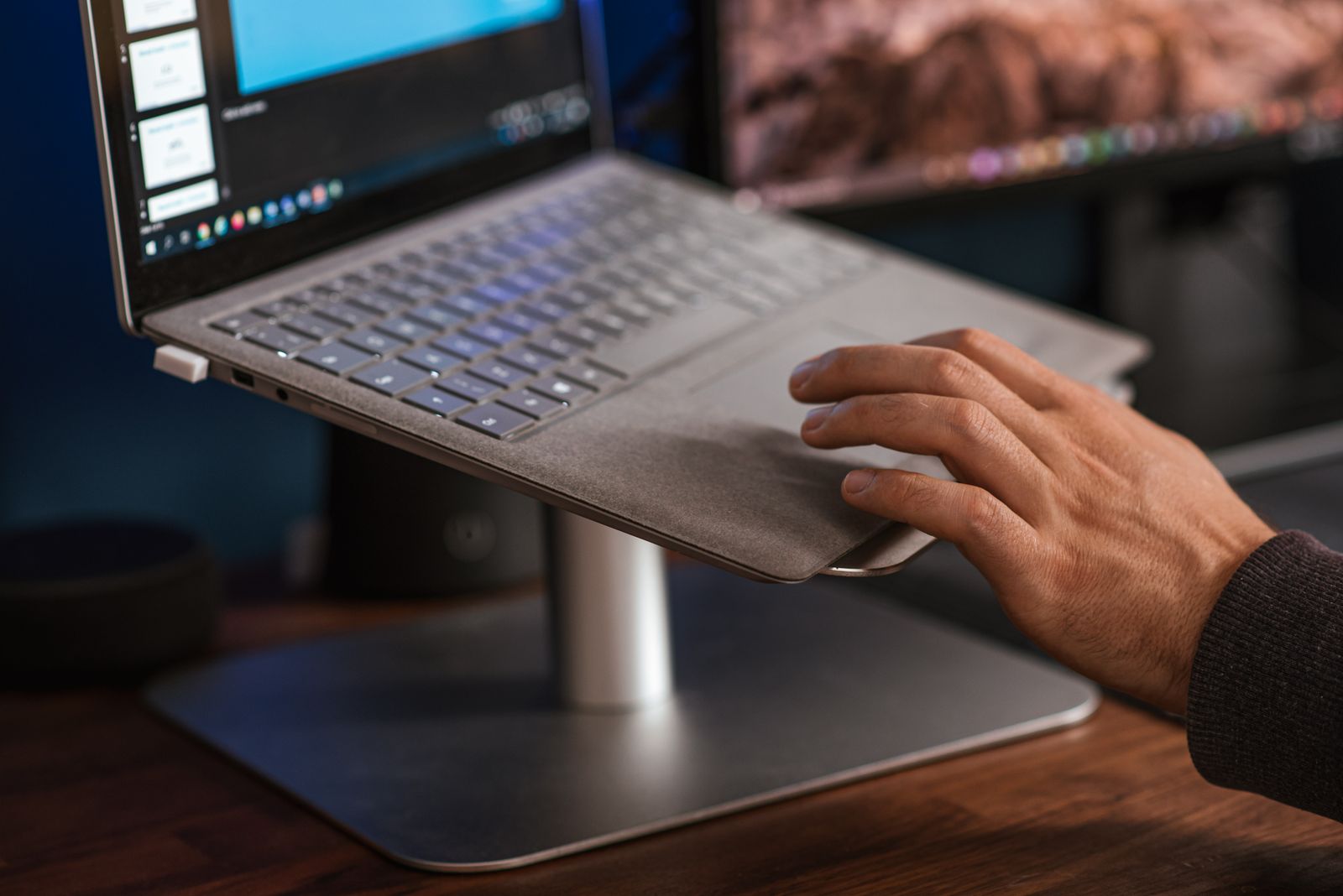
A laptop is a clever piece of design, but it makes one compromise that matters if you use it at a desk for hours: the screen and the keyboard are joined together. Put the keyboard where your hands want it and the screen sits too low, so you spend the day looking down. A laptop stand separates the two. It lifts the screen to a height where you can look at it straight on, and a separate keyboard and mouse take over the typing. This guide explains why that helps, the different kinds of stand, how to get the height and angle right, what makes one stable, and how to set it up with a keyboard and mouse.
Why raise the screen
The Health and Safety Executive, the body that publishes the UK's guidance on working with screens, describes a comfortable set-up in simple terms. The top of the screen should be level with your eyes and about an arm's length away. Your forearms should be roughly horizontal, with the keyboard just below elbow height. On an ordinary laptop sitting flat on a desk, you cannot have both at once. If the keyboard is in the right place, the top of the screen is well below your eyes, and your head and neck tip forward to read it.
The HSE's answer for laptops is the same one this guide follows. Its posture advice says to use a keyboard and mouse separate from the laptop, so that the screen can be raised on a laptop riser or something similar. Its leaflet on working with display screen equipment says that people using portable computers should, whenever possible, be encouraged to use a docking station or firm surface and a full-sized keyboard and mouse, and that the screen should be set at a height and angle where the user sits comfortably and reflection is kept down. It adds that raiser blocks are commonly used to help with screen height. A laptop stand is exactly that: a raiser made for the job.
Who gets the most from a stand
The more time you spend at the laptop in one sitting, the more a stand is worth having. The HSE's rules on screen work cover employees who use a screen daily for continuous periods of an hour or more, which describes most people who work from a laptop at home or in an office. Students writing essays, people running a small business from the kitchen table and anyone who spends evenings on long projects are in the same position, even if no employer is involved.
If you use a laptop for ten minutes at a time to check email, a stand matters much less. On a train or in a café, it may not be practical at all. The point of a stand is the long session at a desk, which is where the strain builds up.
A stand needs a keyboard and mouse
This is the part people miss. Raise a laptop to eye level and its own keyboard rises with it, so typing on it means lifting your arms and bending your wrists back. That is worse than where you started. A stand only does its job with a separate keyboard and mouse on the desk in front of it. The last section of this guide covers that set-up.
Foldable, adjustable and vertical stands
Stands come in several shapes, each made for a different way of working. The full choice is in laptop stands and risers.
Foldable stands
Foldable aluminium laptop stands are light frames that open out into a raised, sloping platform and fold flat to slip into a bag beside the laptop. Most have a few set heights or a hinge you can open to different angles. They suit people who work in more than one place: a hot desk at the office, a table at home, a library or a client's meeting room. Because they are made to be carried, they are usually lighter and lower than a stand that lives on one desk, so check the highest position before you choose one.
Adjustable stands
Adjustable laptop stands let you set the height and the angle separately, usually with two hinged arms or a column that raises and lowers. They reach higher than most foldable stands and hold their position more firmly, which makes them the better choice for a desk you use every day. They are heavier and bulkier, and some do not fold small enough to travel. If more than one person uses the same desk, an adjustable stand lets each of them set the height that suits them.
Vertical stands
Vertical laptop stands work in a different way. They hold a closed laptop upright on its edge, like a book on a shelf, so it takes up very little room on the desk. You do not look at the laptop's screen at all: you use a separate monitor, keyboard and mouse, and the laptop does the computing from the side of the desk.
Running a laptop with the lid closed needs a little setting up. Apple says that to use a Mac laptop with the lid closed you first need to allow an external display, a mouse and a keyboard to connect to it, and its guidance for closed-lid use has the Mac connected to power with an external keyboard and mouse or trackpad. On a Windows laptop, the power options include a setting for what closing the lid does; setting it to do nothing while plugged in keeps the laptop running with the lid shut. A vertical stand is usually paired with a hub or docking station, so the monitor, keyboard, mouse and charger all connect through one cable. The guide to choosing a USB-C hub or docking station explains how to pick one.
Lap desks and bed trays
Lap desks and bed trays are flat, firm surfaces for using a laptop on the sofa or in bed. They are not a substitute for a desk, but they solve one real problem. Apple tells owners of its laptops not to use them in bed, on a pillow or under bedding, and to use them on a stable surface that allows good ventilation. A soft duvet can block the air a laptop needs, and a tray gives it a firm base instead. Keep sessions short, sit up rather than lying down, and do not let anything cover the laptop's vents.
Monitor arm trays and cooling stands
If you already have a monitor arm clamped to the desk, monitor arm laptop trays fix to the arm and hold the laptop in the air beside or below the monitor, so both screens can sit at the same height and the desk underneath stays clear. Check that the tray fits the arm you have and that the arm is rated for the laptop's weight as well as the tray's.
Cooling stands with fans raise the laptop and blow air underneath it at the same time. They suit laptops that run hot under heavy work such as games or video editing. The guide to keeping a laptop cool explains when a fan helps and when it does not.
Height and angle
The right height is the one that puts the top of the screen level with your eyes when you sit comfortably. That depends on you, your chair and your desk, not on the laptop, so the best way to choose a stand is to measure your own set-up first.
Set the chair first, then the screen
The HSE's workstation checklist gives the order. Adjust the chair height to get your arms in the right position, with forearms roughly horizontal, and then adjust the screen height. If you raise the screen first and then change the chair, you will have to start again. Its posture guidance adds that the seat should support the front and back of your thighs equally, with a small gap of two to three centimetres between the front of the seat and the back of your knee, and good support for the lower back.
Measuring for a stand
Once the chair is right, you can work out how high the stand needs to lift the laptop:
- Sit as you would to work, looking straight ahead, and ask someone to measure from the desk top to the height of your eyes. Or rest a ruler upright on the desk and note where your eye line meets it.
- Open the laptop to its usual angle and measure from the desk to the top of the screen.
- The difference between the two is roughly how much lift you need. Compare it with the highest setting the stand's maker gives, remembering that the stand's height is measured to its platform and the screen then sits above that.
If the number you need is more than a foldable stand offers, an adjustable stand is the safer choice. If several people will share the desk, choose one that covers the range for all of them.
Distance from your eyes
The HSE suggests about an arm's length between you and the screen, with the screen and keyboard straight in front of you so you do not twist your back. Standing a laptop on a stand usually moves the screen back a little, which helps: the checklist itself suggests pushing the screen further back to make more room for the keyboard, hands and wrists. If the text then looks too small, make it bigger in the laptop's display settings rather than leaning forward. The HSE's leaflet says to choose text that is large enough to read easily when sitting in a normal, comfortable position.
The angle of the screen
Most stands tilt the laptop towards you, and the screen hinge gives you a second angle to play with. Tilt both until you can see the whole screen without lifting or dropping your chin, and until reflections from windows and lights disappear. The HSE says the height and position of a portable computer's screen should be angled so the user is sitting comfortably and reflection is minimised. The guide to setting up a laptop desk covers light and glare in more detail.
Stability and materials
A stand holds something valuable above a hard desk, so how firmly it holds it is worth a moment's thought.
Weight and wobble
Laptops vary a good deal in weight. Apple gives the 13-inch MacBook Air with the M4 chip as about 1.2 kilograms, and the 16-inch MacBook Pro from 2024 as a little over 2 kilograms. Large gaming laptops can be heavier again. The laptop's own specification page gives its weight, and the stand's maker should say how much it is made to hold. Choose one with room to spare.
Weight capacity is only part of it. A stand can carry a heavy laptop and still wobble. Look at the width of the base compared with the height the stand reaches: the higher it goes, the wider and heavier the base needs to be. Stands with a single column can sway more than those with two arms. If you will sometimes type on the laptop's own keyboard while it is on the stand, even for a minute, a stand that flexes will bounce with every key press.
Grip and edges
Good stands have soft pads where the laptop rests, often silicone or rubber, which stop it sliding and protect the finish on its underside. Many also have a raised lip or two small hooks at the front edge, so the laptop cannot slip off the slope. Check that the lip does not cover a port or press on the trackpad when the lid is open. Pads underneath the stand keep it from sliding on a smooth desk.
Materials
- Aluminium is light, strong and does not rust, which is why it is used for most foldable stands. It looks at home next to a metal-bodied laptop.
- Steel is heavier, which makes a stand steadier on the desk but less pleasant to carry.
- Plastic keeps the weight and the cost down. Thicker, stiffer plastic stands can be perfectly steady; thin ones may flex.
- Wood and bamboo are chosen for the look on a home desk. They are usually fixed-height risers rather than adjustable stands.
Leaving room for air
Many laptops draw air in and push it out through vents on the underside, the sides or the back. Apple asks owners not to put anything into a laptop's ventilation openings and to use it on a surface that allows good ventilation. Before you choose a stand, look at where your laptop's vents are. An open frame or a platform with cut-outs lets air reach the underside, while a solid platform with pads in the wrong place could cover a vent. Lifting a laptop off the desk generally gives the air more space, but a stand is not a cooling device in itself.
Using a stand with a keyboard and mouse
With the screen raised, the keyboard and mouse go on the desk in front of it. The HSE's posture guidance gives the positions: the keyboard just below elbow height, the mouse in line with your elbow, and the screen and keyboard central so you do not twist.
Choosing a keyboard
Any full keyboard will do, but most people with a laptop choose a wireless one so there is no cable across the desk. Wireless keyboards come with a small USB receiver that plugs into the laptop. Bluetooth keyboards connect without one, which keeps a port free, and many can switch between the laptop, a tablet and a phone. If your laptop has few ports, Bluetooth is usually the better choice.
Think about width as well. A keyboard with a number pad on the right pushes the mouse further out to the side. The HSE's checklist says a mouse is best placed as close as possible, for example right beside the keyboard. Compact keyboards without the number pad let the mouse sit closer to the middle, and a separate number pad can sit on the other side if you need one. The guide to choosing a keyboard for your laptop goes through the choices.
Choosing a mouse
A mouse is easier on the hand and wrist over a long day than a laptop's trackpad, and much easier to use when the trackpad is raised up on a stand. Wireless mice use a receiver; Bluetooth mice do not. The HSE's leaflet suggests keeping the mouse within easy reach so it can be used with a straight wrist, supporting the forearm on the desk, and not gripping it too tightly. If you prefer to buy both together, keyboard and mouse sets match each other and often share one receiver. The guide to choosing a wireless mouse explains sizes, grips and buttons.
Connecting it all up
A stand, a keyboard, a mouse, a charger and perhaps a monitor can add up to more plugs than a laptop has ports. A USB-C hub gives you more sockets from one port, and a docking station stays on the desk so that one cable connects everything when you sit down. If you use a vertical stand with a monitor, a dock is close to essential.
A simple order to set it up
- Set the chair so your feet are flat and your forearms are roughly horizontal at the desk.
- Place the stand straight in front of you, about an arm's length away, and set the laptop on it.
- Raise or adjust the stand until the top of the screen is level with your eyes.
- Tilt the screen until you can read all of it and reflections are gone.
- Put the keyboard in front of you with some space before the desk edge, and the mouse right beside it.
- Connect the keyboard and mouse, then check you can work for a few minutes without lifting your shoulders or bending your wrists.
Questions people ask
Can I type on the laptop's own keyboard when it is on a stand?
For a quick message, yes, especially on a low setting. For longer work, no: the keyboard is too high, and your wrists bend back. The HSE's advice for laptops is a separate keyboard and mouse so the screen can be raised.
Will a stand keep my laptop cooler?
Lifting a laptop off the desk usually lets more air reach its underside, as long as the stand does not cover a vent. For a laptop that runs hot under heavy work, a stand with fans does more.
Do I need a stand if I use a separate monitor?
Not to raise the laptop's screen, because you will be looking at the monitor. A vertical stand still helps, by standing the closed laptop out of the way. If you use the laptop's screen as a second display, raise it close to the monitor's height so you are not looking down to one side.
Will a metal stand scratch my laptop?
A stand with soft pads where the laptop rests should not. Keep the pads clean, because grit trapped under a pad is what scratches.
Can I use my laptop in bed on a tray?
A firm tray is far better than a duvet or a pillow, which Apple warns against because they block the air. Keep it to short spells and keep the vents clear.
Where to go next
All the stands are in laptop stands and risers, from foldable aluminium stands for the bag to adjustable stands for the desk. For the rest of the set-up:
- Setting up a laptop desk that is kind to your back: the HSE's guidance, step by step
- How to choose a USB-C hub or docking station: connecting the keyboard, mouse and screen
- How to choose a keyboard for your laptop: the keyboard that goes in front of the stand
- How to keep a laptop cool: when a stand with fans is worth it