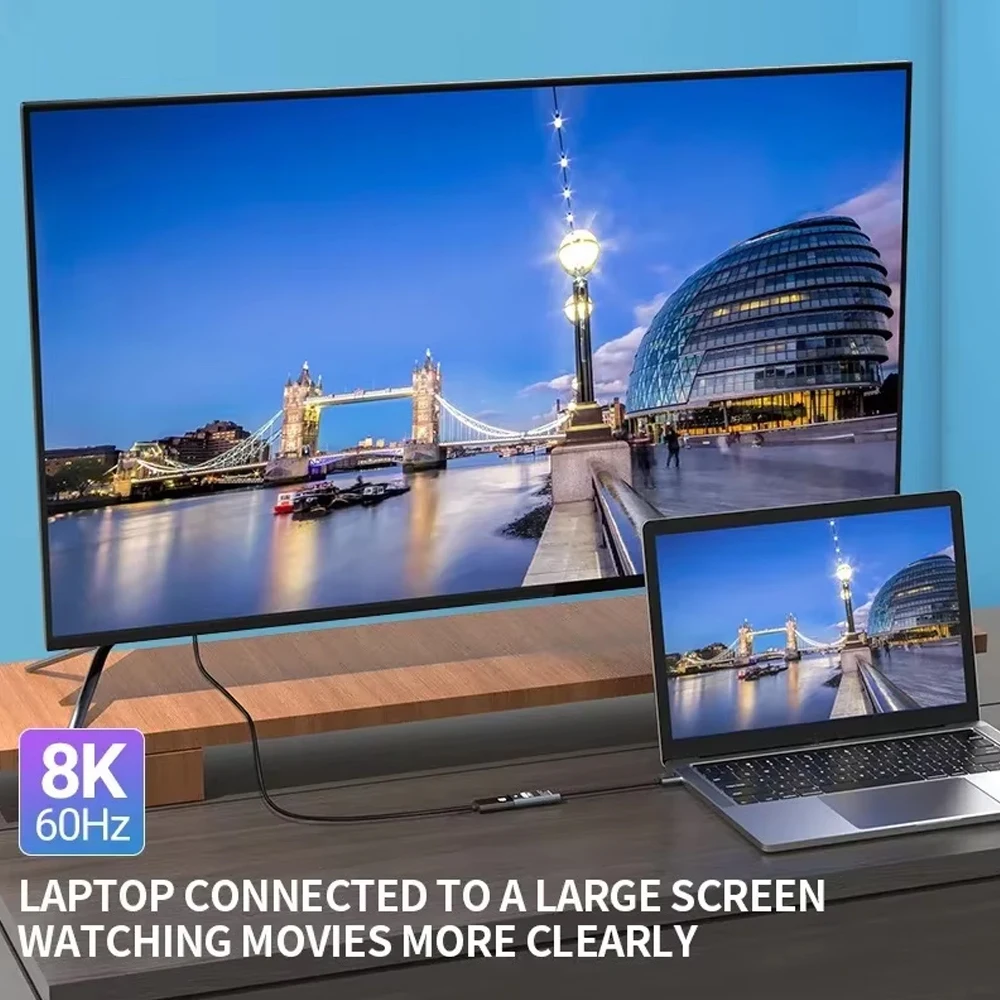
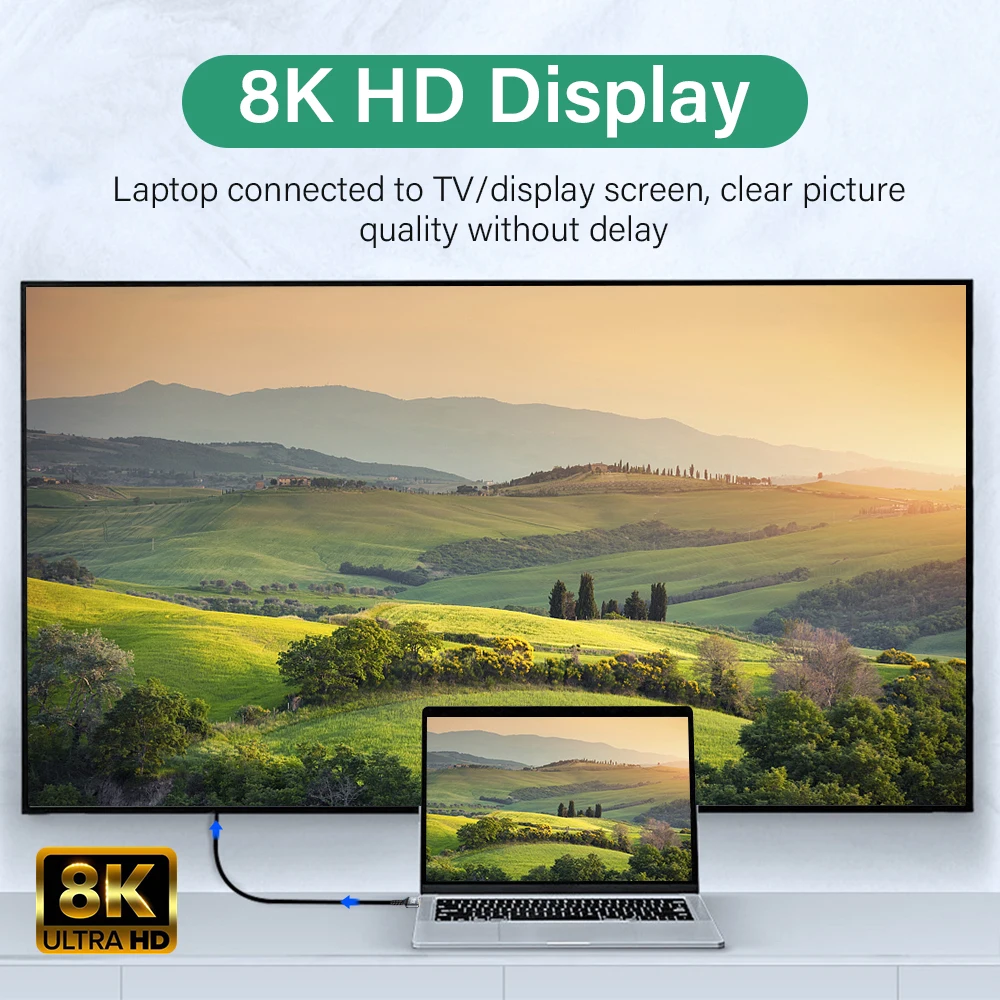
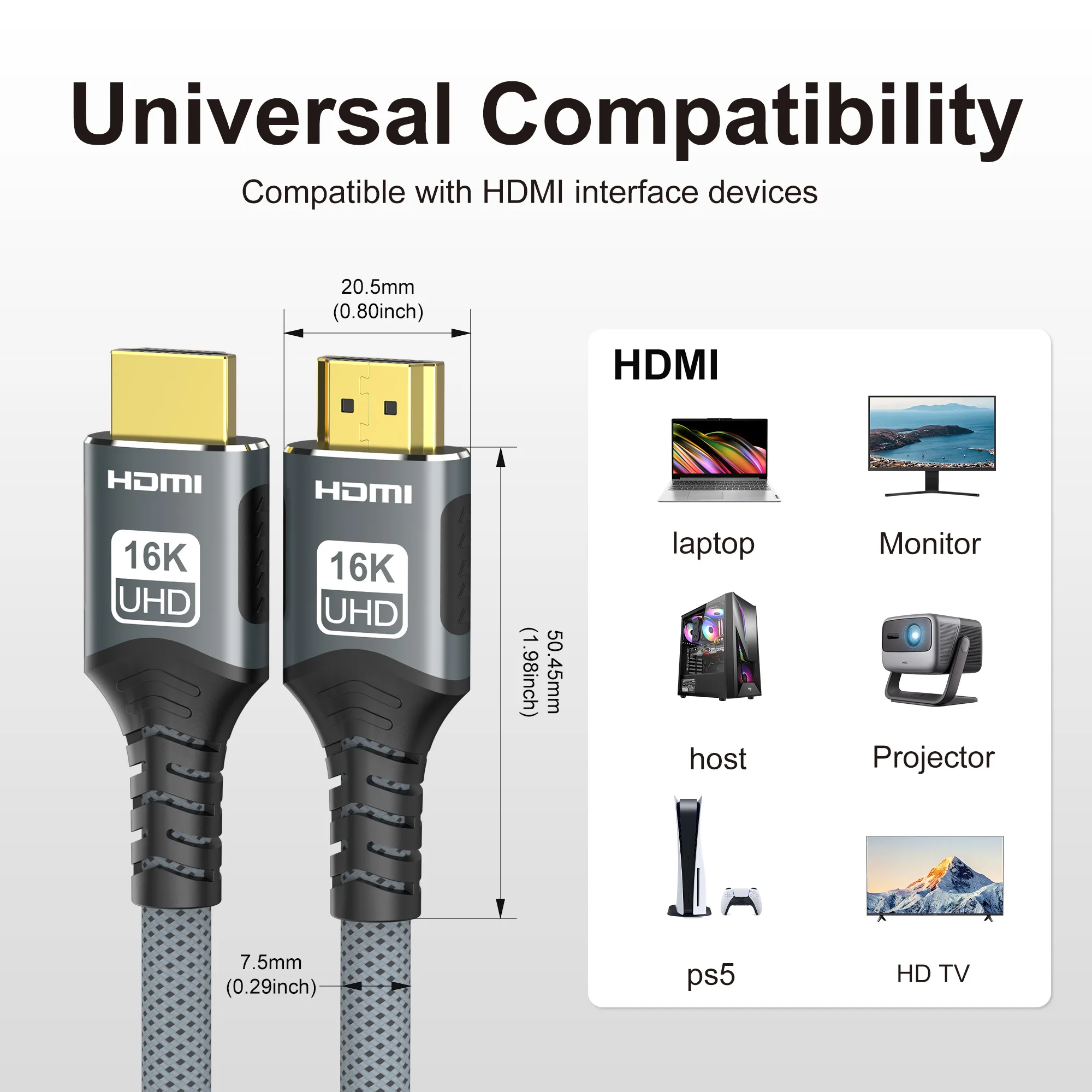
Connect your laptop to a TV, monitor or projector
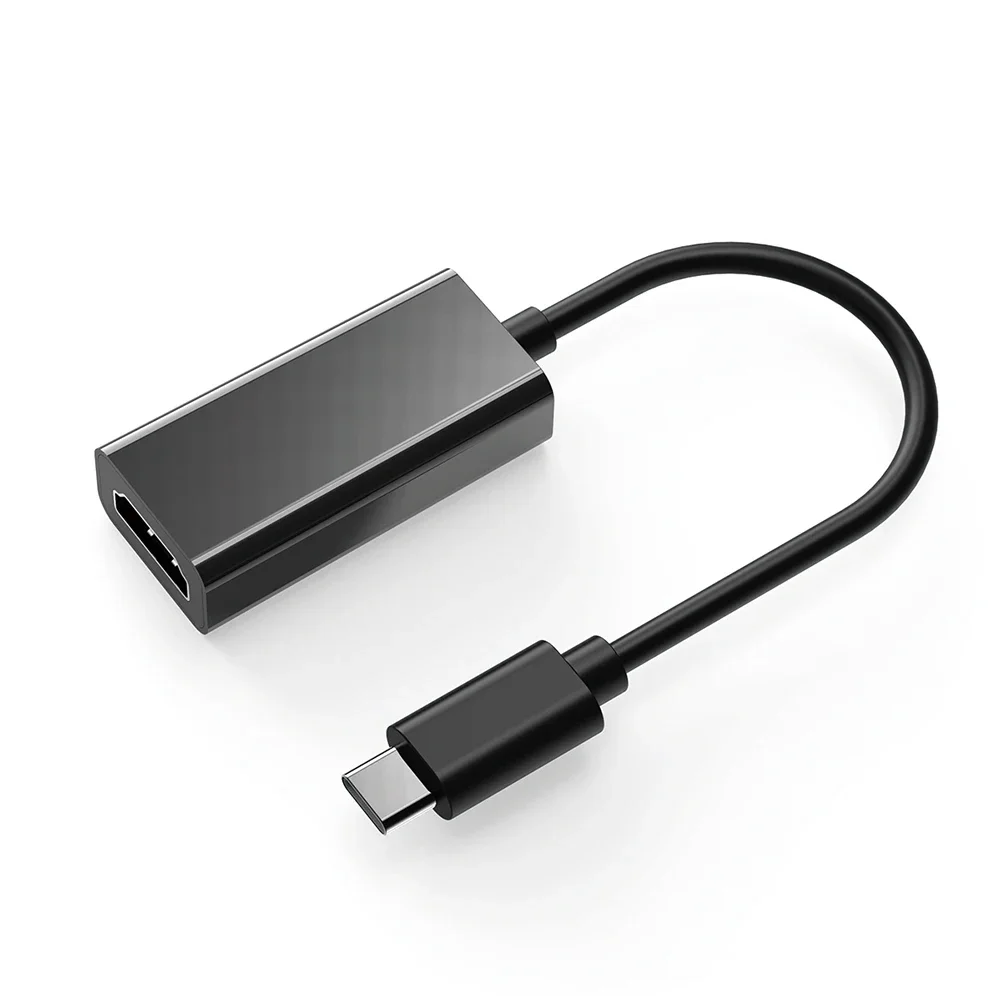
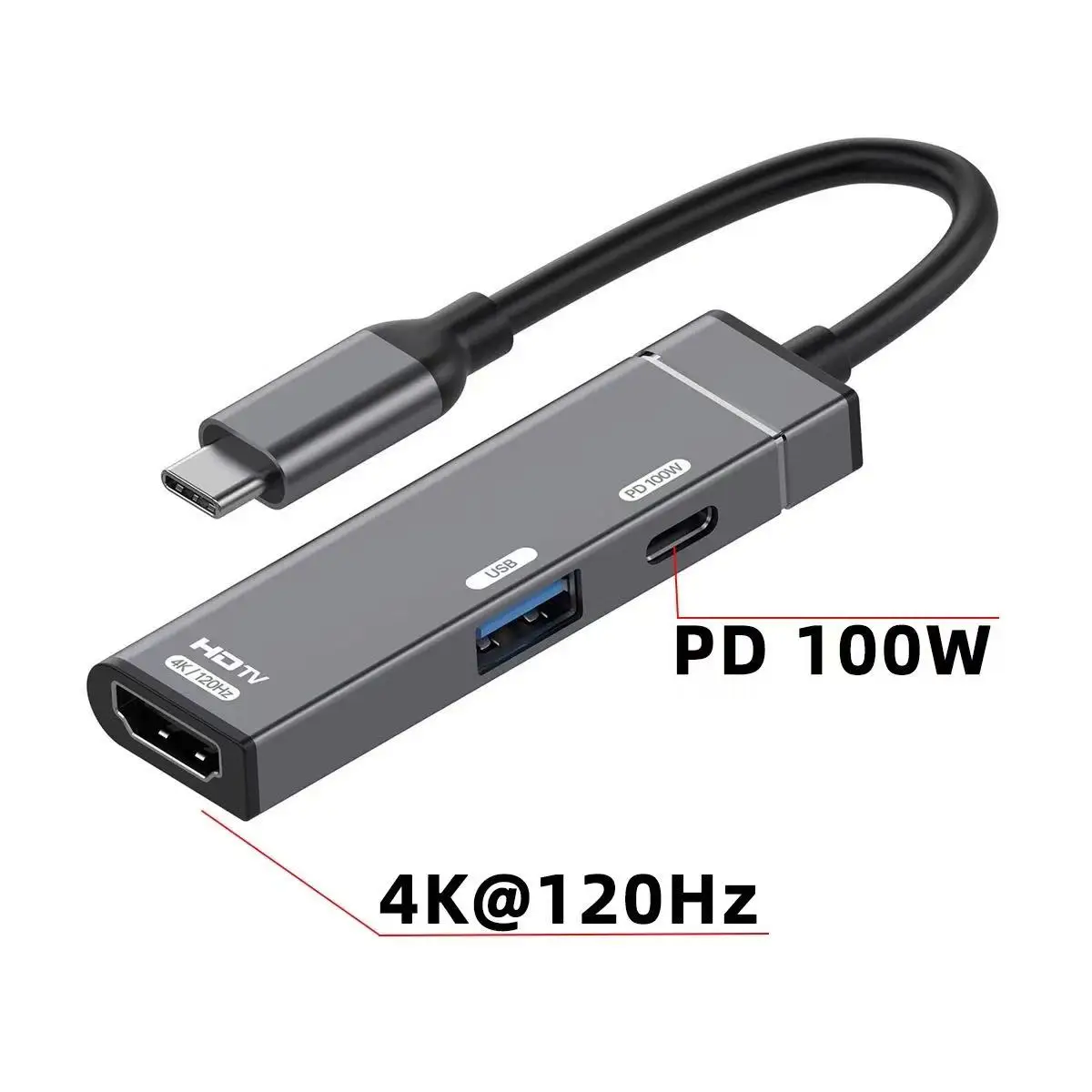
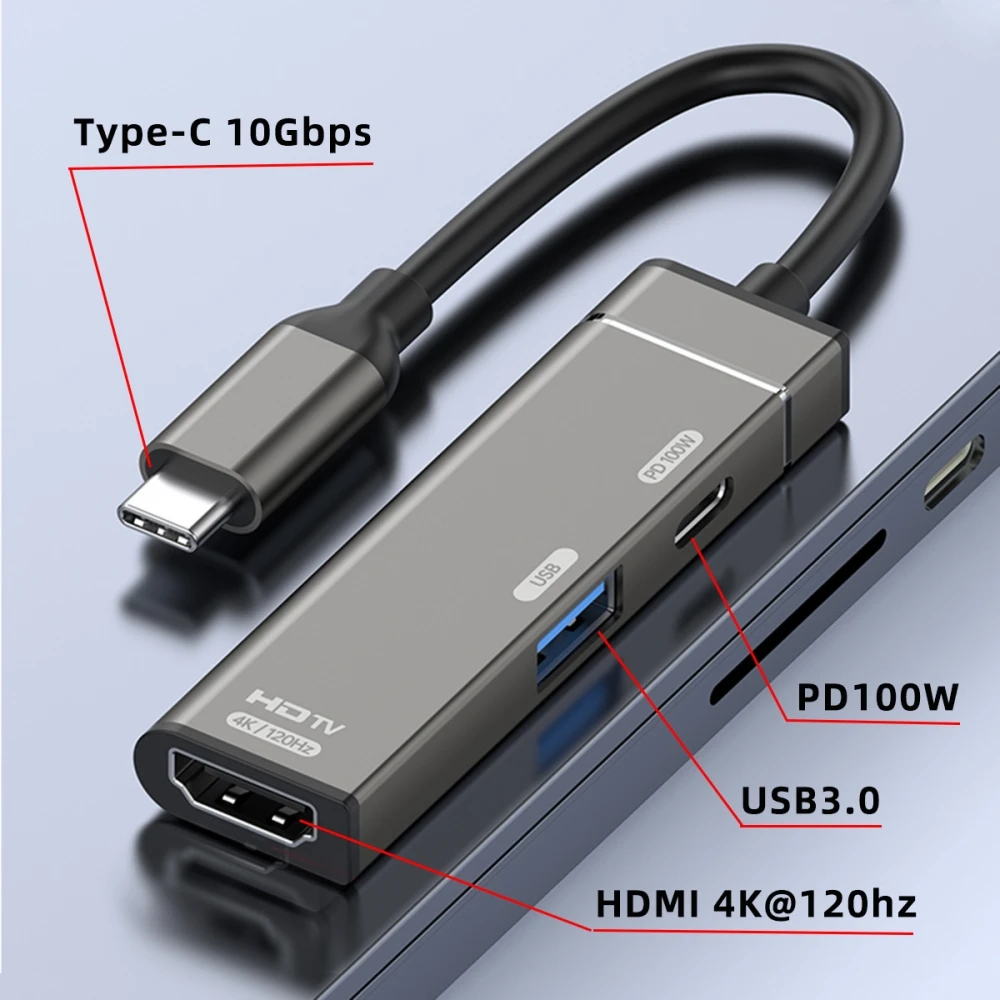
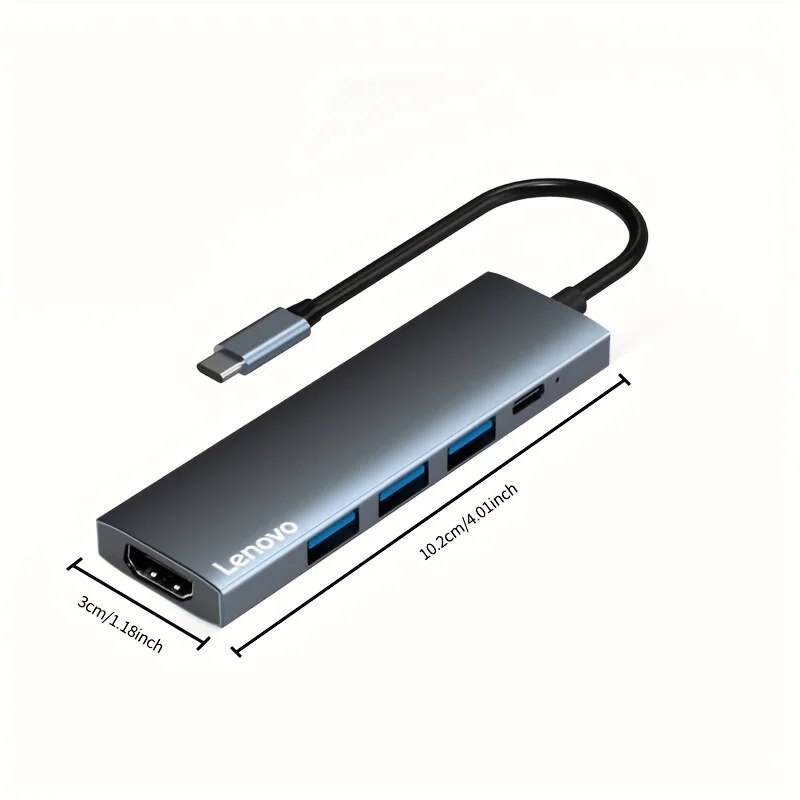
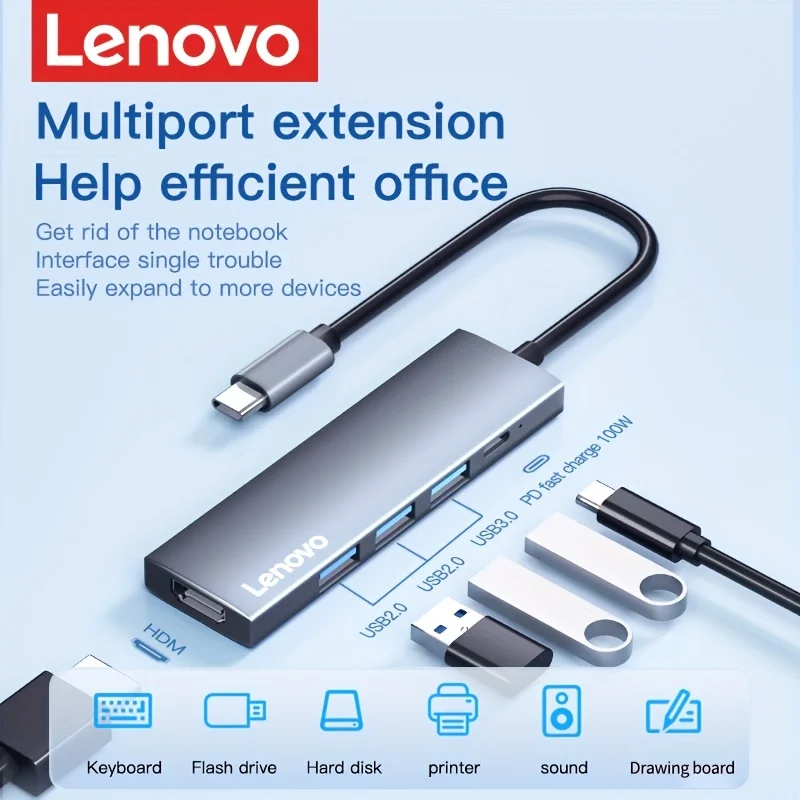
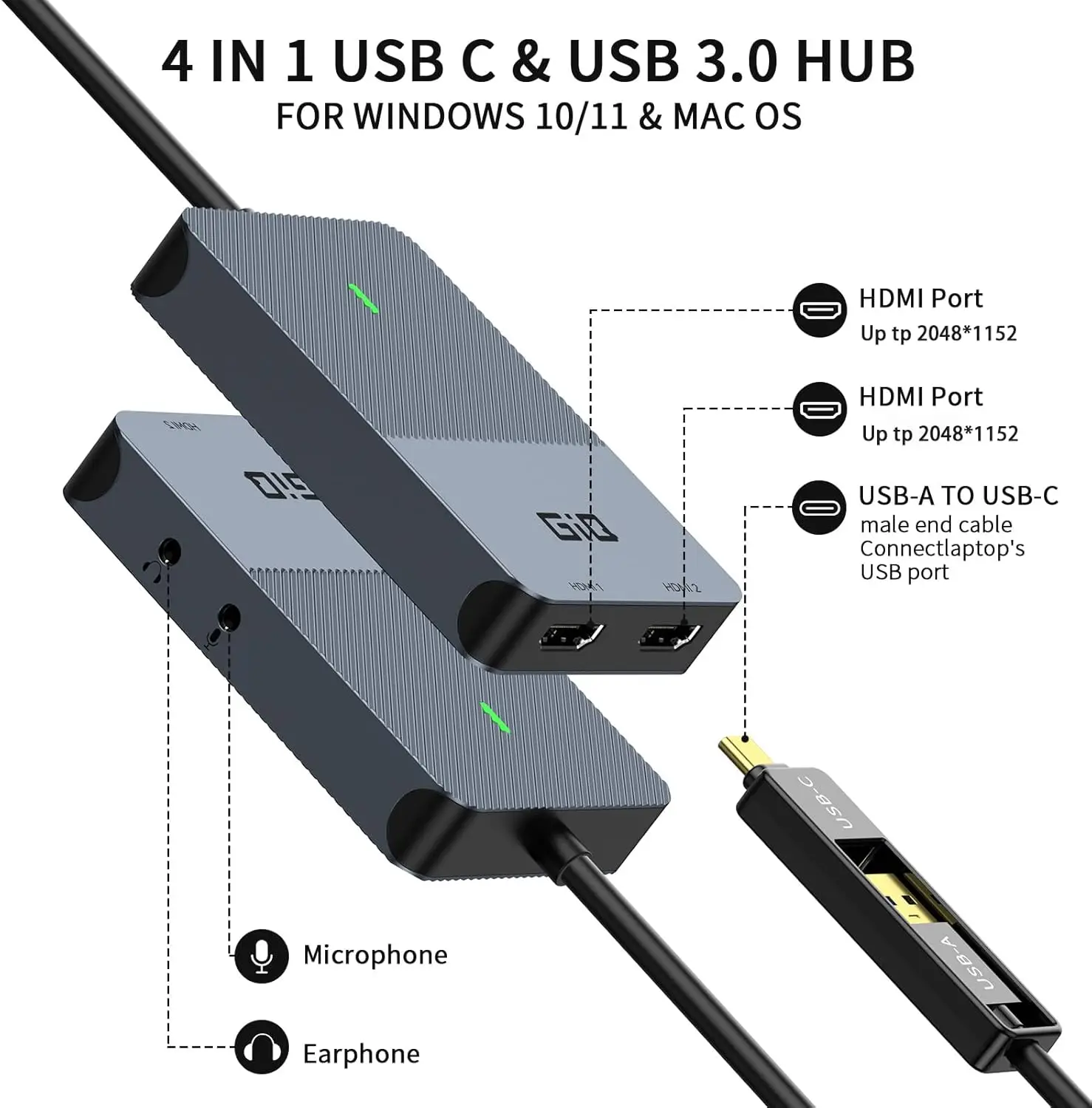
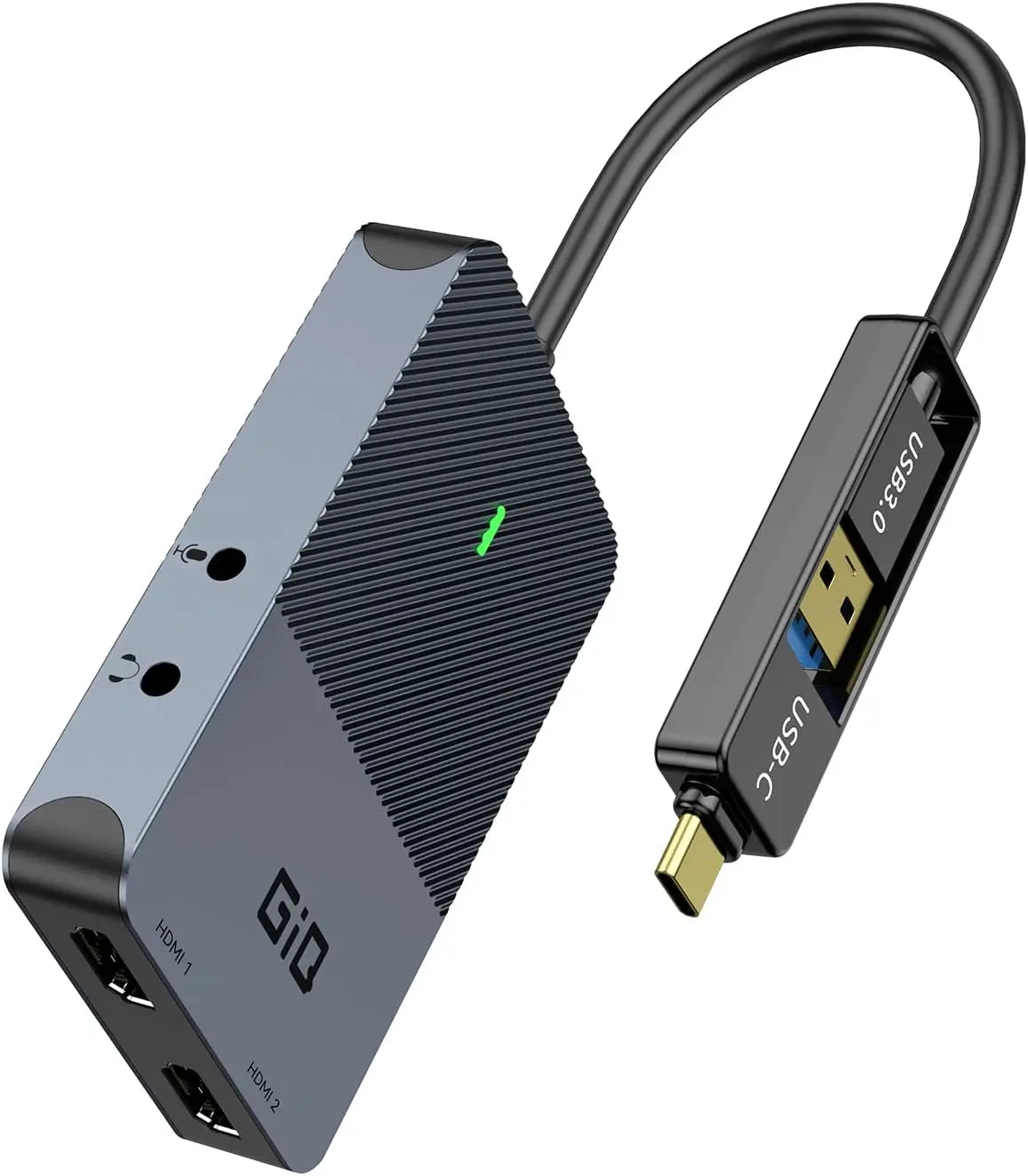
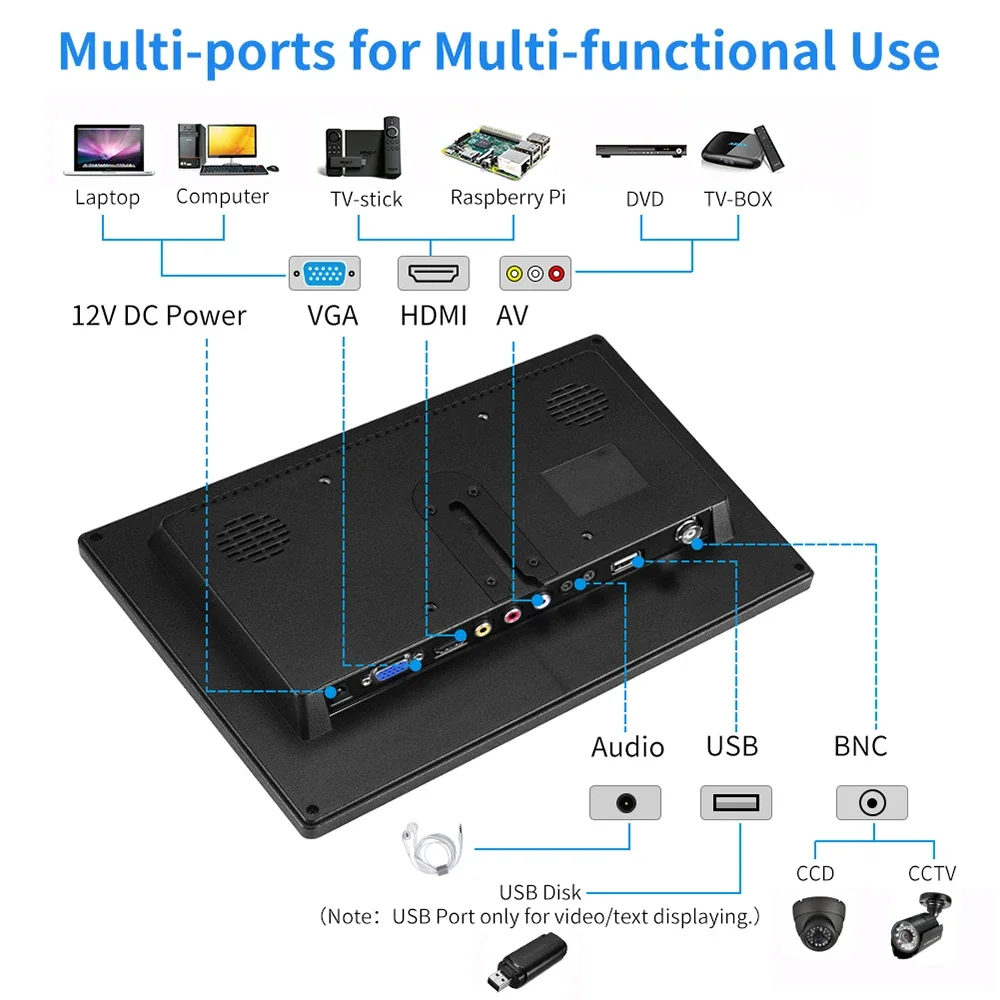
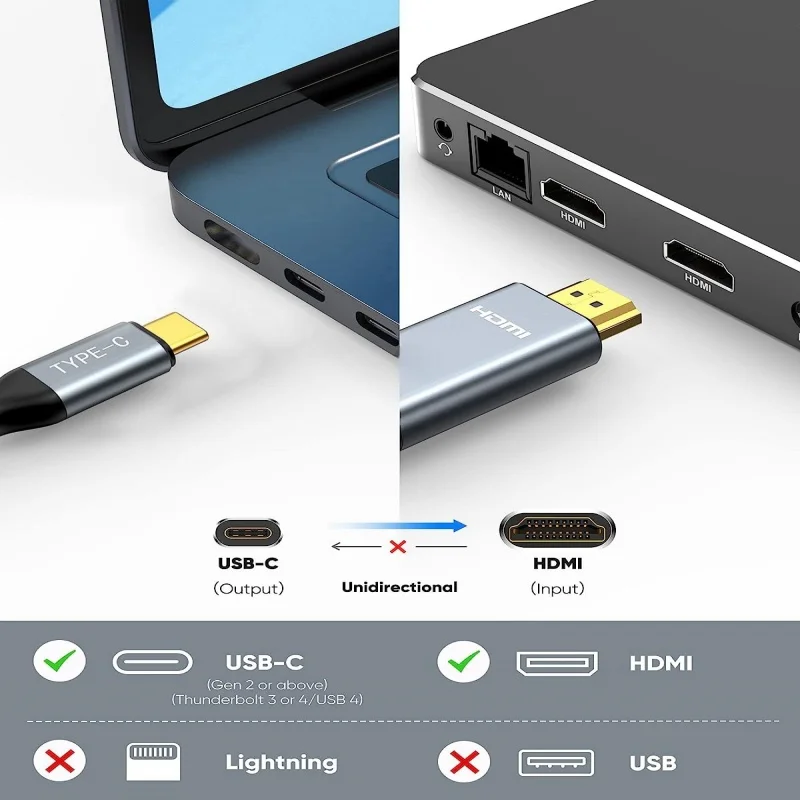
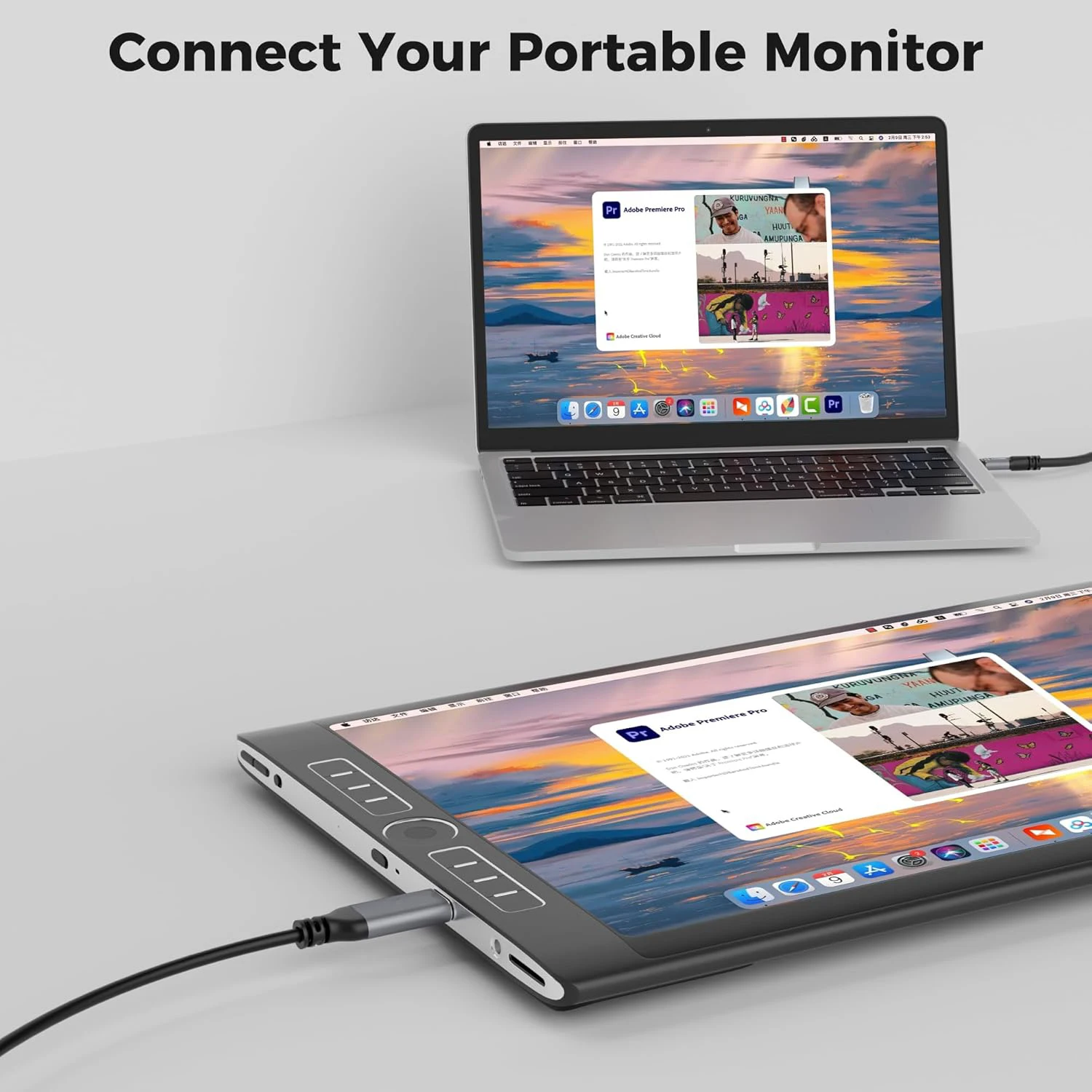
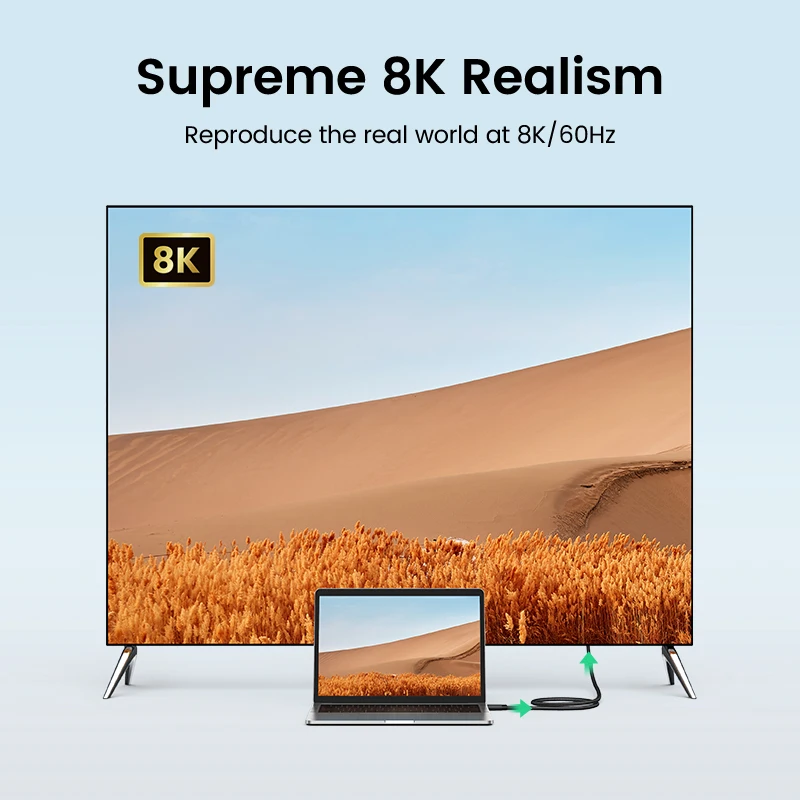
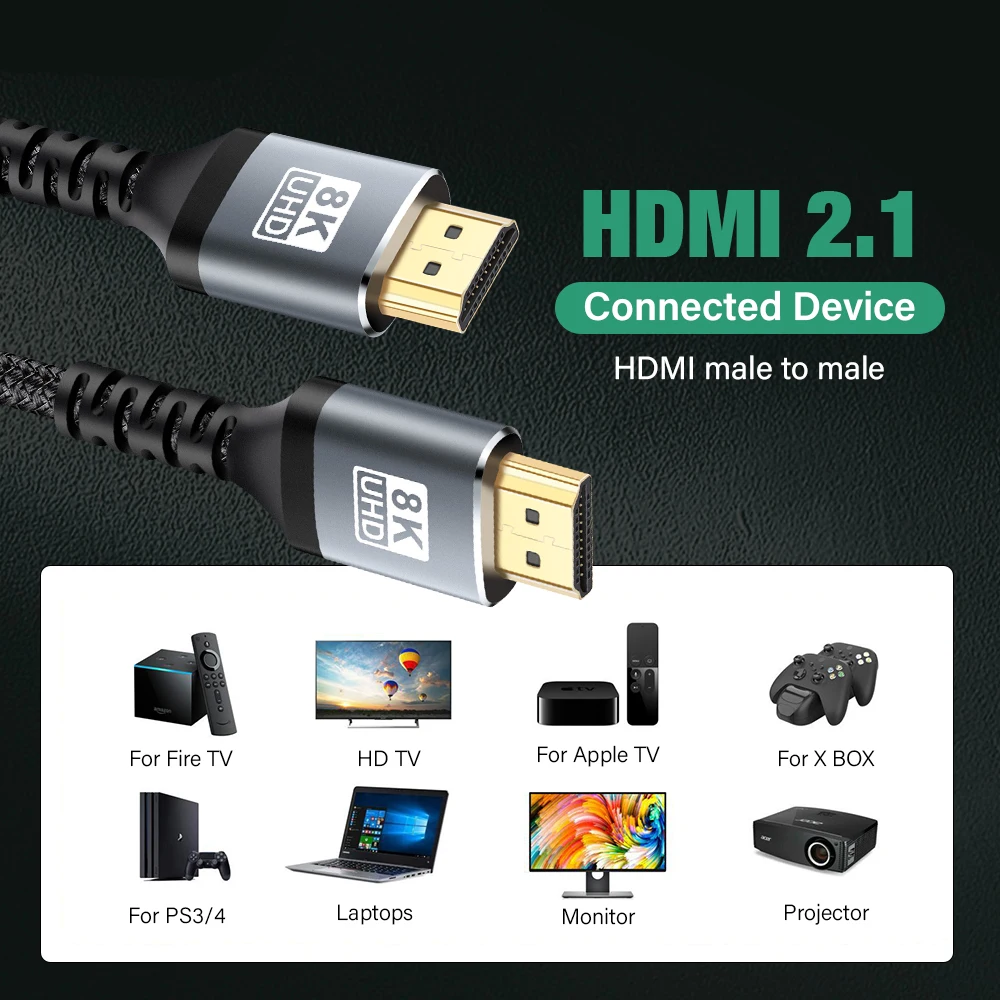
HDMI is the connector on almost every TV and projector and most monitors, and it carries sound as well as the picture. Some laptops have a full-size HDMI socket; many newer ones send a picture through USB-C instead and need an adapter or hub. This page lists every cable, adapter, switch, hub and screen whose name, short description or choices mention HDMI, so it holds both ends of the job: the connection from the laptop, and the cables and switches at the screen.
What is here
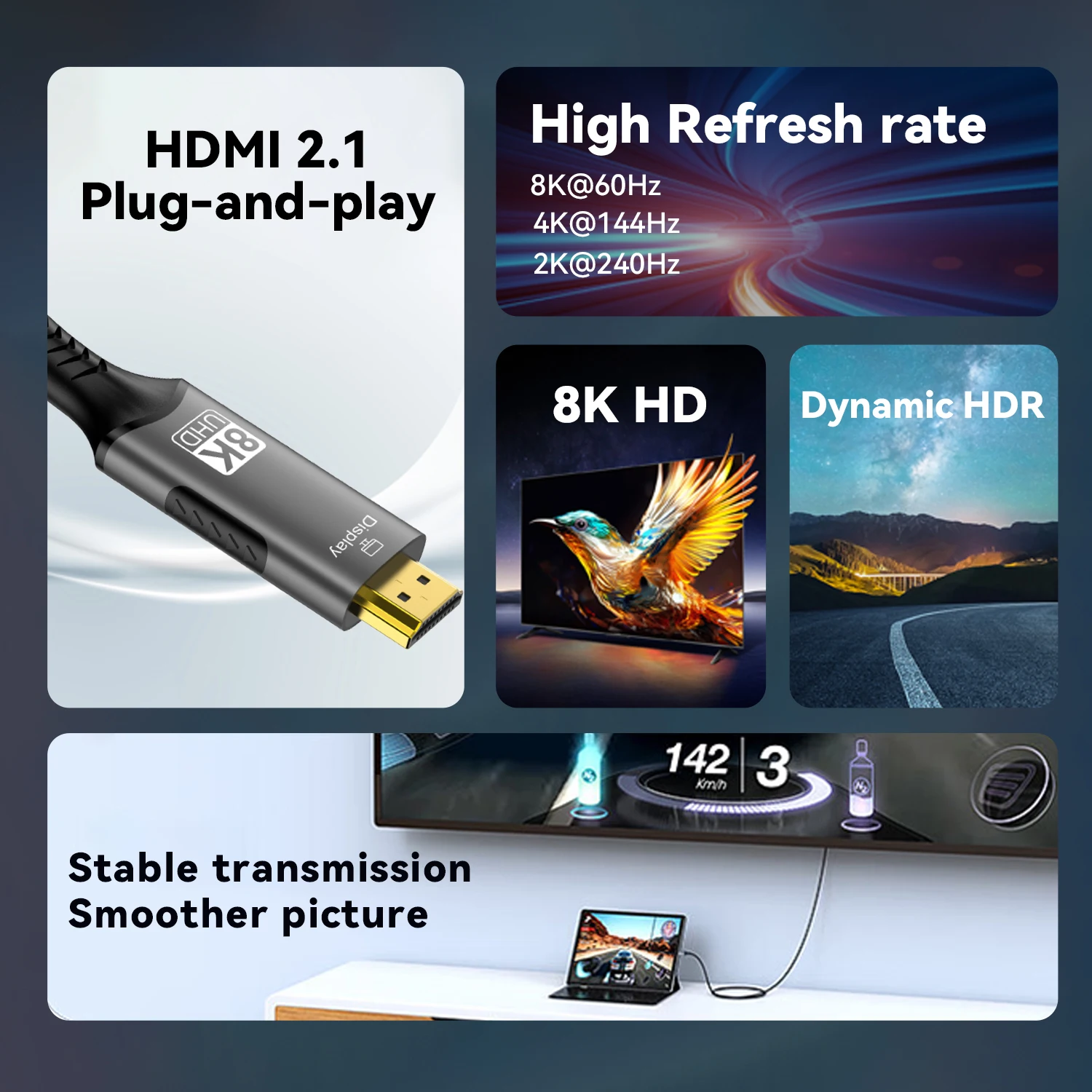
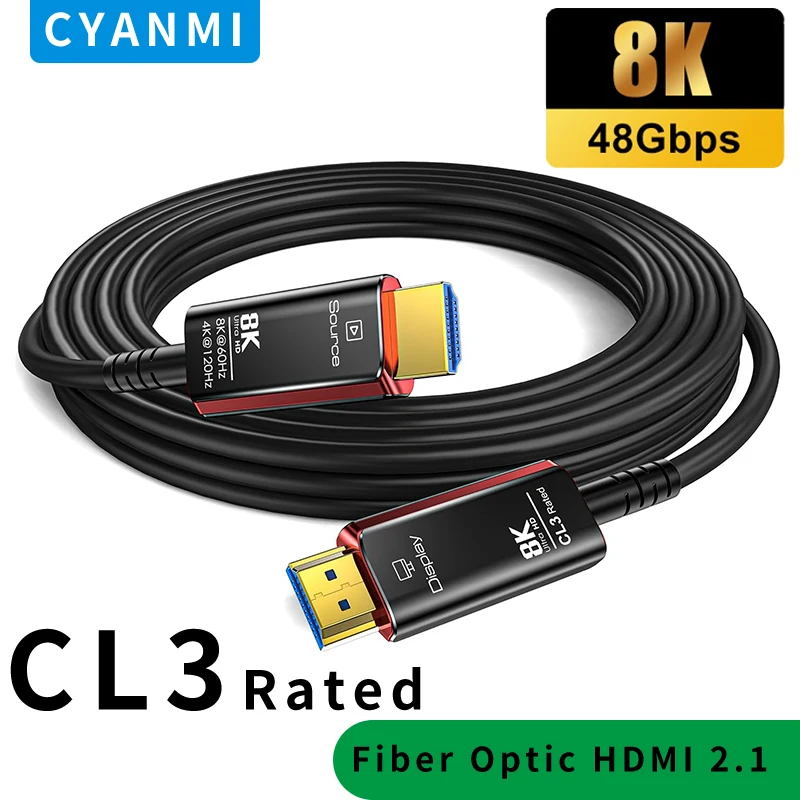
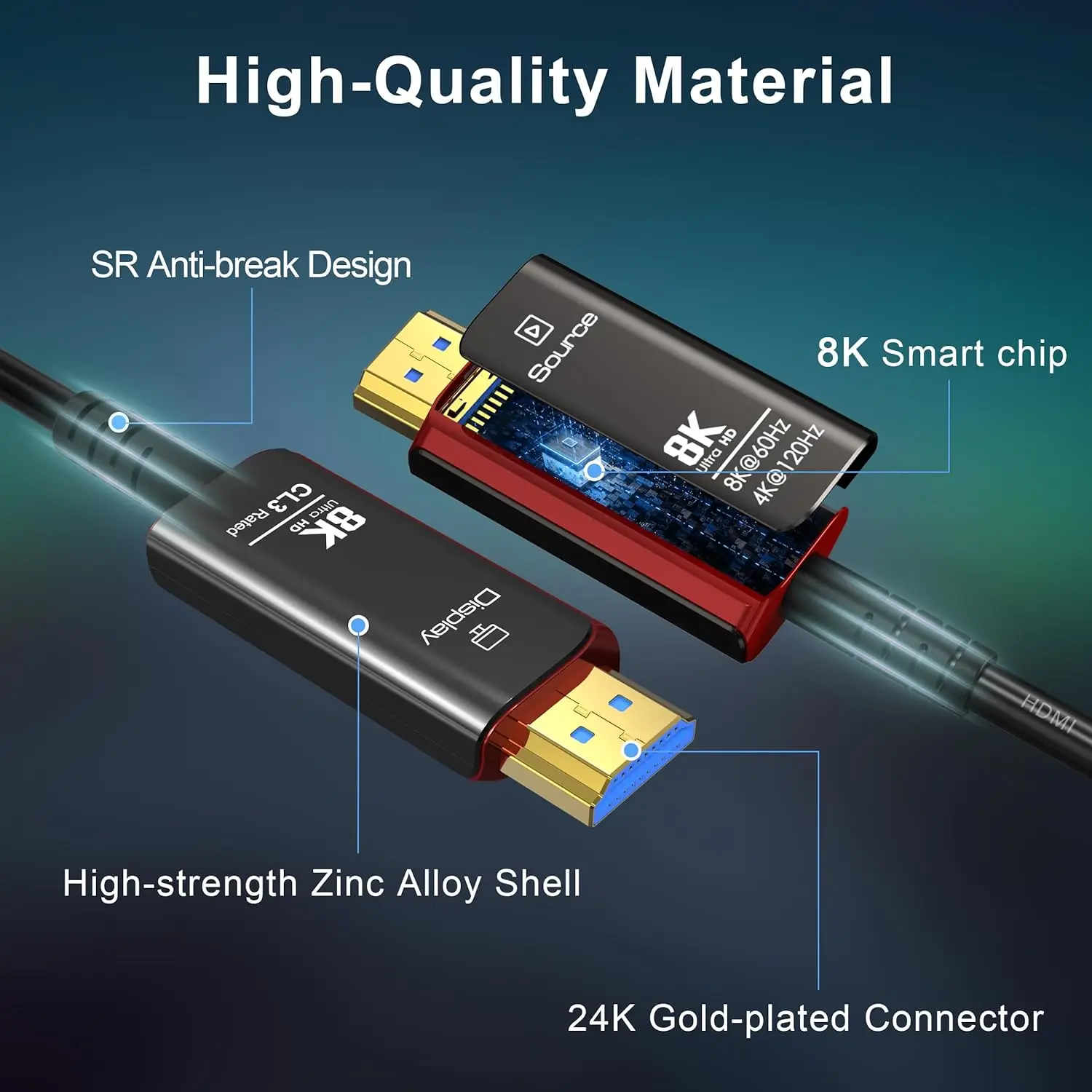
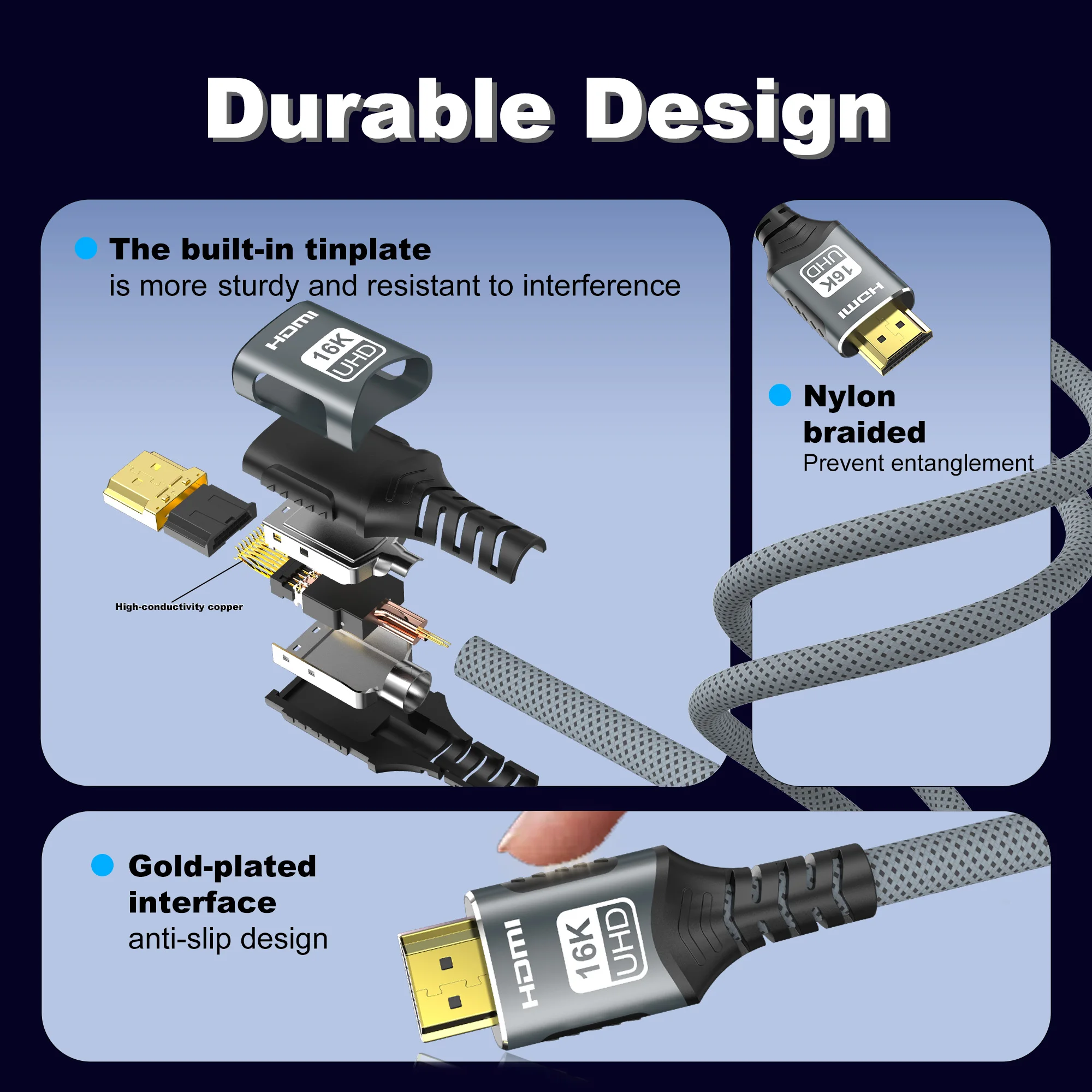
- HDMI cables from half a metre upwards, including HDMI 2.1 and Ultra High Speed cables, flat cables and fibre-optic cables for long runs. See HDMI cables.
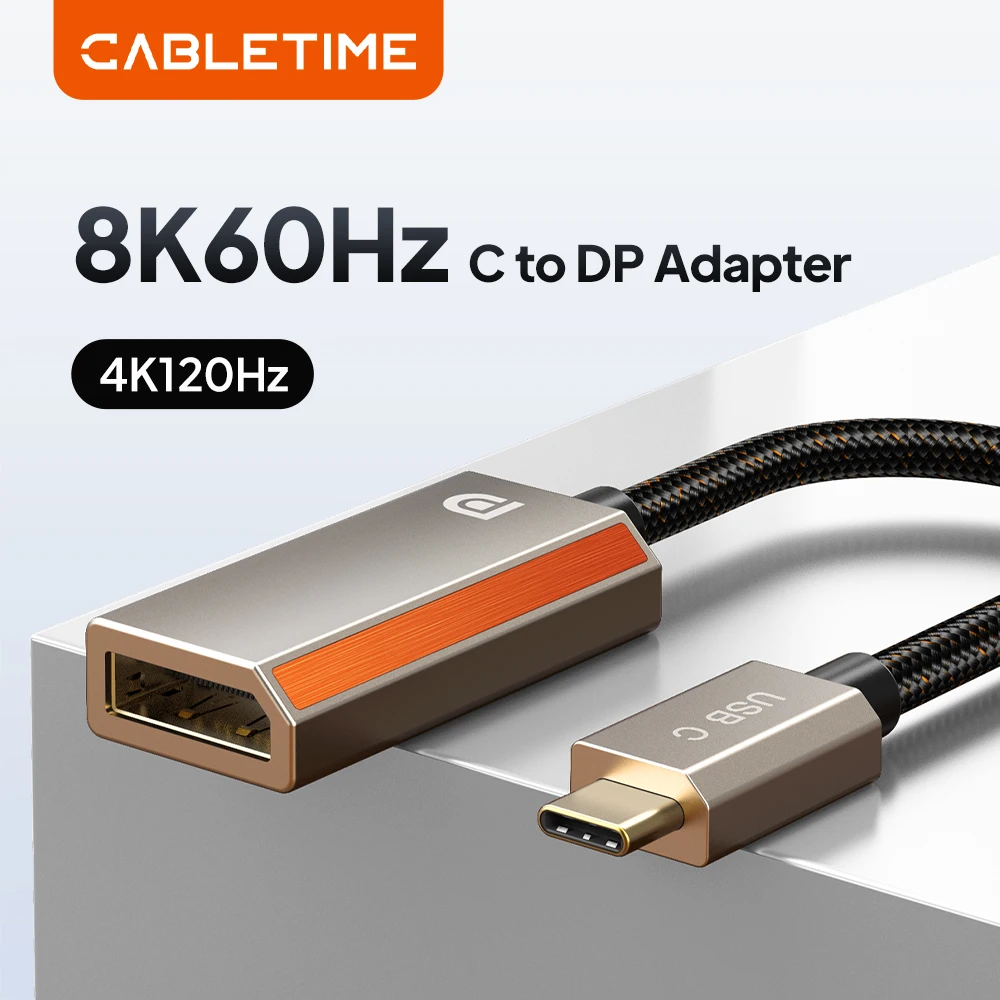
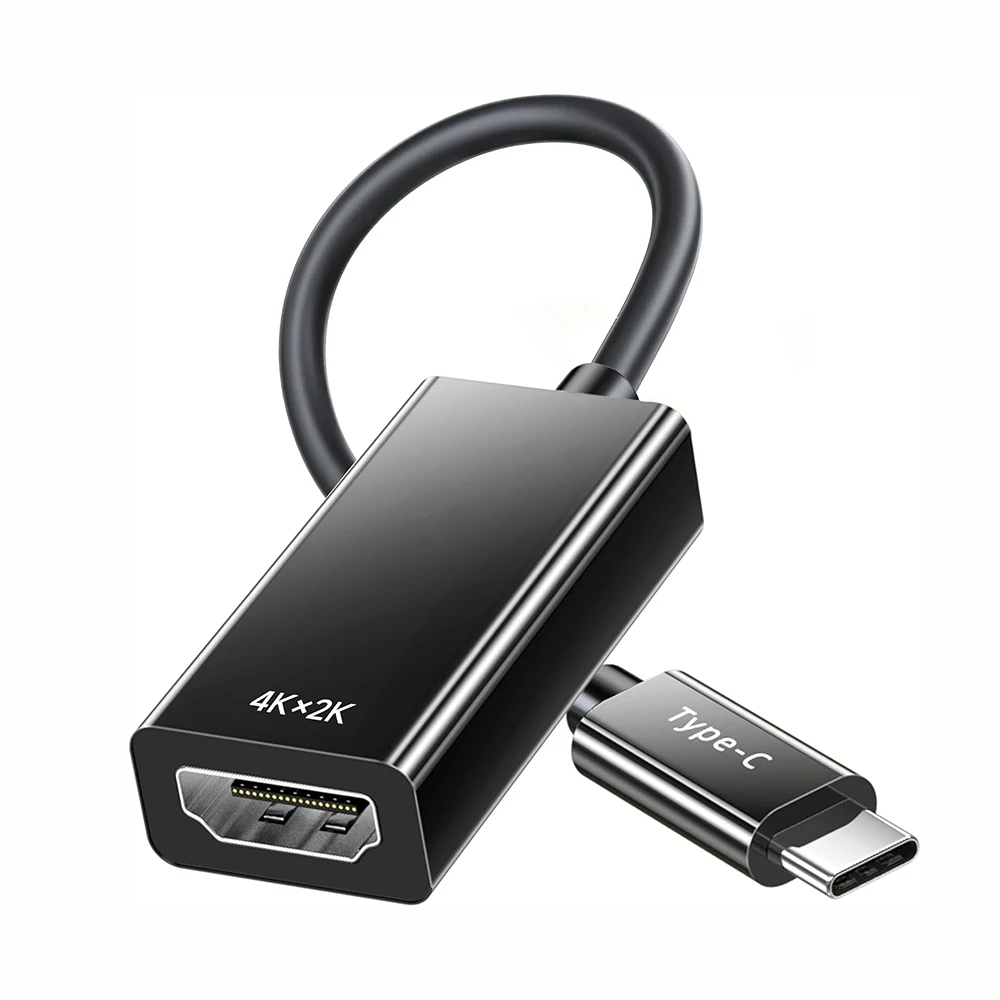
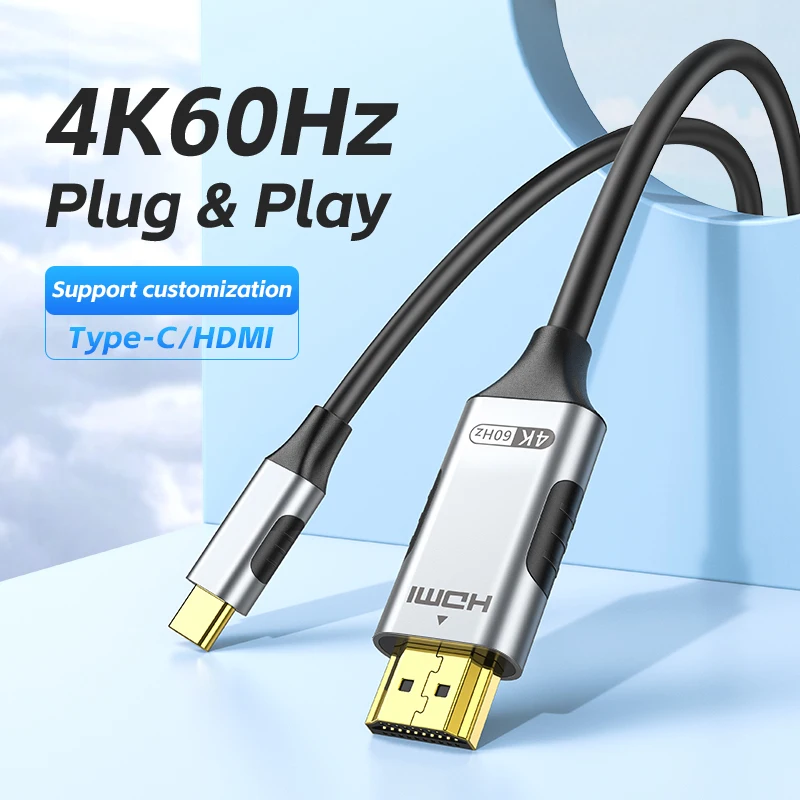
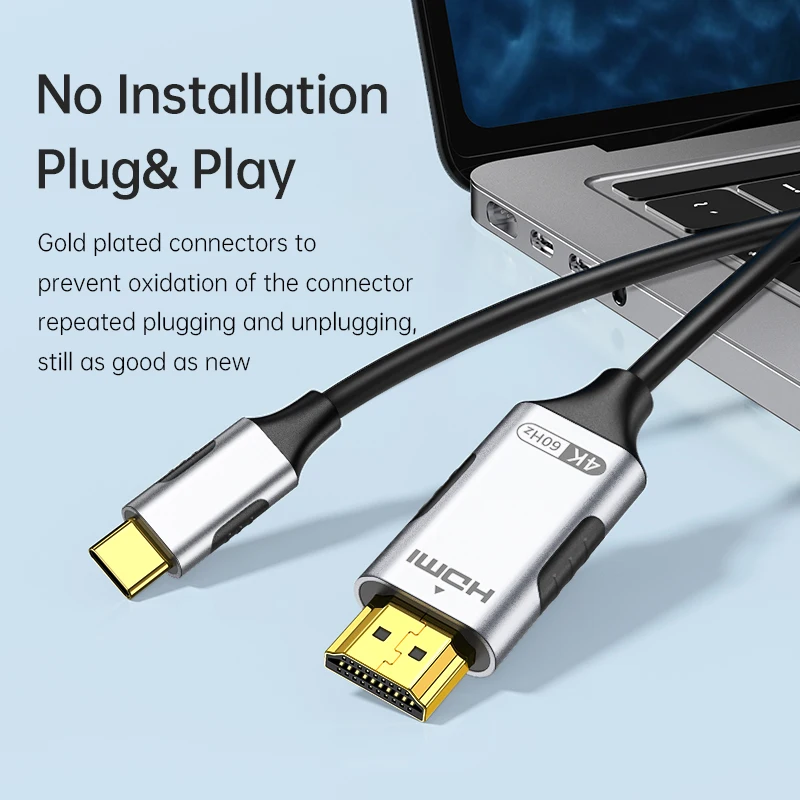
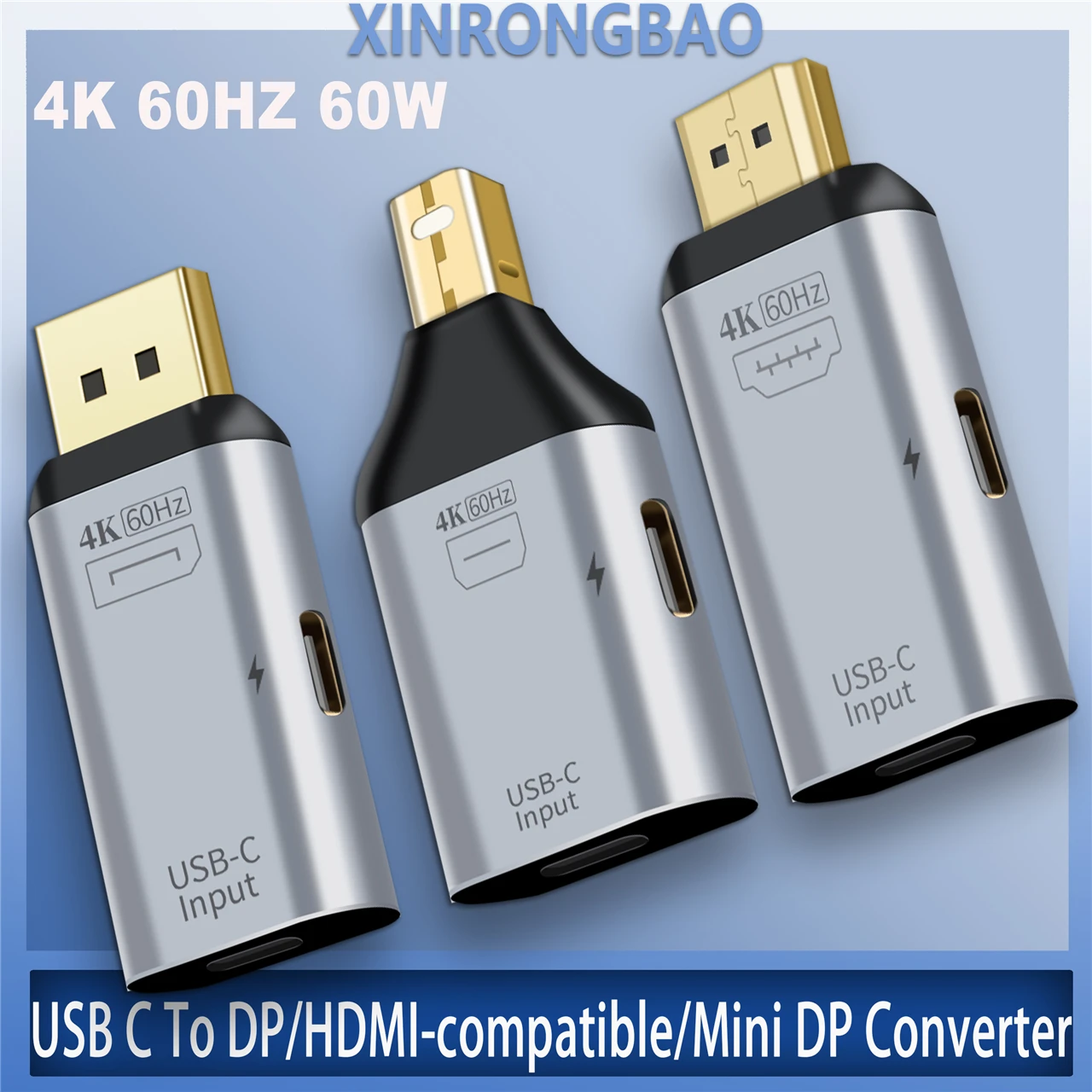
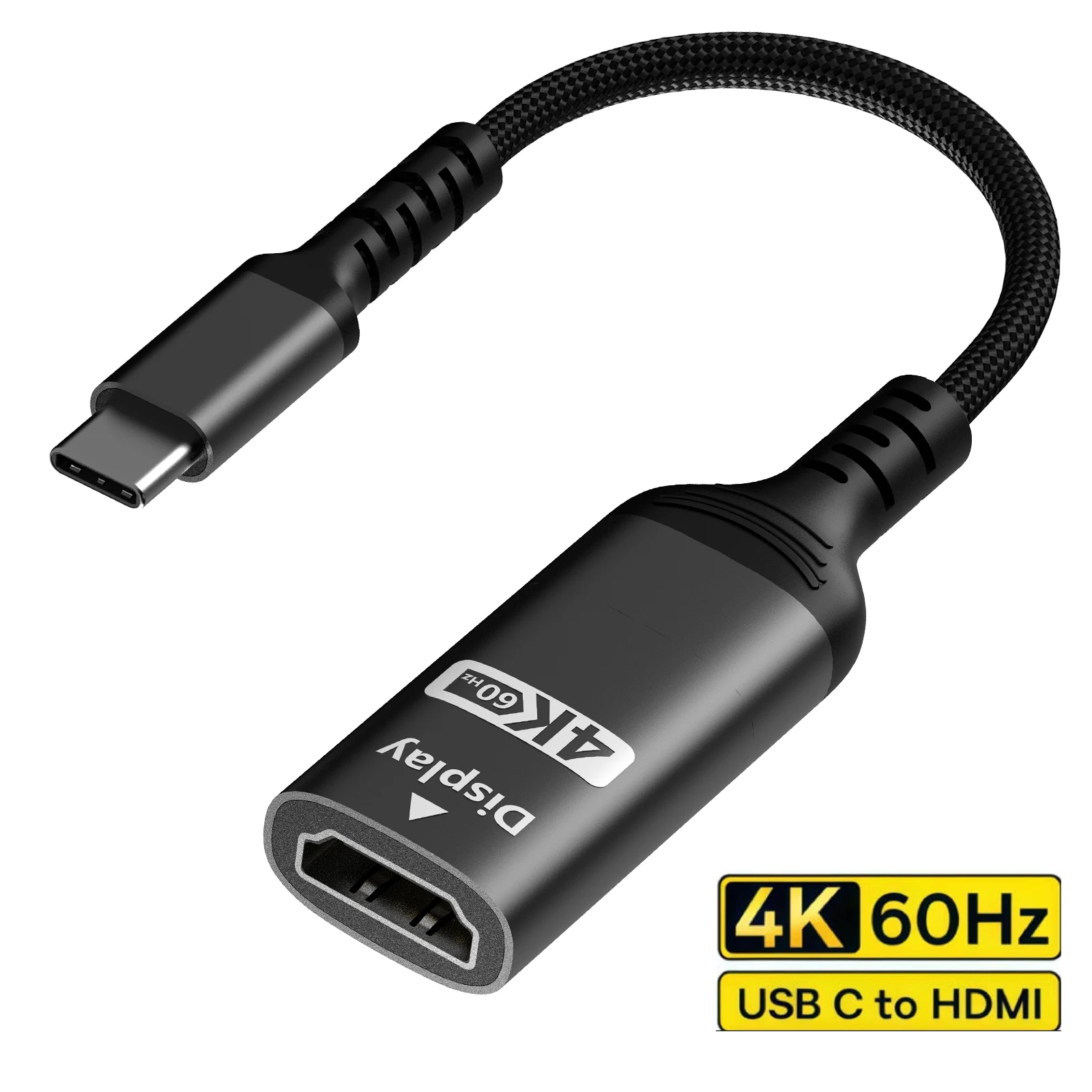
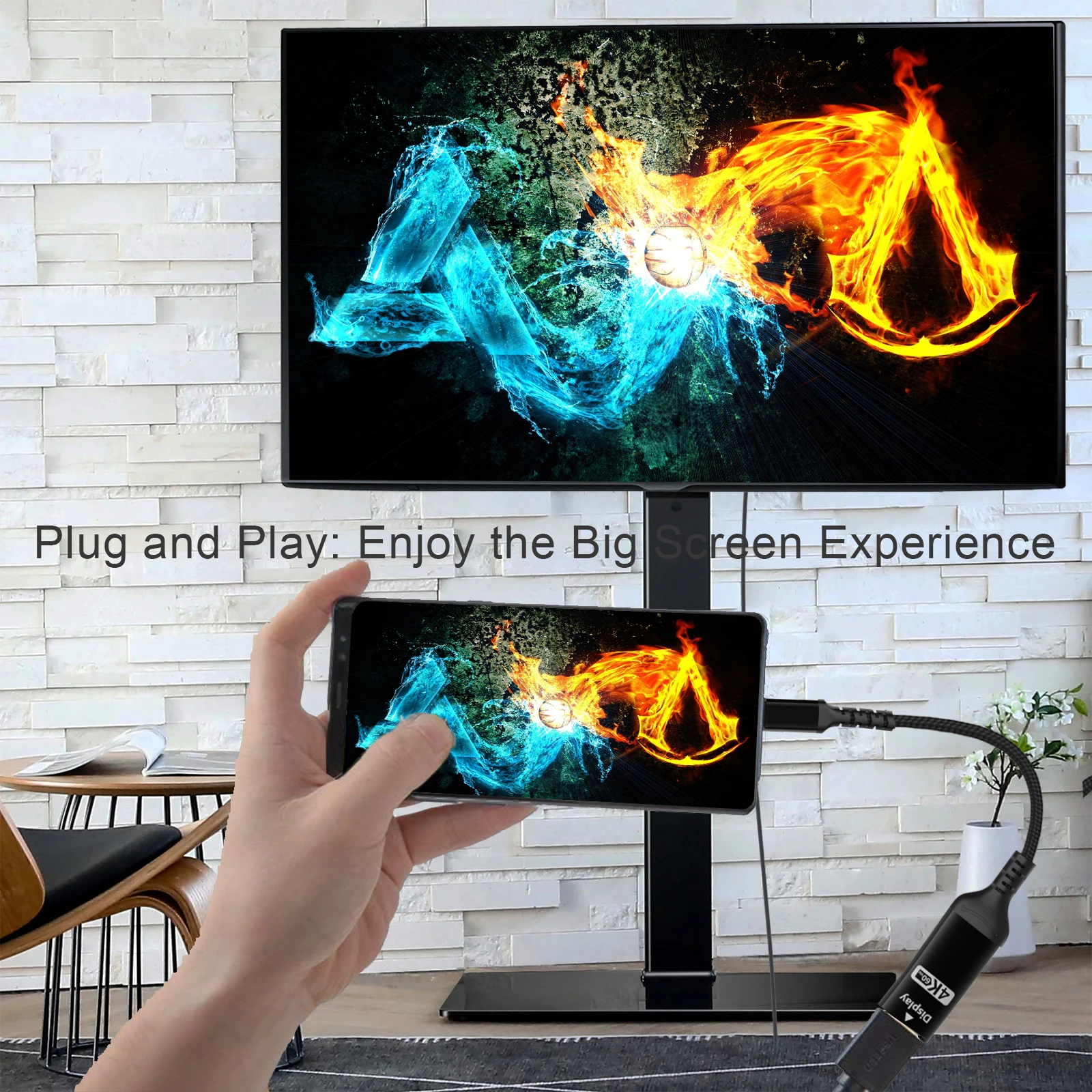
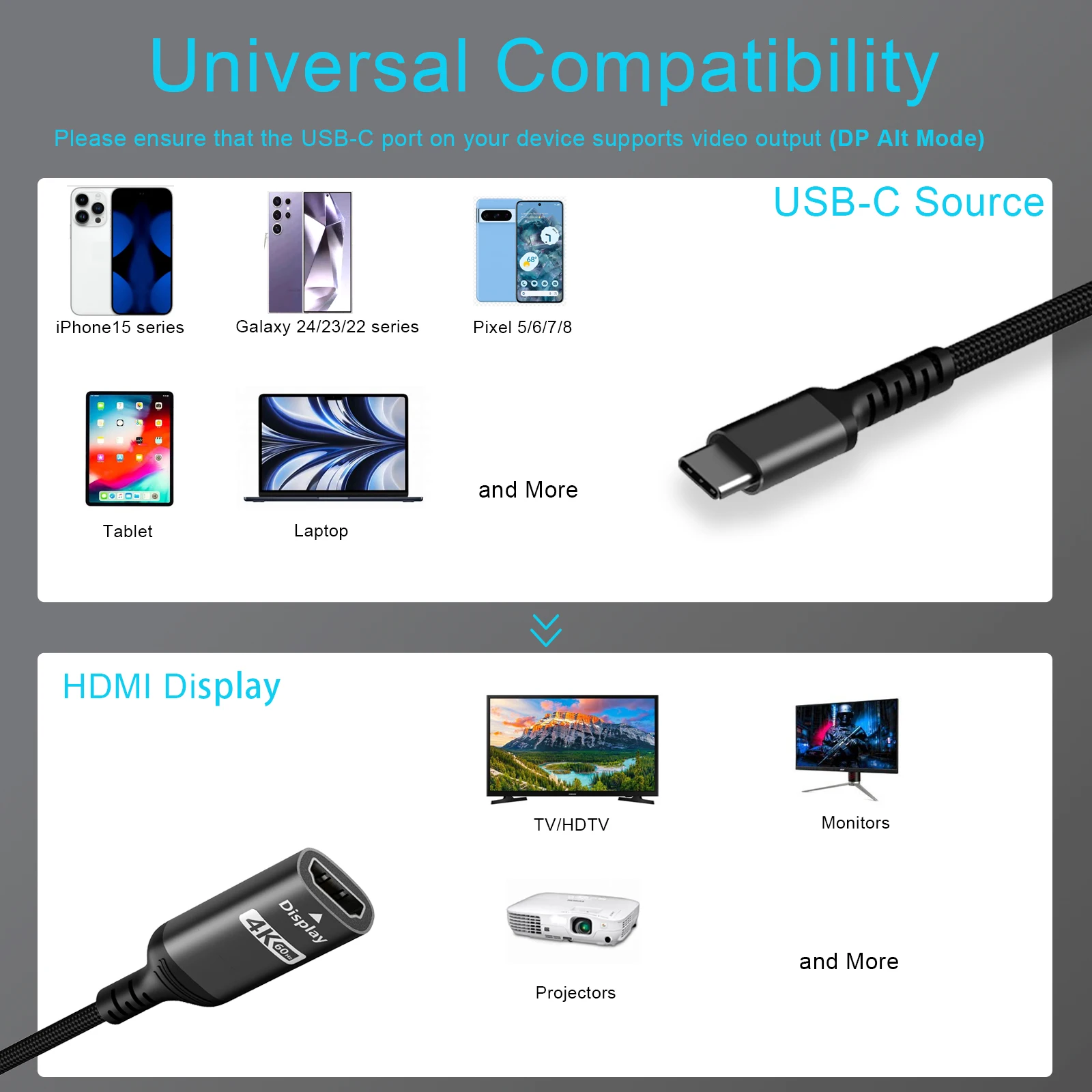
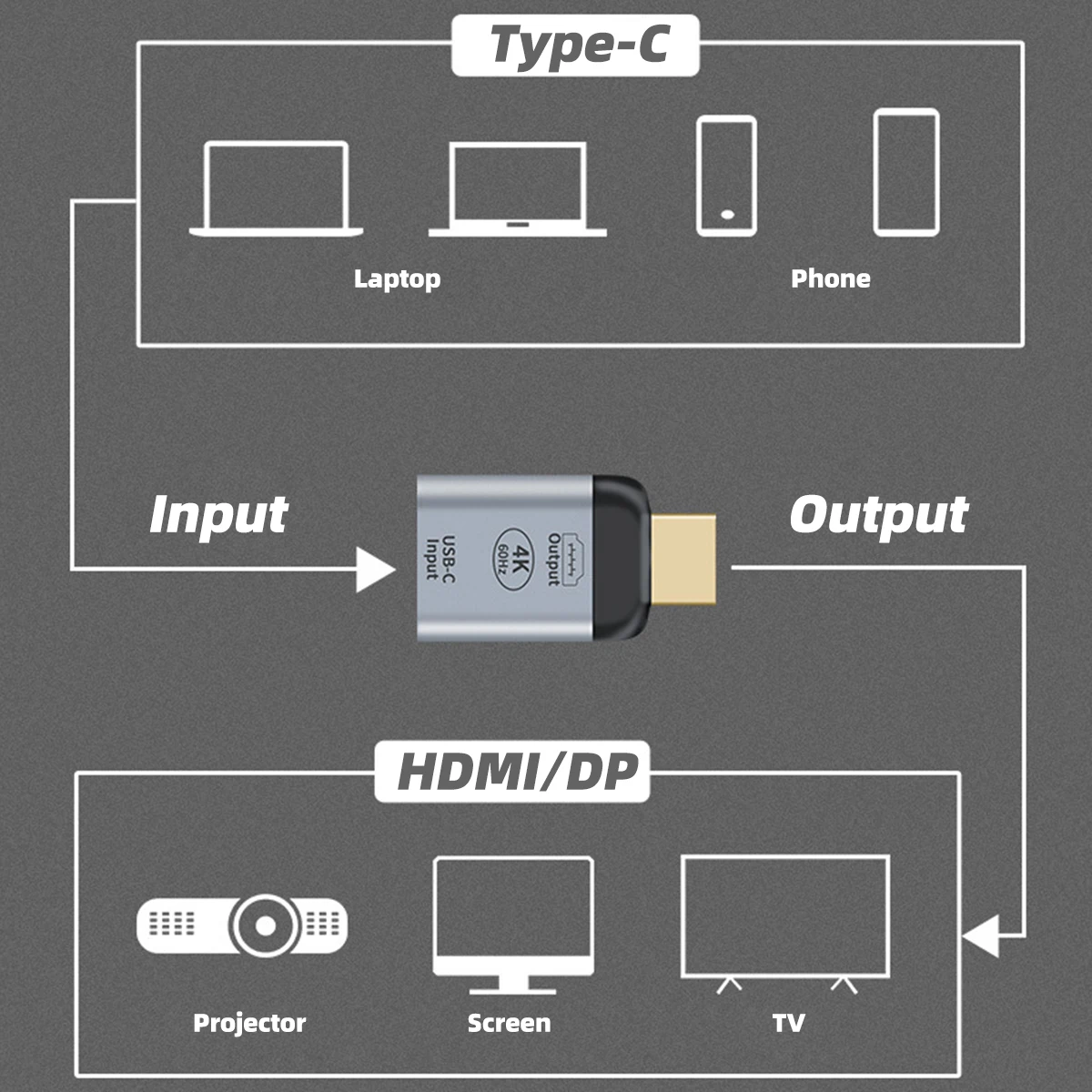
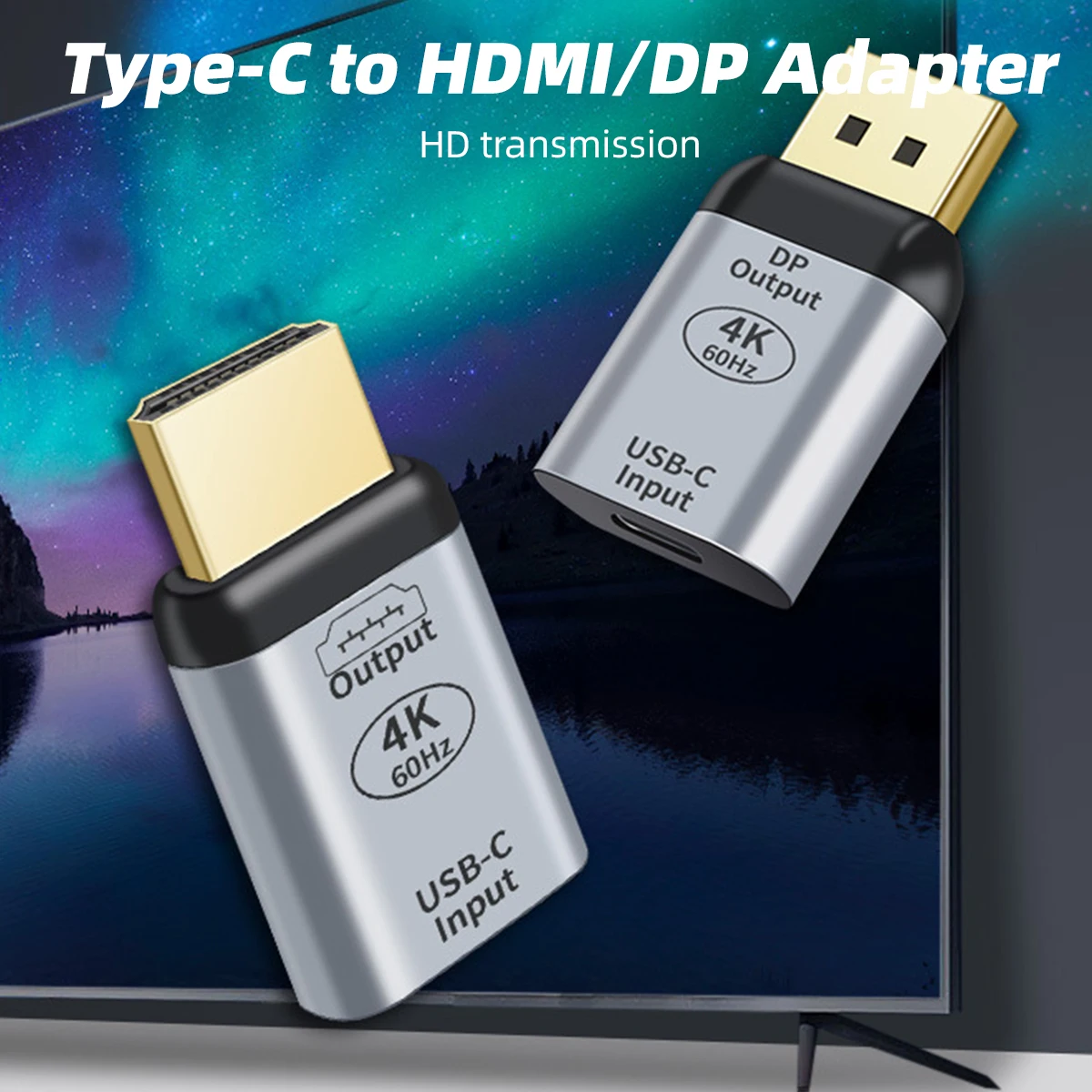
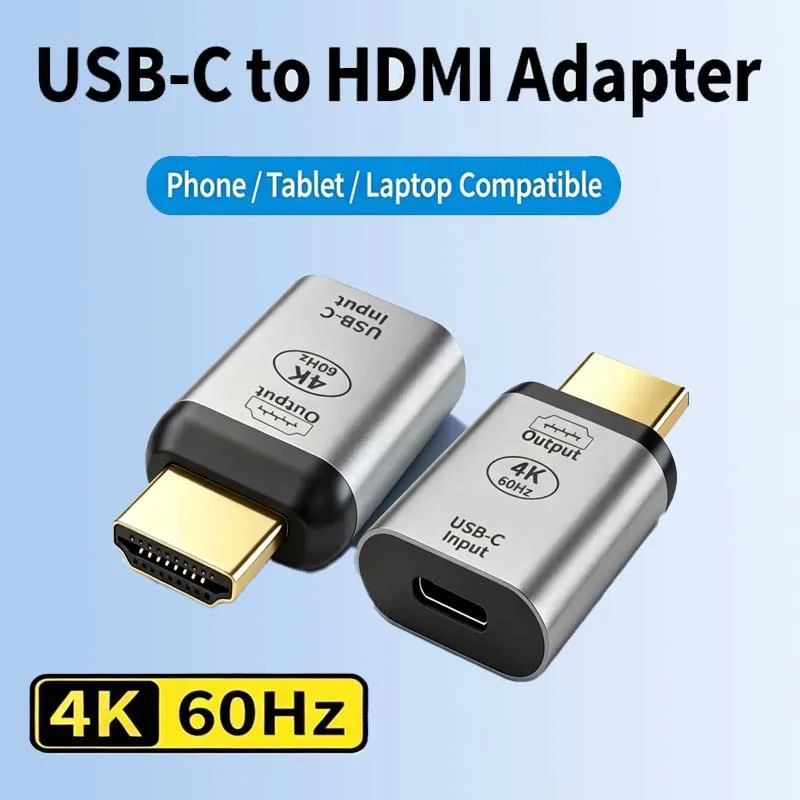
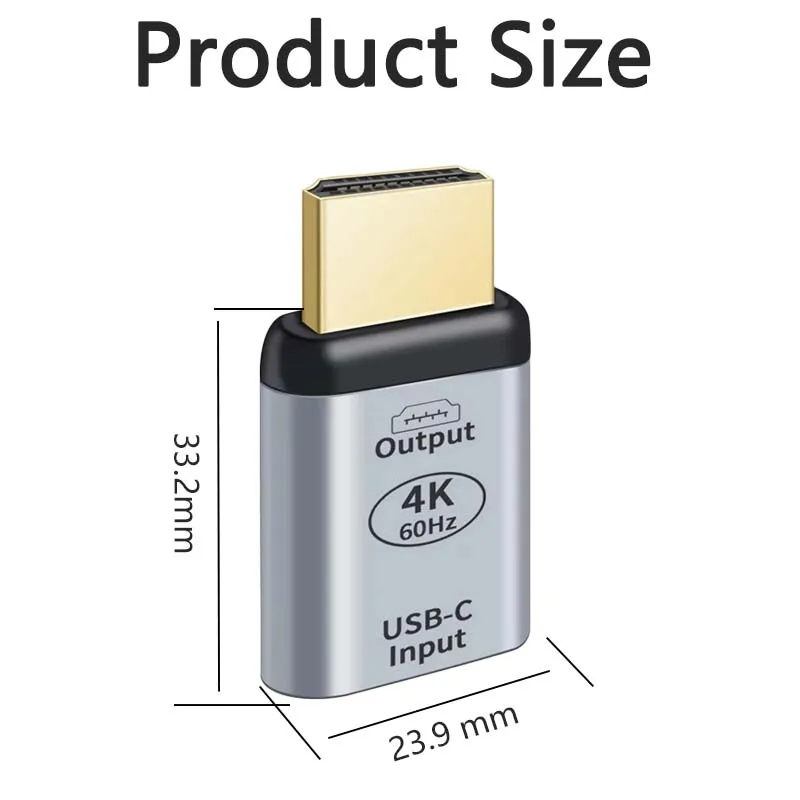
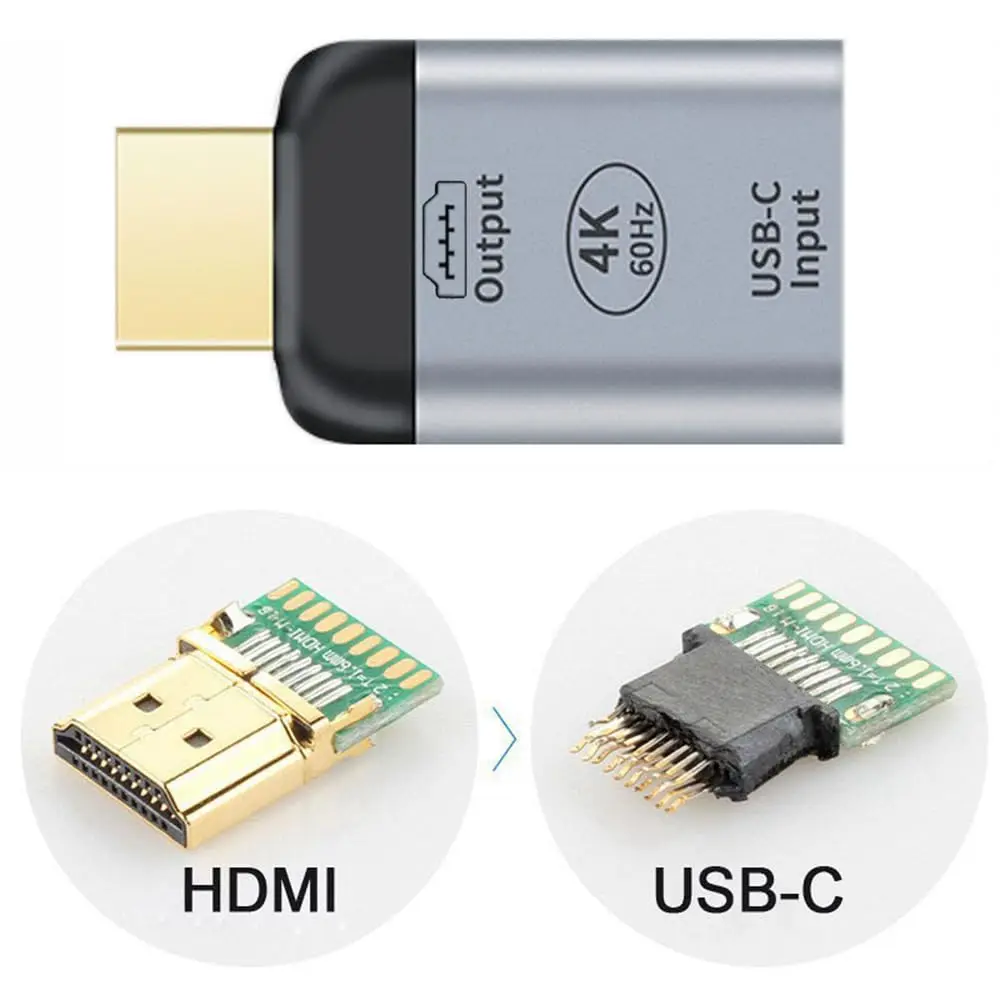
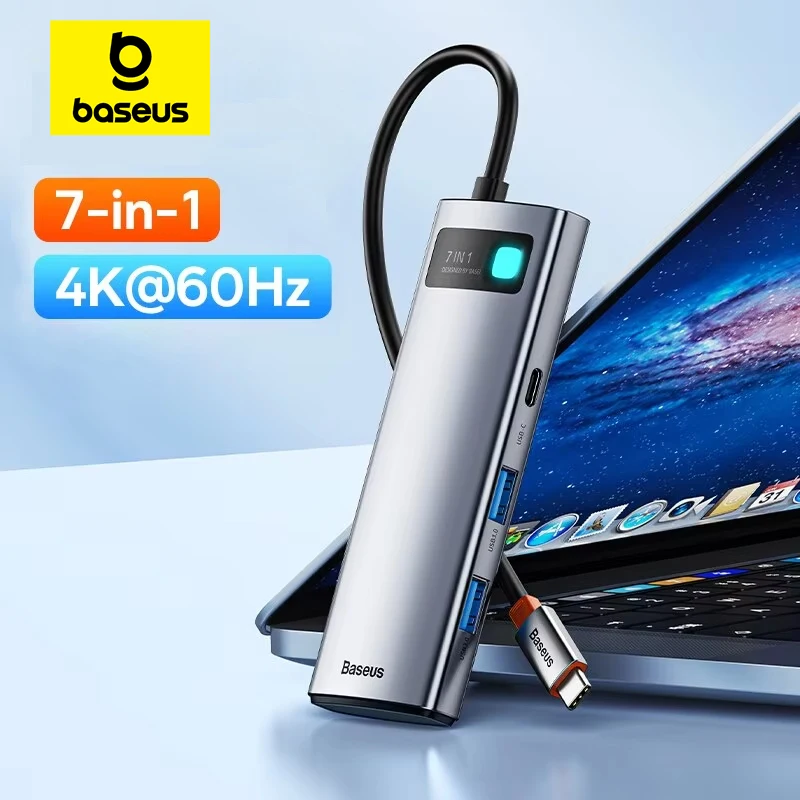
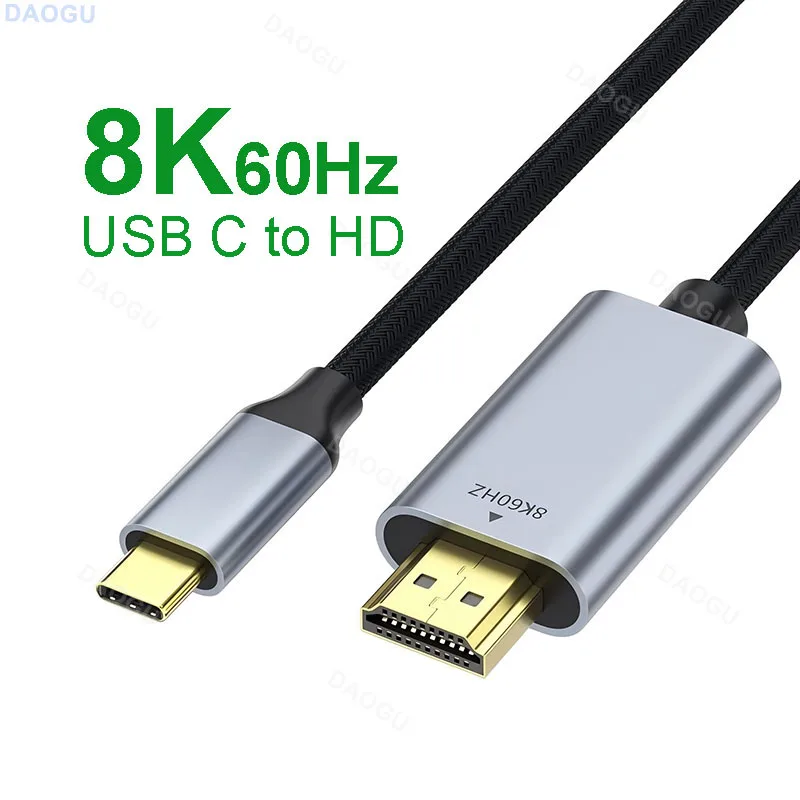
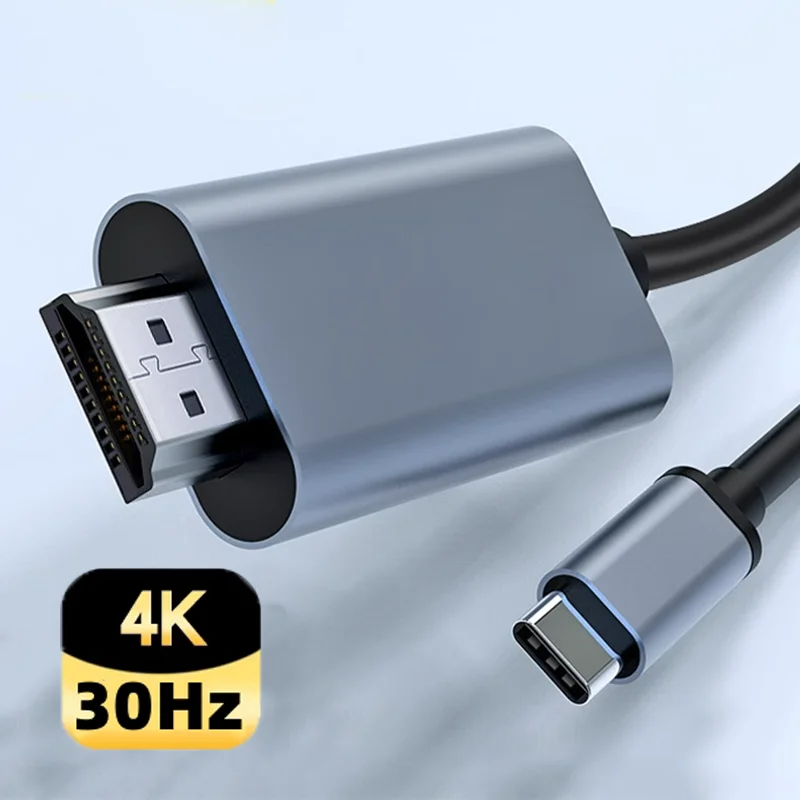
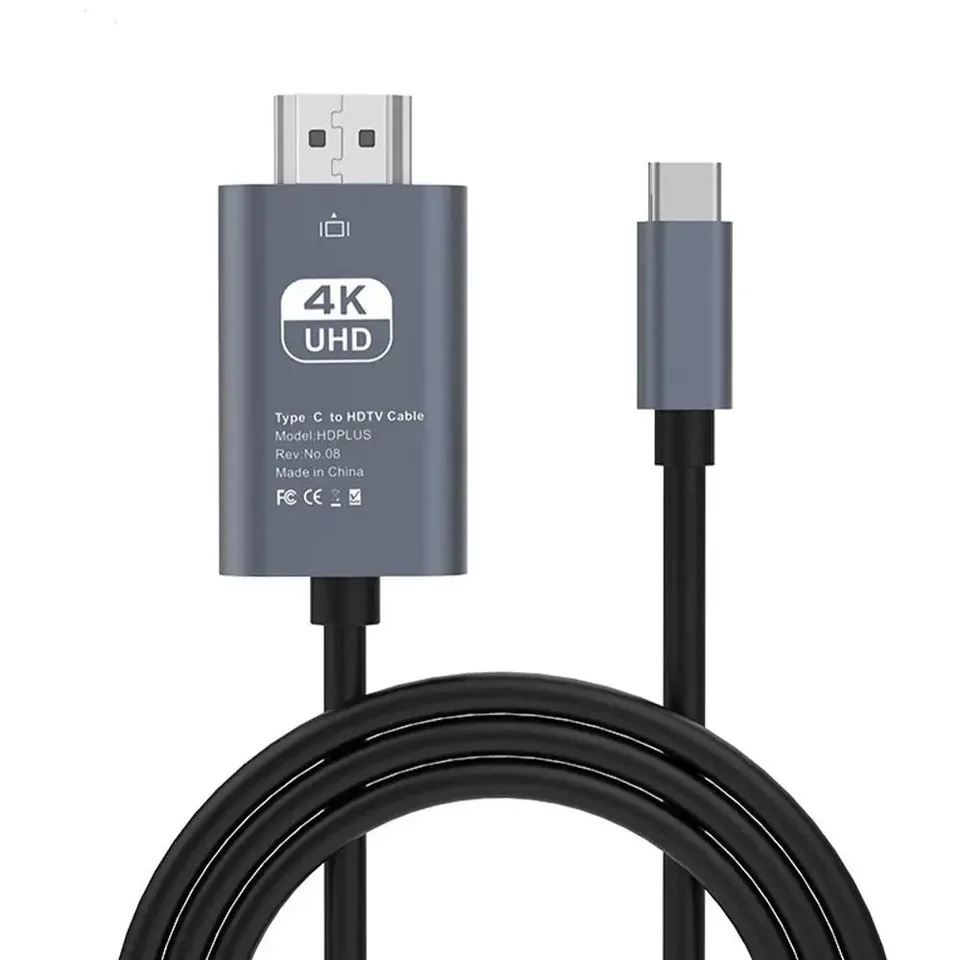
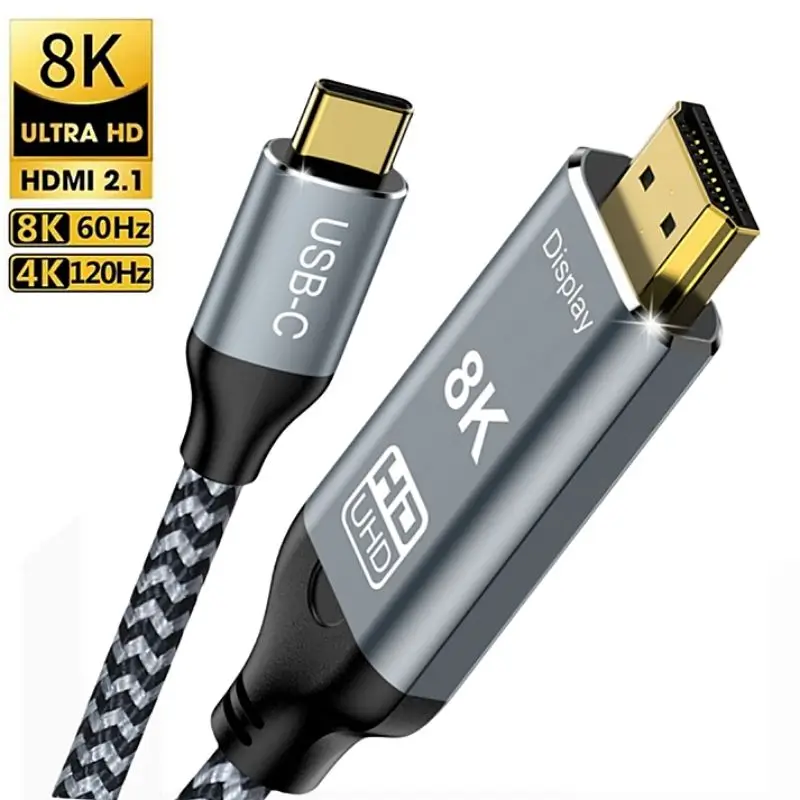
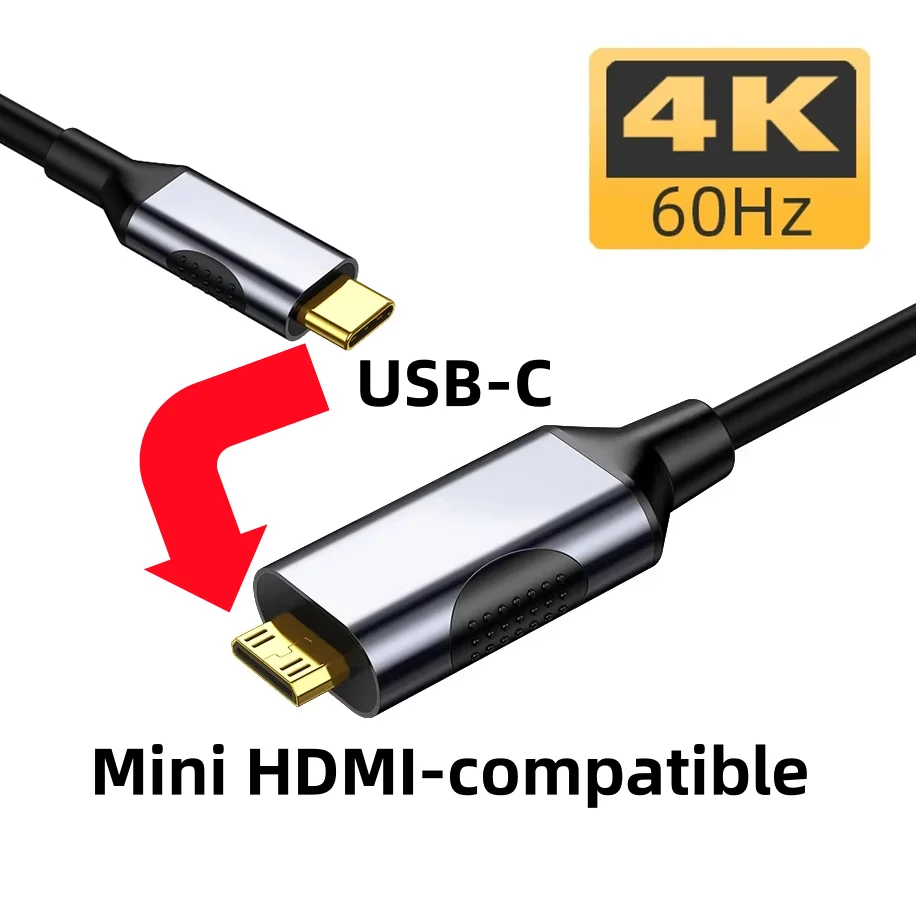
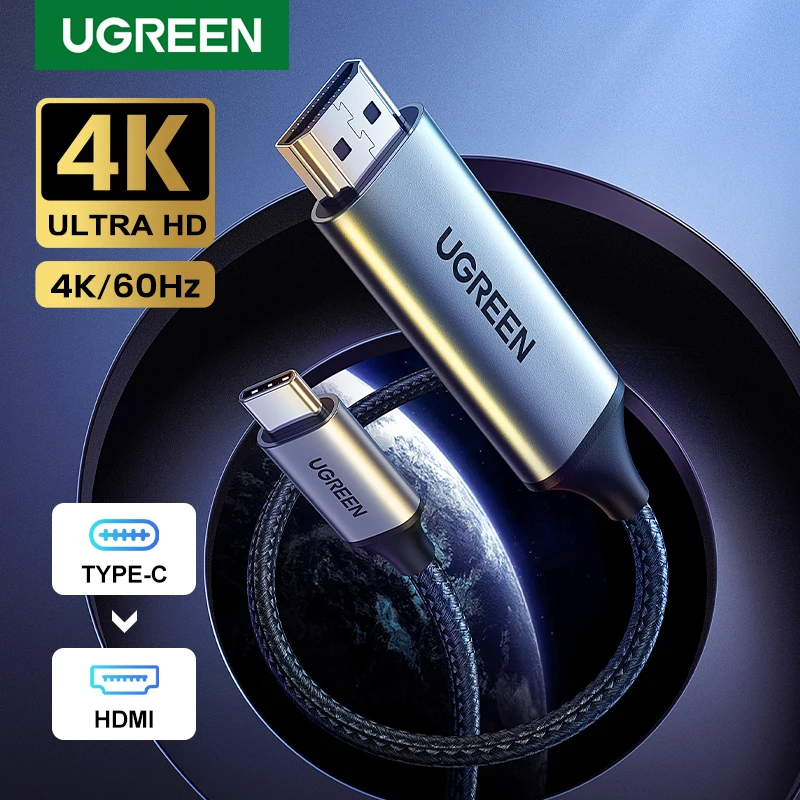
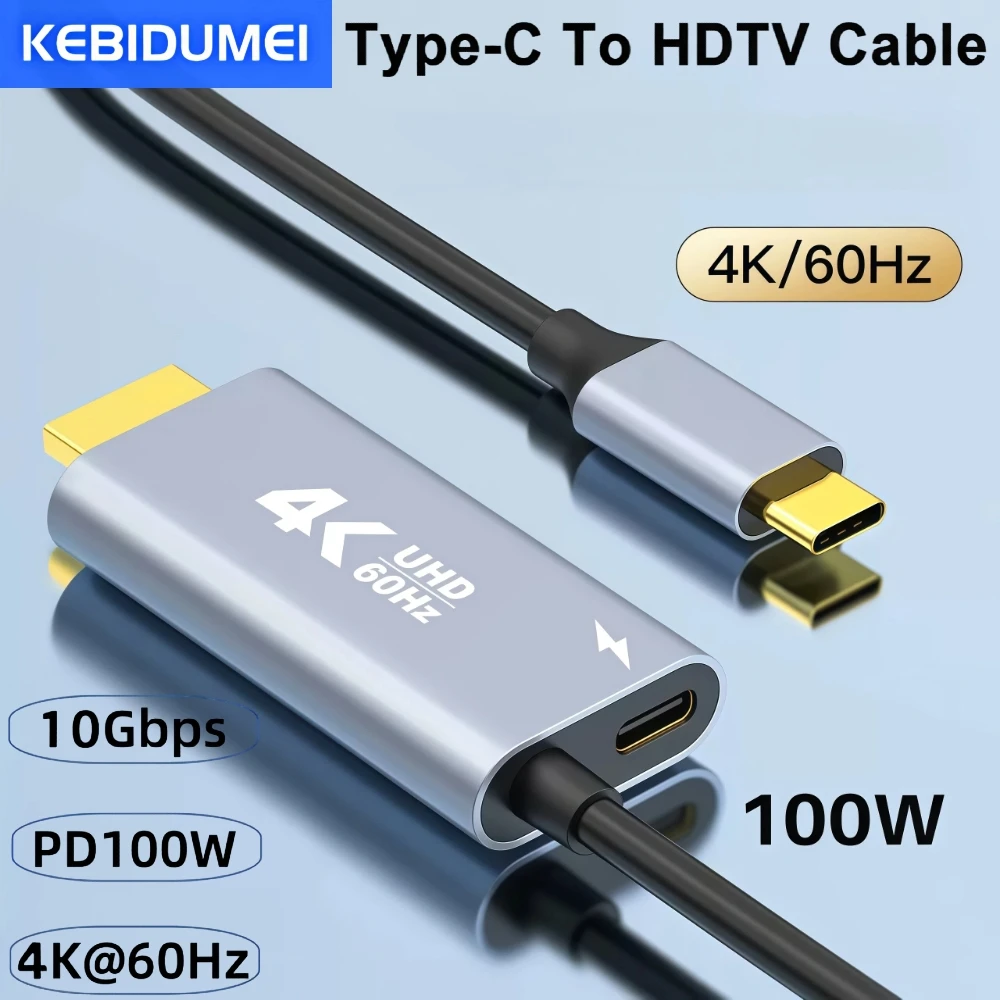
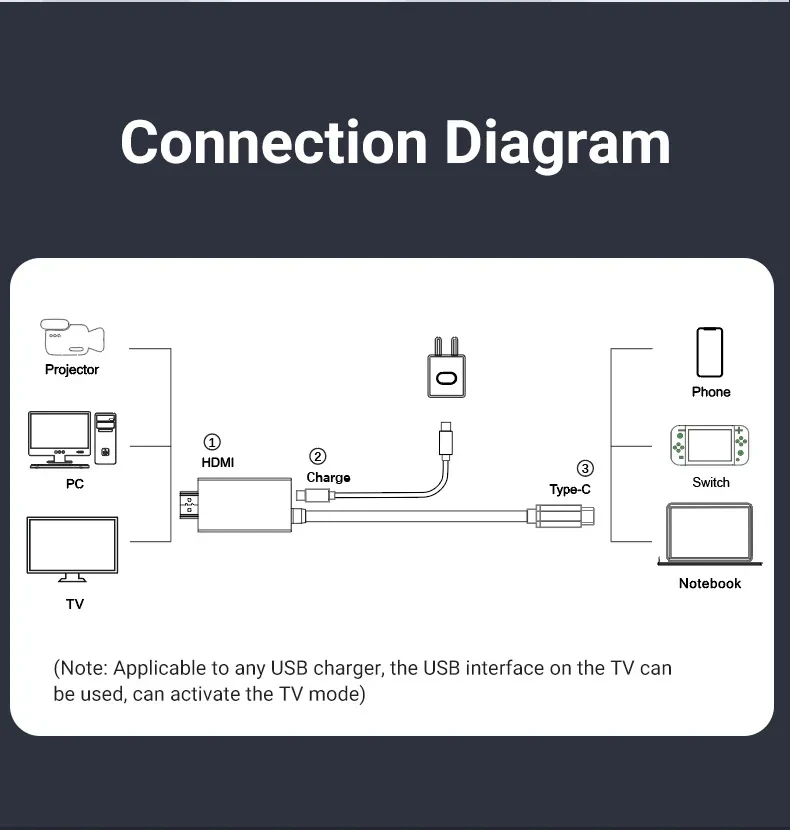
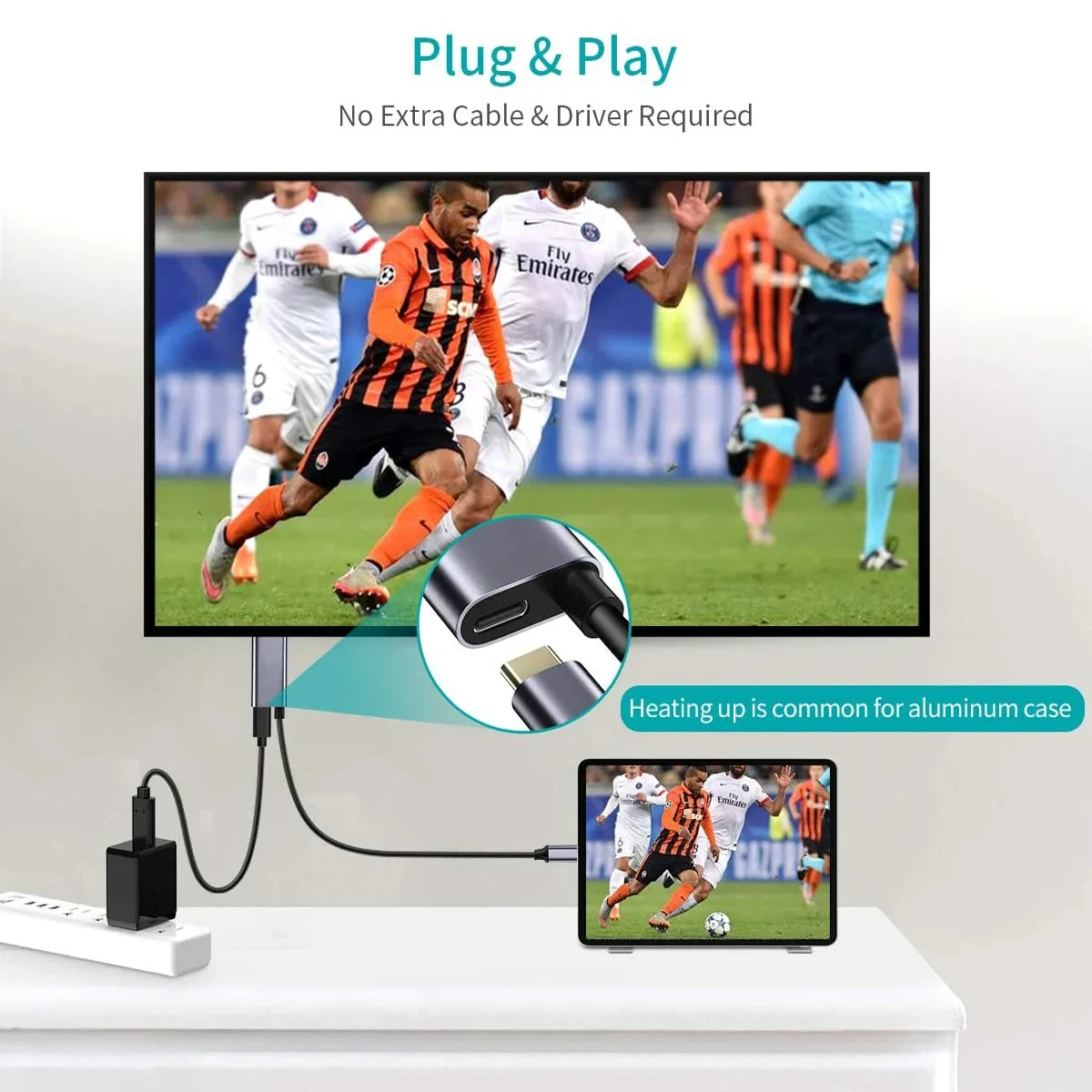
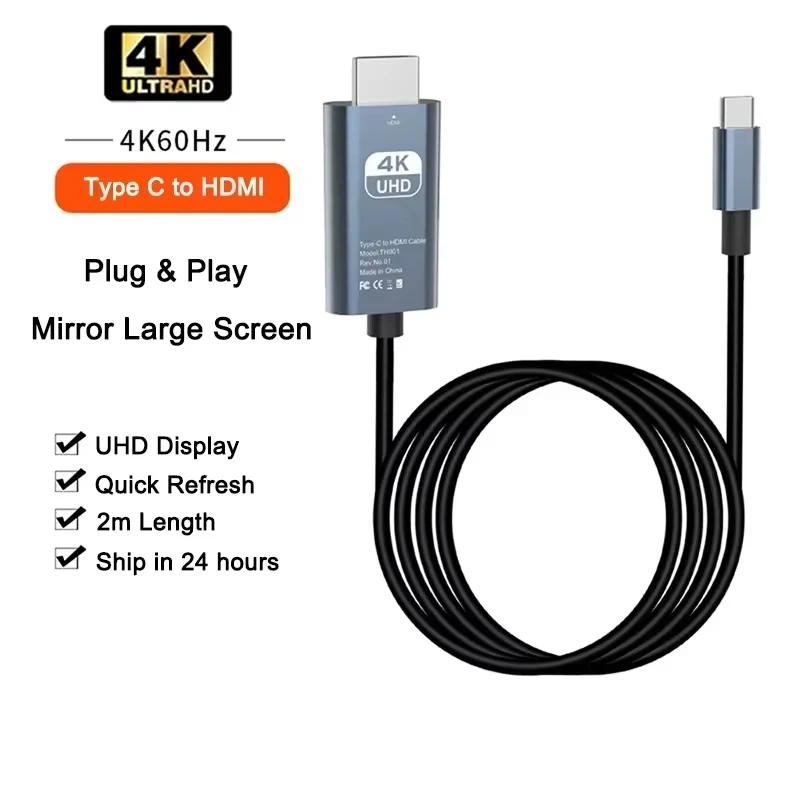
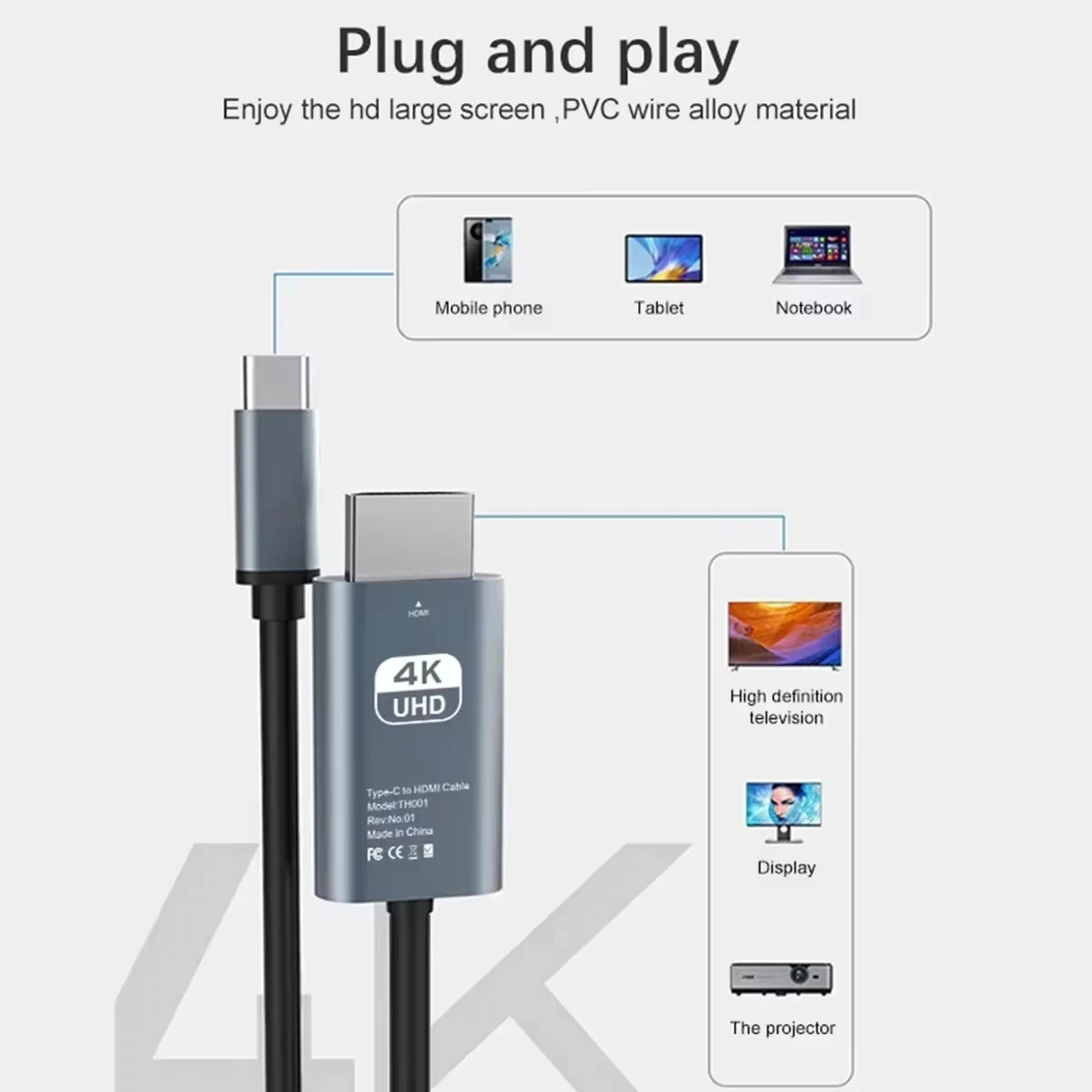
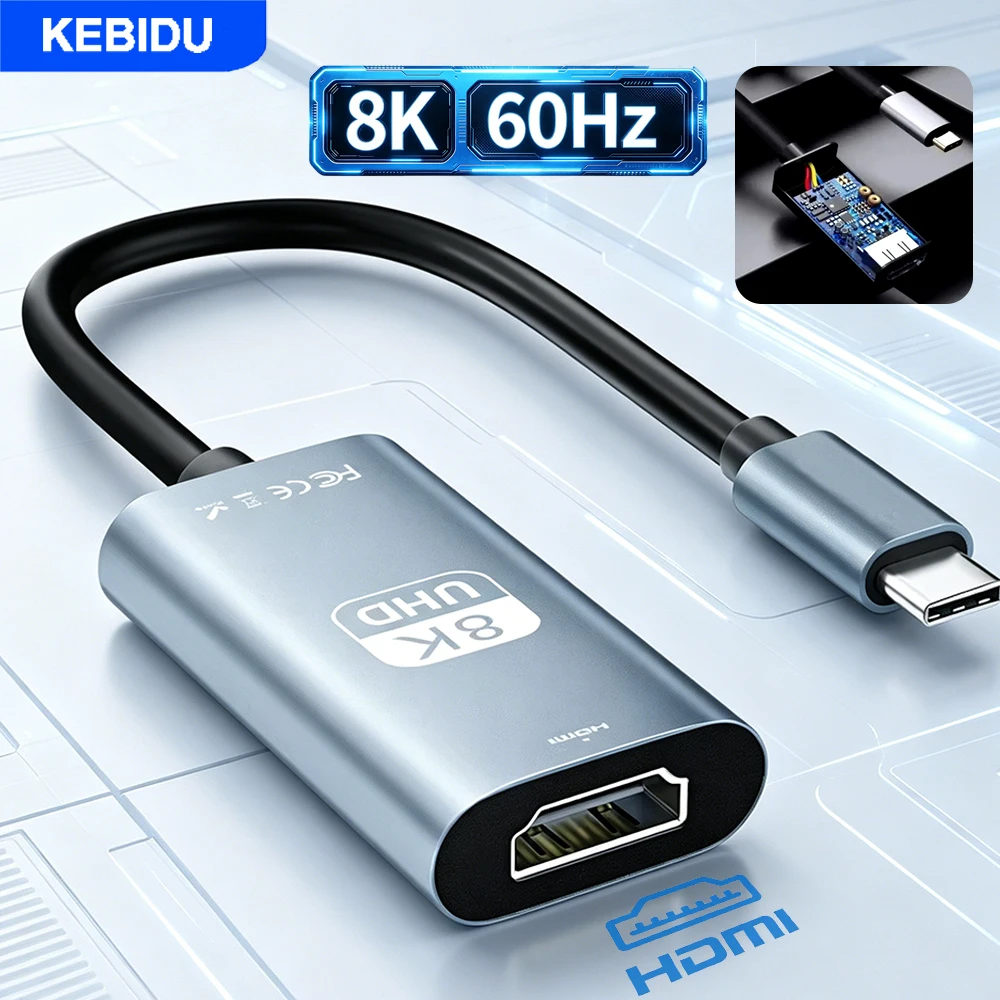
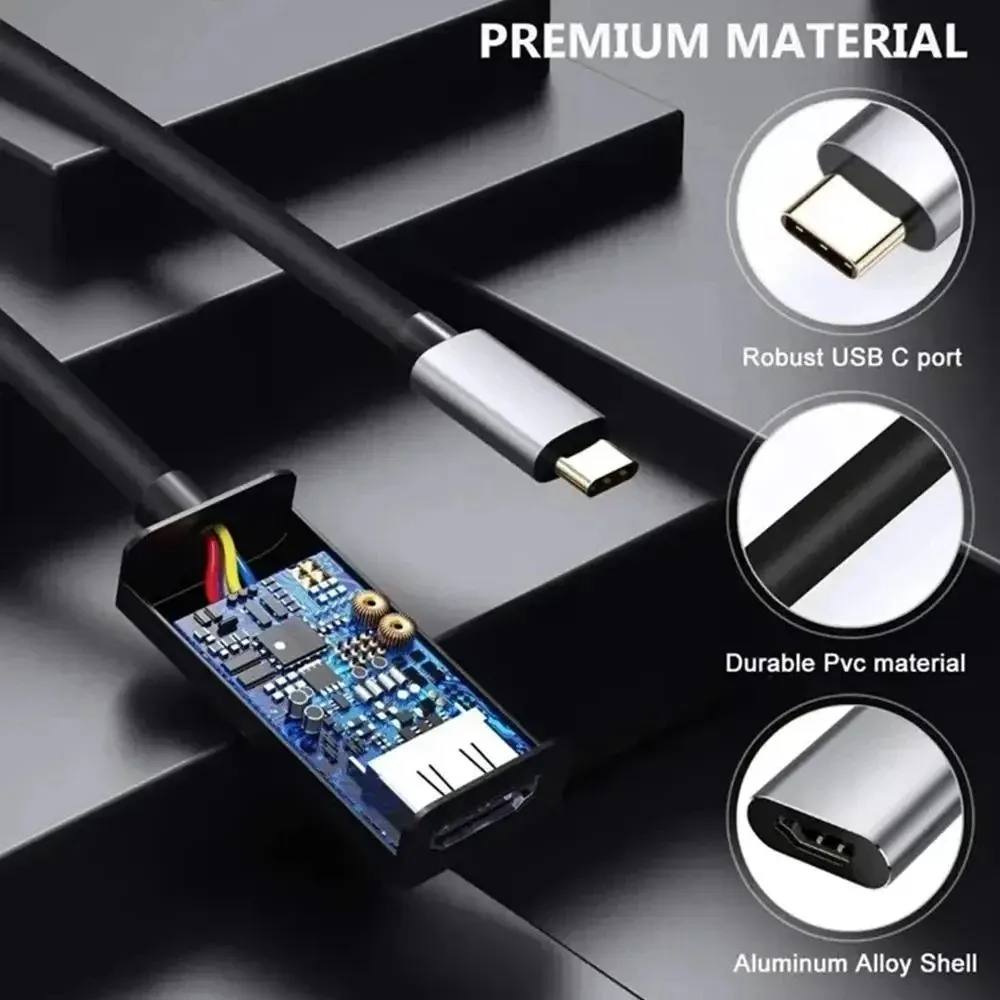
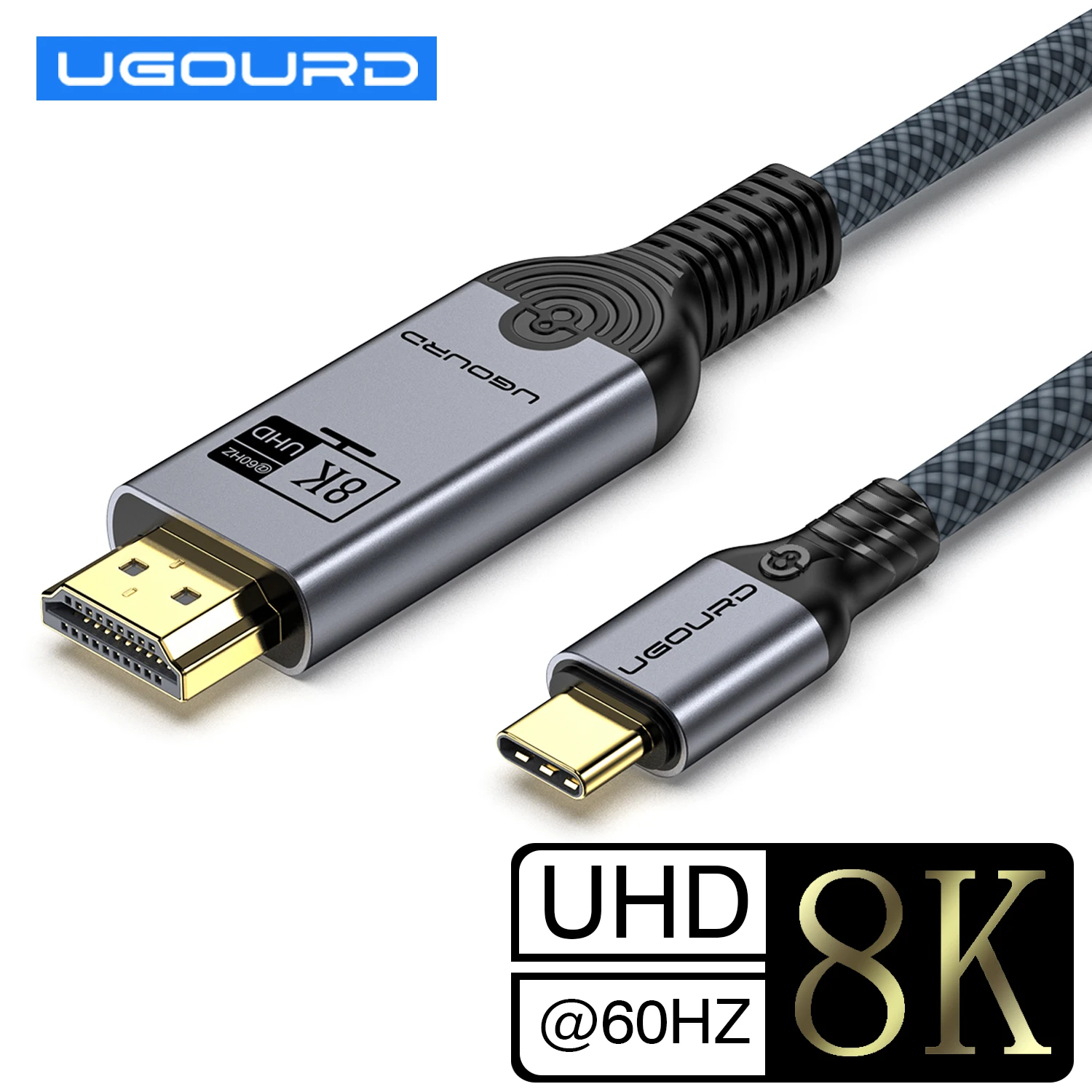
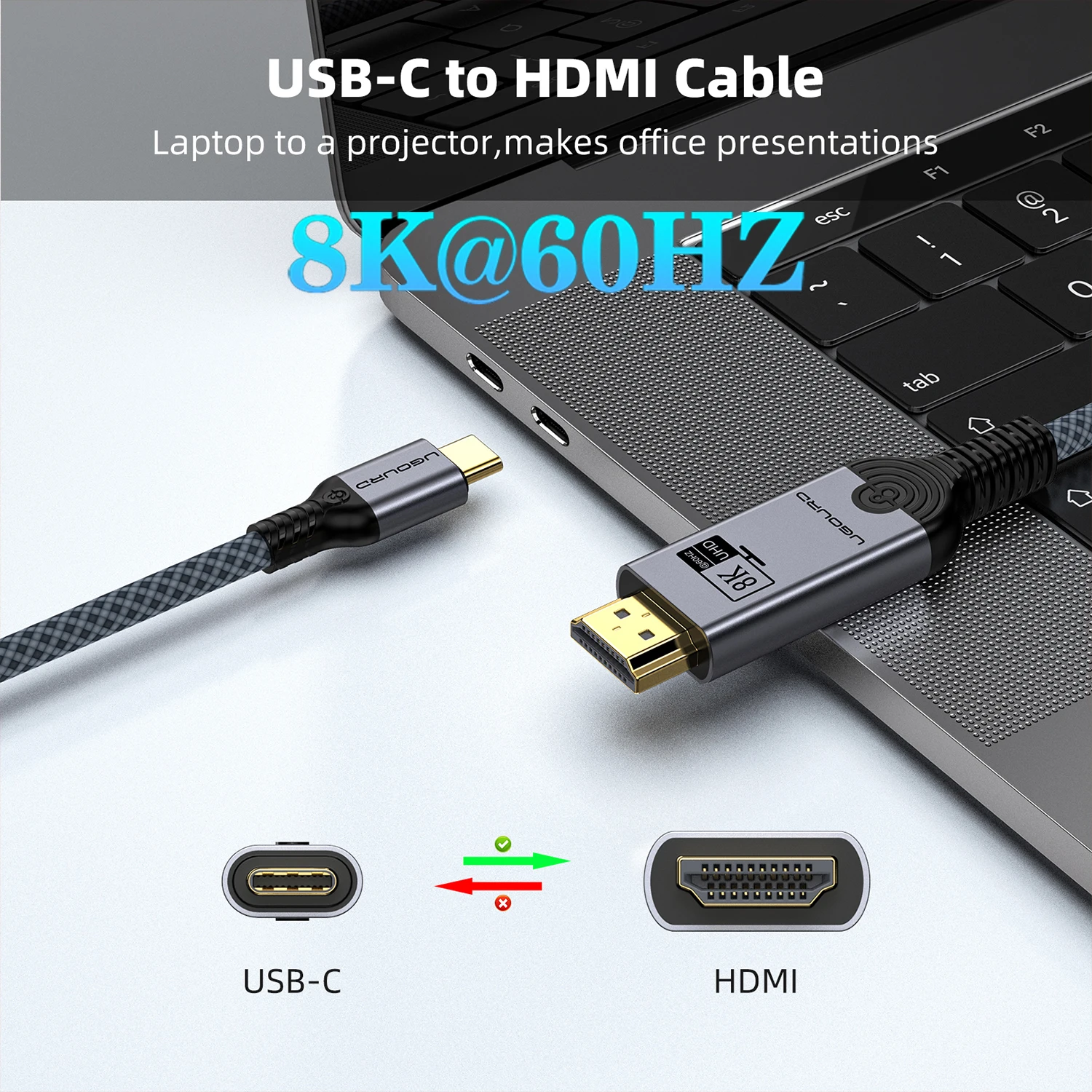
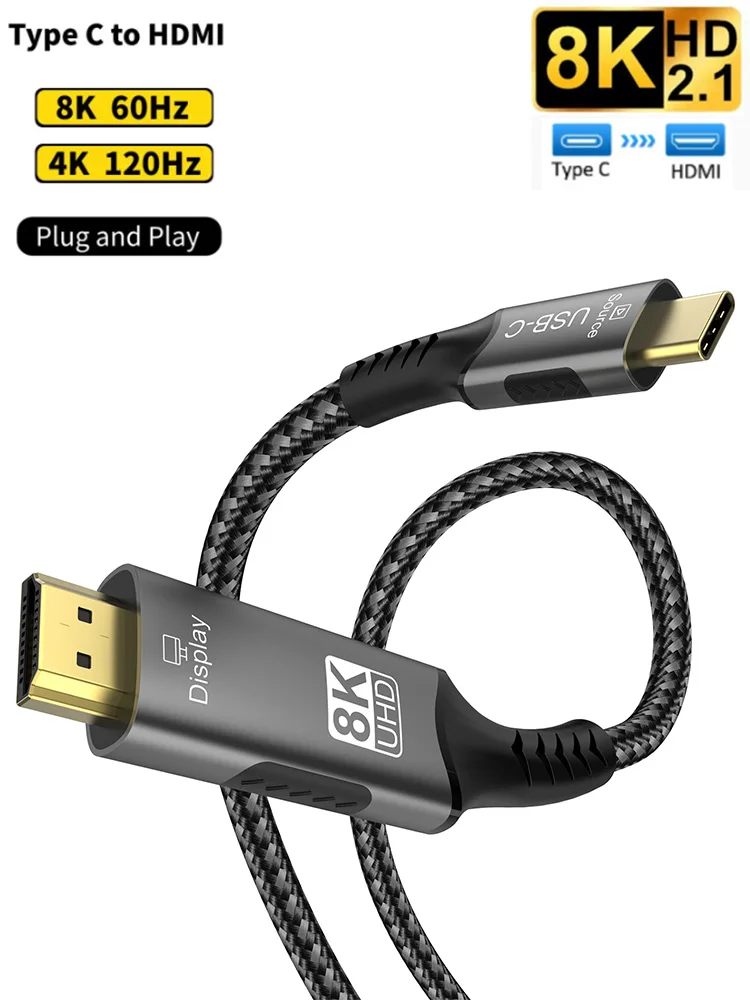
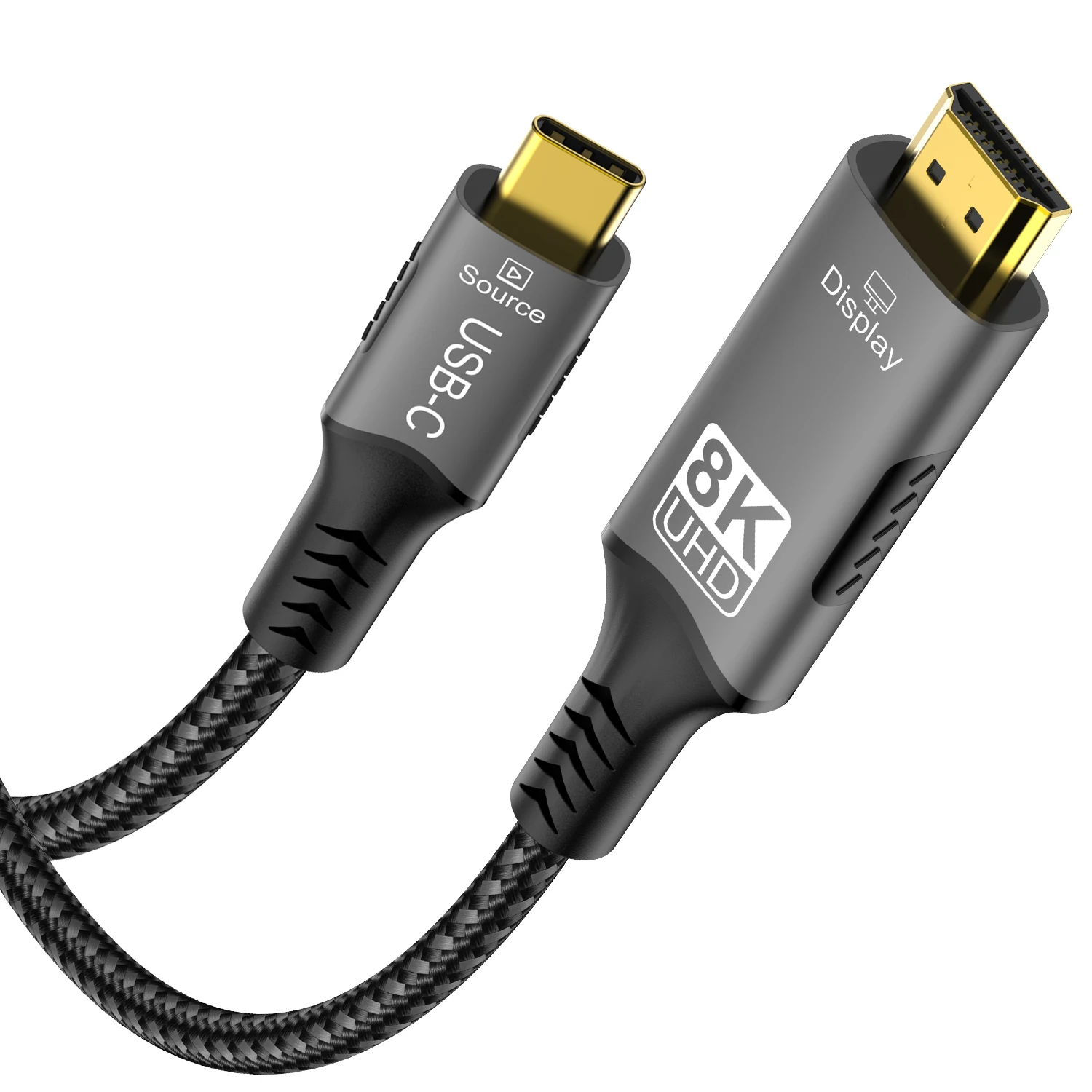
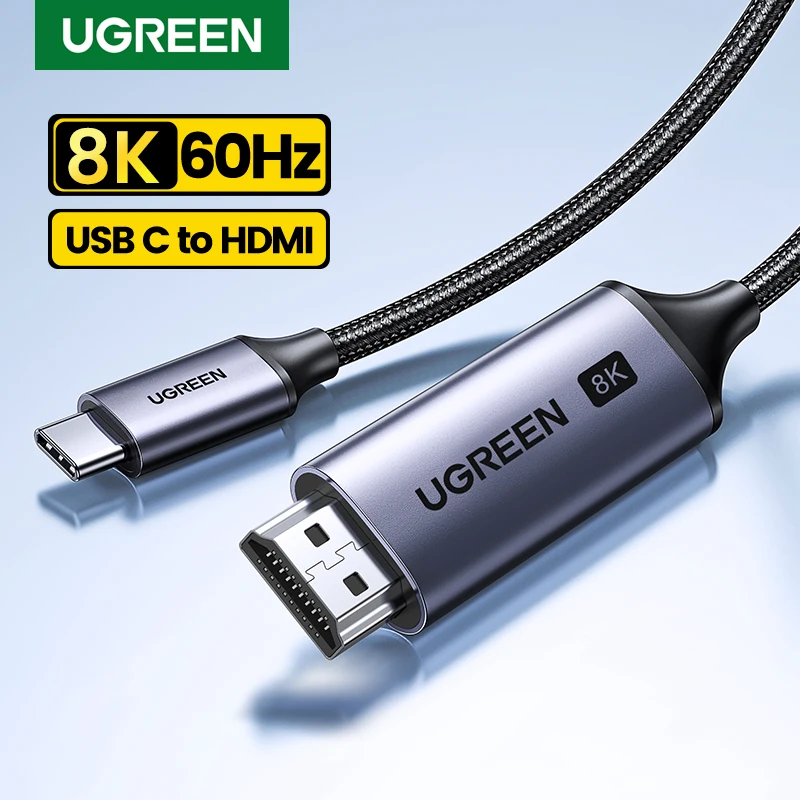
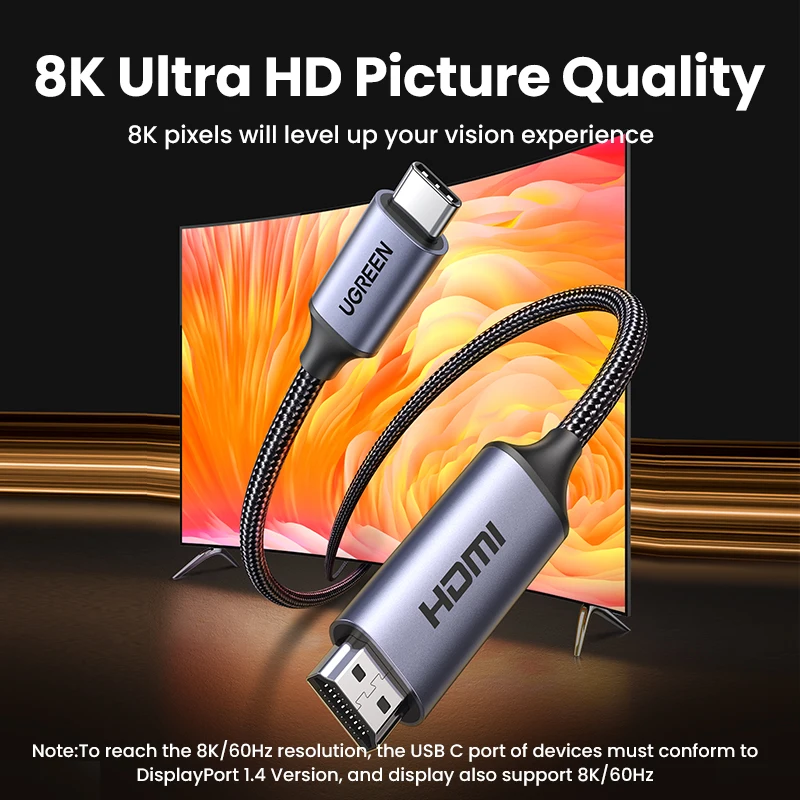
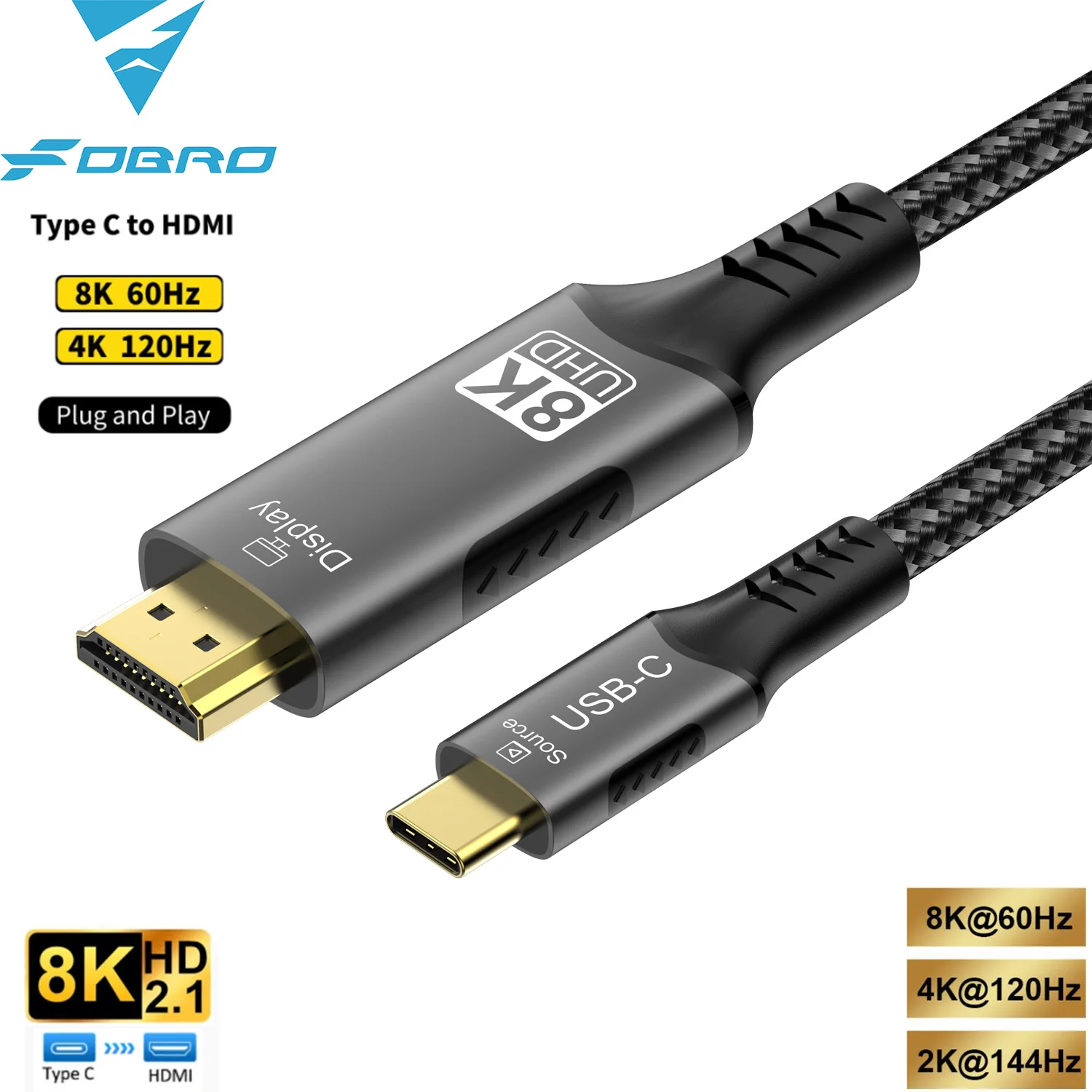
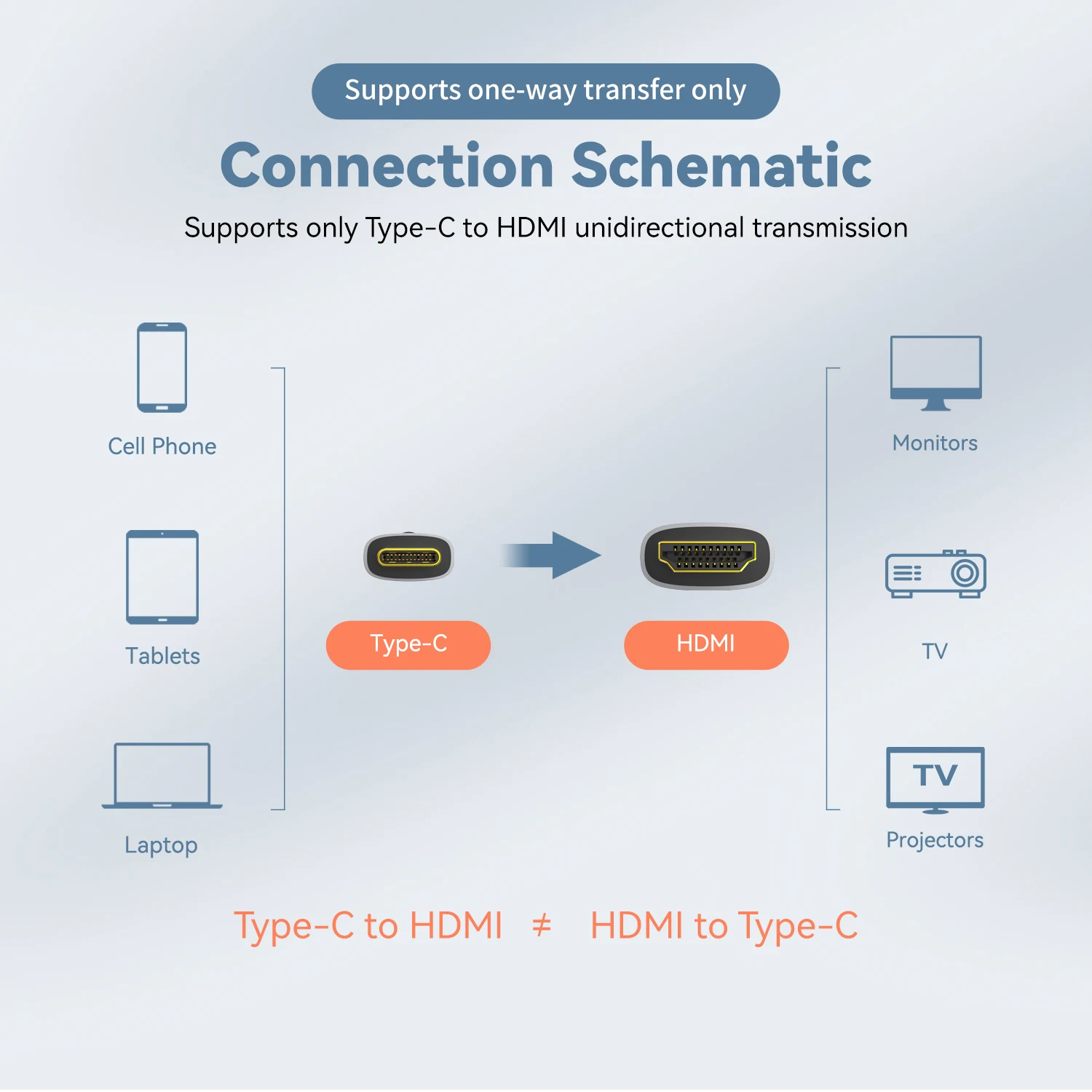
- USB-C to HDMI adapters and one-piece cables for laptops without an HDMI socket. See USB-C to HDMI adapters and USB-C to HDMI cables.
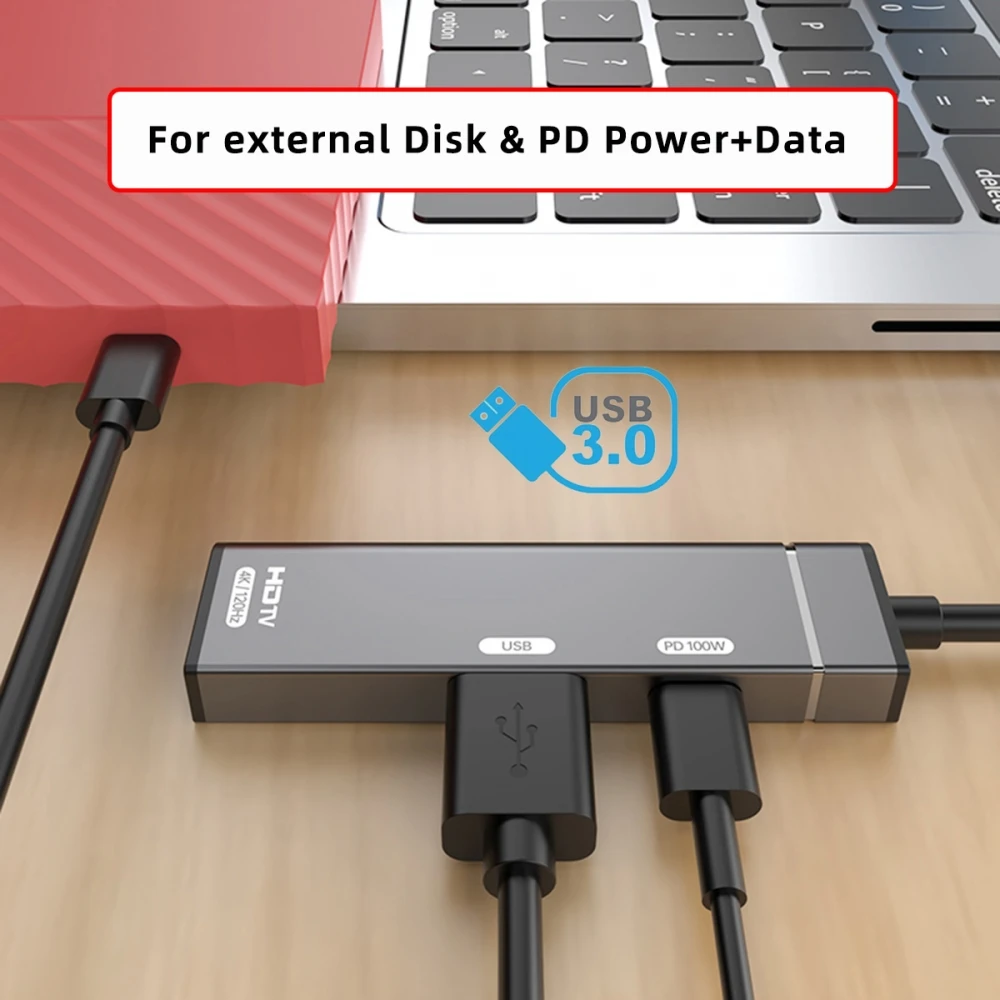
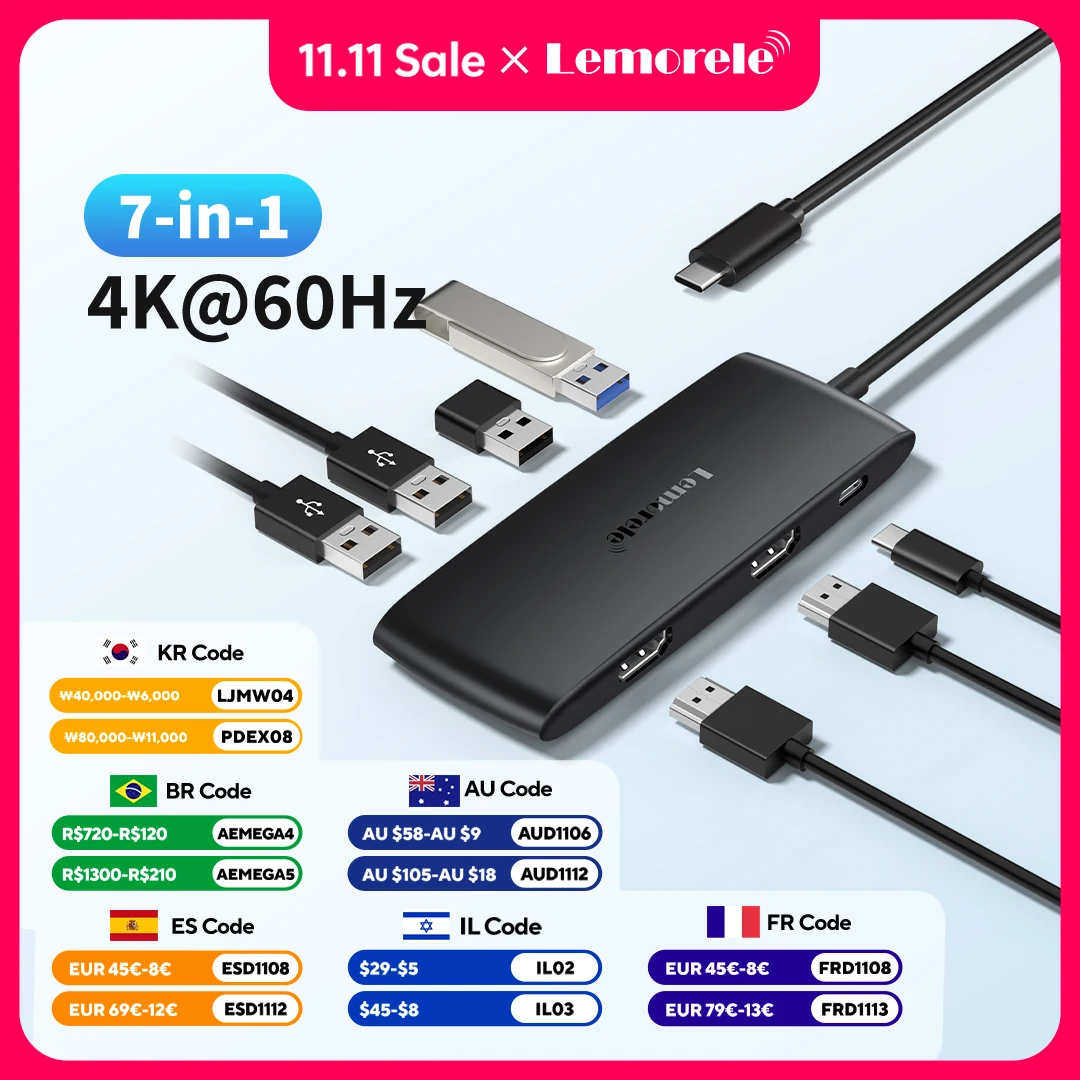
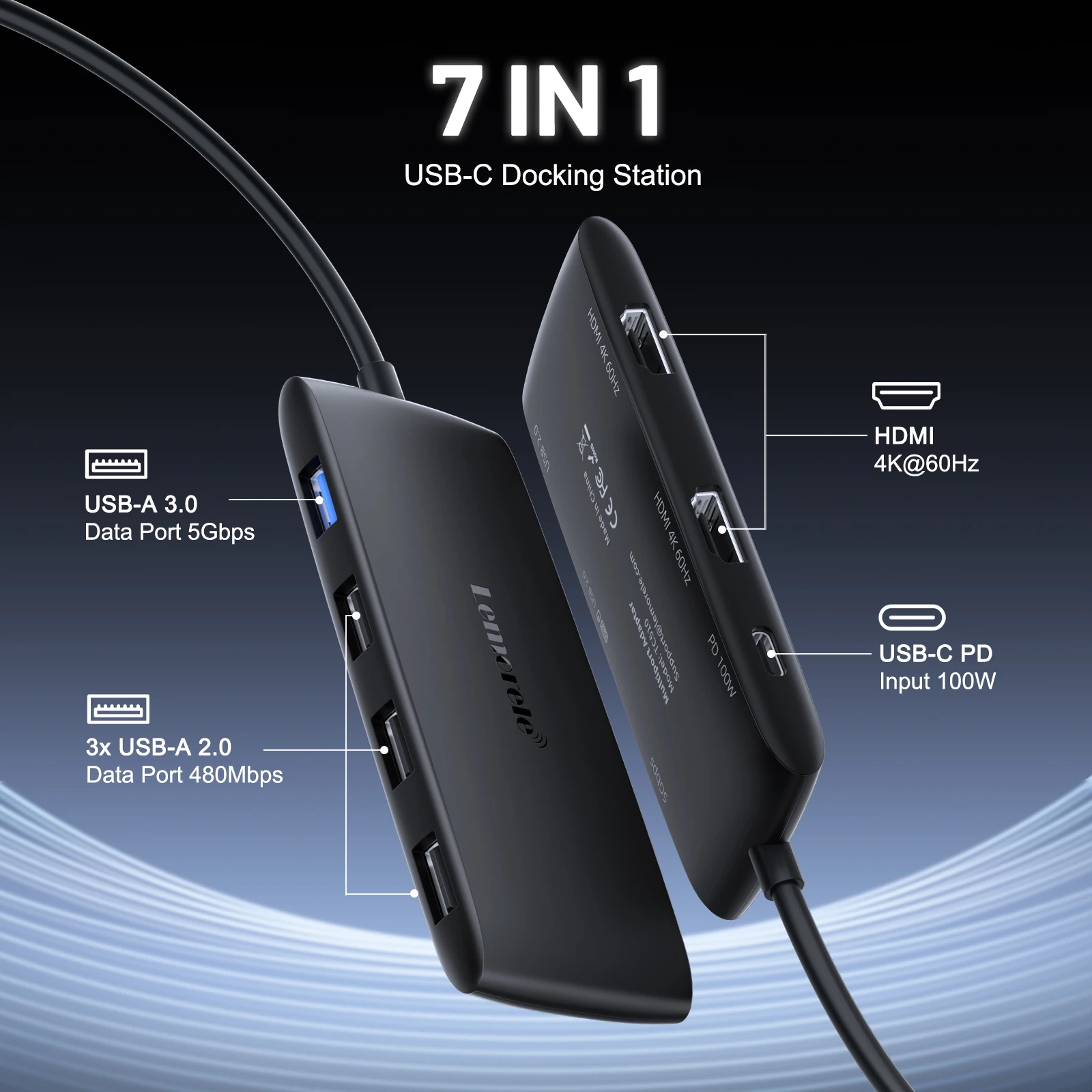
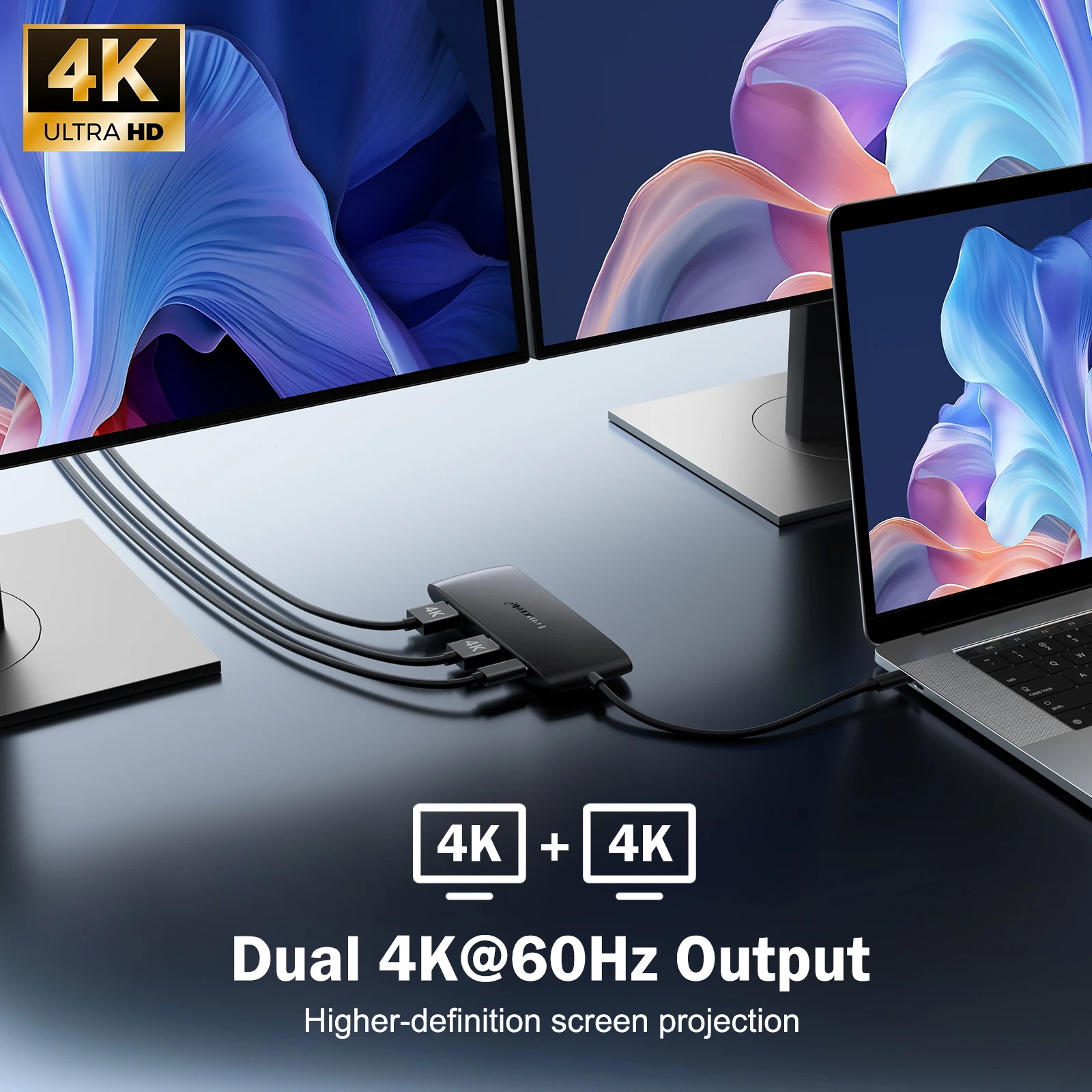
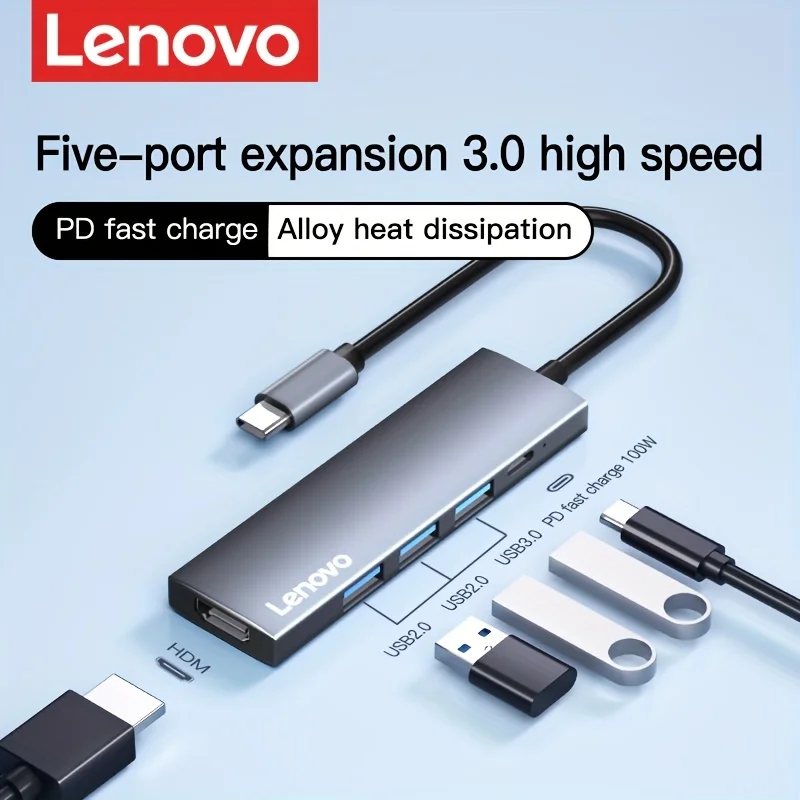
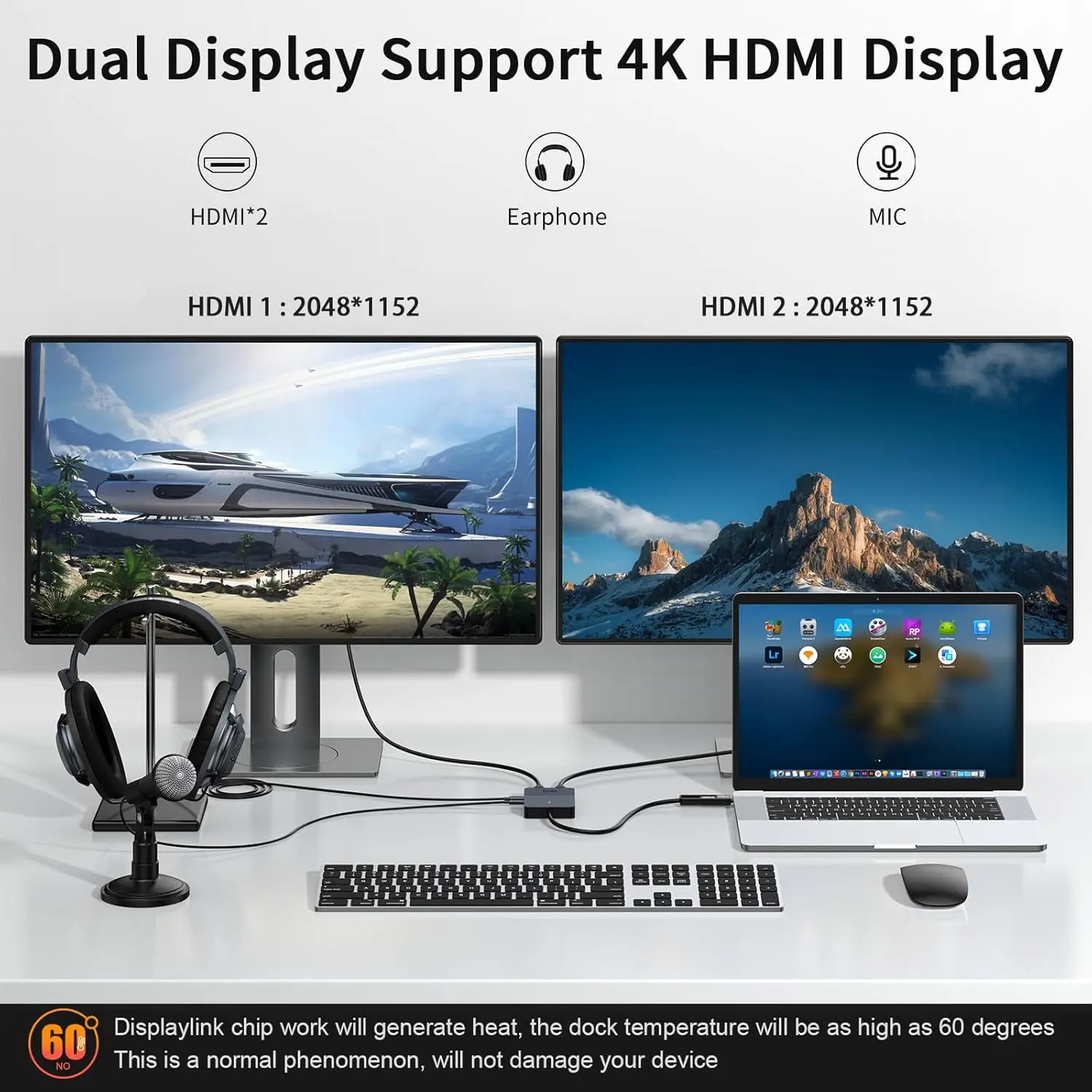
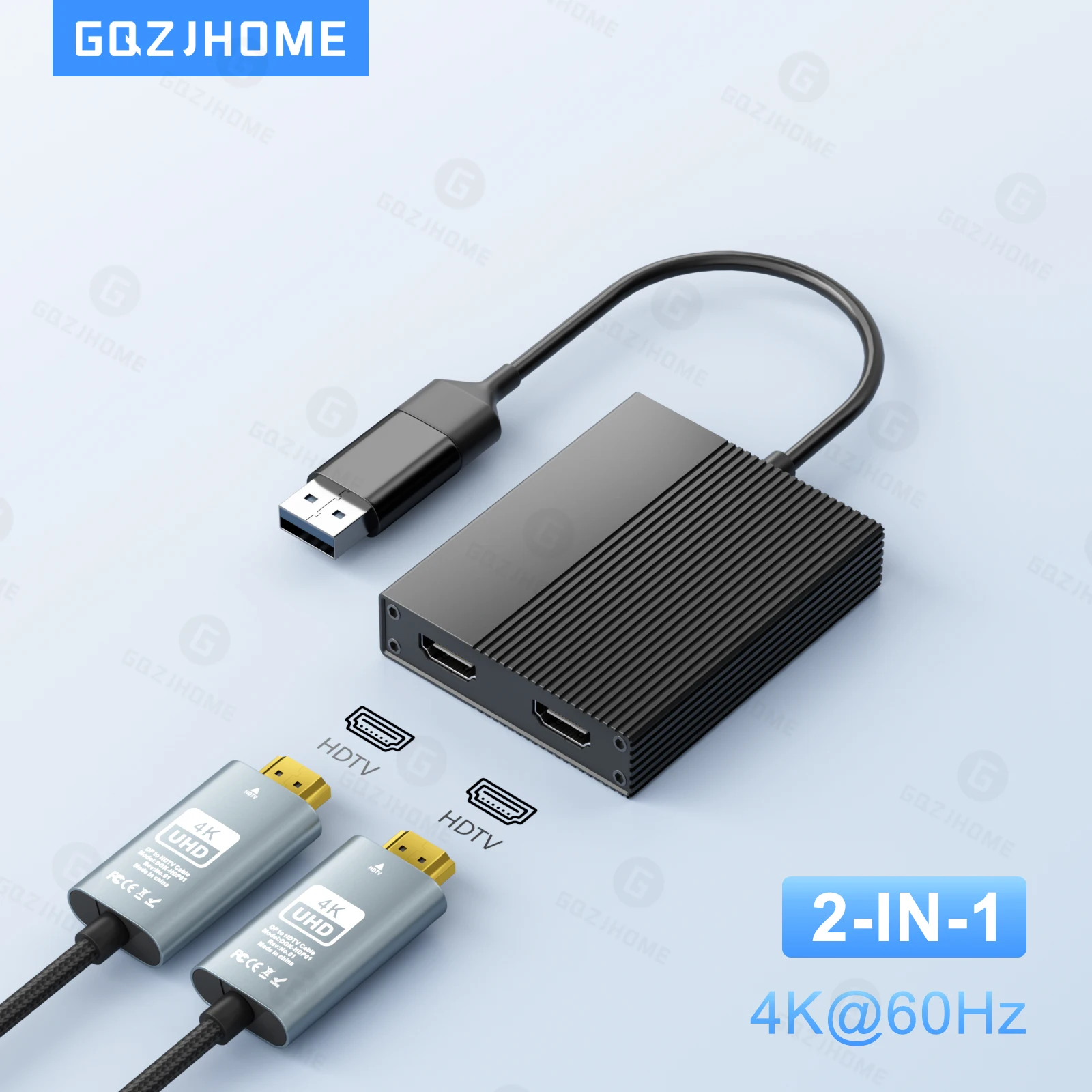
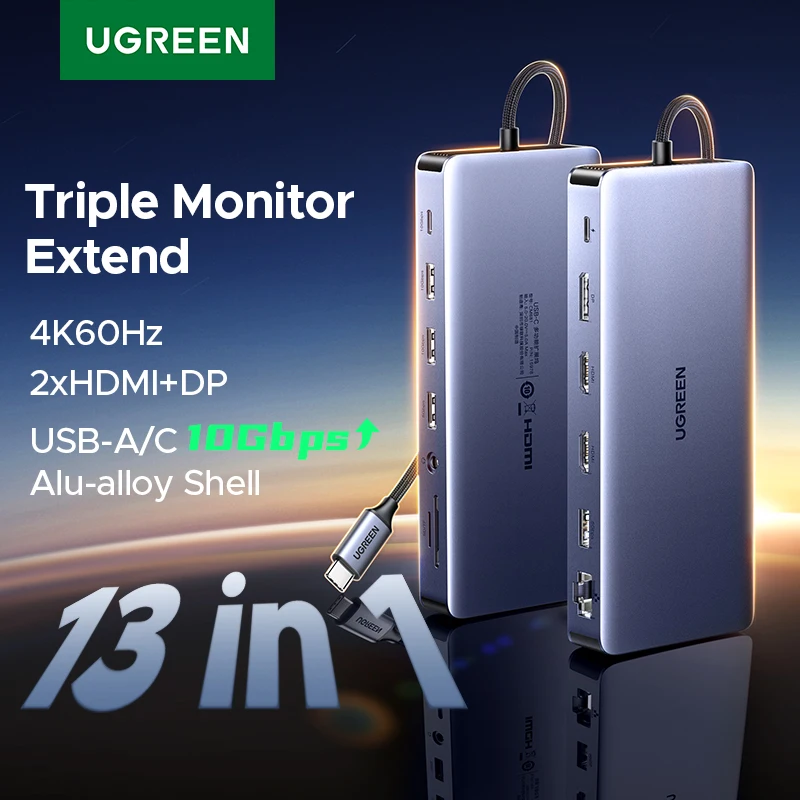
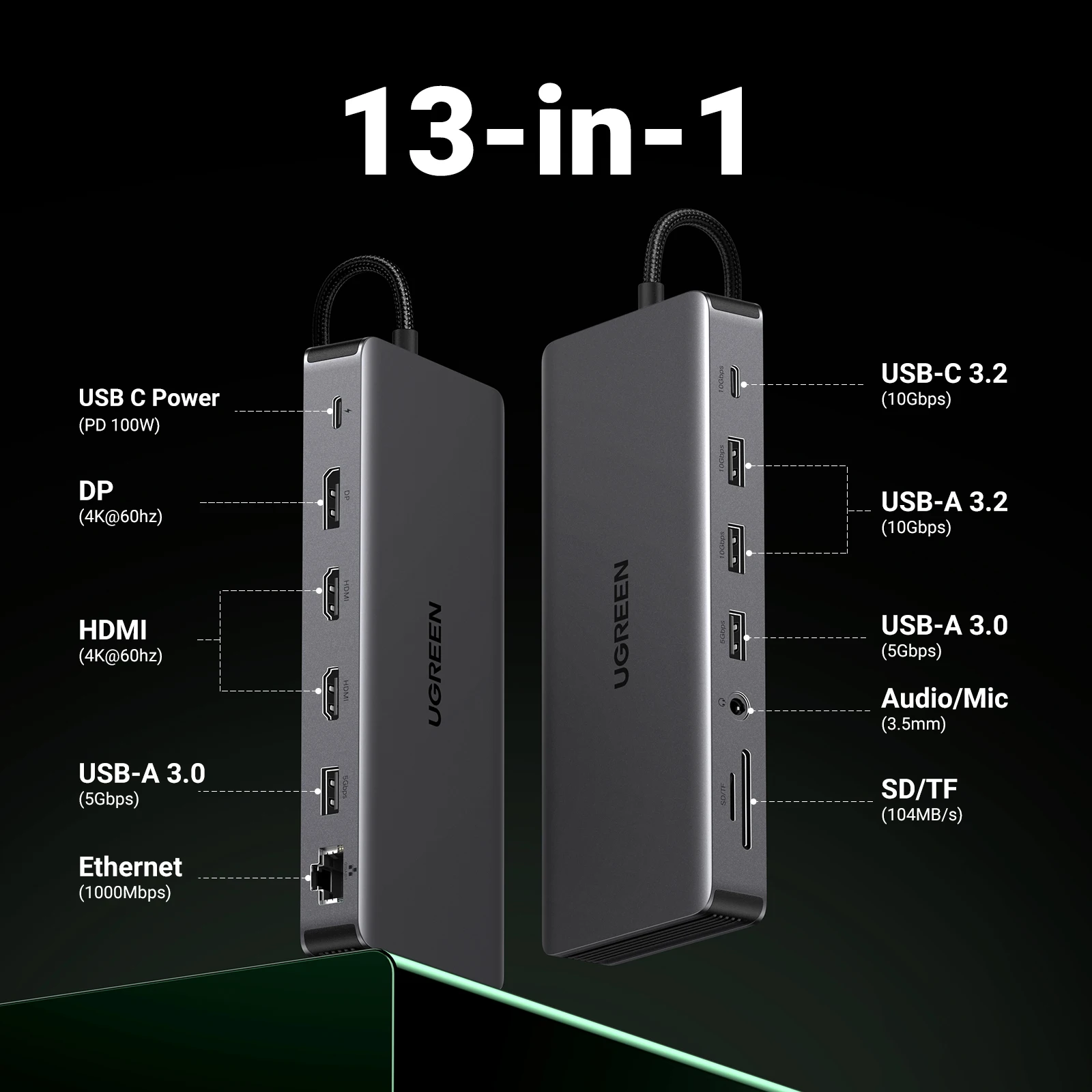
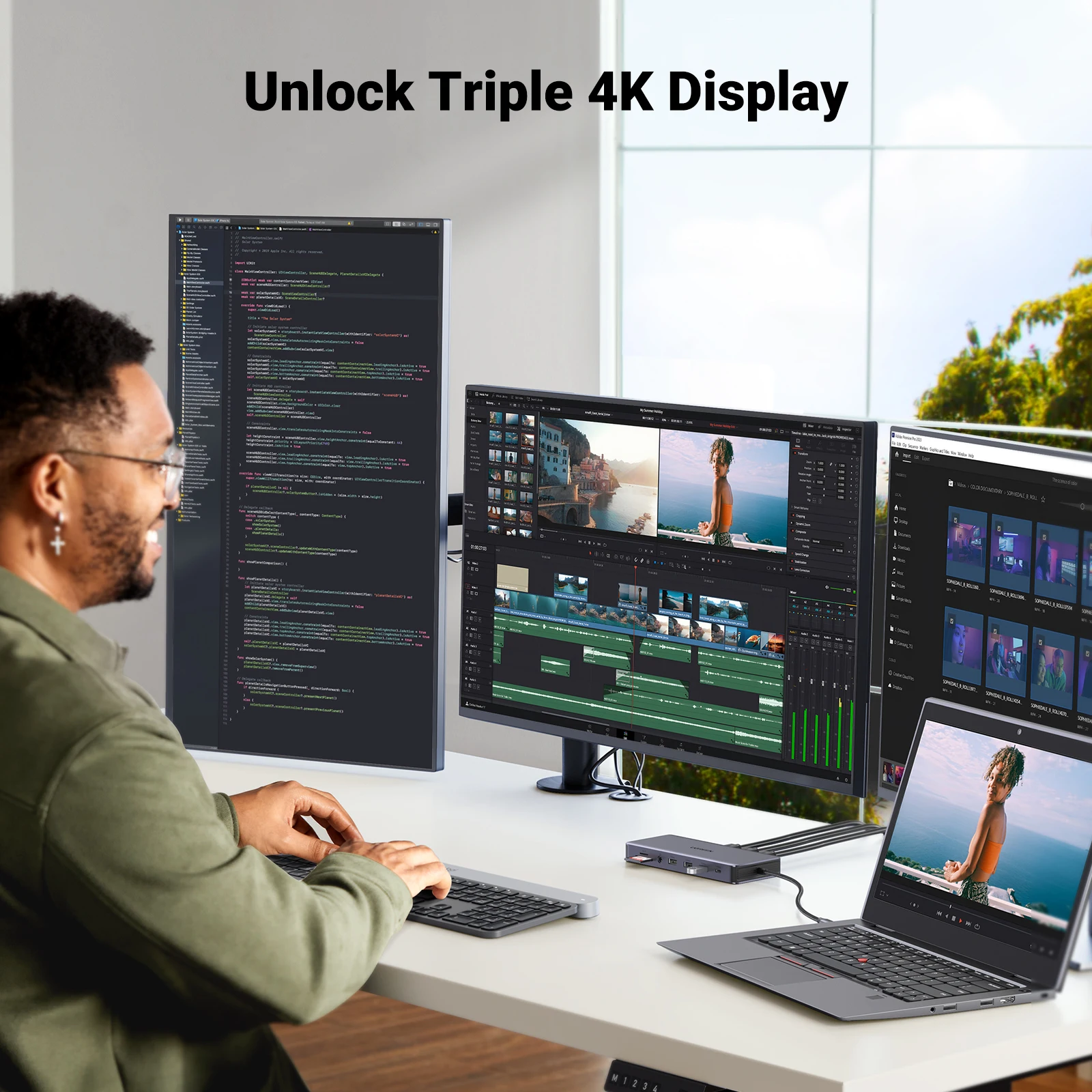
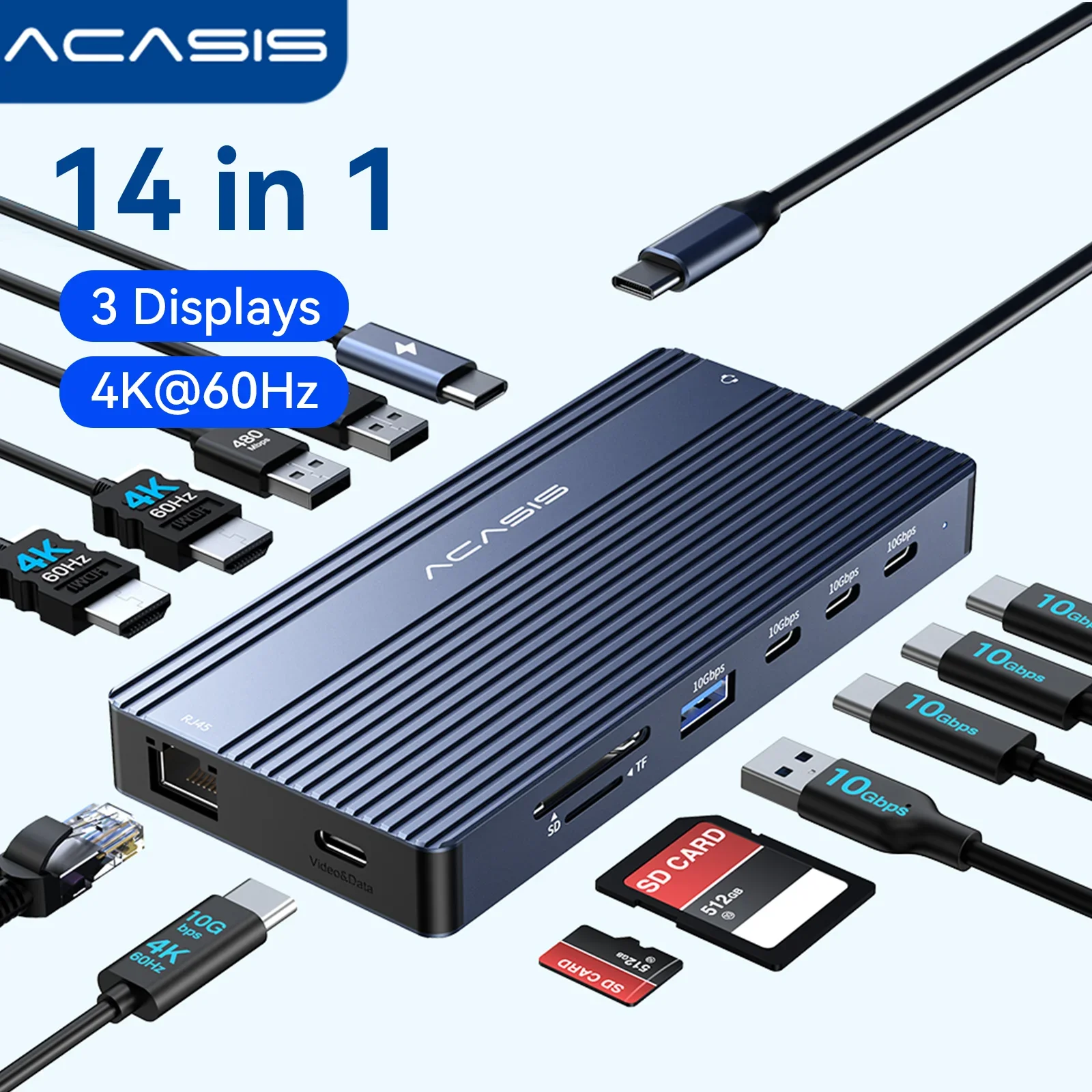
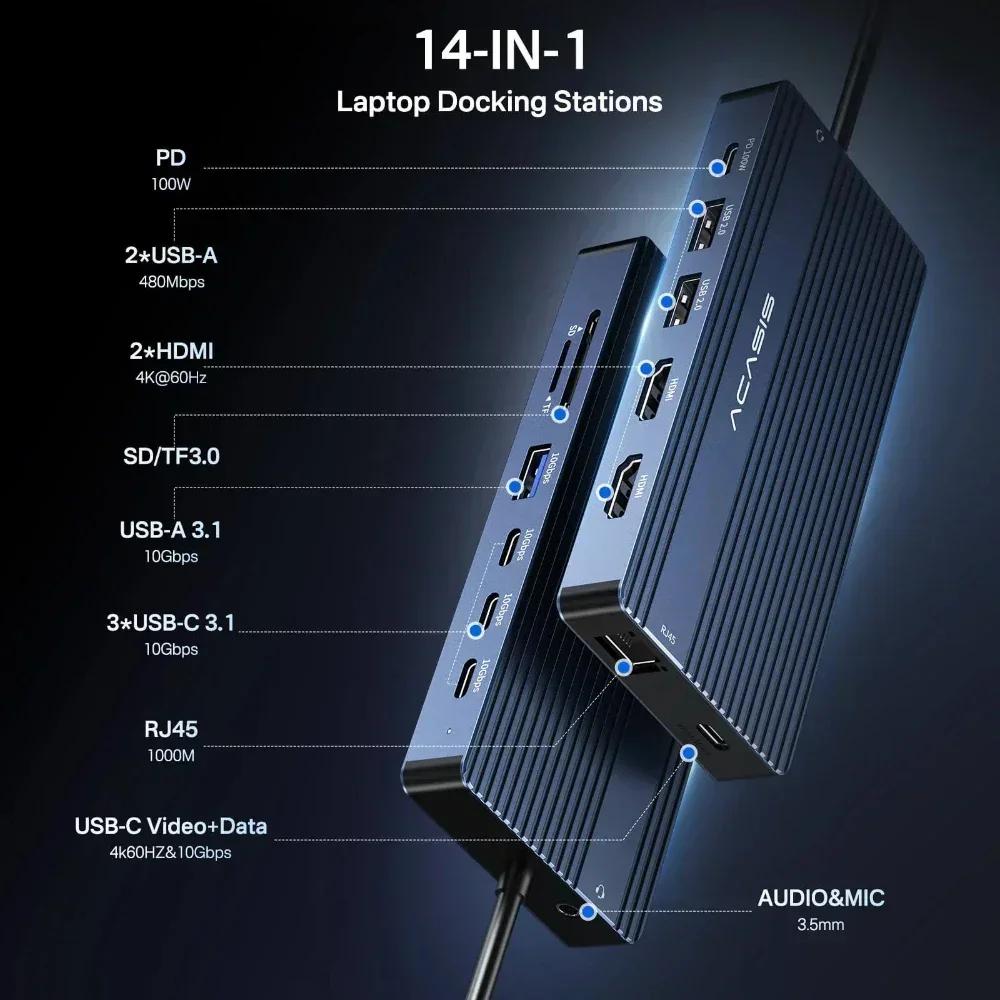
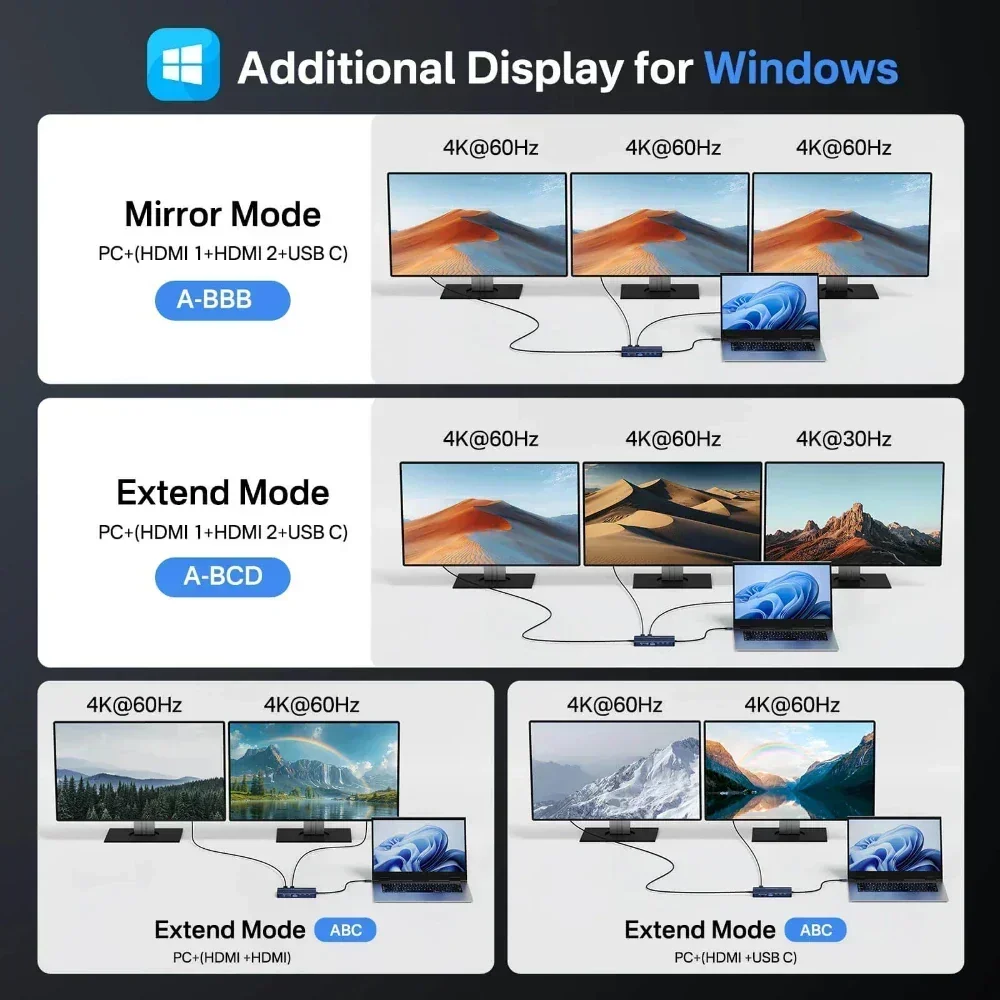
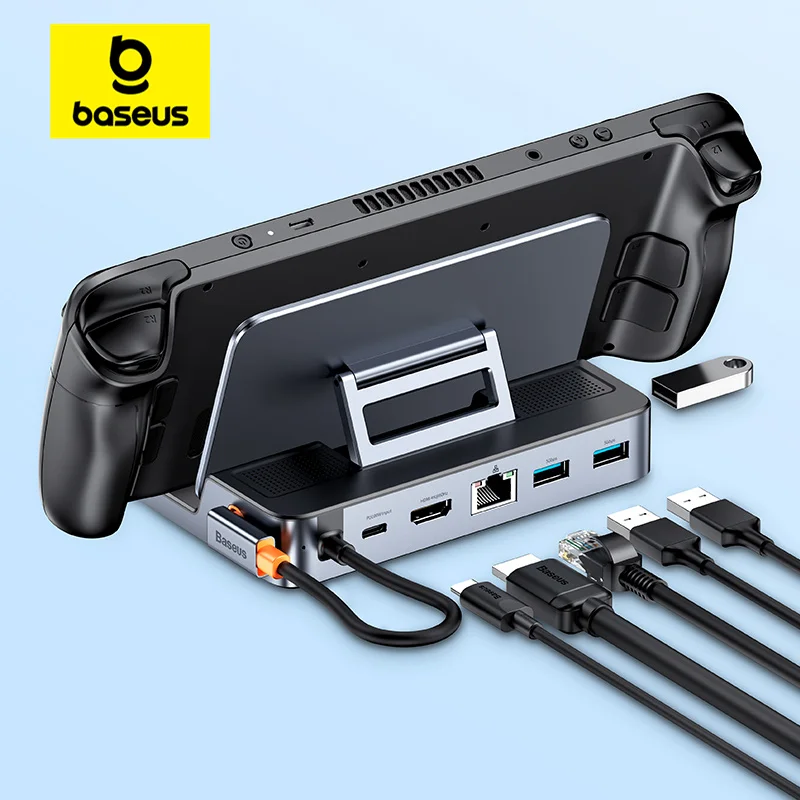
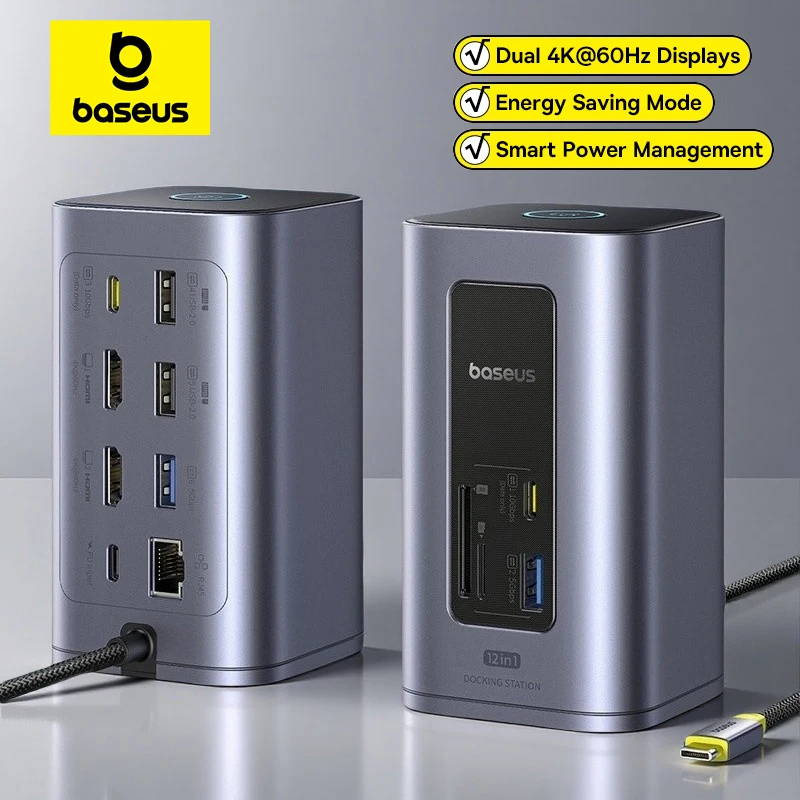
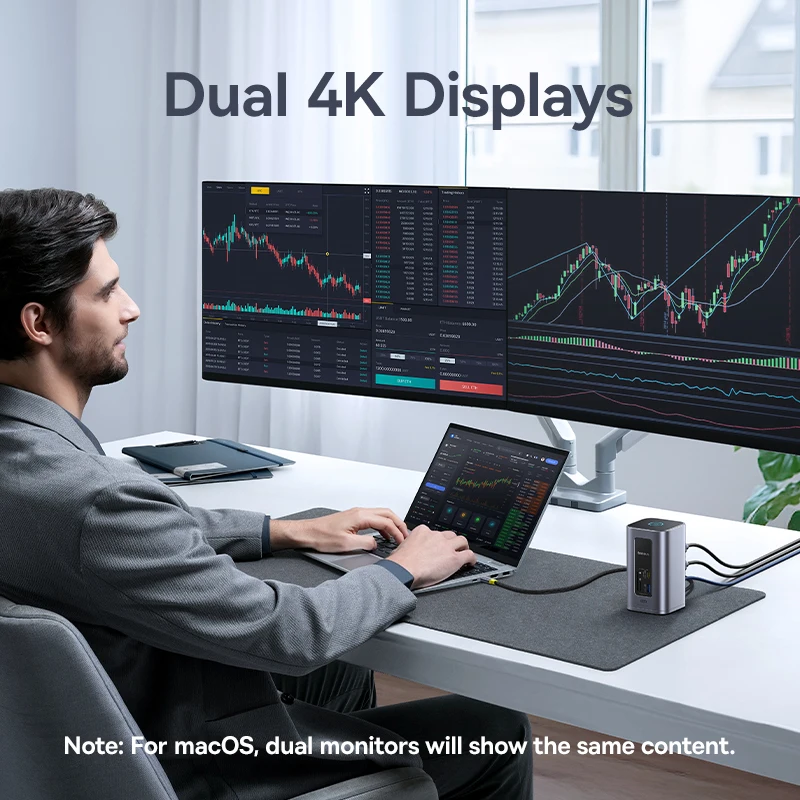
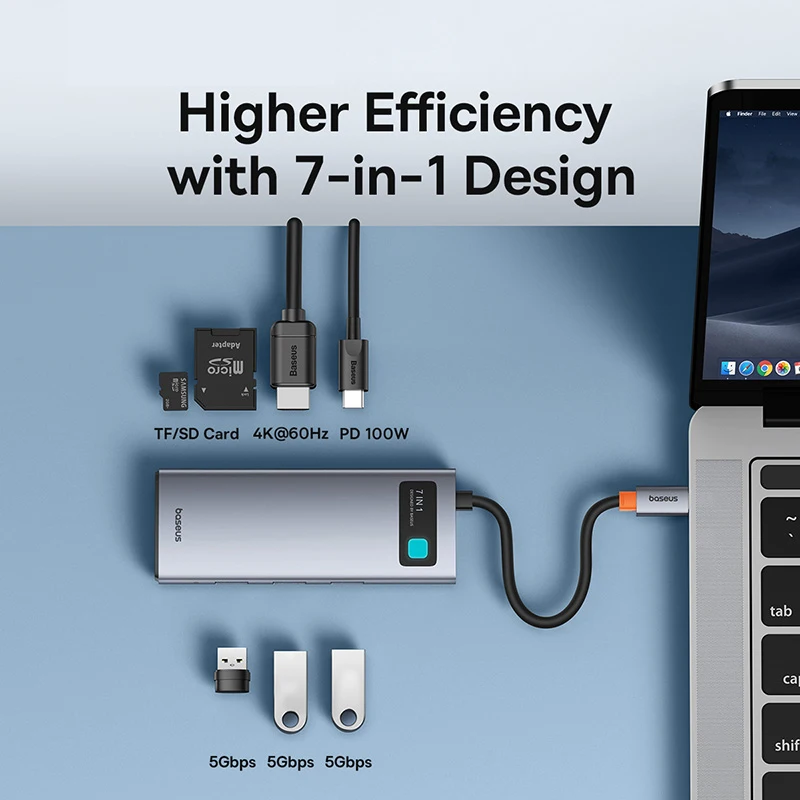
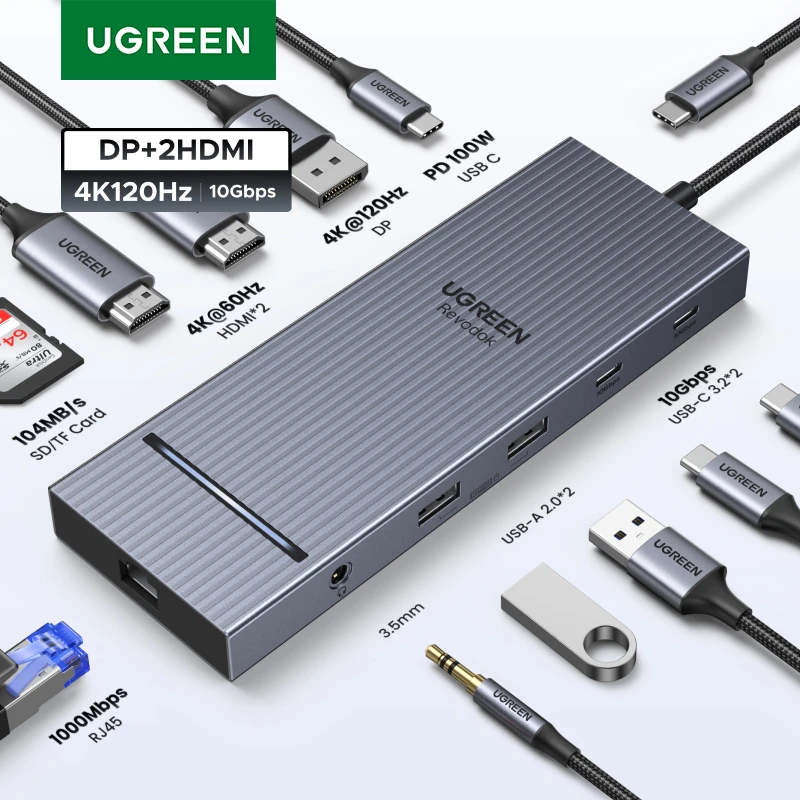
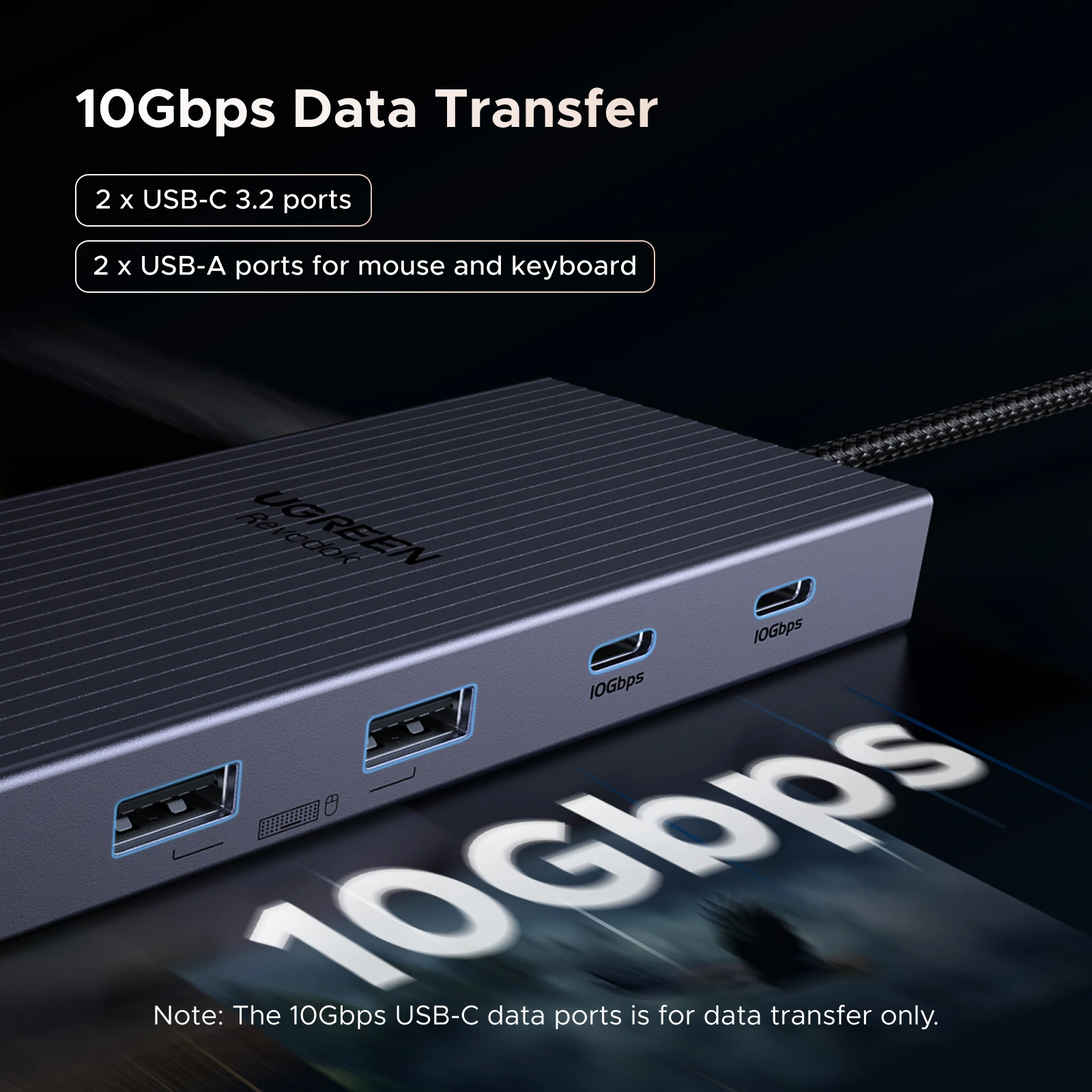
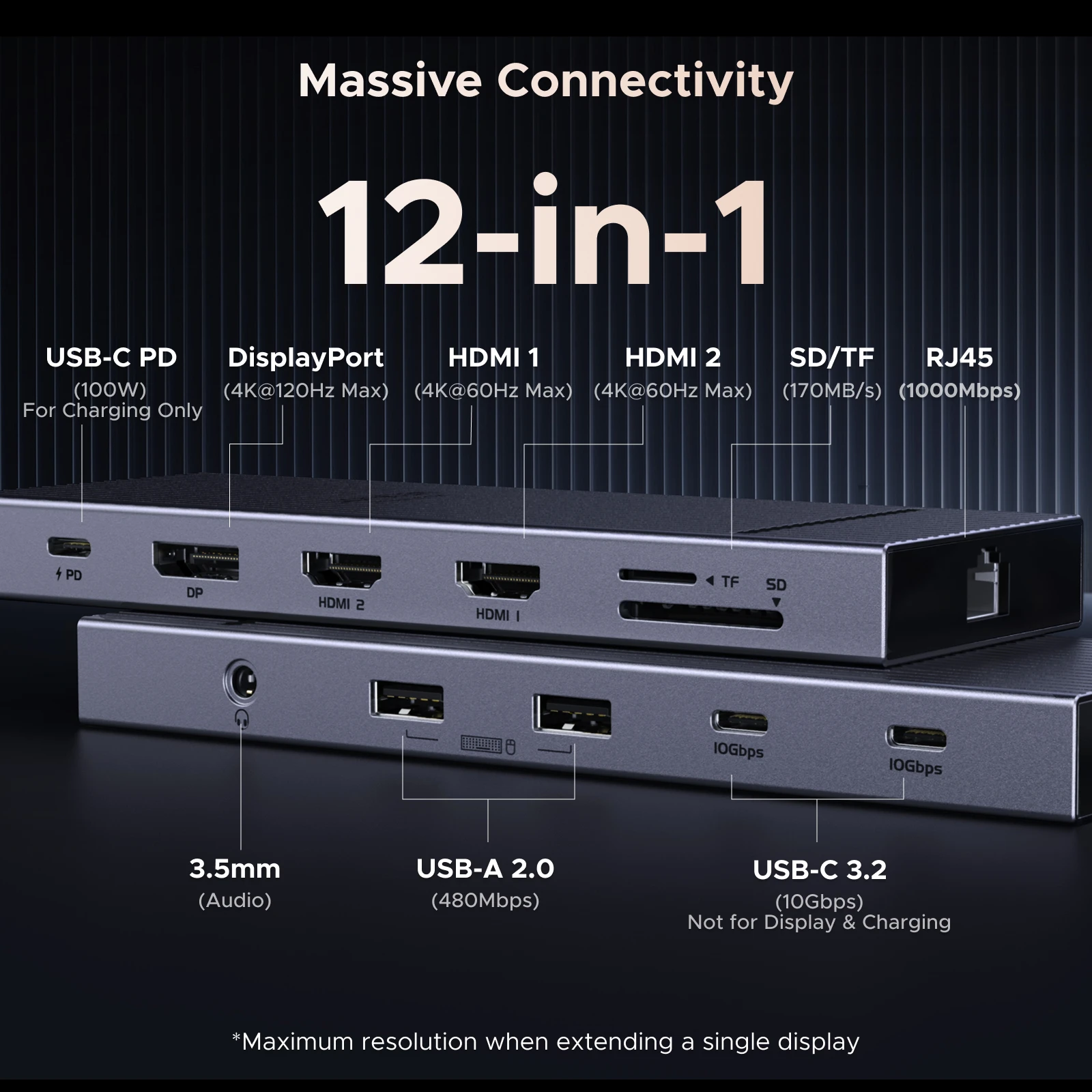
- Hubs and docks with one, two or three screen outputs.
- Switches and splitters: a switch puts several sources on one screen, a splitter sends one source to several screens, and a KVM switch shares one screen, keyboard and mouse between two computers. See HDMI switches and splitters.
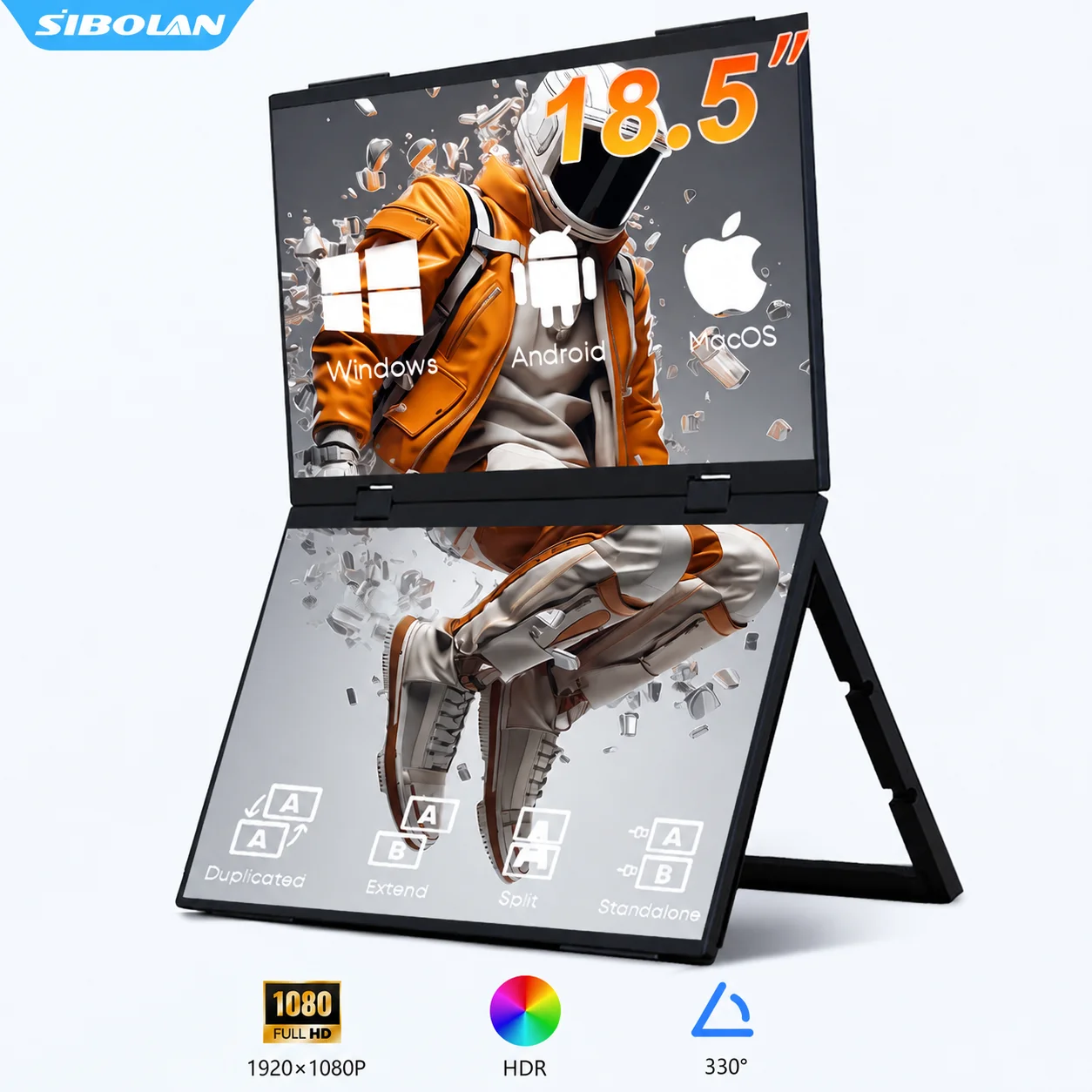
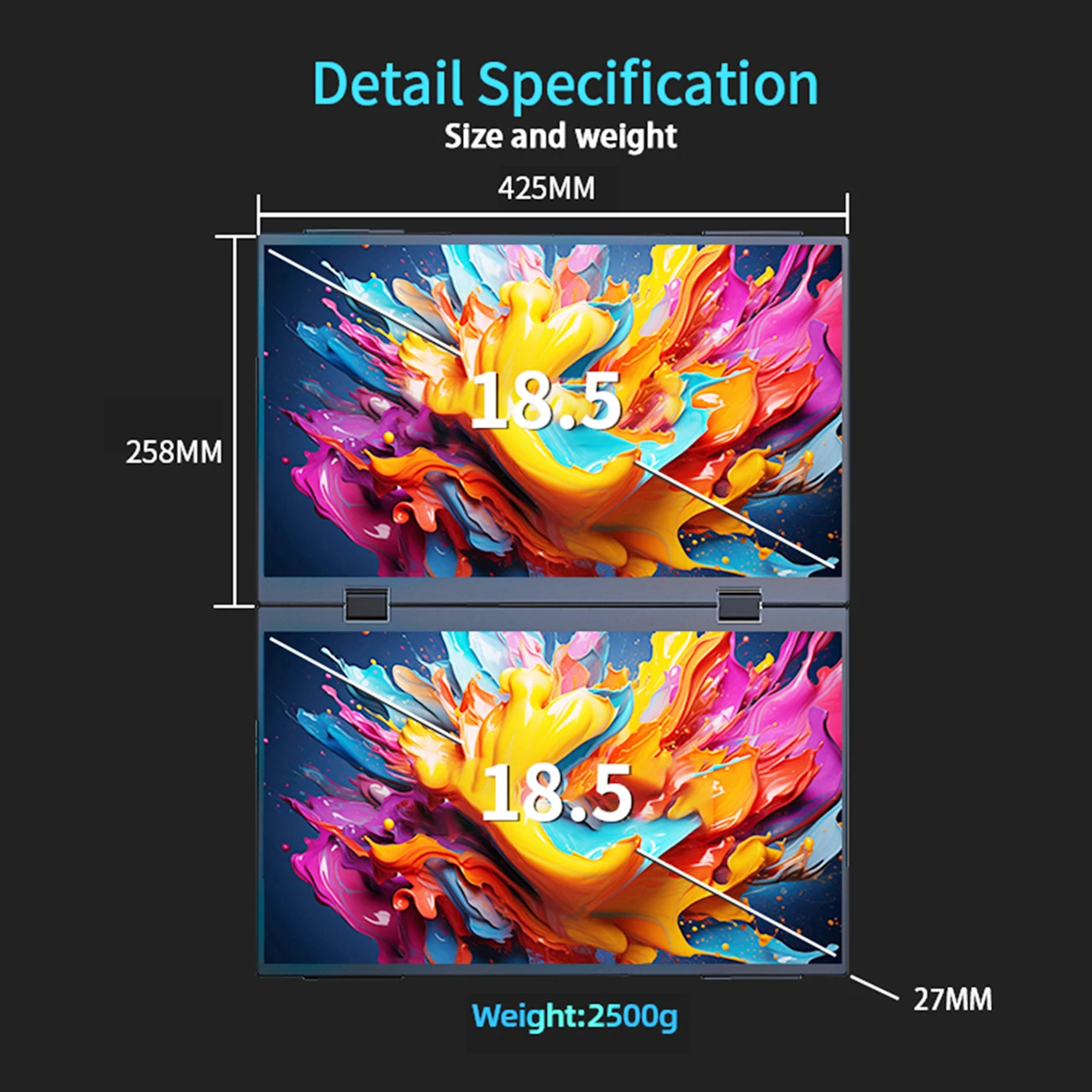
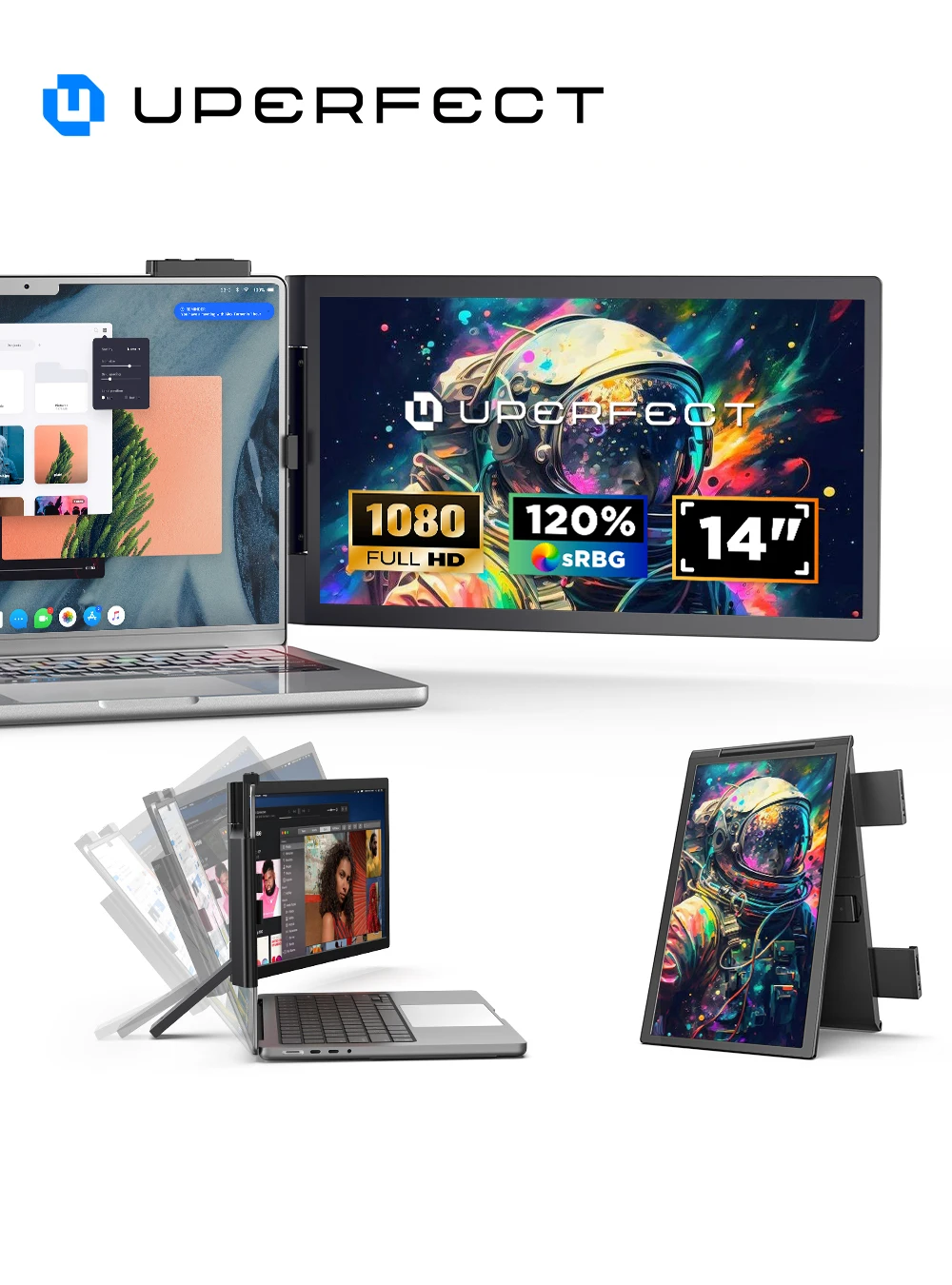
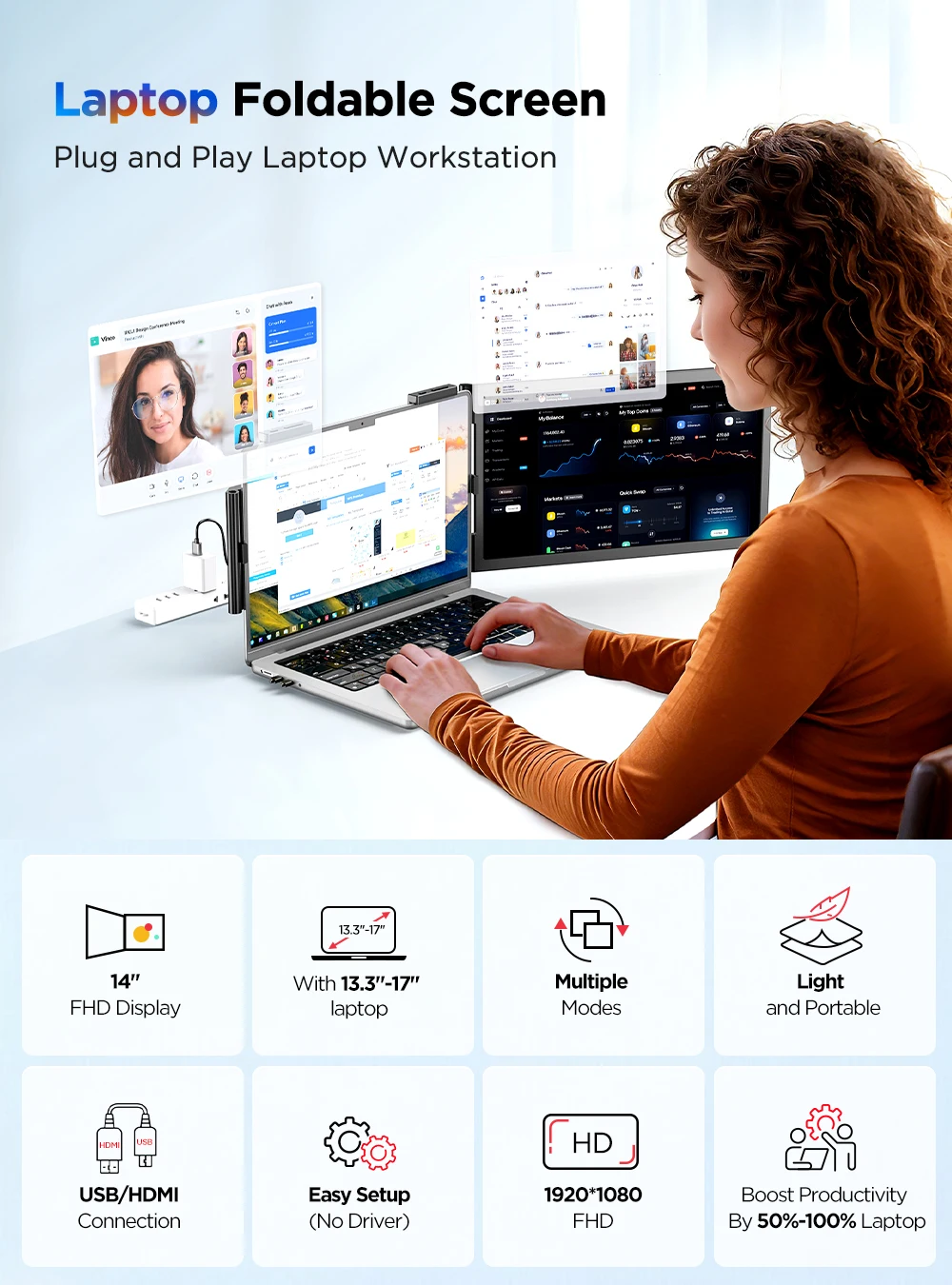
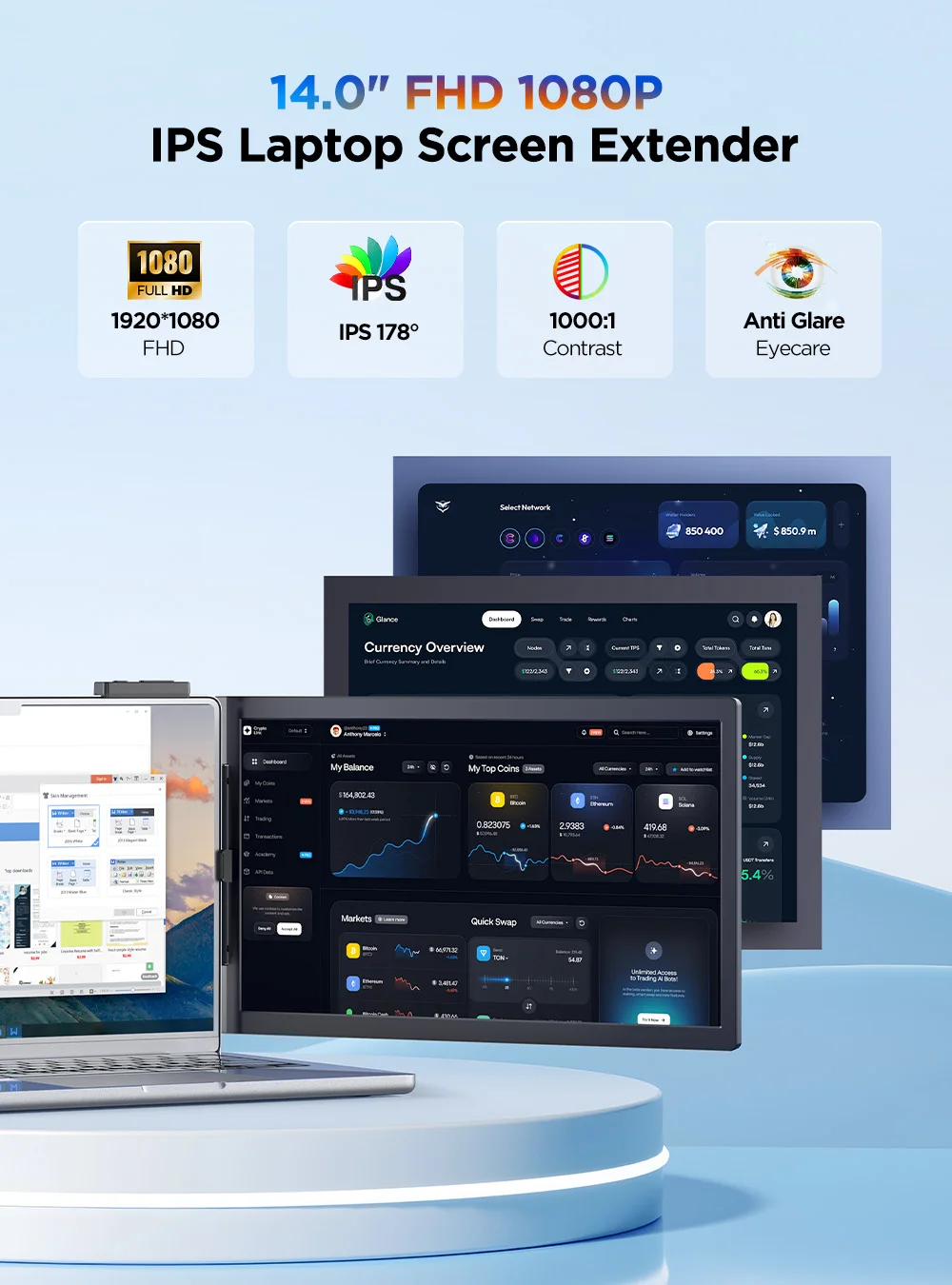
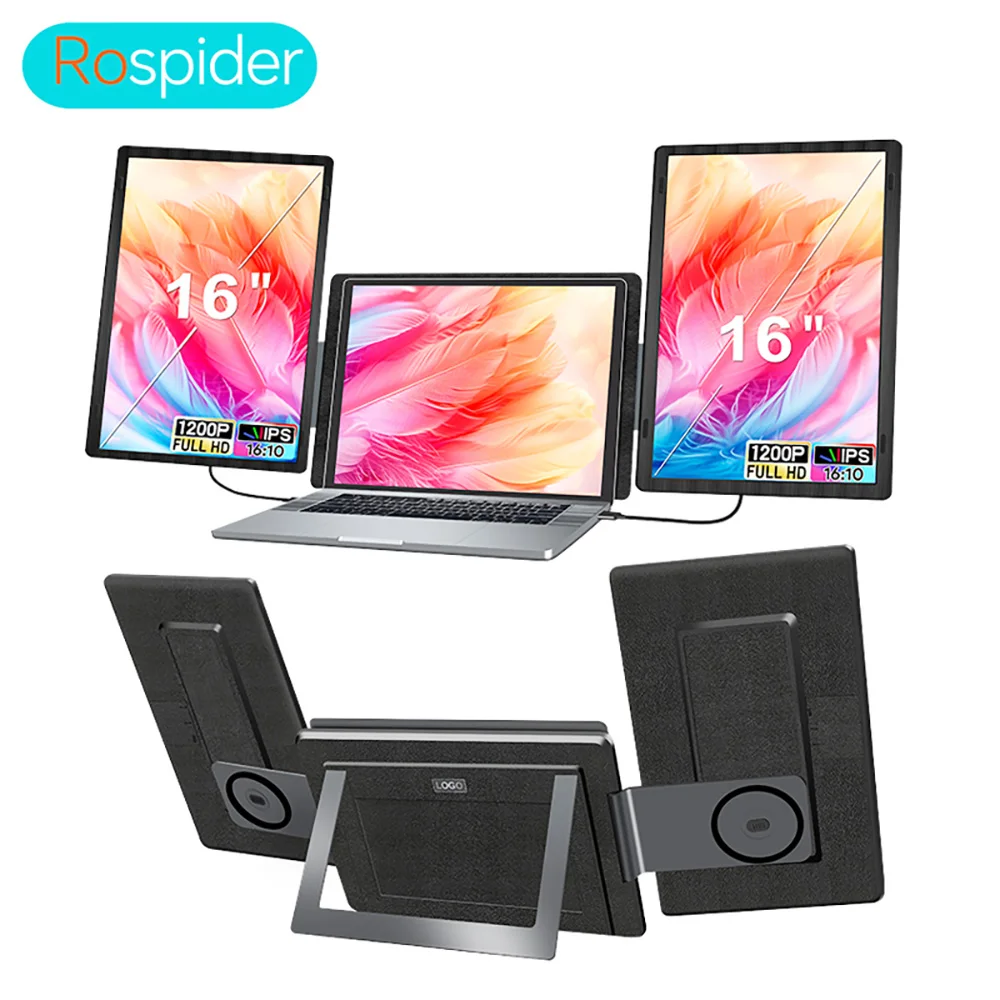
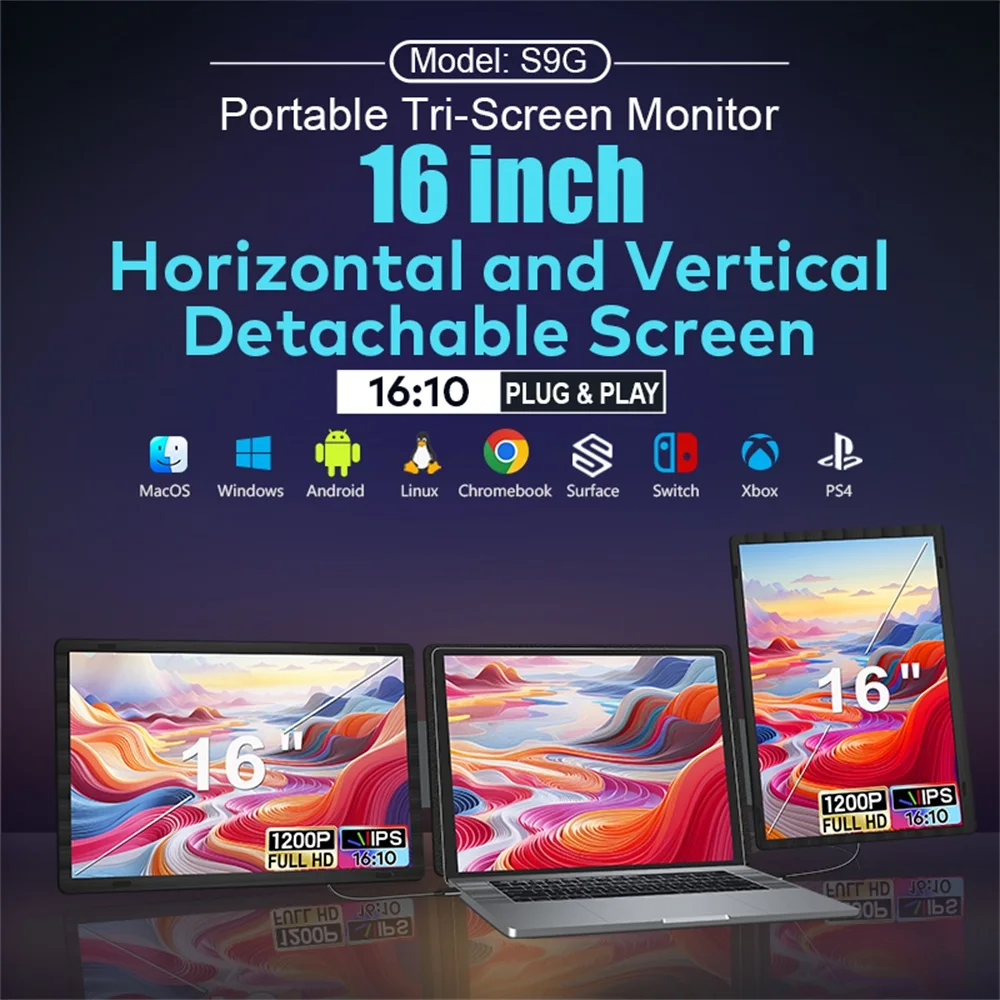
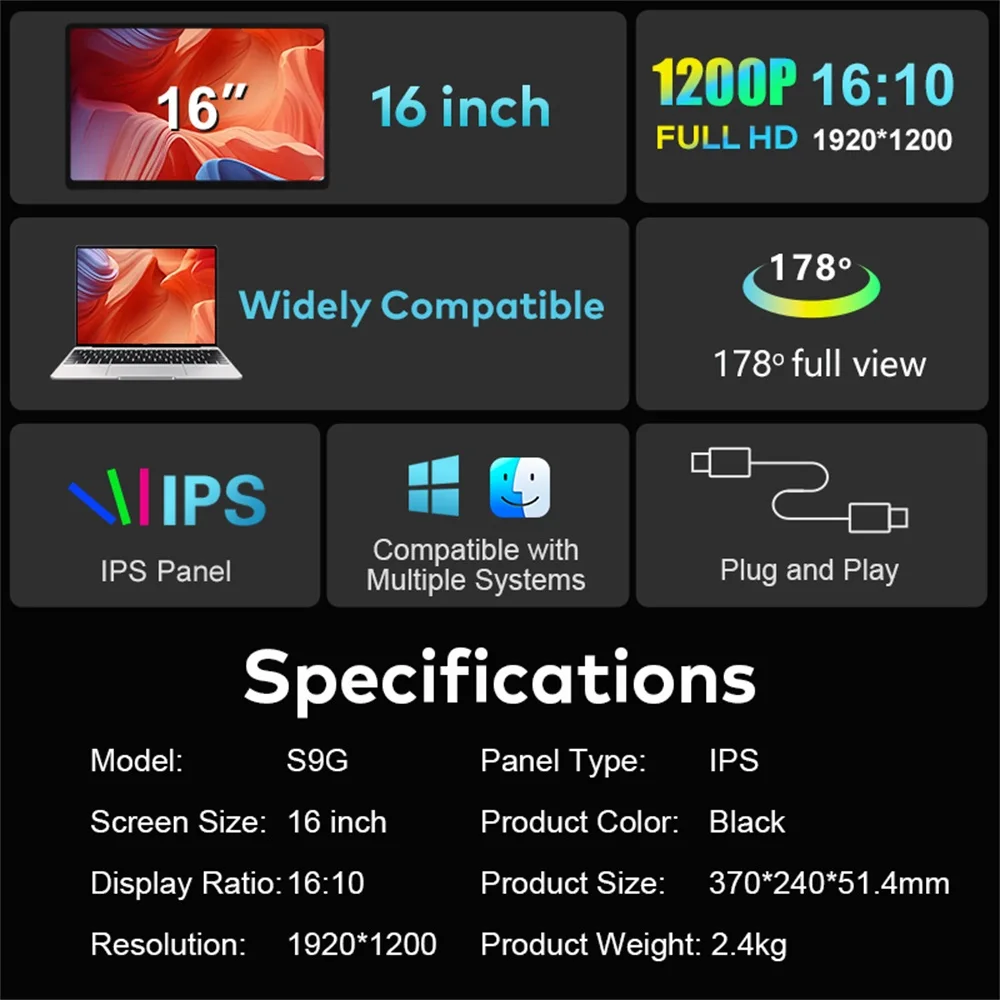
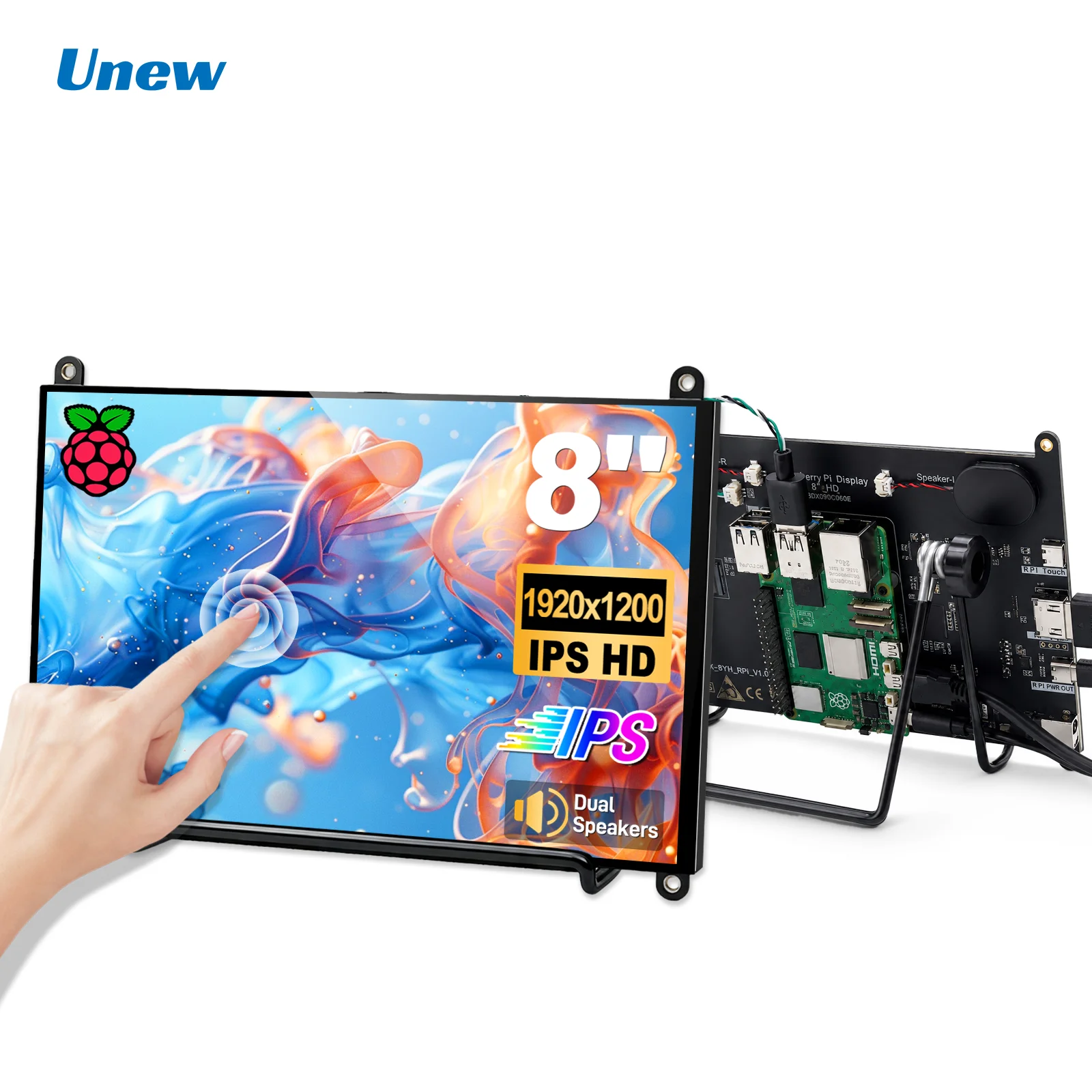
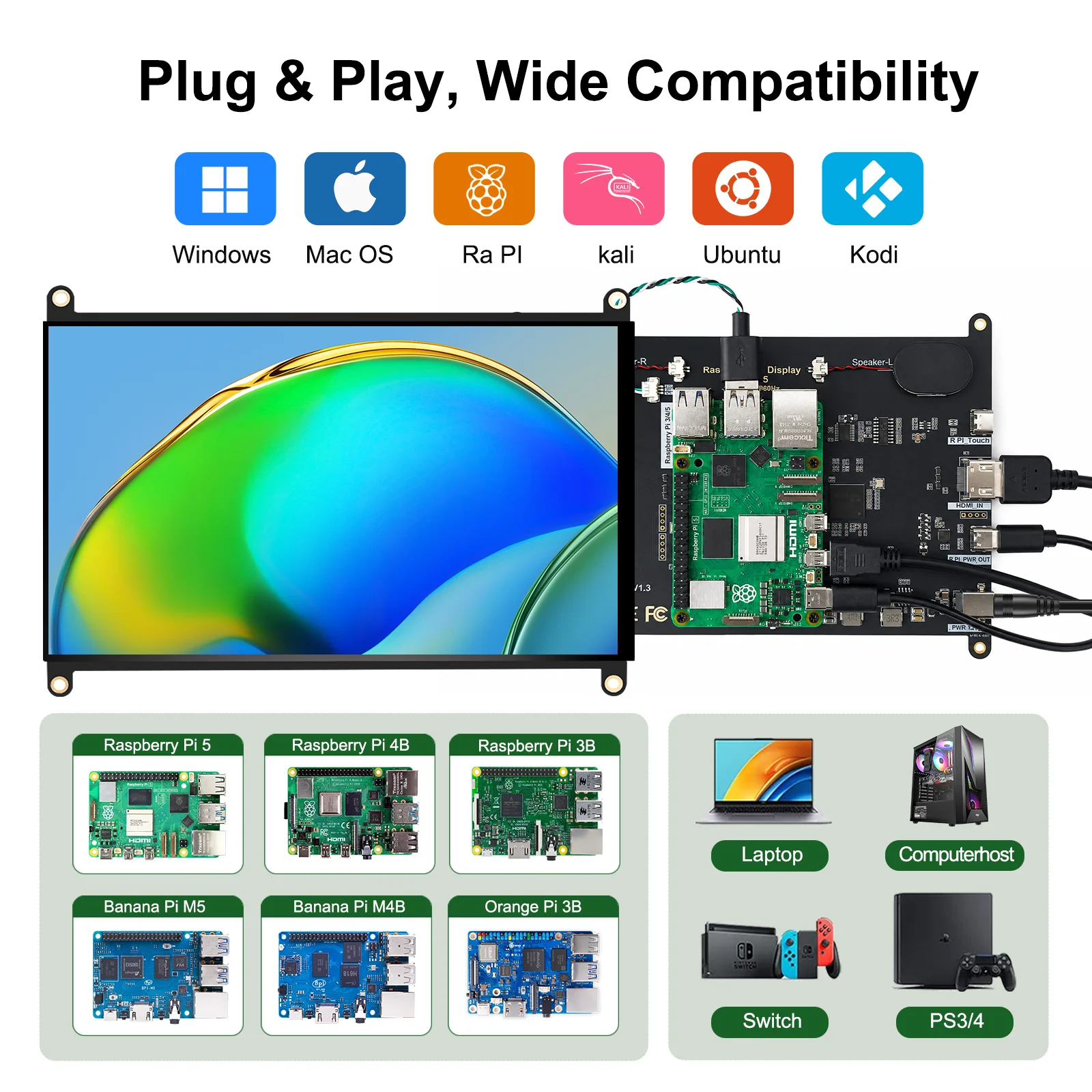
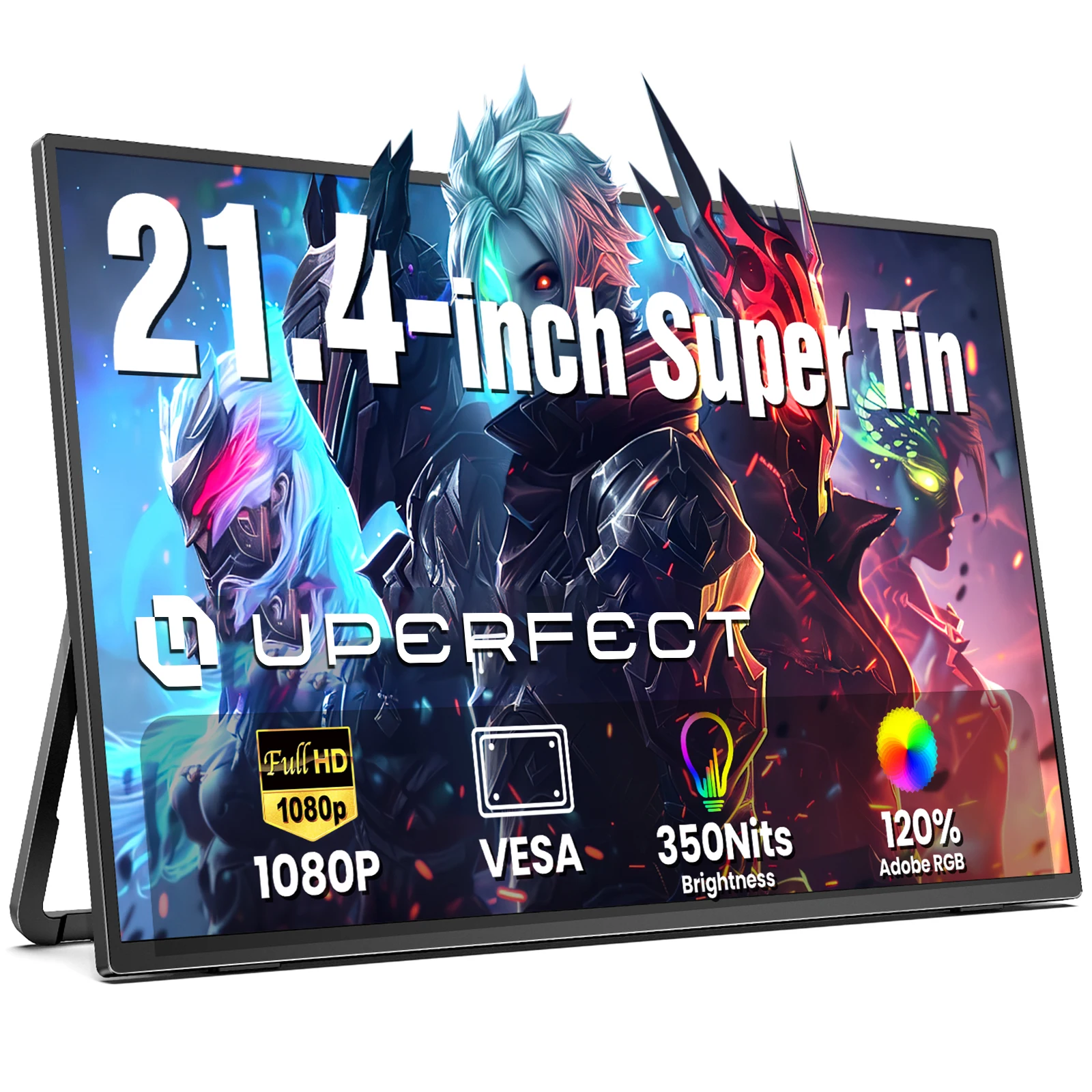
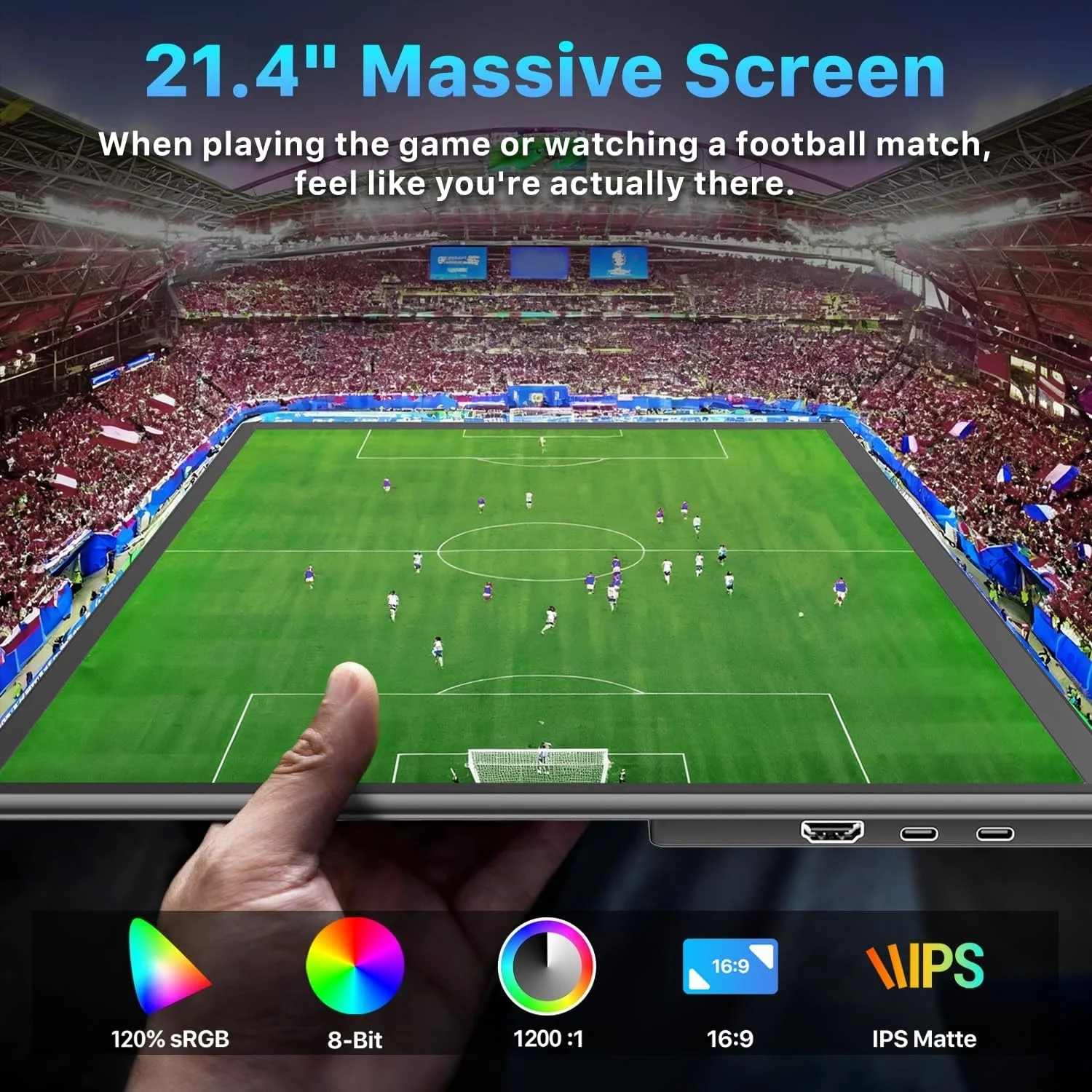
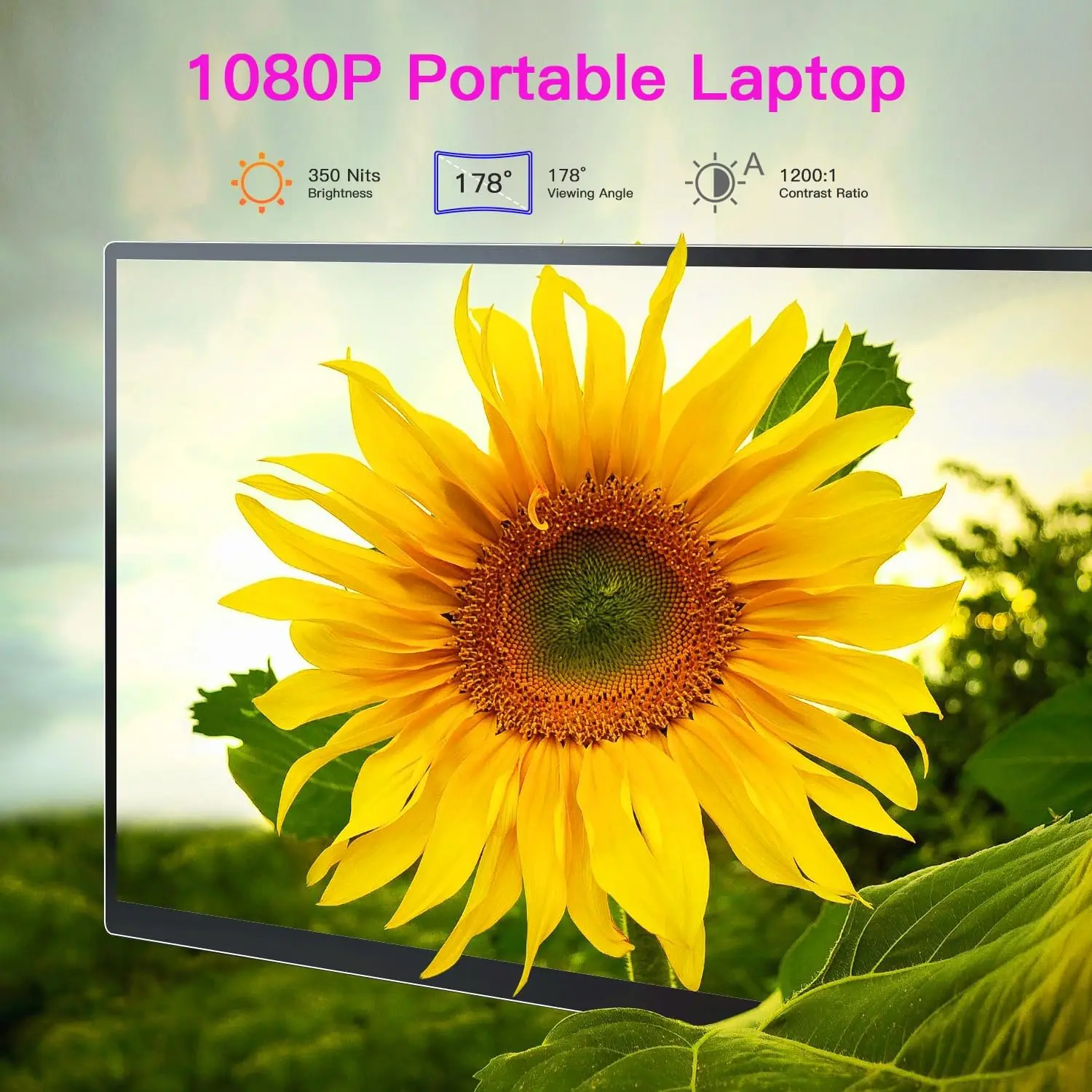
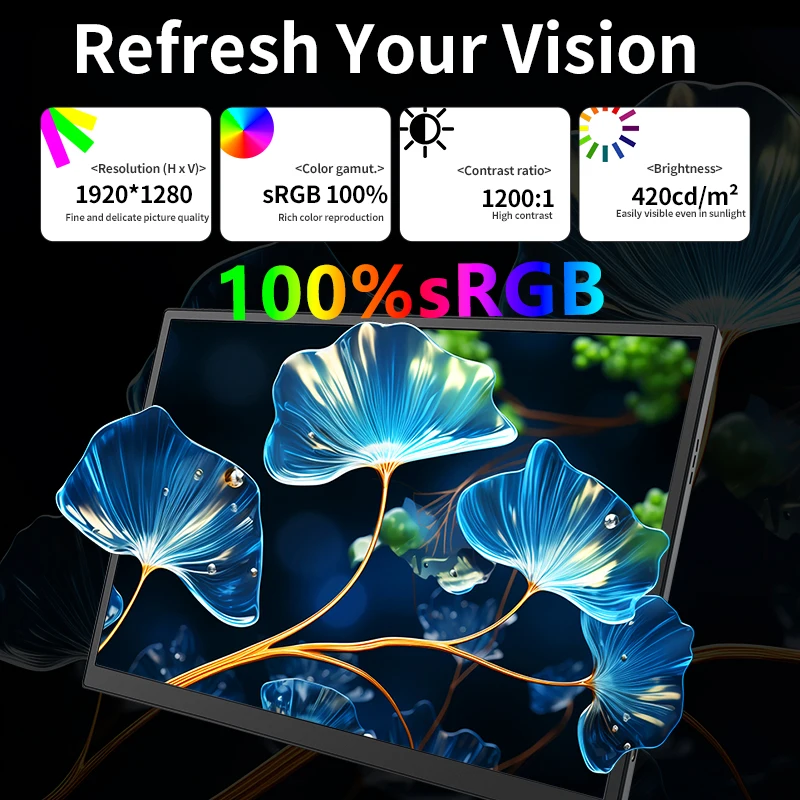
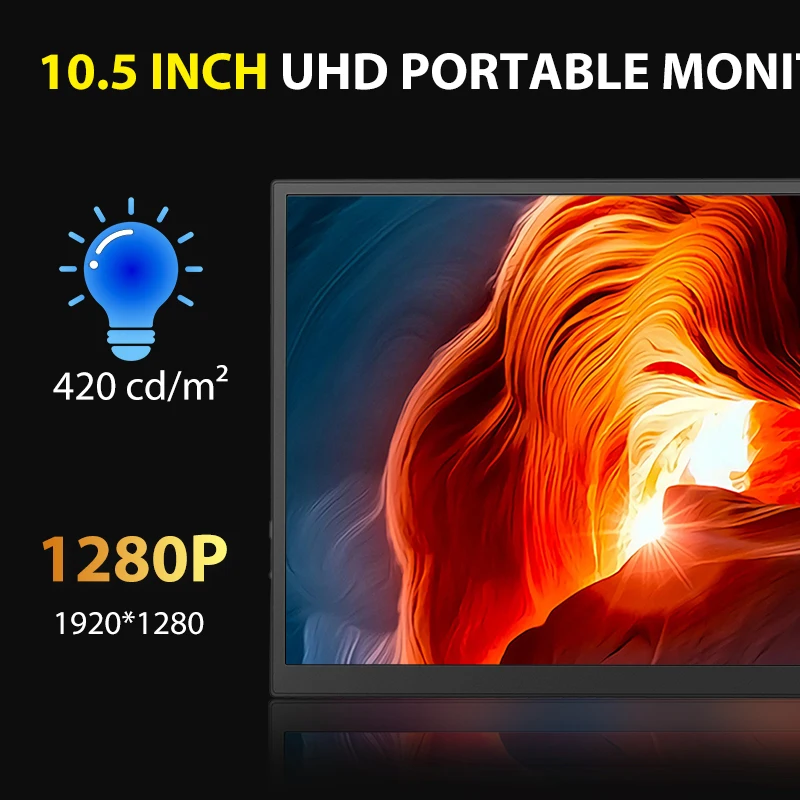
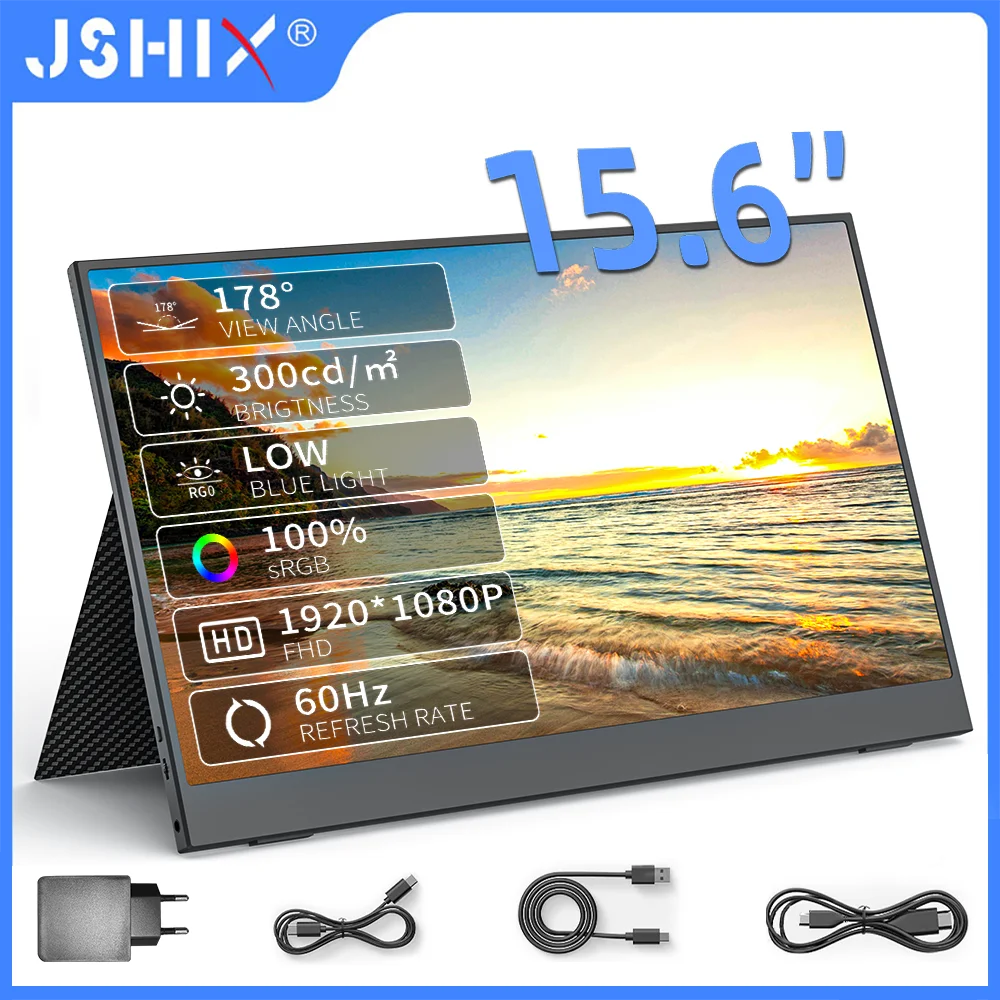
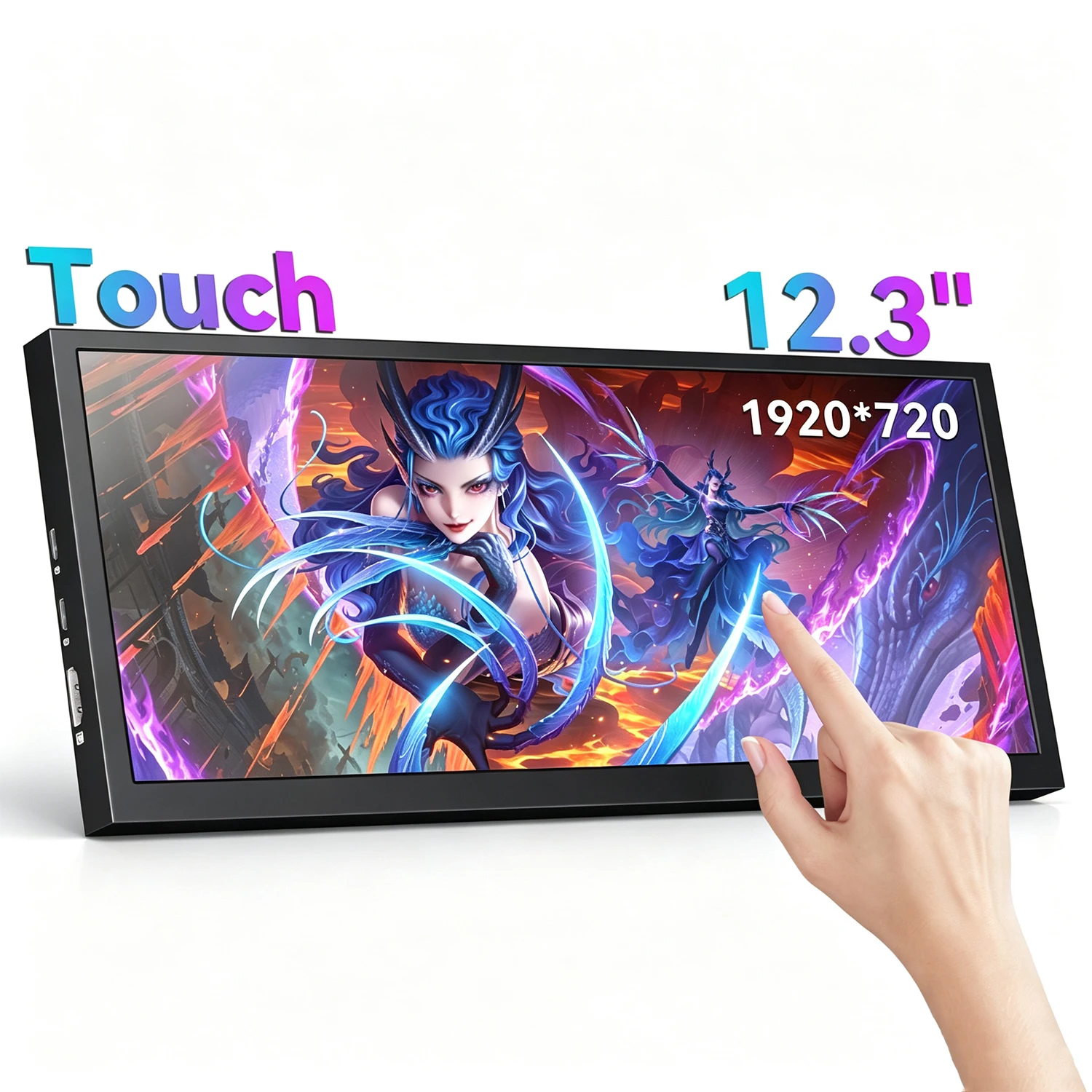
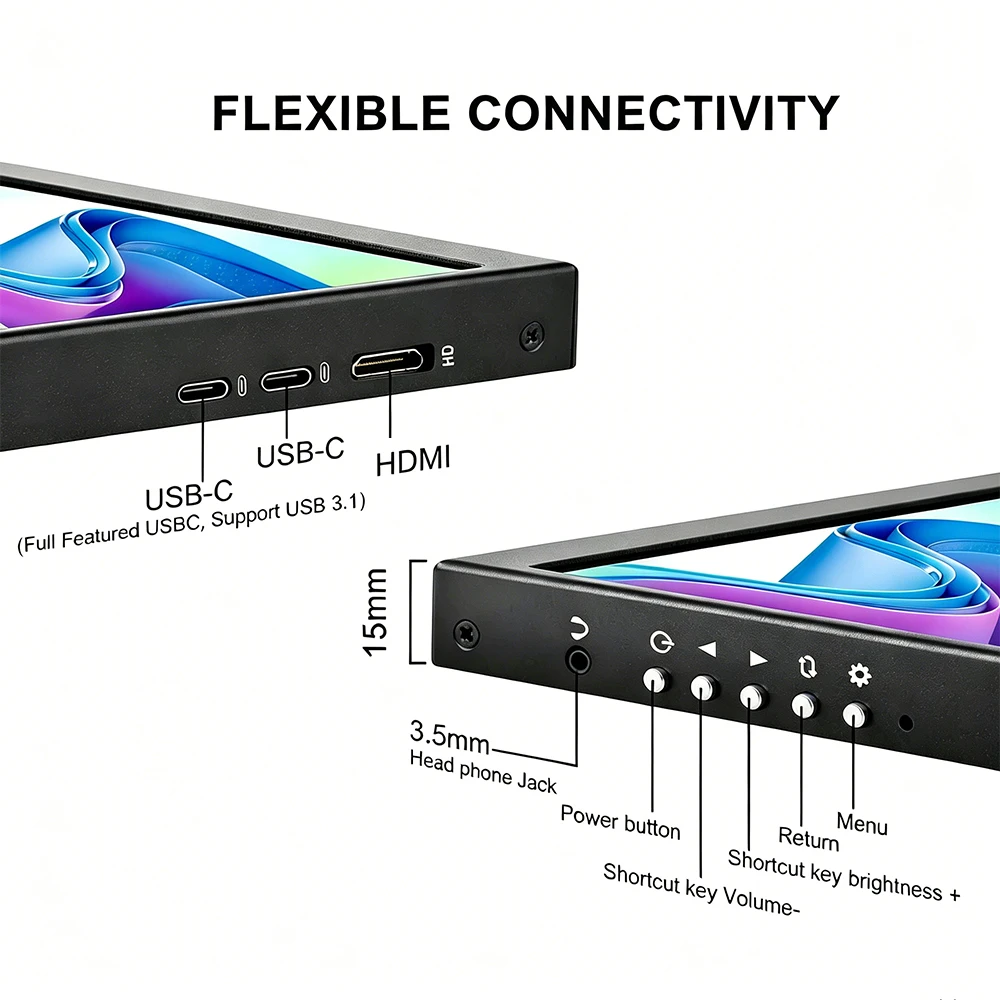
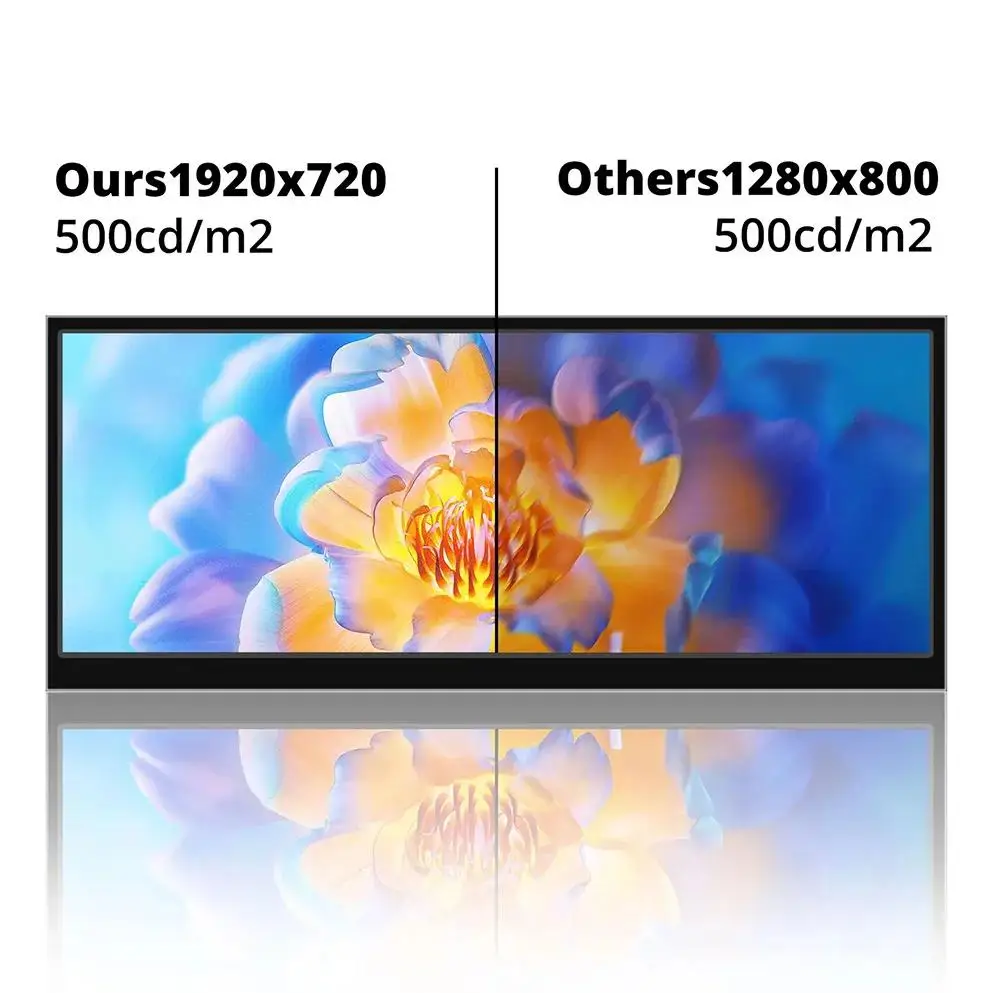
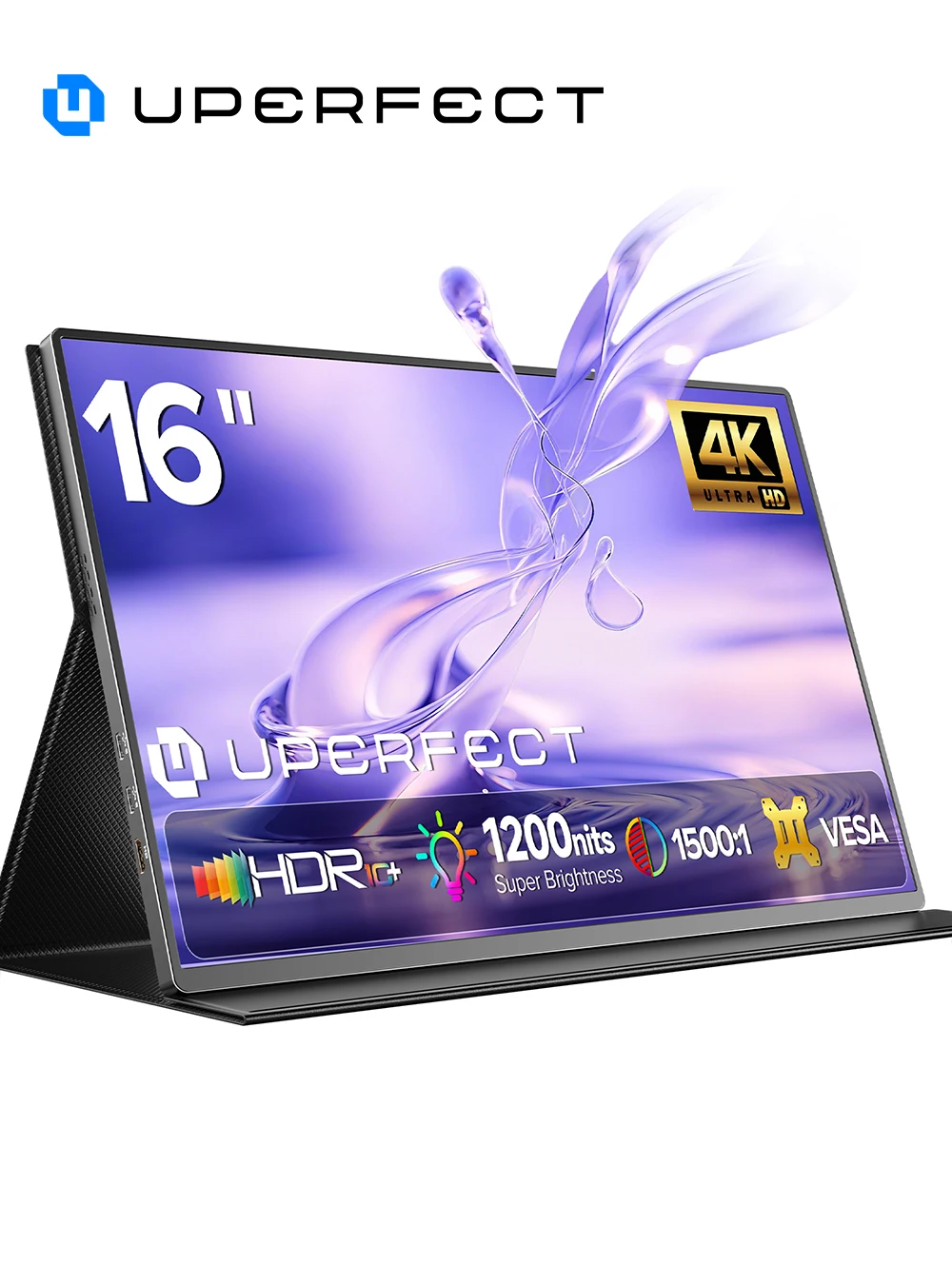
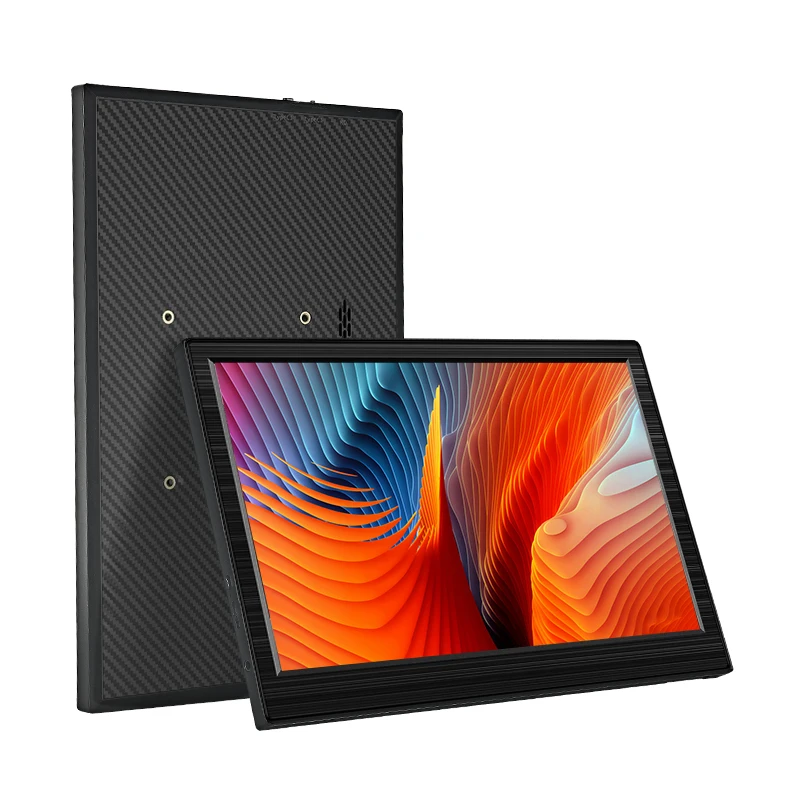
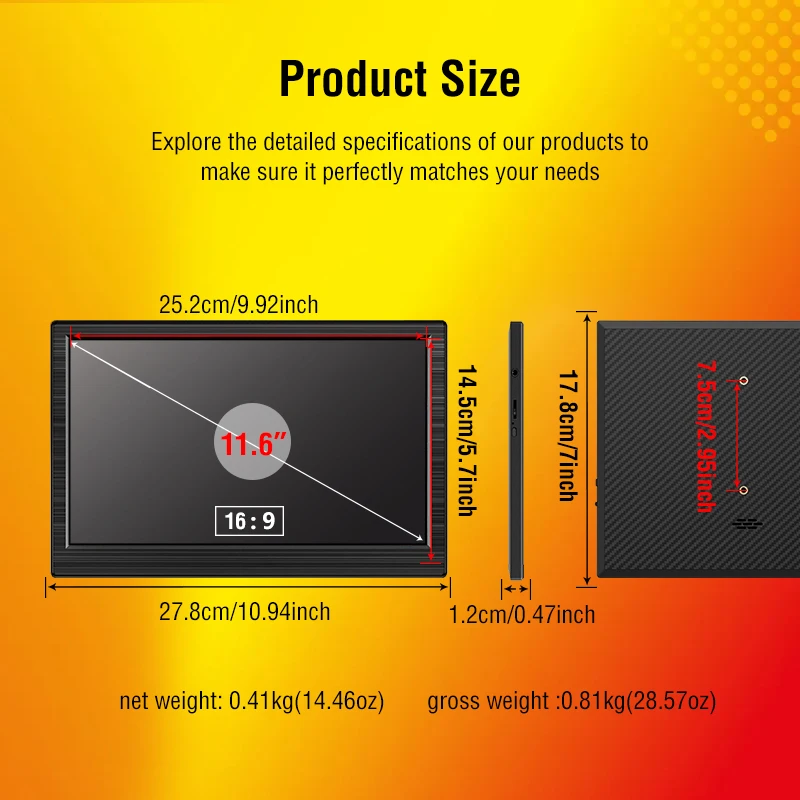
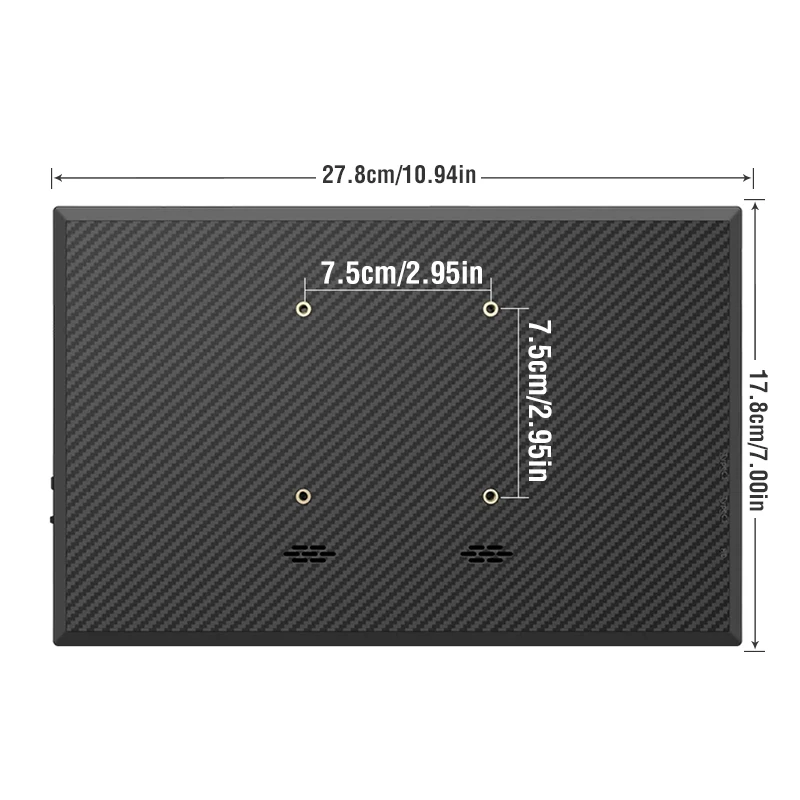
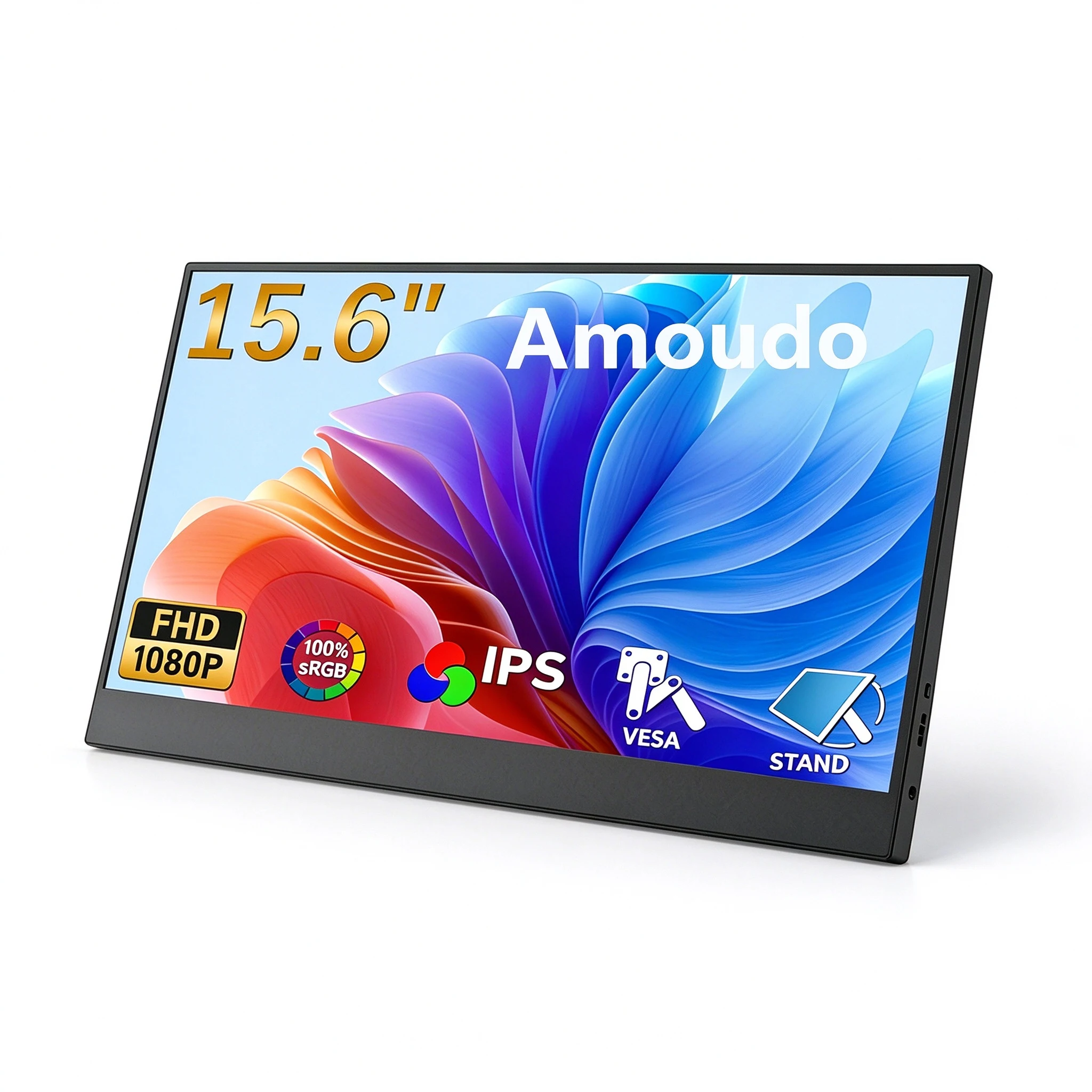
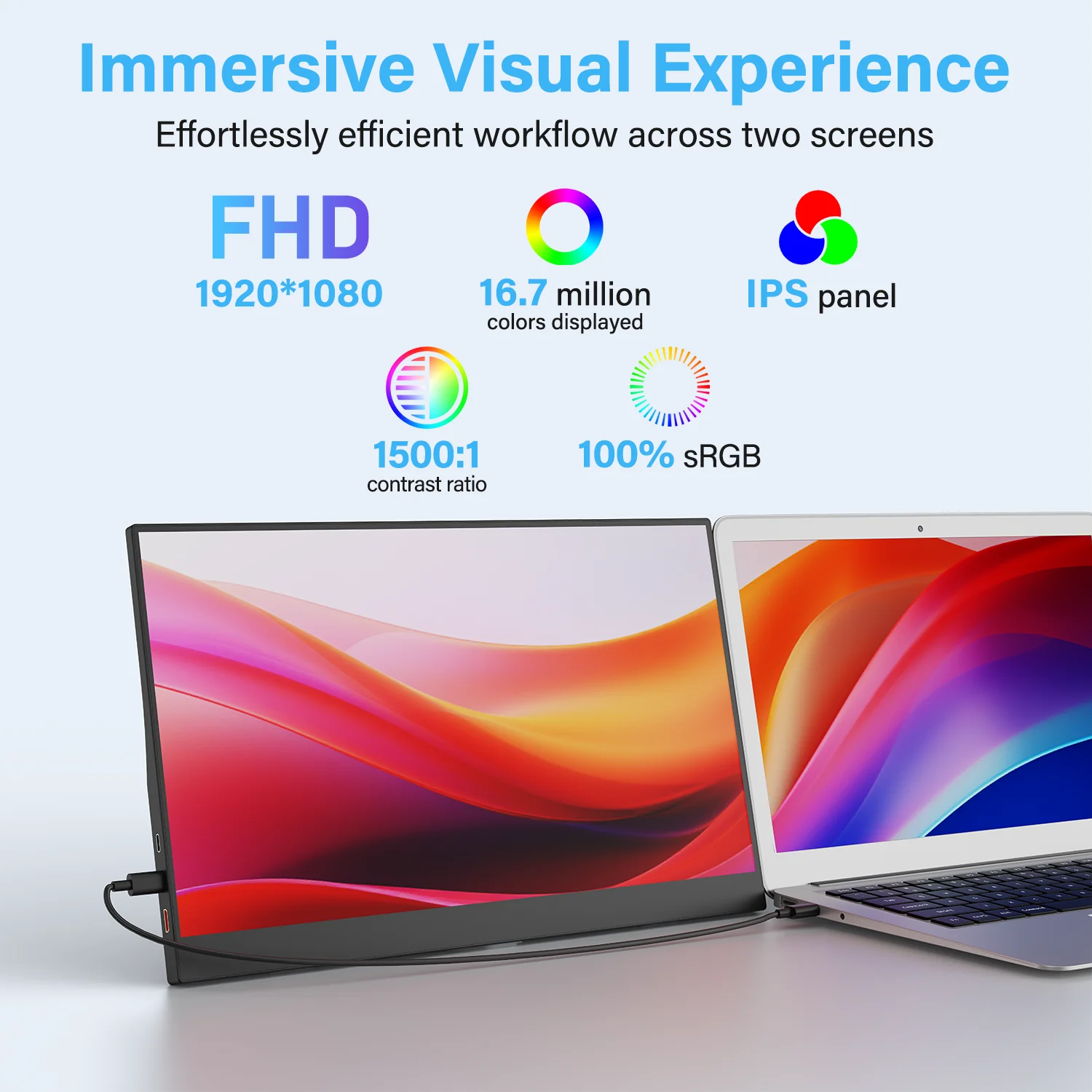
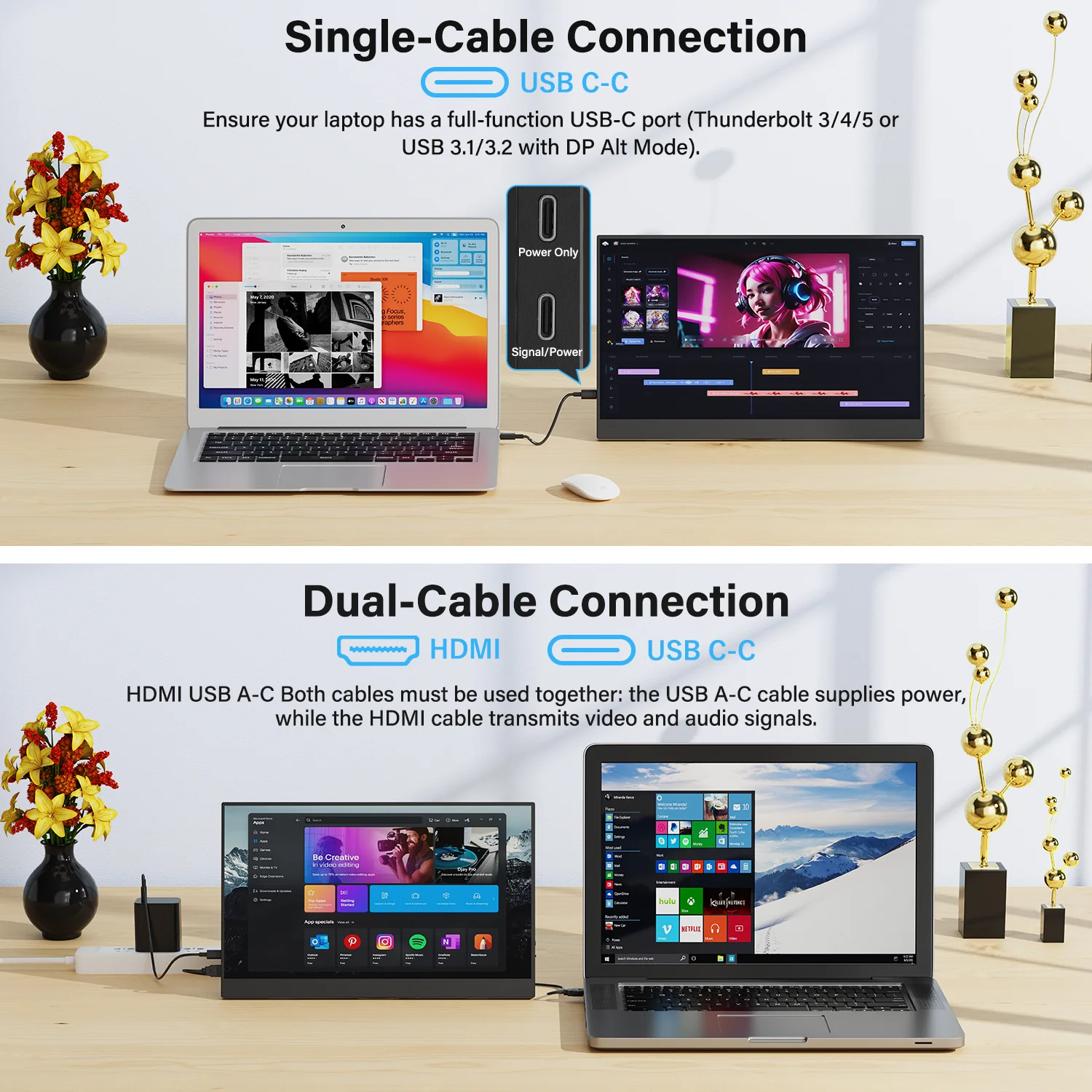
- Portable monitors with an HDMI or Mini HDMI input.
Choosing an HDMI cable by its name
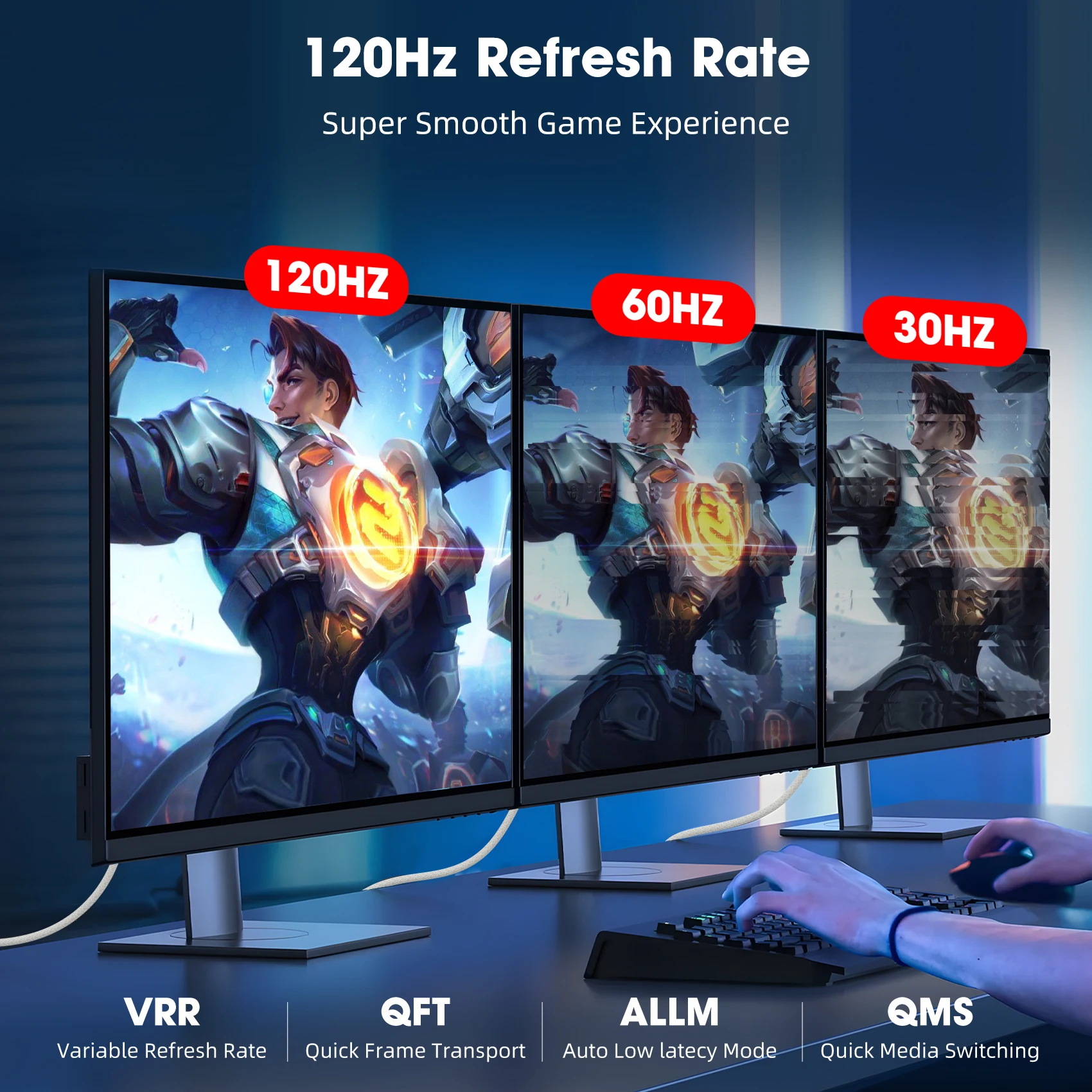
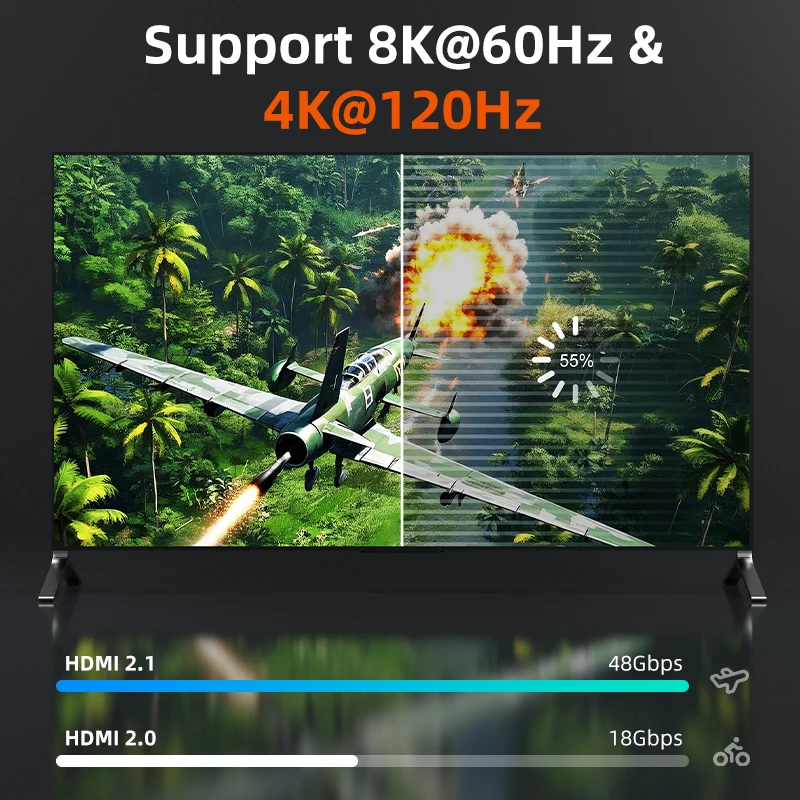
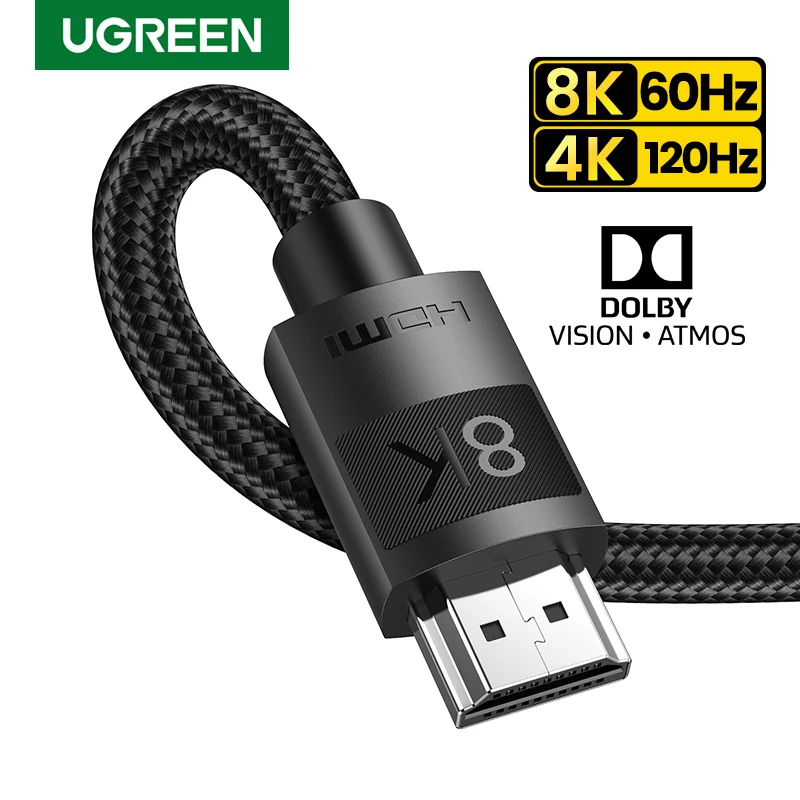
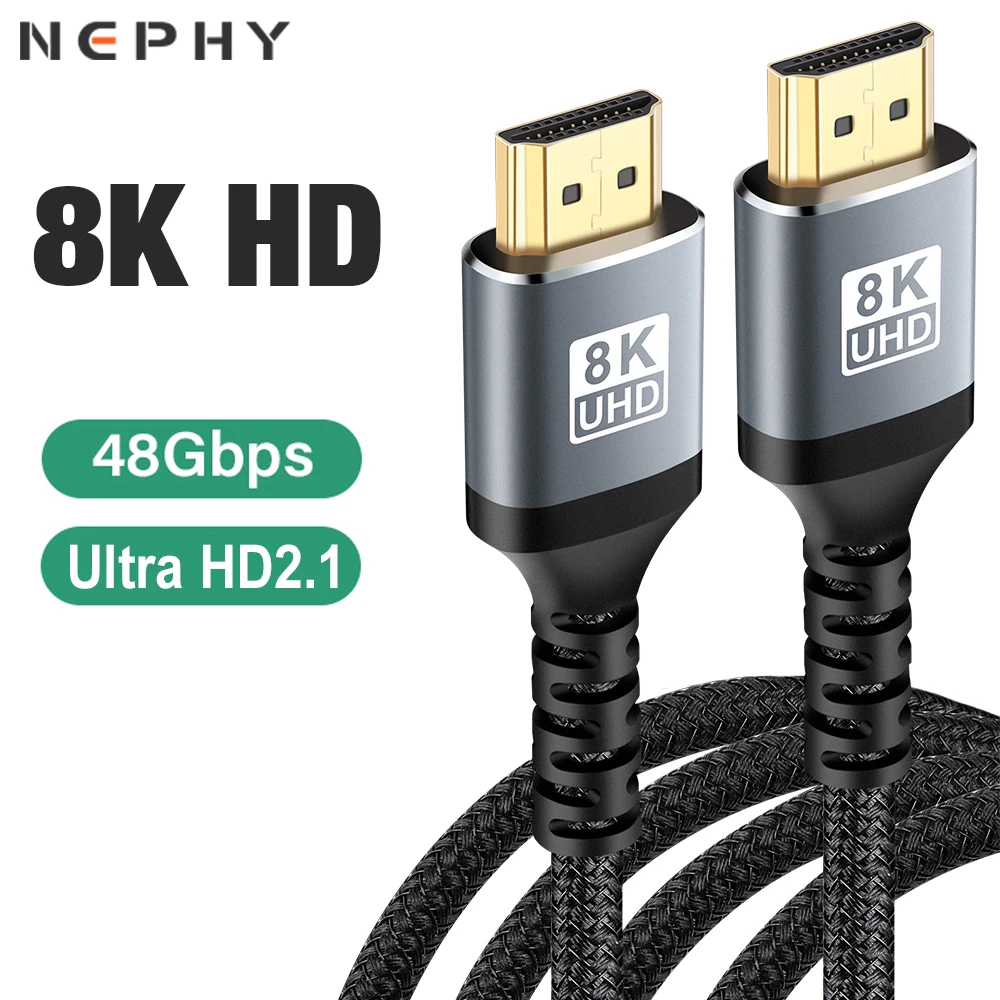
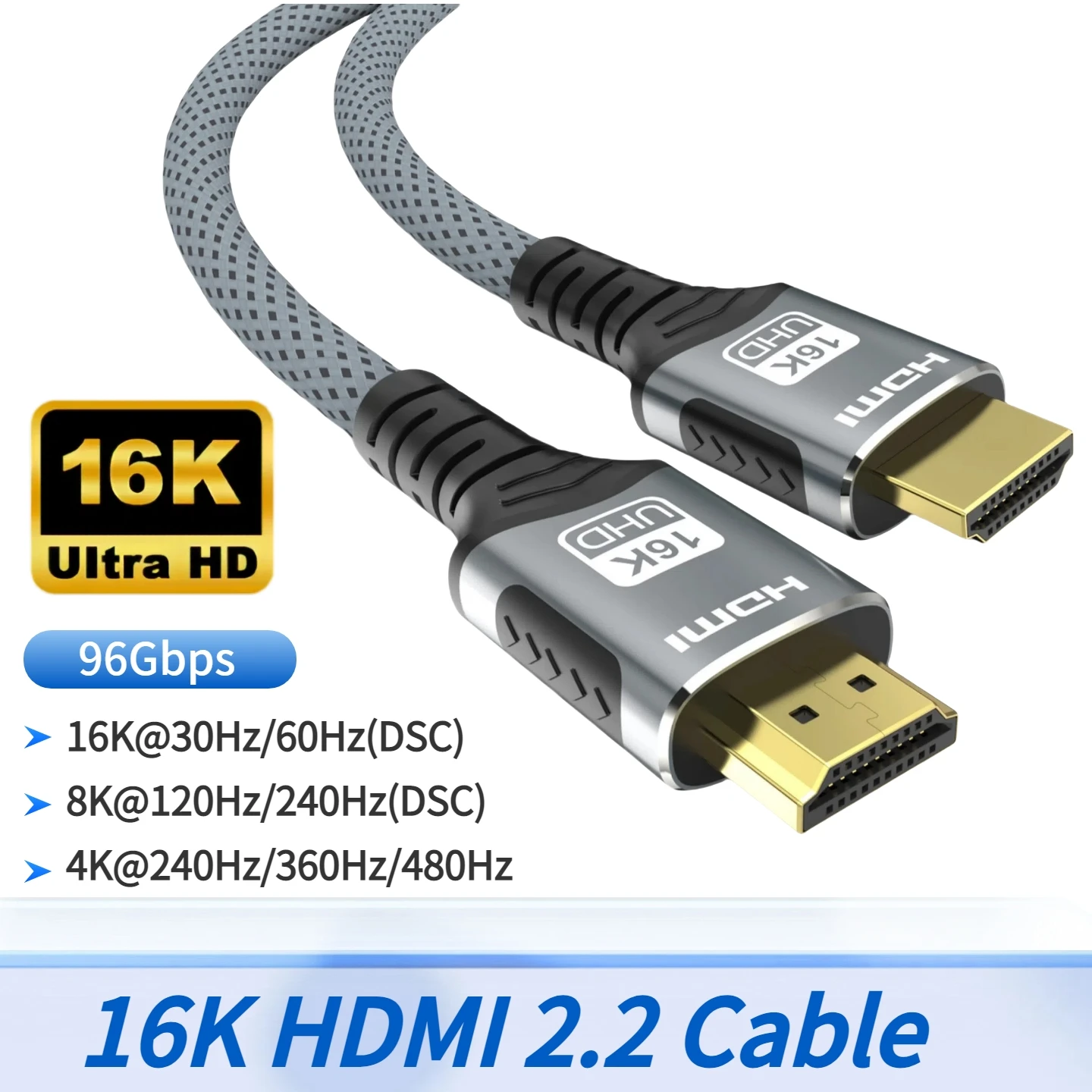
HDMI Licensing, the body behind HDMI, names cables by what they carry. A High Speed cable carries 1080p and 4K at 30Hz. Premium High Speed carries 4K at 60Hz with HDR. Ultra High Speed carries up to 48Gbps, enough for 4K at 120Hz and 8K at 60Hz, and certified ones carry a label with a QR code you can scan with a phone. Ultra96 goes to 96Gbps for HDMI 2.2. A better cable never hurts, but it cannot add what the laptop or screen does not support: the picture is set by the weaker of the two.
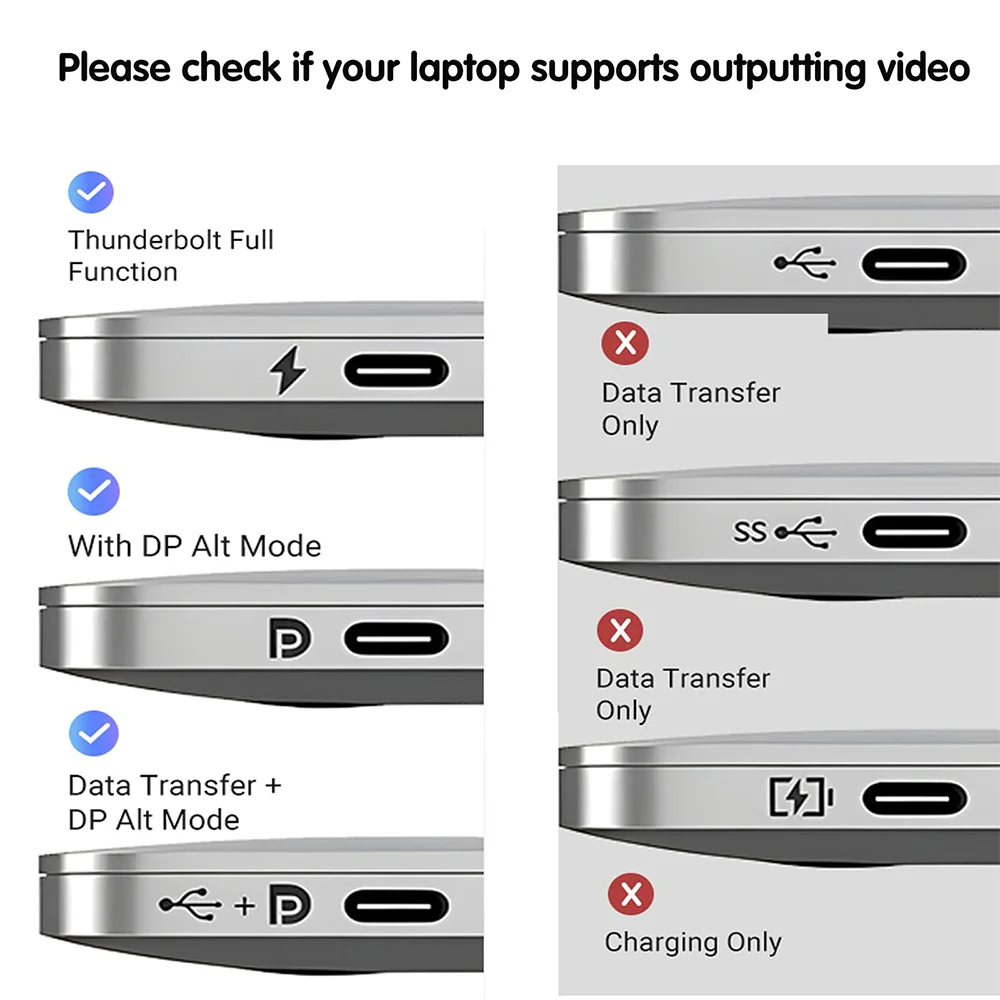
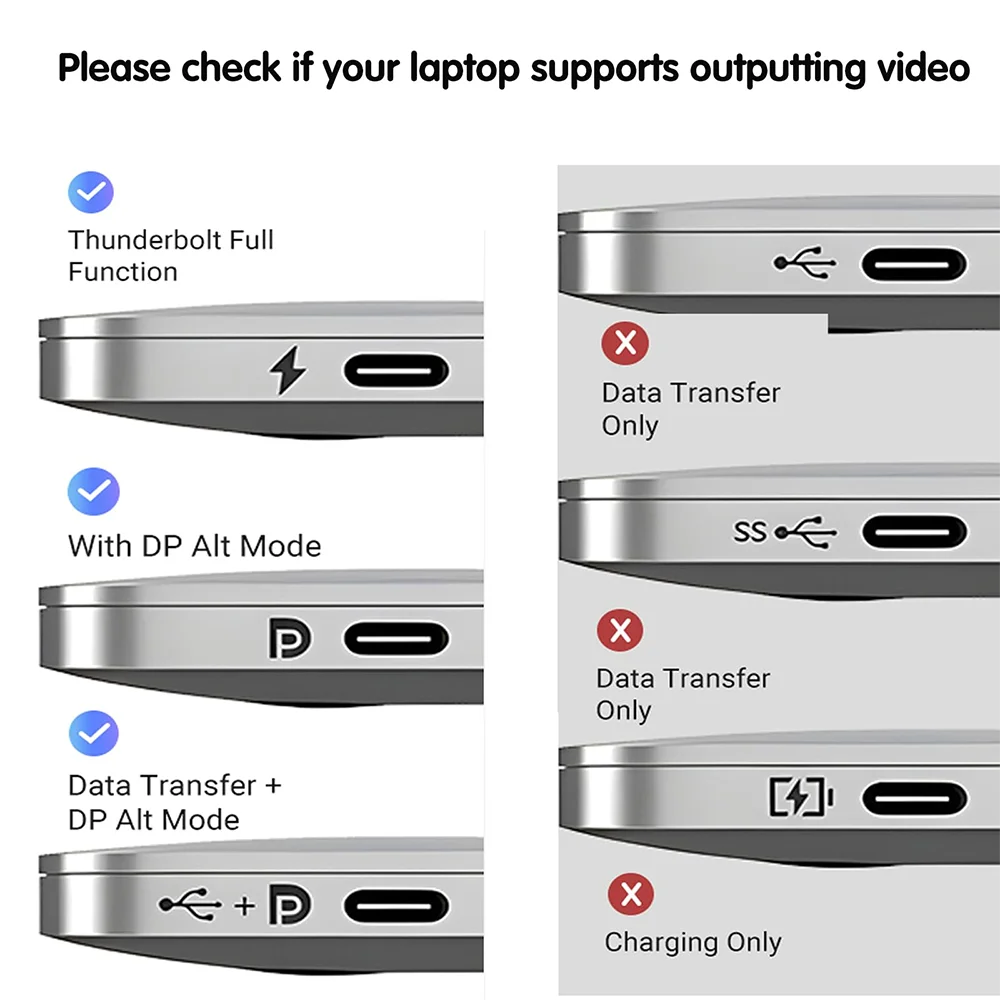
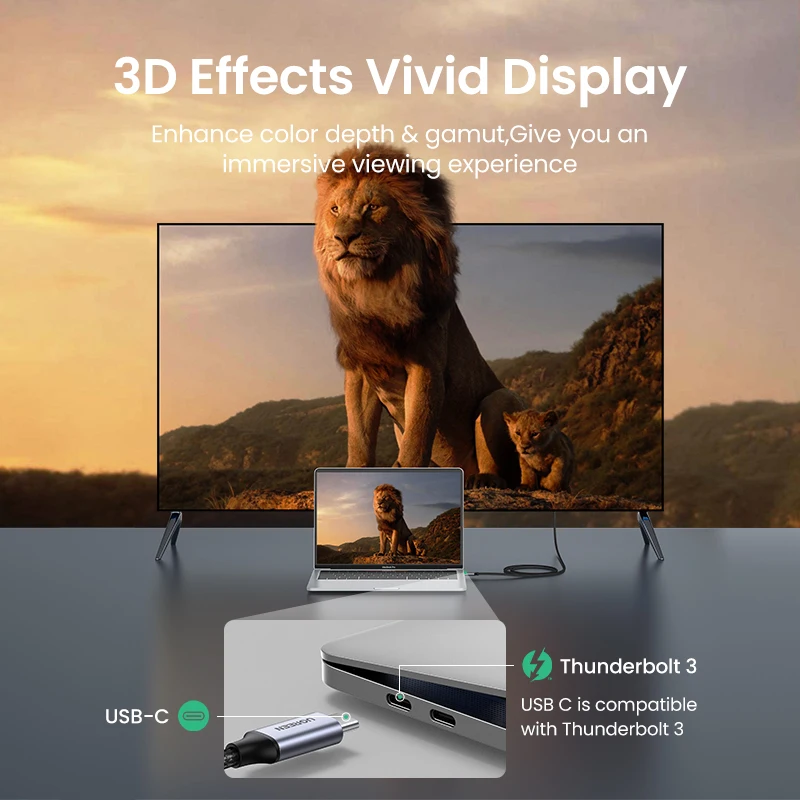
From USB-C, check that your laptop's port carries video (DisplayPort Alt Mode, usually shown by a DisplayPort logo by the port) and how many screens it supports. Both are on the maker's specification page.
Questions people ask about HDMI
Does HDMI carry sound?
Yes. Choose the TV or monitor as the sound output in your laptop's settings if it does not switch on its own.
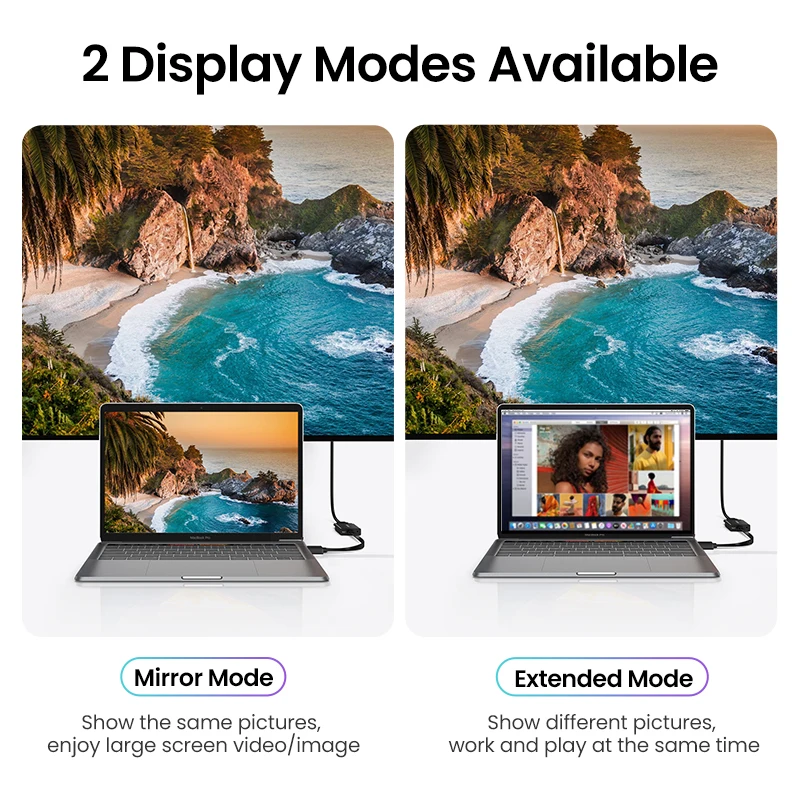
Why does my second screen show the same thing?
It is mirroring. On Windows press the Windows key and P and pick Extend; on a Mac, go to System Settings, Displays. Our guide to connecting a laptop to a monitor or TV has the steps.
What is the difference between a switch and a splitter?
A switch chooses one of several inputs for one screen. A splitter copies one input to several screens.
More to look at