When a DisplayPort cable is the one
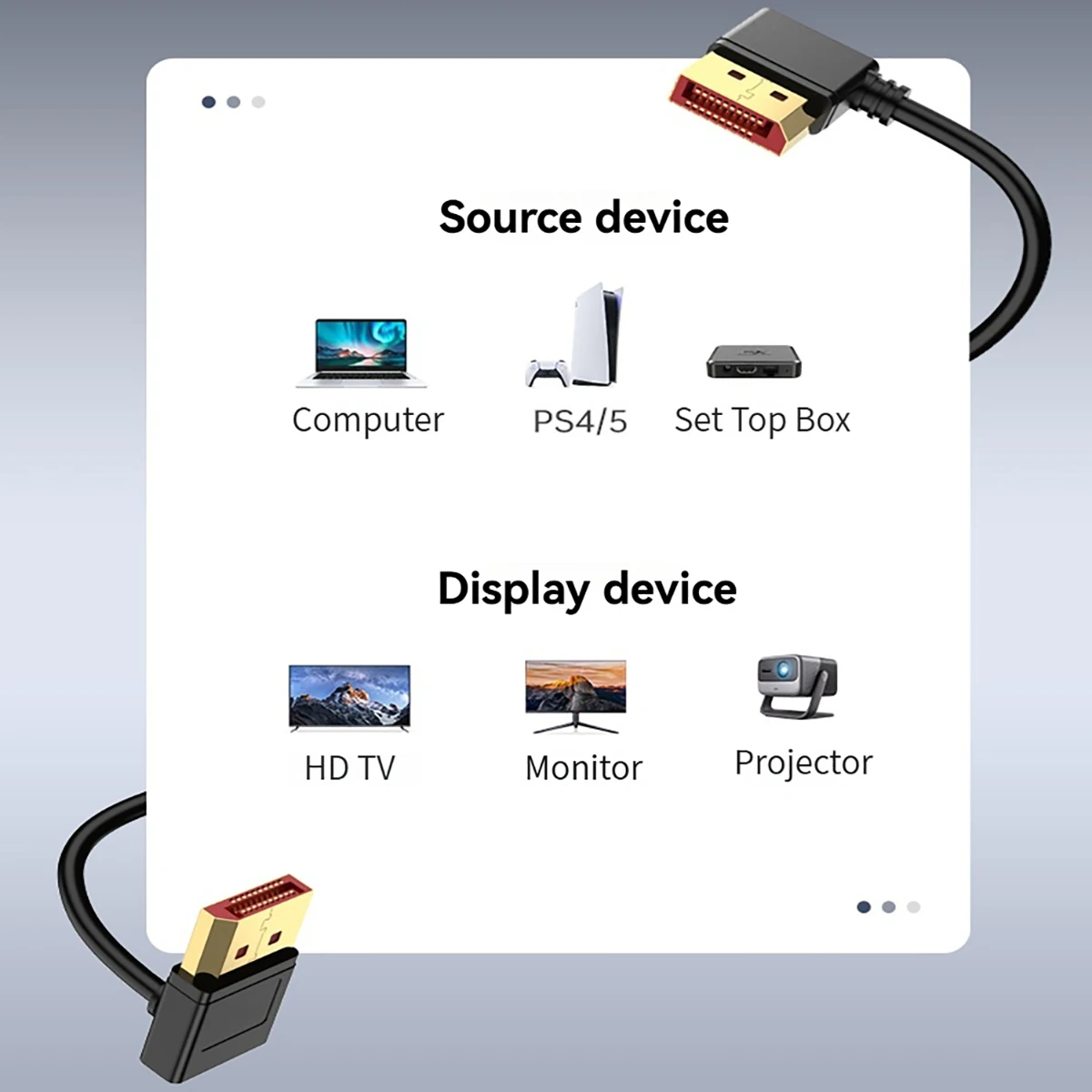
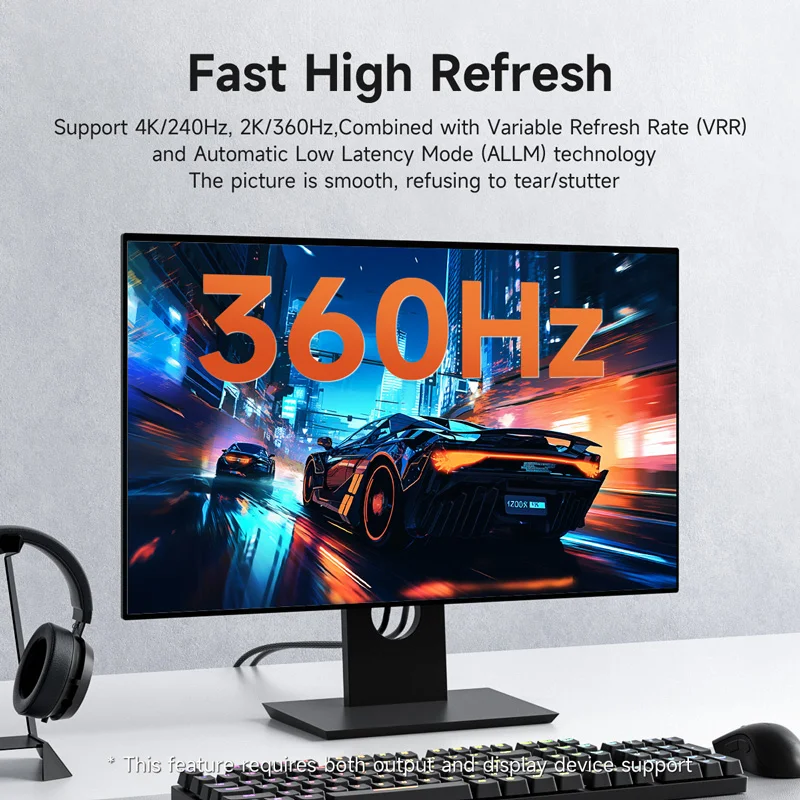
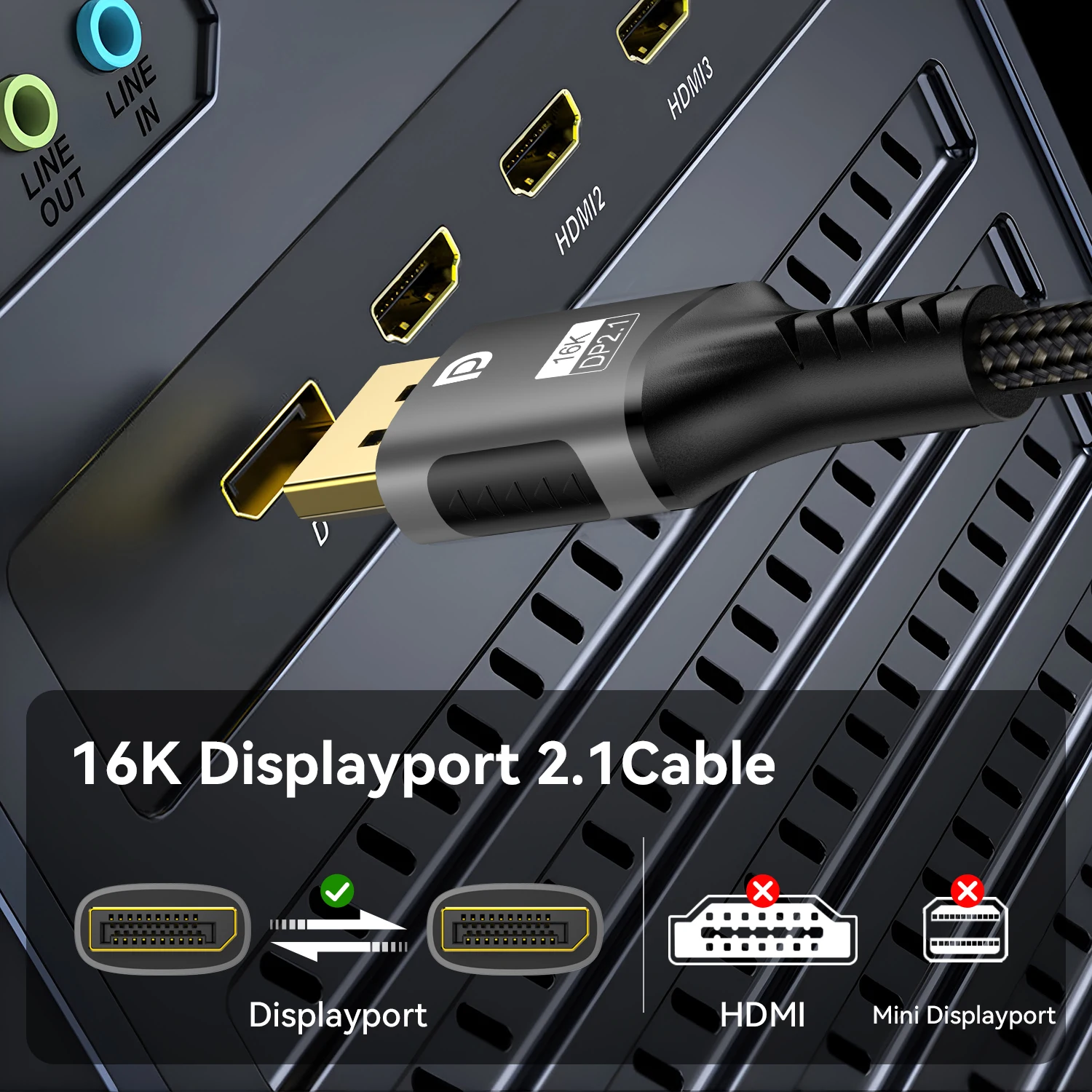
DisplayPort is the input found on most computer monitors, and gaming monitors in particular often reach their highest refresh rates through it. Like HDMI, it carries sound as well as the picture. A DisplayPort to DisplayPort cable joins a monitor to a laptop or a dock that has a full-size DisplayPort socket. Few slim laptops have one: most send DisplayPort through a USB-C socket instead, using what VESA, the body that looks after DisplayPort, calls DisplayPort Alt Mode. For those, a USB-C to DisplayPort adapter or a docking station with DisplayPort outputs is the way in.
What you will find here
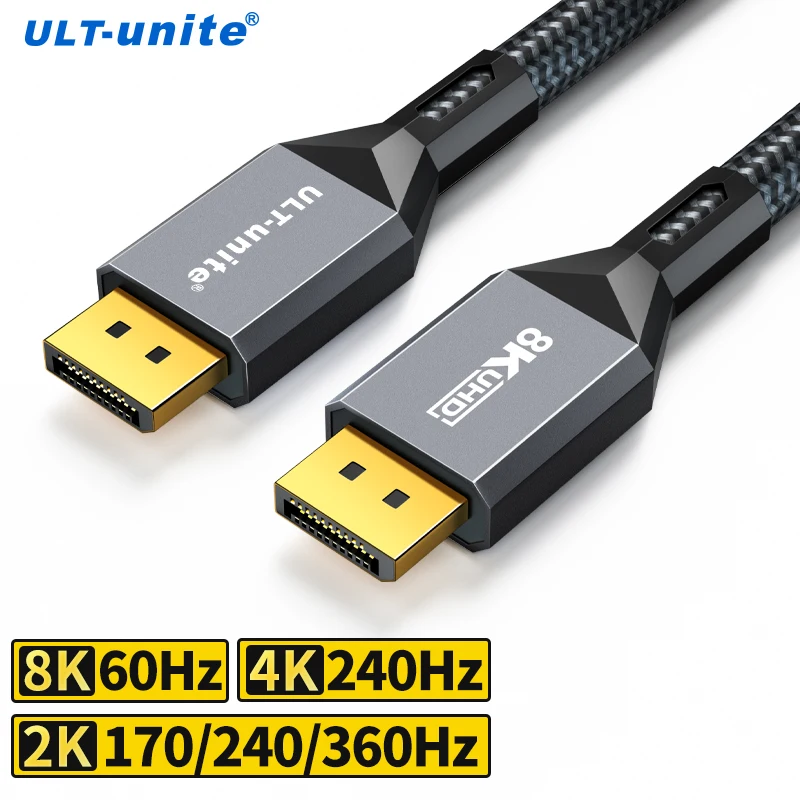
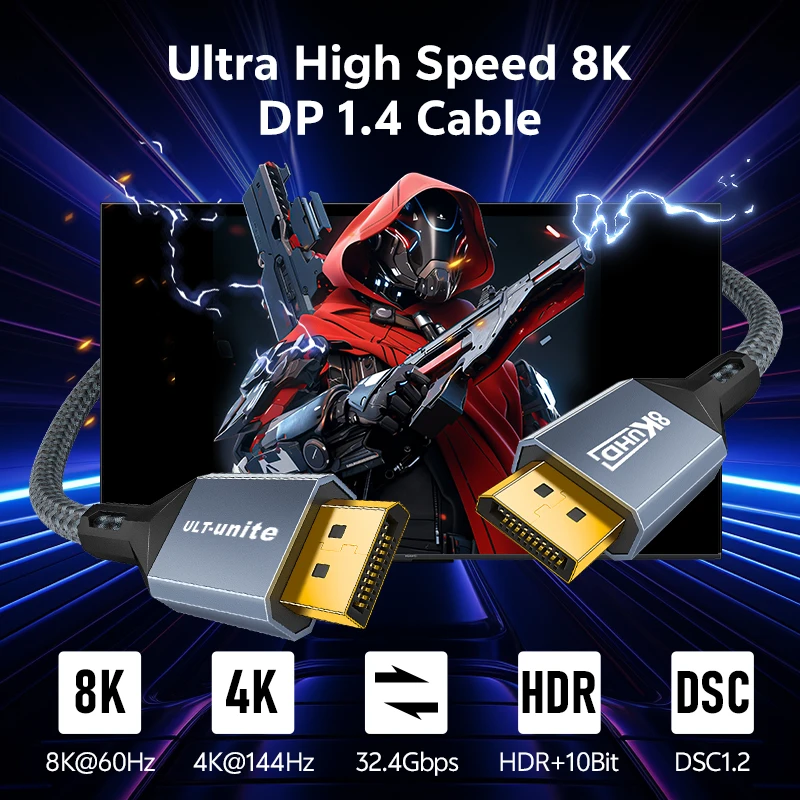
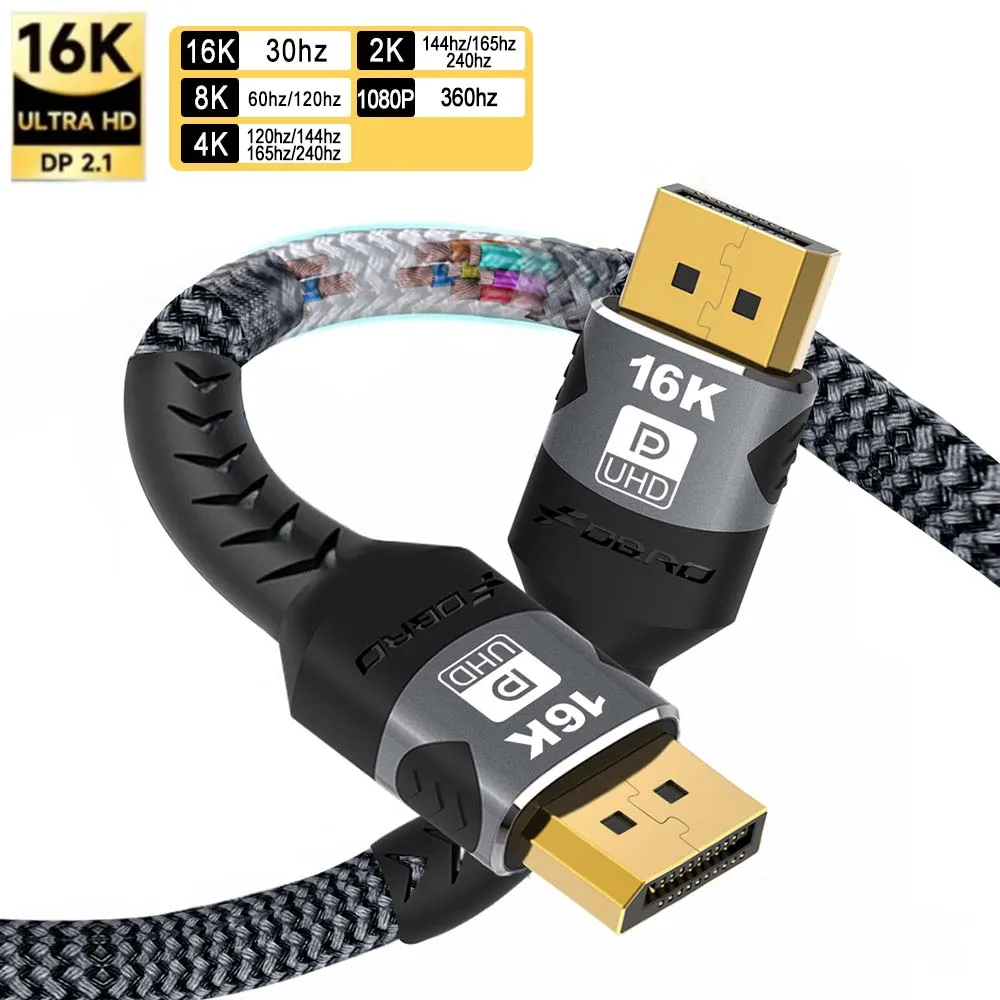
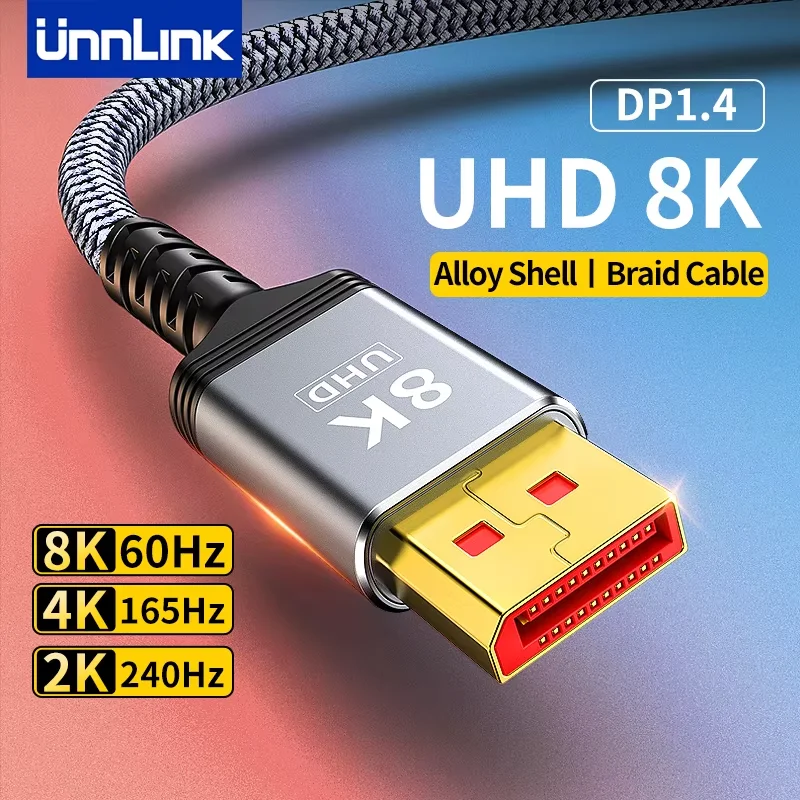
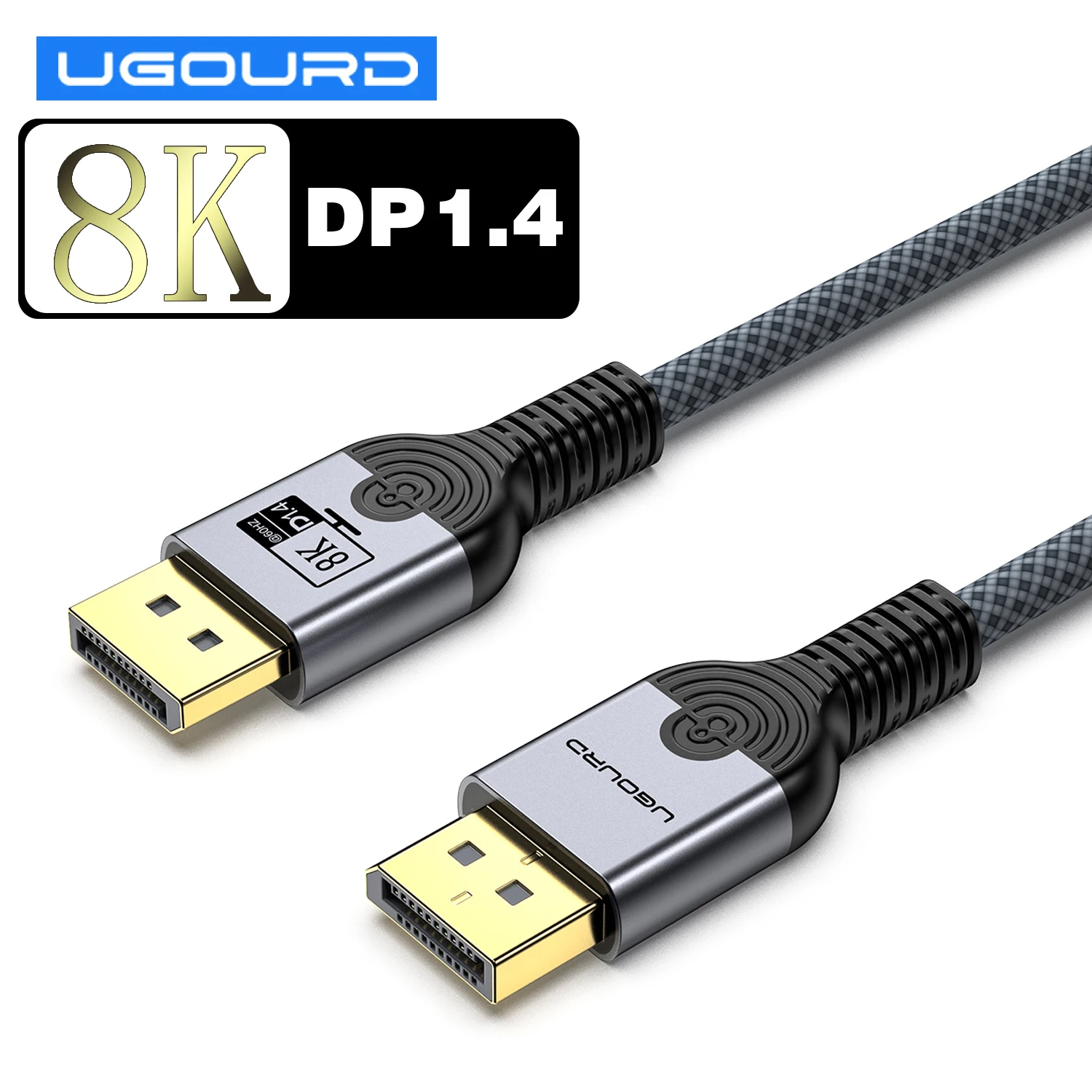
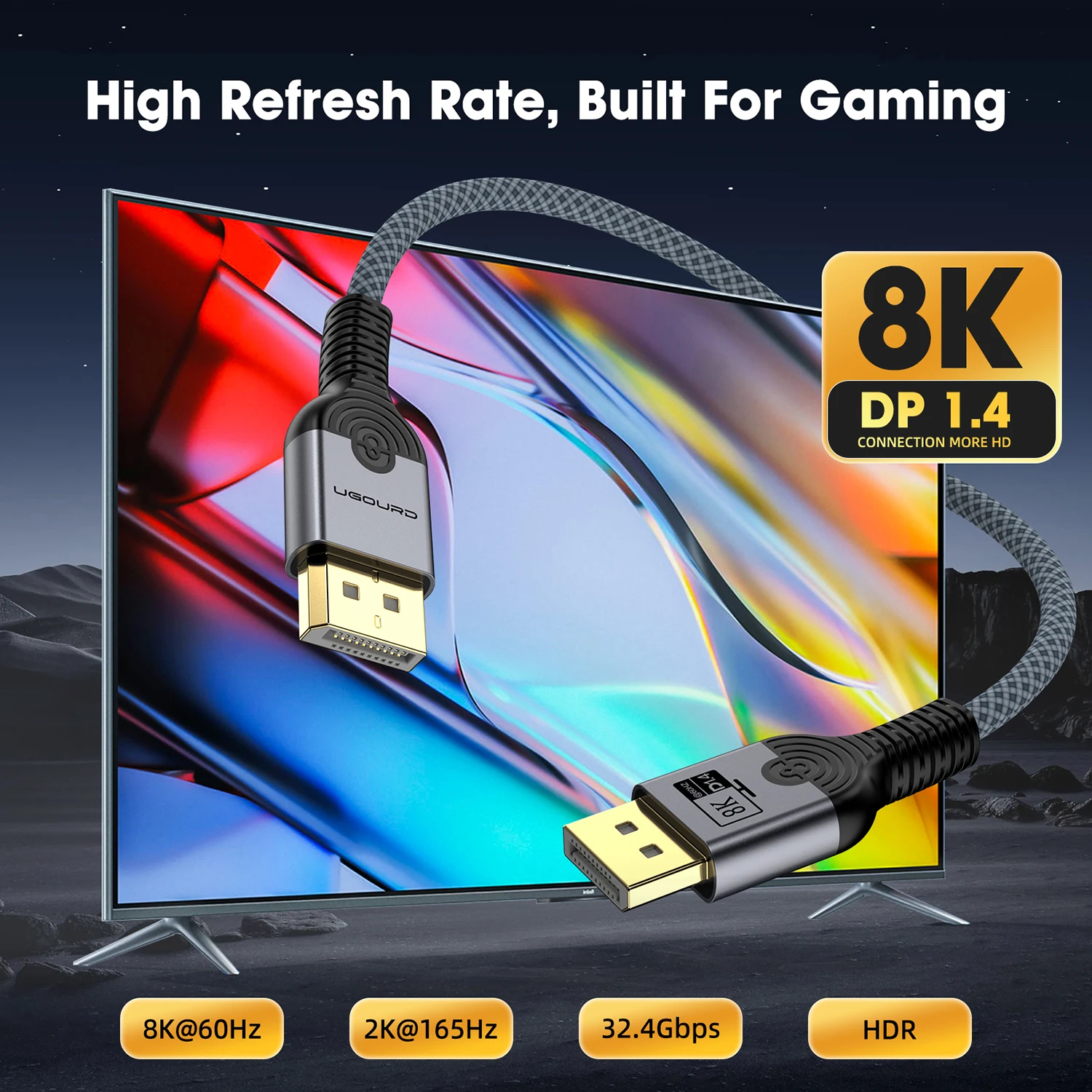
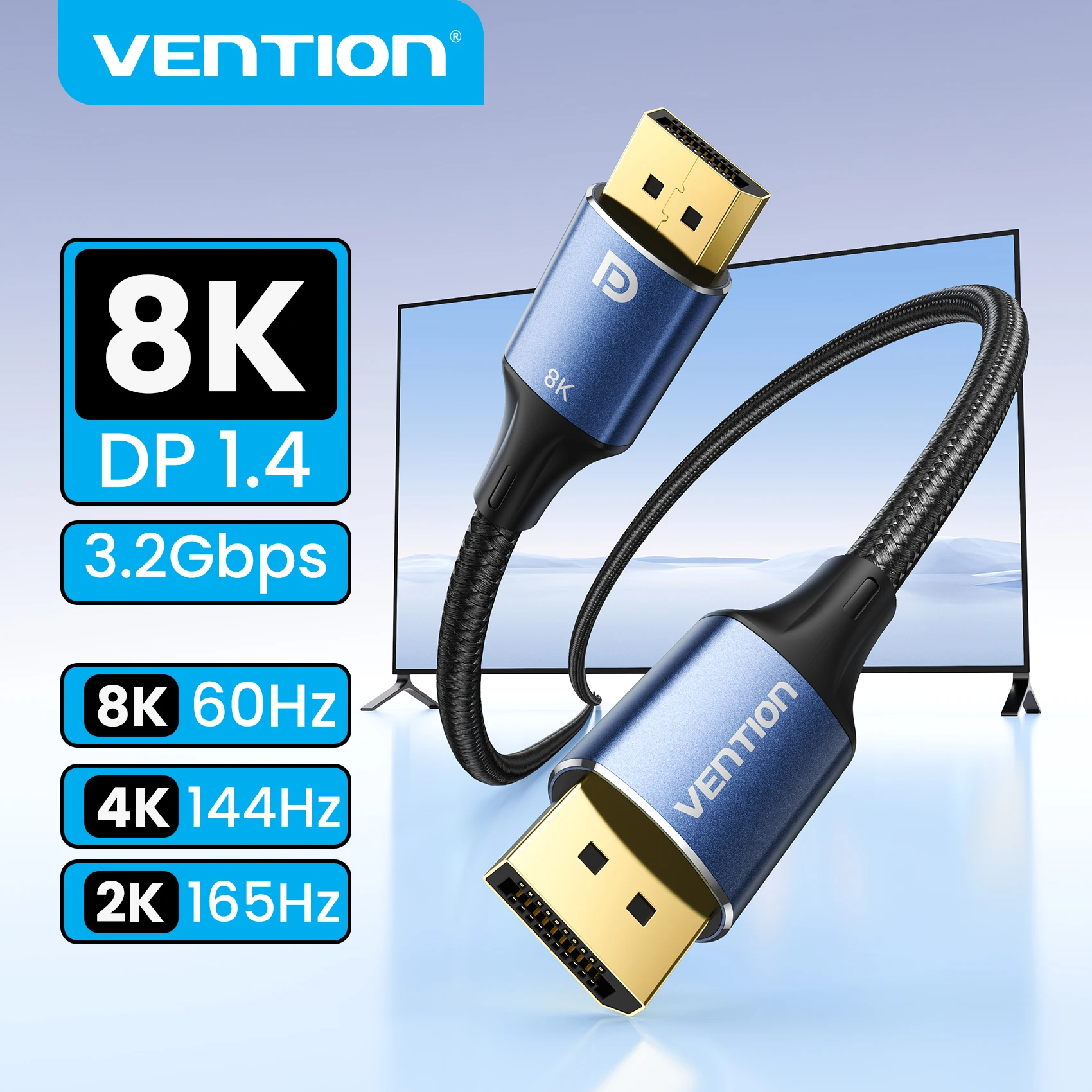
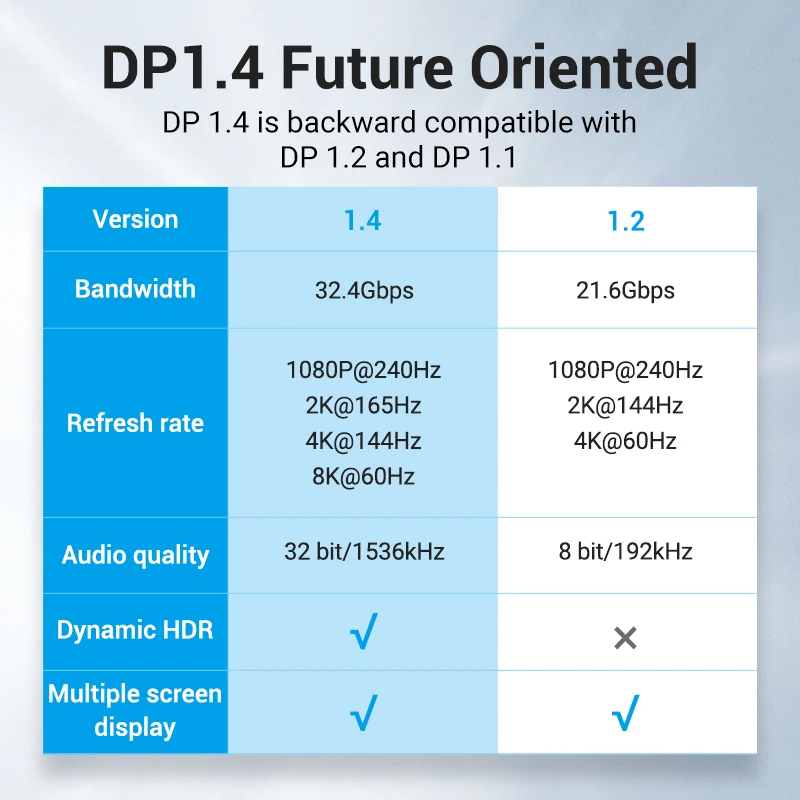
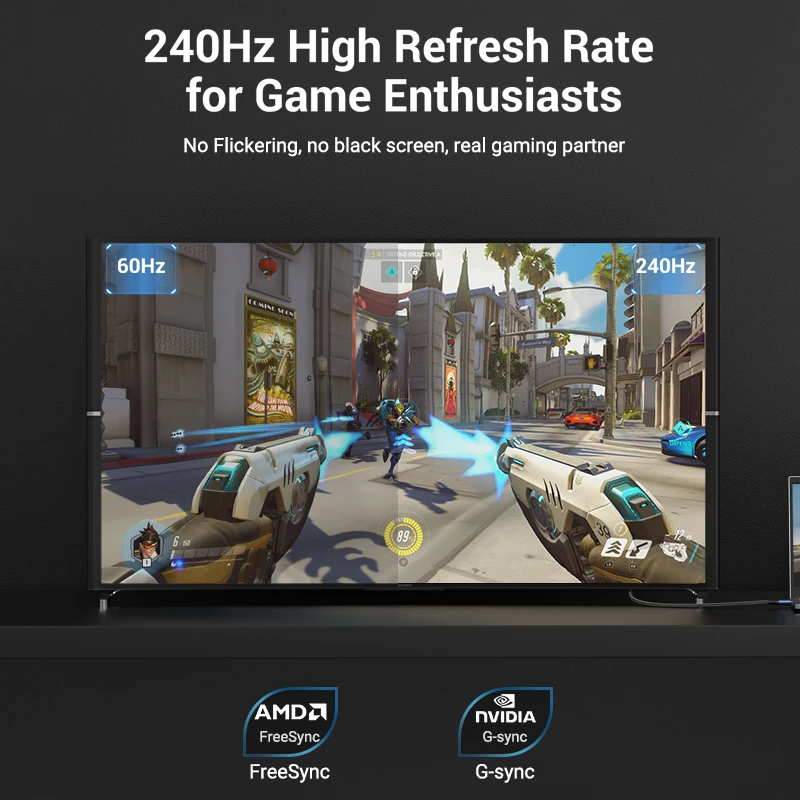
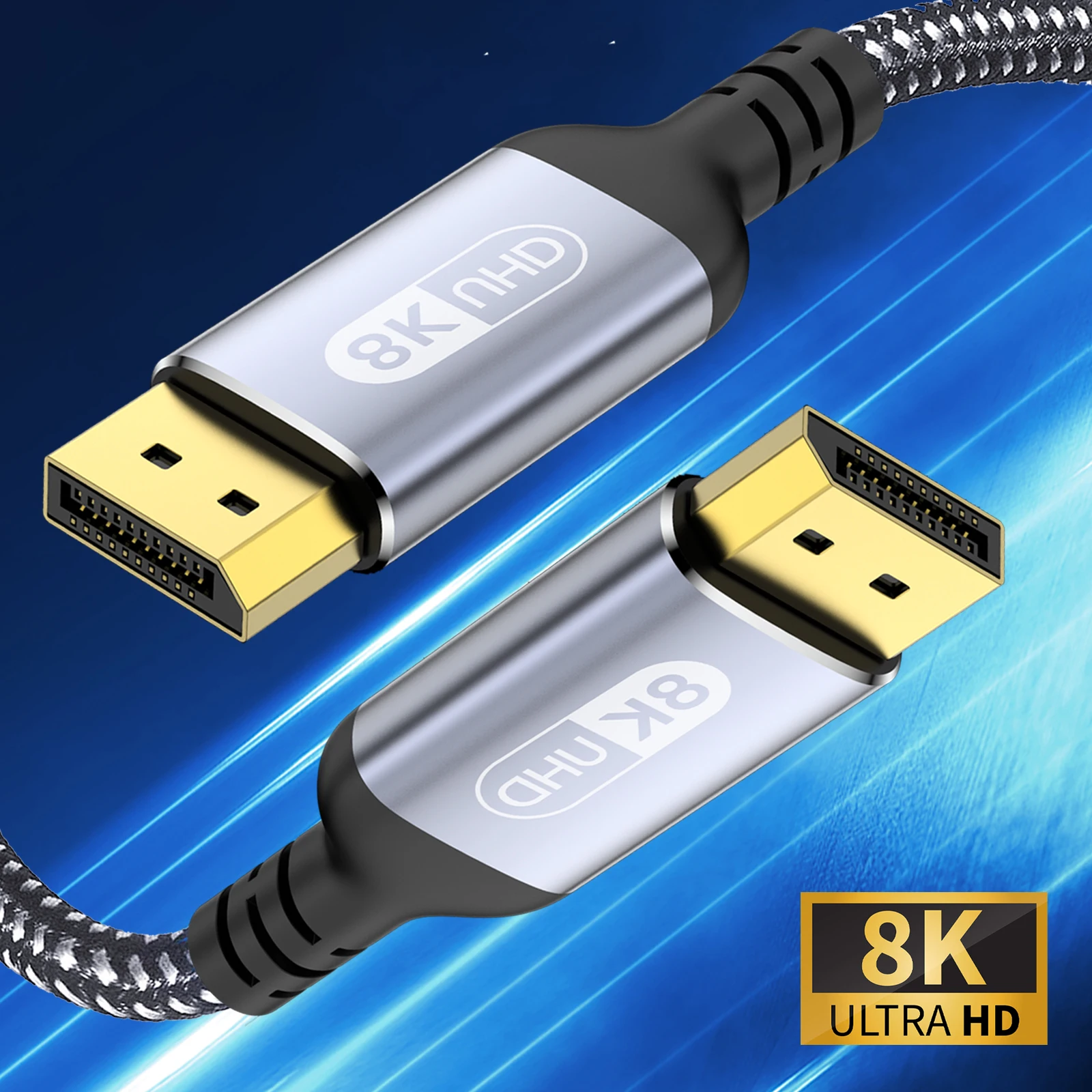
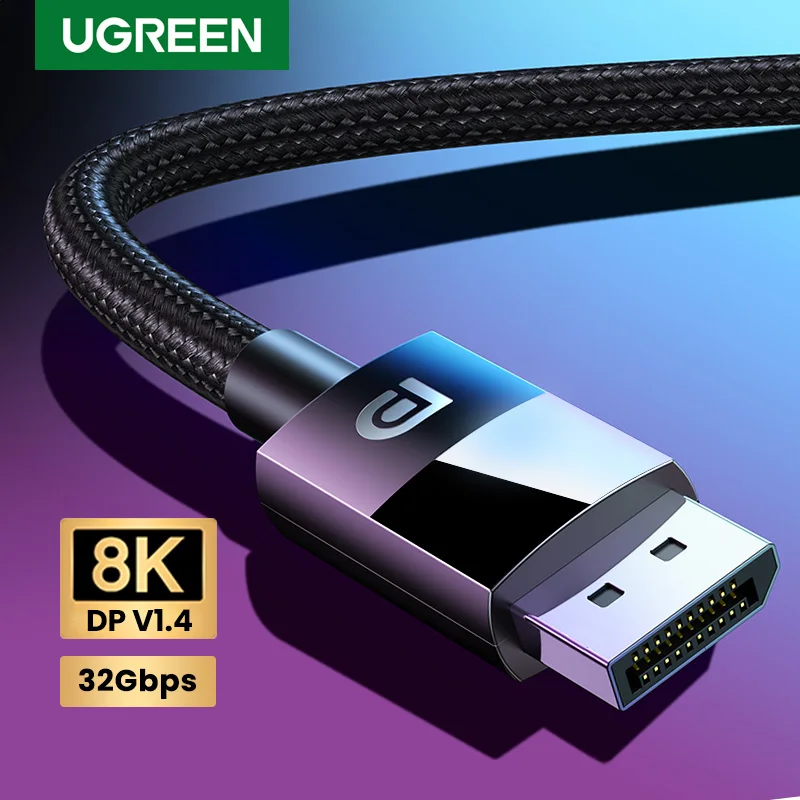
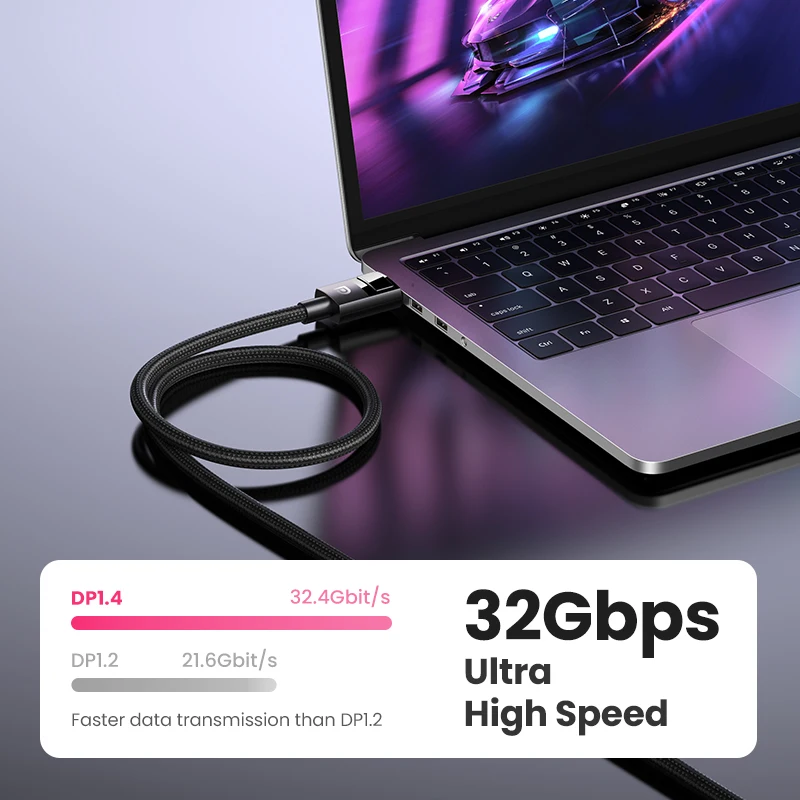
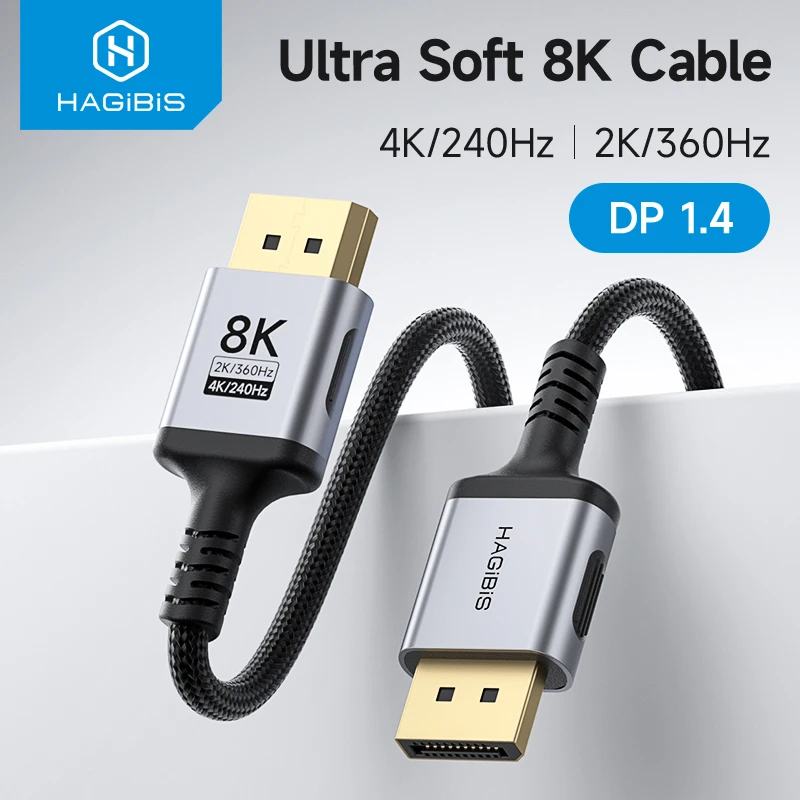
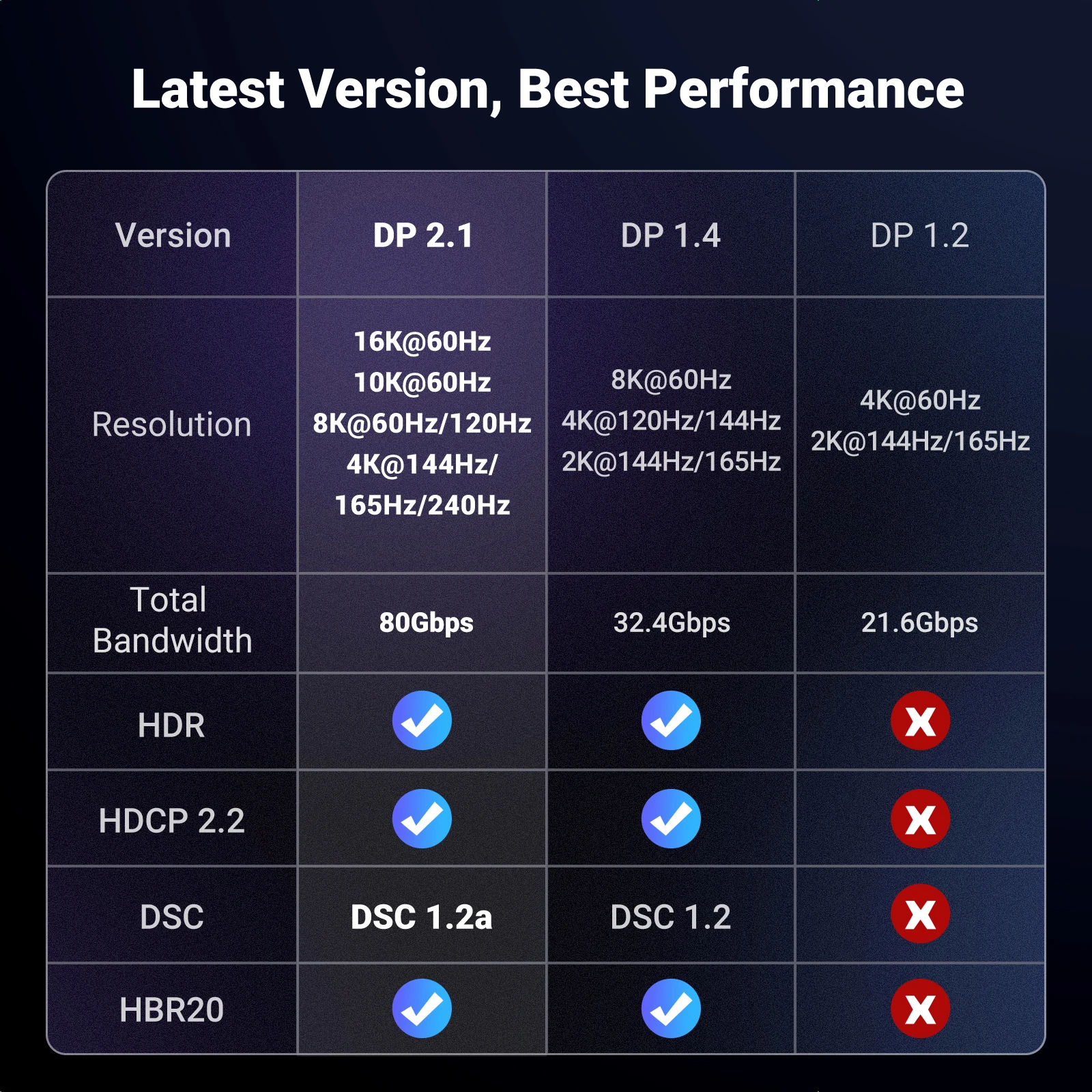
- DisplayPort 1.4 cables, described for 8K at 60Hz and 4K at high refresh rates such as 144Hz and above. VESA says DisplayPort 1.4a supports 8K at 60Hz.
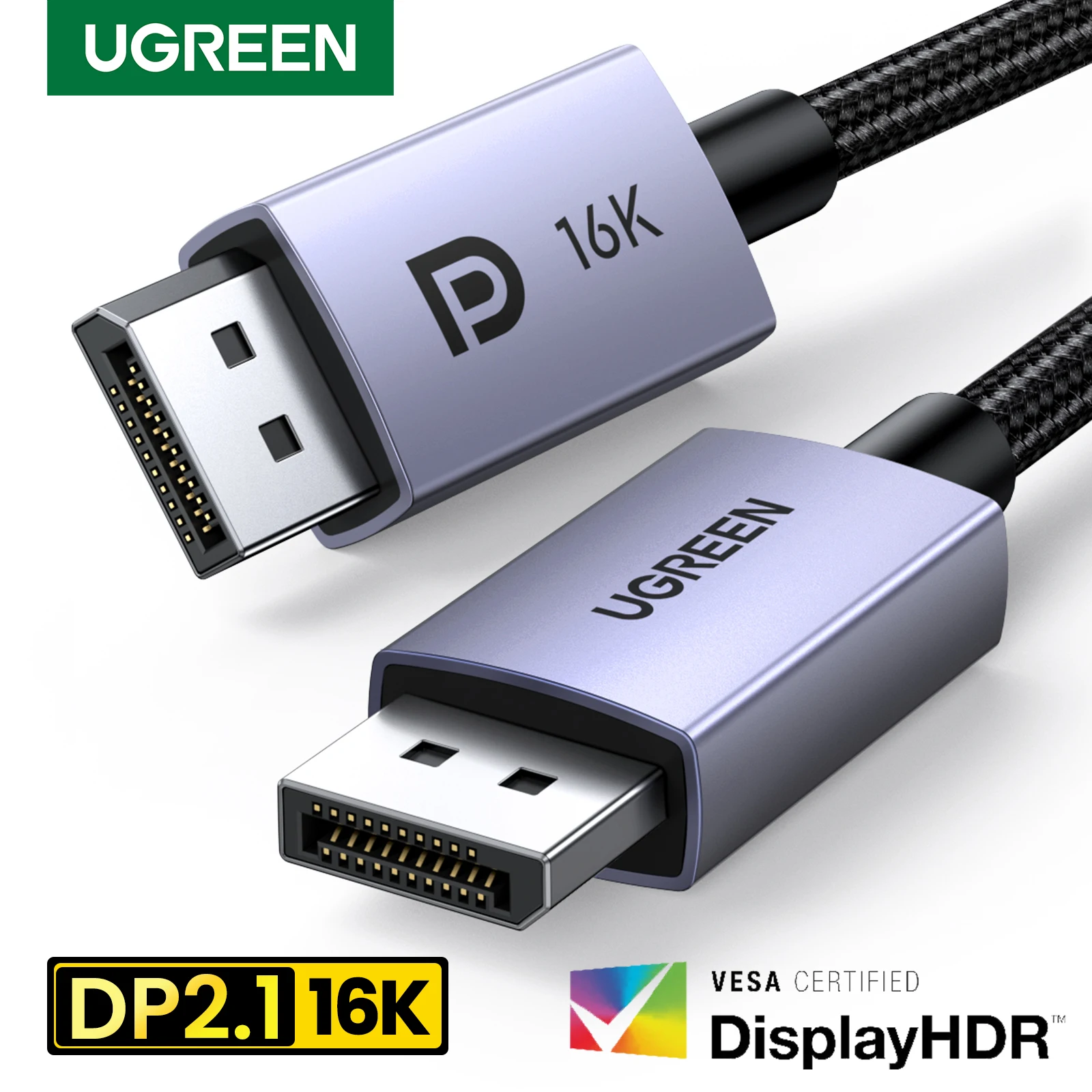
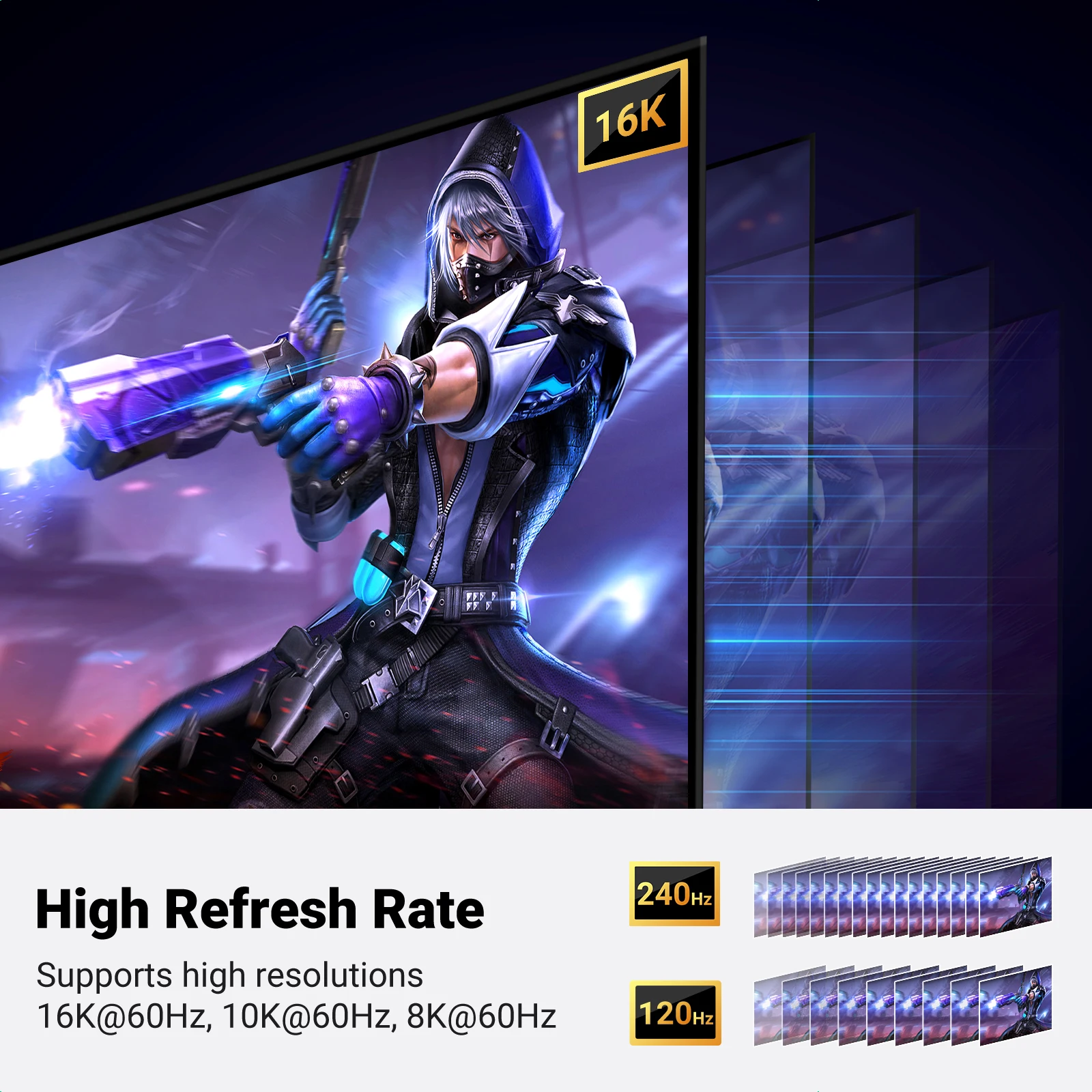
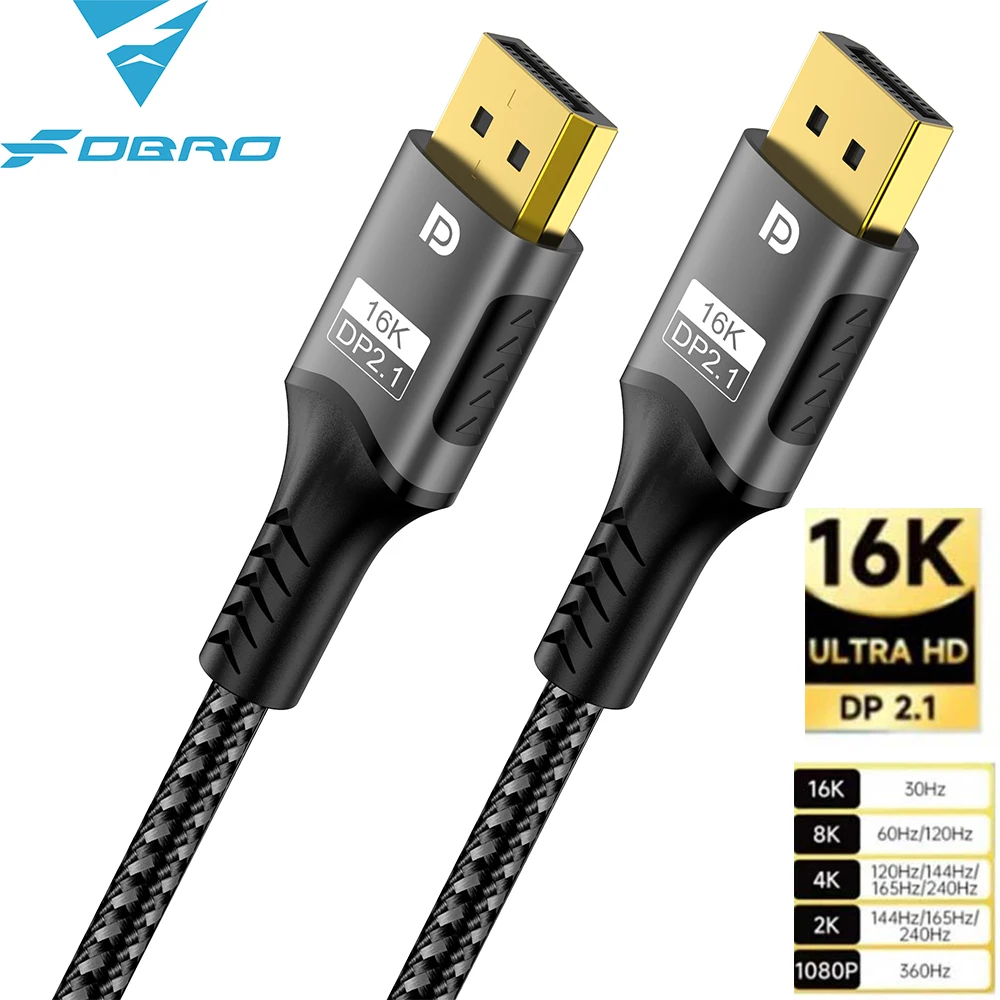
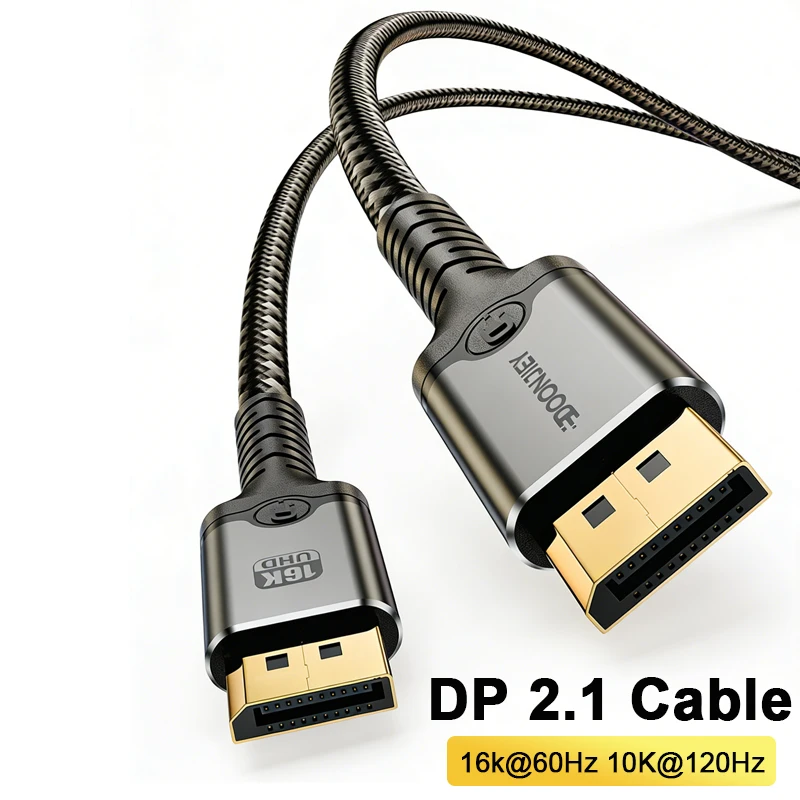
- DisplayPort 2.1 cables, described for the newer and faster link rates, for screens and graphics outputs made for them.
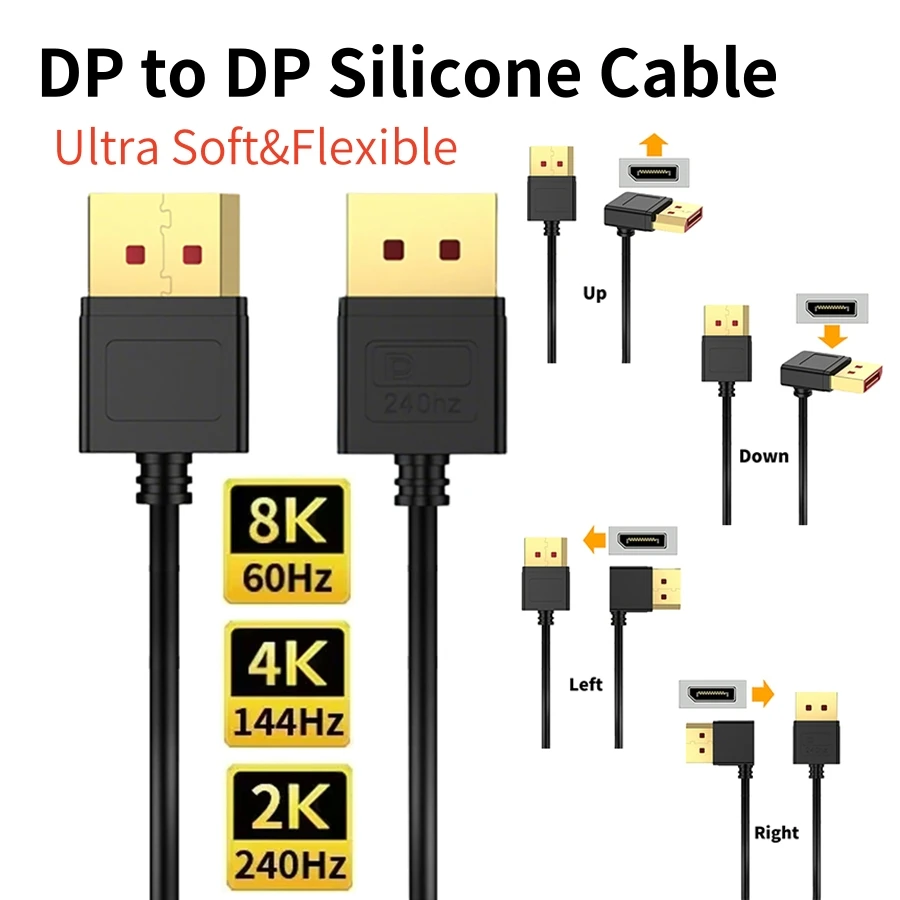
- Angled plugs that turn up, down, left or right, for a monitor whose socket faces the wall or sits close to a stand.
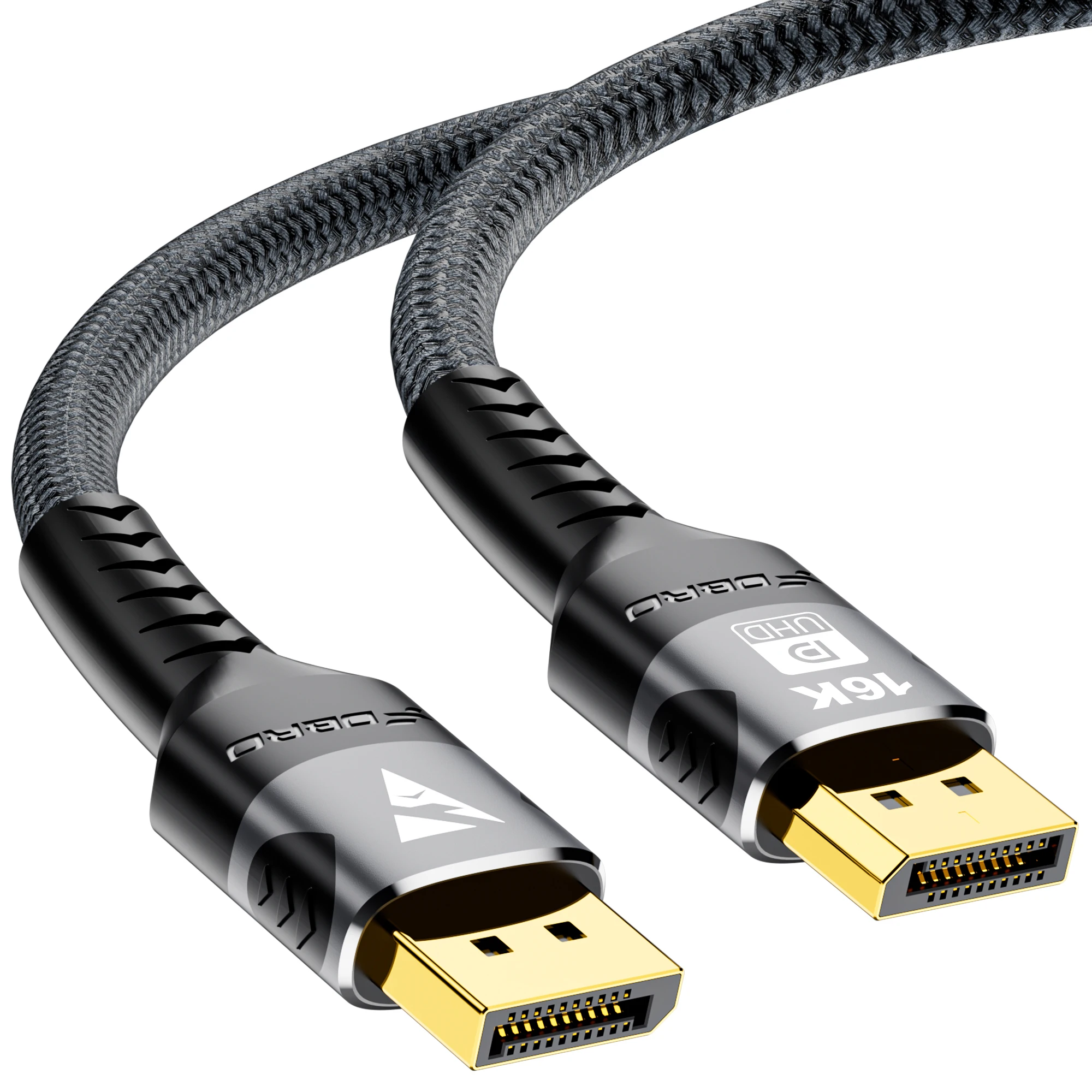
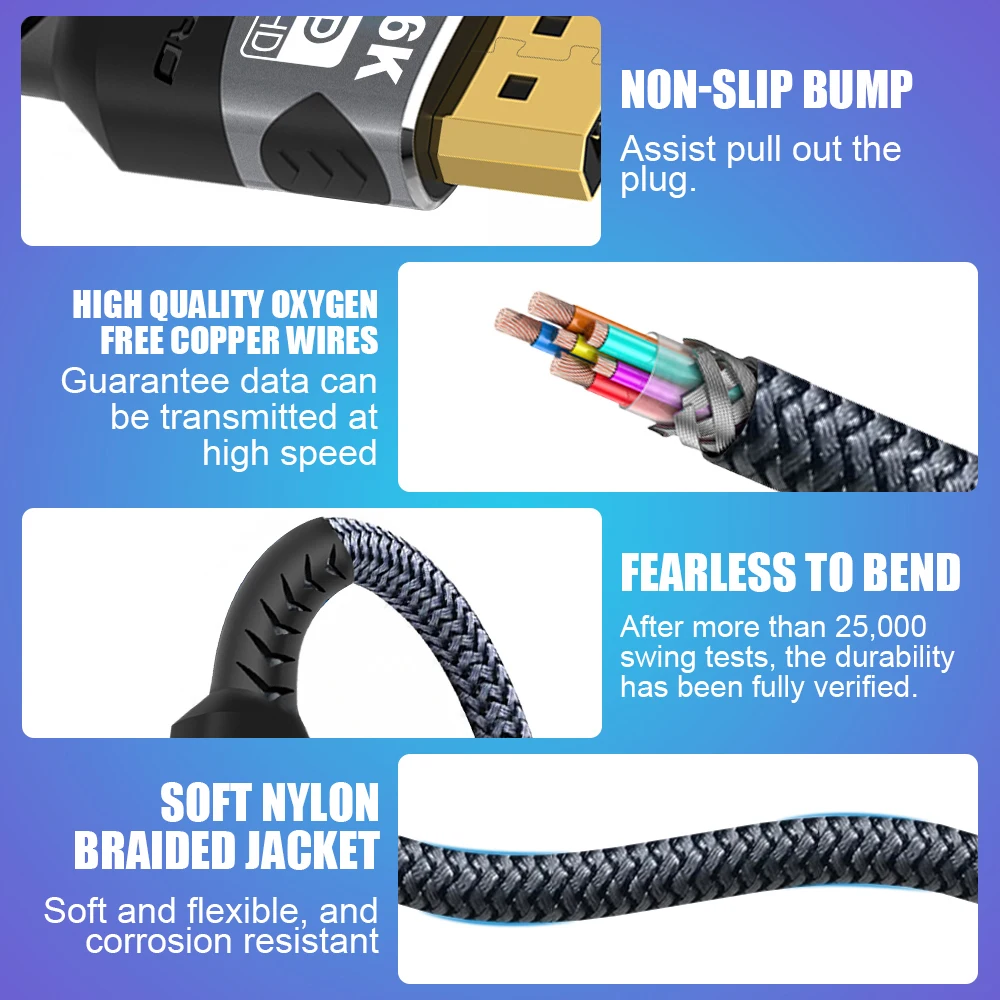
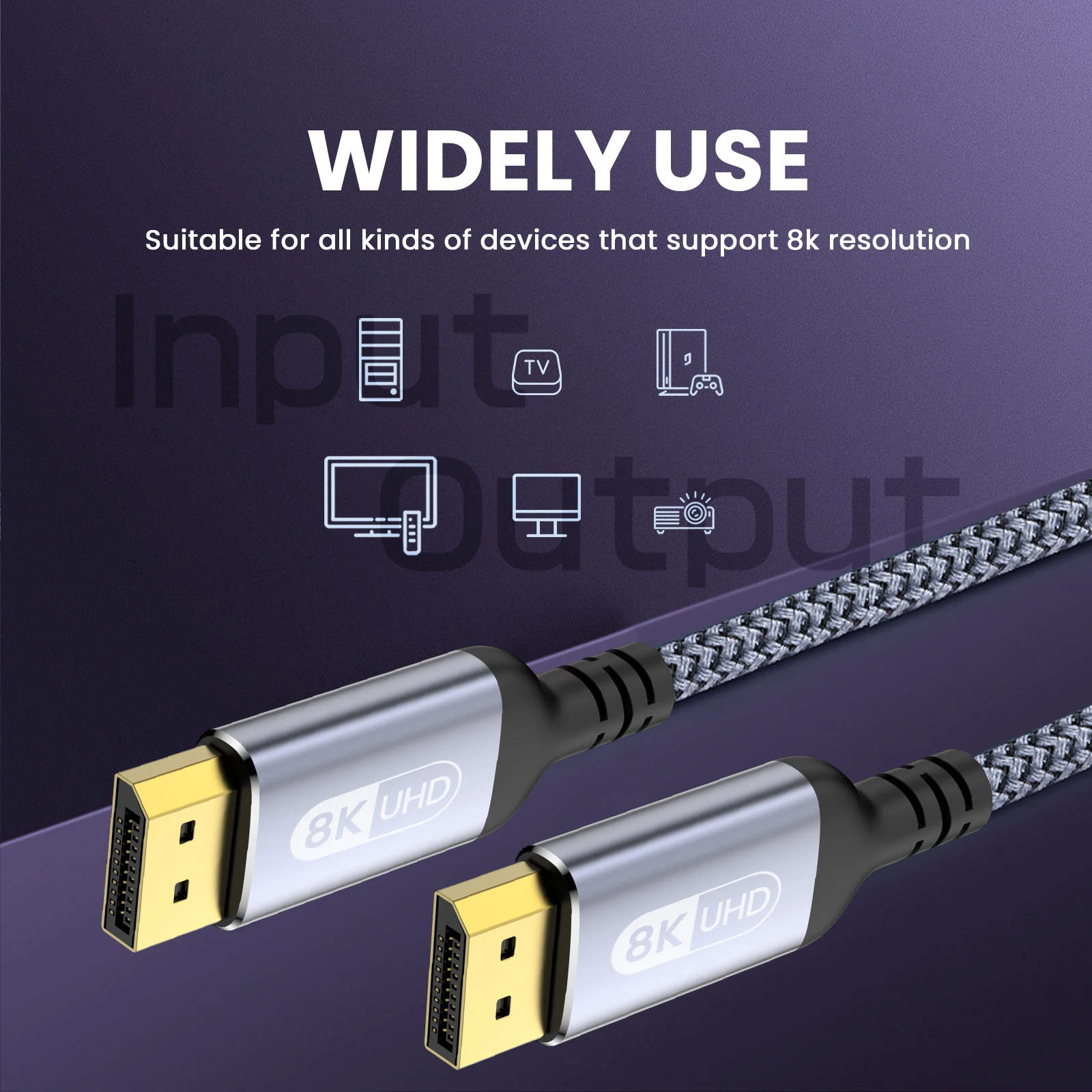
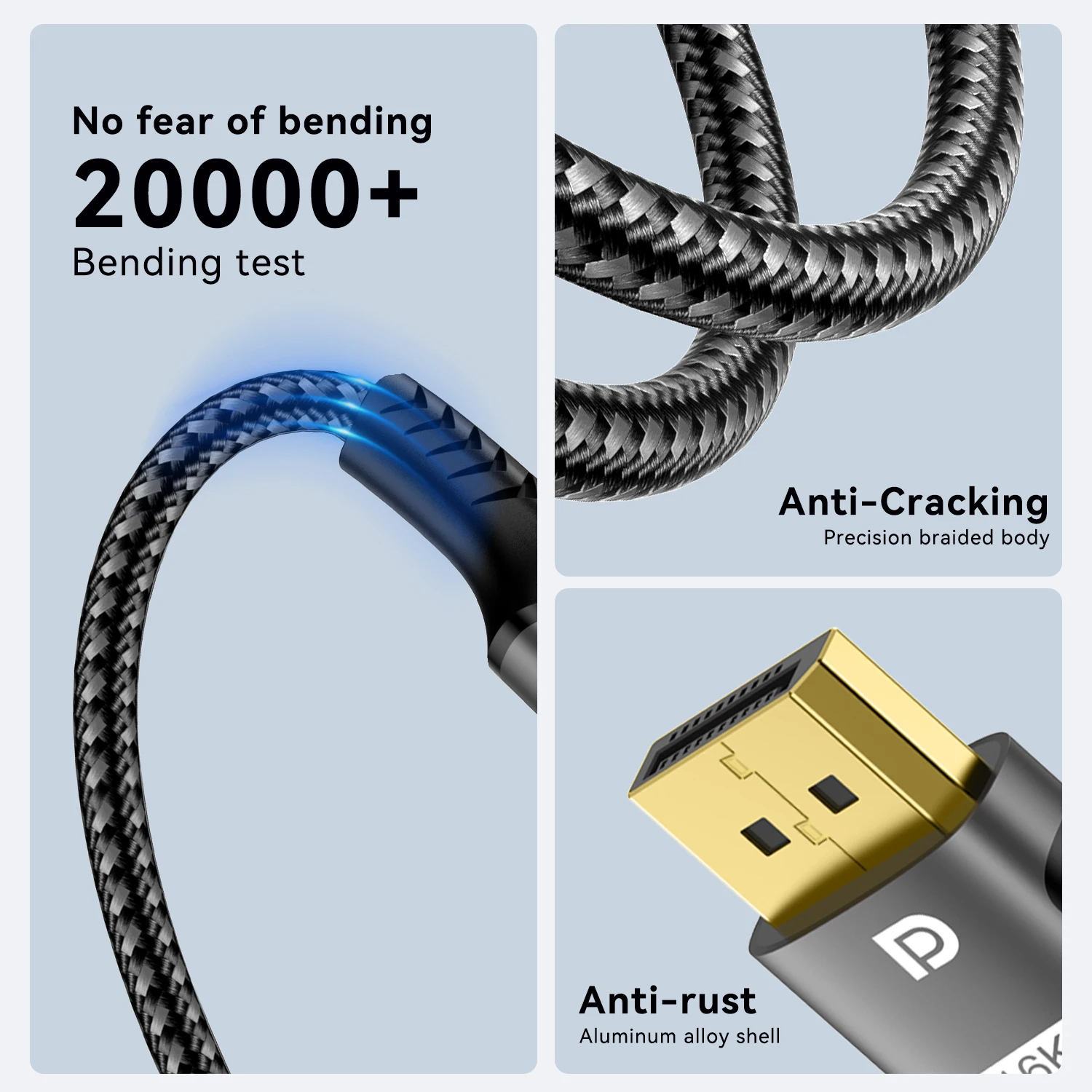
- Metal shells and braided outers on many, in lengths from half a metre to a few metres.
How to choose: version, length and the plug angle
For most monitors a DisplayPort 1.4 cable is enough. A DisplayPort 2.1 cable only helps when both the monitor and the laptop or graphics output support the faster rates, called UHBR. VESA certifies cables for those rates under two names: DP40 cables carry 40Gbps over four lanes, and DP80 cables 80Gbps. Both work with older DisplayPort equipment too. If a monitor's manual asks for a DP40 or DP80 cable for its top setting, that is the cable to look for.
Measure the route the cable will take, and choose the shortest length that reaches with a little slack: very long runs at high resolutions are where picture problems start. If the monitor's socket faces down or sideways behind a stand, an angled plug saves a tight bend at the end of the cable, which is where cables wear out.
Questions people ask about DisplayPort cables
DisplayPort or HDMI for my monitor?
Use whichever both ends have. If both have each, DisplayPort often gives a monitor its highest refresh rate, while HDMI suits televisions.
Does DisplayPort carry sound?
Yes. If the monitor has speakers or a headphone socket, the sound comes down the same cable.
My laptop has no DisplayPort socket. What do I need?
Check its specification page for DisplayPort Alt Mode, Thunderbolt or "video output" on a USB-C socket, then use a USB-C to DisplayPort adapter. The guide to connecting a laptop to a monitor goes through it.
Delivery is included in every price and tracked to your door.
More to look at