A MacBook comes with very little in the box and very few sockets on its sides, so most people end up buying something for it within a few weeks: a sleeve to carry it in, an adapter for a screen or a memory card, a charger for the second desk, a keyboard and mouse for long days. The accessories that work well with a MacBook are mostly the same as for any laptop, but there are a few things that are particular to Apple's laptops, and they differ from one model to the next. This guide goes through them in the order that saves money: the model and its ports first, then sleeves and shells, hubs and screens, charging, and the keyboard, mouse and stand for the desk.
The accessories described here are made by other companies to fit or work with MacBooks. None of them is made or approved by Apple, and the names of Mac models are used only to say what an accessory is for.
Know your model and its ports
MacBooks change more from year to year than they seem to. A 13-inch MacBook Air from 2020 and one from 2025 look similar on a desk, but they charge differently, have different ports and can drive a different number of screens. So the first job is to find out exactly which one you have.
Finding the model
Open the Apple menu in the top left corner of the screen and choose About This Mac. The window shows the model name, for example MacBook Air, with its screen size, the chip (M1, M2, M3 and so on) and the year. Apple's own support page on identifying a MacBook Air describes this, and also the System Information app for more detail. Write down the whole line, including the chip, because the chip is what decides how many screens it can run.
Then look up that model's technical specifications on Apple's website. Every MacBook has its own page listing its ports, the power it needs and the external displays it supports. That page is the one to trust if anything in this guide, or on an accessory's product page, seems to disagree with it.
The ports by model family
Here is what Apple's own specification pages list, family by family. It is a summary, so check your exact model's page before buying anything that depends on it.
| Model | Ports for accessories | Charging | External screens |
|---|---|---|---|
| MacBook Air (M1, 2020) | Two Thunderbolt / USB 4 ports (USB-C) | Through the USB-C ports; no MagSafe | One |
| MacBook Air (M2, 2022) | Two Thunderbolt / USB 4 ports, headphone jack | MagSafe 3, or the USB-C ports | One |
| MacBook Air (M3, 2024) | Two Thunderbolt / USB 4 ports, headphone jack | MagSafe 3, or the USB-C ports | One with the lid open; two with the lid closed |
| MacBook Air (M4 and M5) | Two Thunderbolt 4 ports, headphone jack | MagSafe 3, or the USB-C ports | Up to two, with the laptop's own screen on |
| MacBook Pro 13-inch (M1 and M2) | Two Thunderbolt ports (USB-C) | Through the USB-C ports; no MagSafe | One |
| MacBook Pro 14 and 16-inch (2021 onwards) | Two or three Thunderbolt ports, HDMI, SD card slot, headphone jack | MagSafe 3, or the USB-C ports | From one to four, depending on the chip |
| MacBook Neo (2026) | Two USB-C ports: one USB 3, one USB 2; headphone jack | Through the USB-C ports; no MagSafe | One, up to 4K at 60Hz, from the USB 3 port only |
Three things stand out. First, every MacBook made since 2020 uses USB-C for its accessories, so anything with a USB-A plug, the older and larger rectangular kind, needs an adapter. Second, MacBook Pro 14 and 16-inch models are the only ones with an HDMI port and an SD card slot built in. Third, the number of external screens is set by the chip, and no hub or adapter changes the limit that Apple lists for your model.
Thunderbolt, USB 4 and plain USB-C
Most MacBook ports are Thunderbolt ports, which use the USB-C shape. Apple lists Thunderbolt 3, Thunderbolt 4 and USB 4 ports at up to 40Gb/s on recent MacBook Air models, and Thunderbolt 5 on the MacBook Pro models with M5 Pro and M5 Max chips. In everyday use, this means a MacBook will take almost any USB-C hub, dock, drive or adapter, and that the fastest Thunderbolt docks and drives work with it too. The exception is the MacBook Neo, whose two USB-C ports are not Thunderbolt: Apple lists one at USB 3 speed, up to 10Gb/s, and the other at USB 2, and only the USB 3 port carries a picture to a screen. The guide to USB-C explains the names in full.
Sleeves and hard-shell cases
MacBooks are thin, light and made of aluminium, which dents and scratches more easily than people expect. A sleeve, a shell, or both, keeps it looking the way it did on the first day.
Sleeves
A sleeve is a padded cover the laptop slides into, with a zip, a flap or an open top. It protects the whole laptop in a bag and can be carried on its own between meetings or rooms. Because MacBooks are thinner than most laptops, a sleeve made for a thick 14 or 15.6-inch laptop will leave a MacBook sliding about inside. Choose by the laptop's outside measurements, not just its screen size.
Apple's specifications give these for the current models. The 13-inch MacBook Air is 30.41 cm wide, 21.5 cm deep and 1.13 cm thick. The 15-inch MacBook Air is 34.04 cm by 23.76 cm by 1.15 cm. The 14-inch MacBook Pro is 31.26 cm by 22.12 cm by 1.55 cm, and the 16-inch is 35.57 cm by 24.81 cm by 1.68 cm. Older models can differ by a few millimetres, so check the page for yours. The screen sizes printed on the laptops are measured on the diagonal and do not match these numbers, which is why the guide to laptop sleeve sizes measures the laptop rather than the screen.
The ranges by model, such as accessories for the MacBook Air 13-inch and for the MacBook Pro 14-inch, gather sleeves and other things made to those sizes.
Hard-shell cases
MacBook hard-shell cases are two clip-on plastic shells, one for the lid and one for the base, that stay on the laptop all the time. They guard against scratches, scuffs and small knocks on the corners, and they let you change the colour or finish. They do not replace a sleeve: a shell protects the outside surfaces, but it adds little padding, so a laptop dropped in a shell can still be damaged.
A shell must be made for your exact model, because the cut-outs for the ports, the feet and the vents differ from year to year. Even two MacBook Air models with the same screen size can have their ports in slightly different places. On a 14 or 16-inch MacBook Pro, the shell must leave the HDMI port, the SD card slot and the MagSafe port clear.
Heat and shells
Apple describes the MacBook Air as having a fanless design, so it cools through its case. The MacBook Pro has fans that draw air in and push it out through openings along the edges and the base. A shell made for the model leaves these openings clear and lets the feet stand on the desk. Apple's safety information for MacBooks says not to use one on a pillow, blanket or other soft material that can block its ventilation, and the same thinking applies to anything that covers the openings. If a laptop in a shell feels hotter than it used to, take the shell off and see whether it runs cooler.
Covers for the camera and the keyboard
Apple has a support note headed "Don't close your MacBook, MacBook Air or MacBook Pro with a cover over the camera". It explains that closing a Mac laptop with a camera cover on it may damage the display, and that any cover should be no thicker than an average piece of printer paper, about 0.1 mm, and should not leave sticky residue. It also says a cover can interfere with the light sensor that sets the screen's brightness, and that the green light next to the camera shows when the camera is on. So if you use a webcam cover on a MacBook, choose the thinnest, or take it off before closing the lid. The reason Apple gives, the very small gap between the screen and the keyboard when the lid is shut, is worth keeping in mind with any thick keyboard cover or film too.
Hubs, docks and screens
With only two ports on most MacBook Air models, and one of them often used for charging, a hub or an adapter is the accessory most MacBook owners buy first.
Single adapters
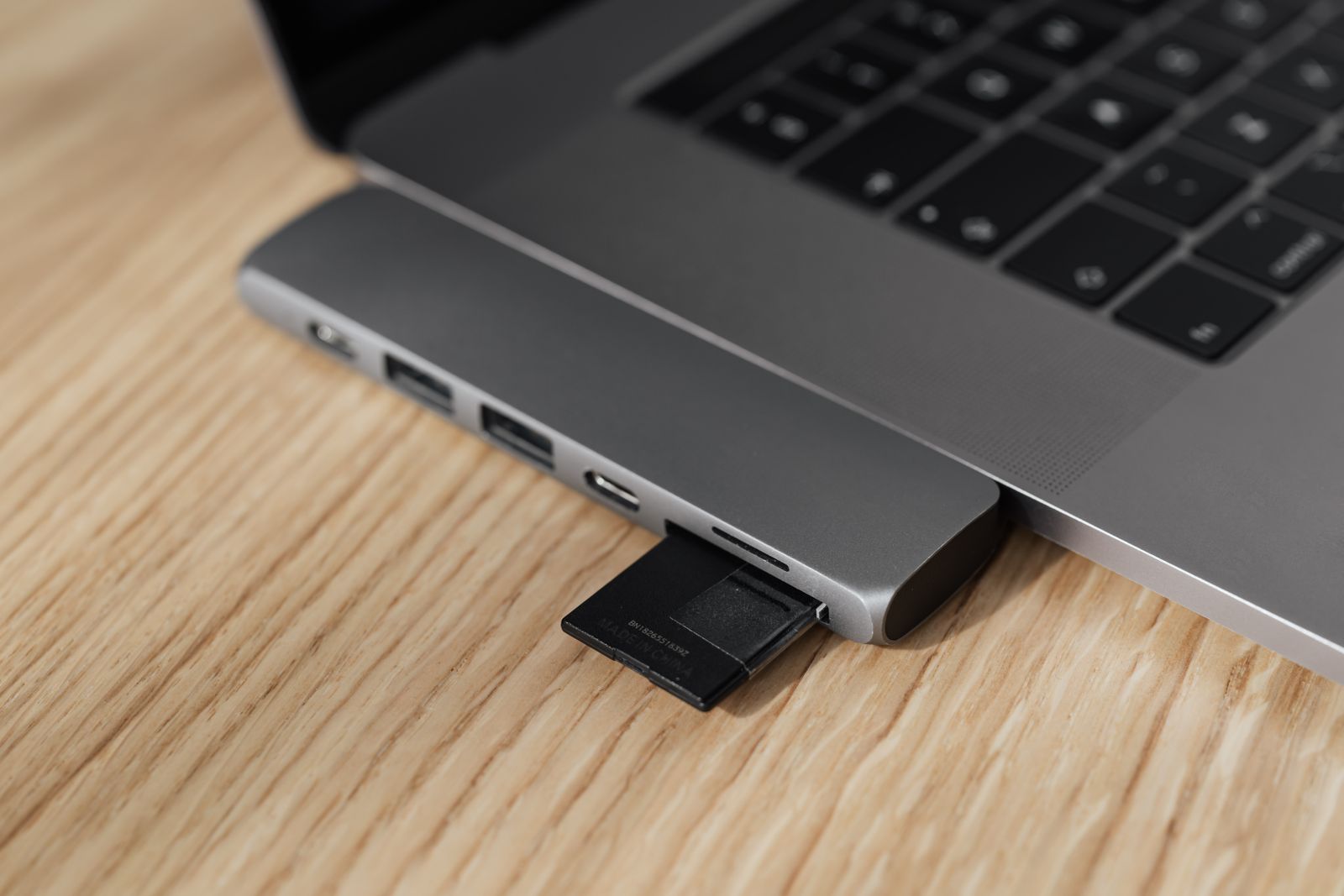
If you need one thing, a single adapter is the simplest answer. A USB-C to HDMI adapter connects a TV, a projector or most monitors. A USB-C to USB-A adapter lets you use an older memory stick, mouse receiver or cable. An SD card reader does what the MacBook Air has no slot for. Each one is small enough to live in a pencil case or a tech pouch.
Hubs
USB-C hubs plug into one port and give you several: commonly HDMI, two or three USB-A, an SD and microSD reader, sometimes a network socket, and a USB-C socket that passes charging power through to the laptop. Some are made to sit flush against the side of a MacBook and plug into both USB-C ports at once. Those are shaped for particular models, so check the product page names yours, and remember that on a MacBook Neo, only one of the two ports carries video. The guide to choosing a USB-C hub goes through the sockets one by one.
Docks
Docking stations are larger and stay on the desk, with their own power supply. One cable from the dock to the MacBook charges it and connects its screens, keyboard, mouse, network cable and drives. At the end of the day you unplug one cable and take the laptop away. Apple's charging page notes that a USB-C display can also power a Mac, which works the same way.
How many screens your MacBook can run
This is the point that catches most people, so it is worth being precise. Apple's specifications say:
- MacBook Air with M1 or M2, and the 13-inch MacBook Pro with M1 or M2, run one external screen.
- MacBook Air and 14-inch MacBook Pro with the plain M3 chip run one with the lid open. Apple's support page explains that they can run two with the lid closed, using an external keyboard and mouse or trackpad, and that opening the lid makes the second screen go dark or disconnect.
- MacBook Air with M4 or M5 runs up to two external screens with its own screen still on.
- The current 14-inch MacBook Pro with M6 runs up to two. With M5 Pro it is up to three, and with M5 Max up to four. Older Pro and Max chips differ, so check your model's page.
- MacBook Neo runs one, up to 4K at 60Hz.
A hub with two HDMI sockets does not raise these numbers. On a MacBook that runs one external screen, a two-screen hub usually shows the same picture on both, or only uses one. If two screens matter to you, check your model's limit first, then choose a hub or dock whose product page says it supports extended screens on macOS. The guide to connecting a laptop to a monitor or TV covers the cables and the settings.
Cables for screens
A monitor with a USB-C input can often be connected with one USB-C cable, which carries the picture and sometimes charges the laptop as well. For that you need a cable that carries video, not a charge-only cable. A monitor with only HDMI or DisplayPort needs an adapter, a hub or a single USB-C to HDMI or USB-C to DisplayPort cable. The MacBook Pro 14 and 16-inch can also use their HDMI port directly.
Charging
What comes in the box
Apple's UK specification pages for the current MacBook Air, MacBook Pro and MacBook Neo all say "Power adapter sold separately". The Air and Pro come with a USB-C to MagSafe 3 cable; the Neo with a USB-C charge cable. So a new MacBook bought in the UK may arrive with a cable and no plug, and many people need a charger from the start. Older MacBooks came with a power adapter, and the one you have may be fine to keep using.
MagSafe 3 and USB-C
Apple lists MagSafe 3 on MacBook Pro models from 2021 onwards, apart from the 13-inch M2 model, and on MacBook Air models from 2022 onwards. MagSafe 3 is a magnetic connector that pulls away if someone trips over the cable. The other end of a MagSafe 3 cable is USB-C, so it plugs into a USB-C charger.
Every MacBook with USB-C can also charge through its USB-C or Thunderbolt ports, from any of them. Apple's page on charging a Mac laptop says a Mac charges over one port at a time, from whichever source gives the most power, and that plugging in two chargers does not make it charge faster. On a MacBook with MagSafe 3, the light on the connector is amber while it is charging or charging is on hold, and green when the battery is full. MagSafe 3 is not compatible with the older MagSafe and MagSafe 2 chargers and cables.
How many watts
Apple's specifications give a minimum wattage for each model and the wattage needed to fast-charge. For the current MacBook Air, the minimum is 30W for the 13-inch and 35W for the 15-inch, and either fast-charges from a USB-C power source of 70W or more. The current 14-inch MacBook Pro fast-charges from 96W or more, and the 16-inch from 140W or more. The minimum for each MacBook Pro depends on the chip, so read the line on your model's page. The MacBook Neo's minimum is 20W.
If a charger gives too little power, macOS shows "Slow Charger" in the battery menu when the power is too low. A charger with more watts than the laptop needs is safe, because a USB-C laptop draws only what it asks for. That is why a 65W USB-C charger is a sensible choice for a MacBook Air, a 100W charger covers a 14-inch MacBook Pro and leaves room for a phone, and a 140W charger suits a 16-inch MacBook Pro. The guide to laptop chargers explains how a USB-C charger and laptop agree on power.
Cables and plugs
A higher-wattage charger needs a cable rated for it. USB-C to USB-C laptop cables are rated for a set number of watts, and the cable should be rated at least as high as the charger, or the laptop will not get the charger's full power. Choose a charger with a UK three-pin plug, rather than one with a foreign plug and a travel adaptor: the standard UK plug, with three rectangular pins and a fuse, is the one made to fit the sockets in your home.
Keyboards, mice and stands
A MacBook's keyboard and trackpad are good, but on long days at a desk the screen is too low and the keyboard too close. The HSE's guidance on working with a laptop suggests a separate keyboard and mouse so that the screen can be raised on a riser.
Keyboards
Almost any USB or Bluetooth keyboard works with a Mac. Bluetooth keyboards connect without using a port, which matters on a MacBook Air with only two. Many keyboards sold for any computer have keys labelled for both Mac and Windows, or a switch between them. If yours is labelled for Windows, Apple's keyboard shortcuts page explains that you press the Alt key where a Mac says Option, and the Windows logo key where it says Command. macOS also lets you swap the modifier keys in Keyboard settings, so they sit where your hands expect. For a UK layout, look for the pound sign on the 3 key and a tall Enter key.
Mice and trackpads
Bluetooth mice pair with a Mac in Bluetooth settings and leave the ports free. A mouse with a USB-A receiver needs an adapter or a hub, or a receiver that plugs into USB-C. Many mice have extra buttons whose software is made for Windows only; the main buttons and scrolling work on a Mac without it, but check the product page if the extra buttons matter.
Stands
A foldable aluminium stand lifts a MacBook's screen to a better height and folds flat into the bag, and its metal matches the laptop's. A vertical stand holds the MacBook closed on its edge, which is the tidy way to keep it on a desk when it is connected to a monitor with the lid shut. That suits the M3 MacBook Air, which needs the lid closed for two screens, but check that the stand leaves the ports you use within reach.
Questions people ask
Does any USB-C hub work with a MacBook?
Almost all do, for USB, memory cards and network sockets. What varies is the number of screens: a hub cannot run more external screens than Apple lists for your model, and on a MacBook Neo only one port carries video.
Can I charge a MacBook with a non-Apple USB-C charger?
MacBooks charge from a USB-C power adapter or other USB Power Delivery source, as Apple's specifications say. Choose one with at least the minimum wattage for your model, a UK three-pin plug and a cable rated for the wattage.
Why does my MacBook Air only show one screen when I connect two?
MacBook Air models with M1 or M2 run one external screen. Models with M3 run two only with the lid closed. Models with M4 and M5 run two with the lid open. Check About This Mac for your chip.
Will a hard-shell case for a 2022 MacBook Air fit a 2025 one?
Only if the product page lists both models. The outside size may be close, but the ports, feet and vents can be in different places, so buy the shell for your exact model.
Is it safe to use a webcam cover on a MacBook?
Apple says closing a Mac laptop with a camera cover on may damage the display. If you use one, it should be no thicker than printer paper, or you should remove it before closing the lid.
Where to go next
Start with the range for your MacBook under Shop by Laptop, and the guides below for the detail:
- How to choose a USB-C hub or docking station
- Laptop sleeve sizes: how to measure your laptop
- Laptop chargers explained: watts, USB-C charging and UK plugs
- USB-C explained: ports, cables, power and video
Delivery is included in every price and tracked to your door.