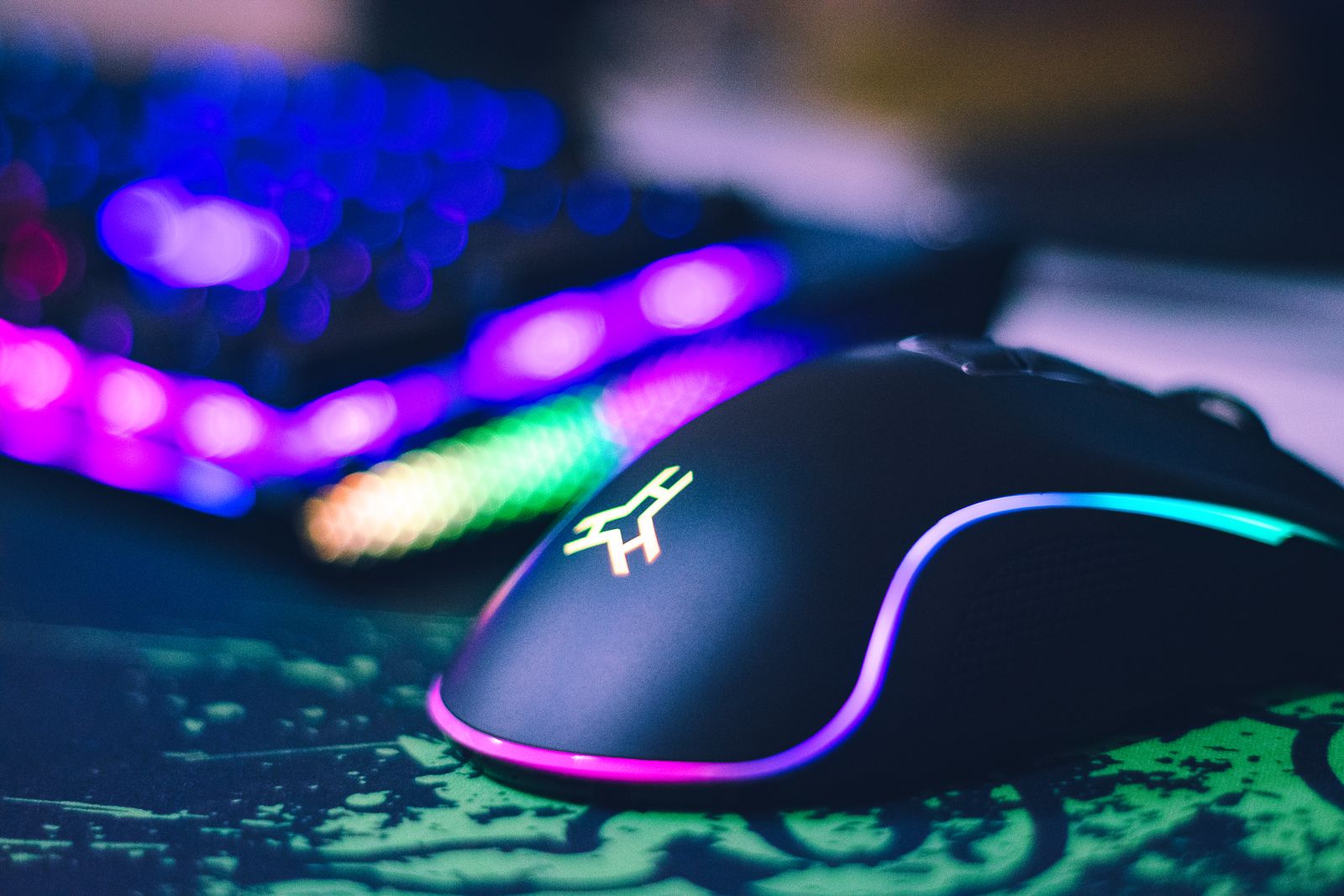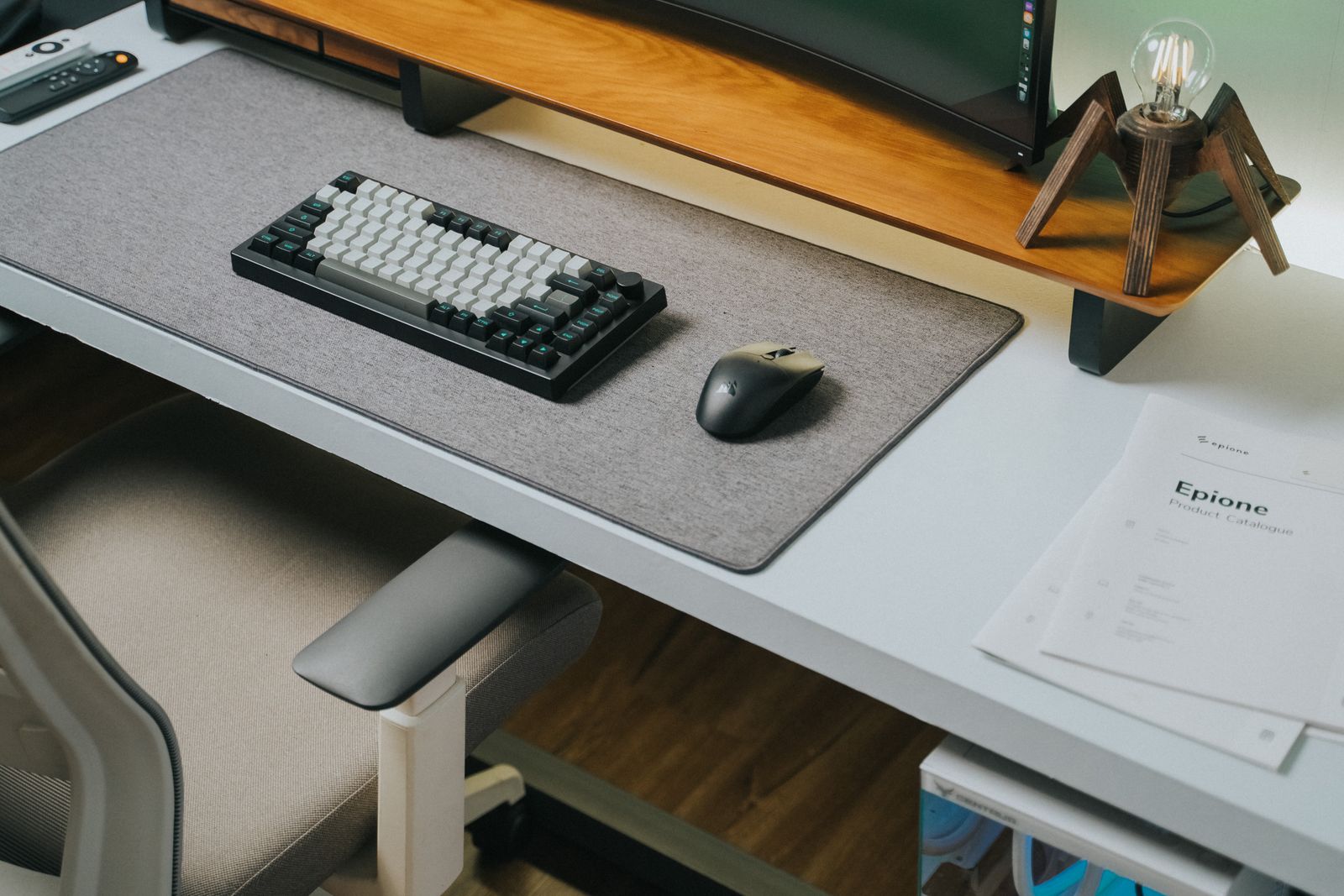
A mouse is the cheapest way to make a laptop easier to use for more than a few minutes at a time. A trackpad is fine for quick jobs, but for a long spell of work, for spreadsheets, photo editing or anything with a lot of small, careful movements, most people find a mouse quicker and more comfortable. This guide goes through the choices in the order they come up: how the mouse connects, how it fits your hand, the buttons and wheel, how it is powered, and what makes a good mouse for the bag.
Receiver or Bluetooth
Wireless mice connect to a laptop in one of two ways. Some come with a small receiver that plugs into a USB port. Others connect by Bluetooth, using the radio already built into almost every laptop. Some mice can do both, with a switch or a button to choose.
Mice with a USB receiver
Wireless mice with a receiver are the simplest to set up. You plug the receiver in, switch the mouse on, and it works, usually without any settings to change. The mouse and its receiver are already paired at the factory, so there is nothing to search for. This also means the mouse works on any computer you plug the receiver into, and it usually works from the very start of a computer's start-up, before the operating system has loaded.
The drawbacks are the receiver itself. It uses up one of your laptop's ports, which matters on thin laptops with only two. Most receivers have the older, larger USB-A plug, so a laptop with only USB-C sockets needs a USB-C to USB-A adapter or a hub, though some mice now come with a USB-C receiver. And receivers are small and easy to lose. Many mice have a slot underneath or inside the battery cover where the receiver lives when you pack the mouse away; it is worth using.
Bluetooth mice
Bluetooth mice need no receiver at all. You pair the mouse with the laptop once, in the laptop's Bluetooth settings, and afterwards it reconnects on its own each time you switch it on. That leaves every port free and leaves nothing small to lose. Bluetooth mice also work with tablets and many phones, which a receiver mouse often cannot.
Modern Bluetooth mice use Bluetooth Low Energy, a version of Bluetooth made for devices that run for a long time on small batteries. The drawbacks are minor. Pairing takes a minute the first time, and after the laptop wakes from sleep the mouse can take a moment to reconnect. In very busy places, where many devices share the same 2.4GHz radio band that most Wi-Fi also uses, a Bluetooth mouse can occasionally stutter. If your laptop has no Bluetooth, or its Bluetooth has stopped working, a small Bluetooth adapter in a USB port adds it; the guide to Wi-Fi and Bluetooth adapters explains when that is worth doing.
Pairing a Bluetooth mouse
Pairing is done once. Switch the mouse on and put it into pairing mode; on most mice that means holding a small button underneath until a light flashes, and the instructions say which. Then, on Windows 11, open Settings, choose Bluetooth & devices, then Add device, then Bluetooth, and pick the mouse from the list. On a Mac, open System Settings, choose Bluetooth, and select Connect beside the mouse when it appears. On a Chromebook, open Quick Settings, choose Bluetooth and select the mouse. After that, switching the mouse on is enough.
Which to choose
- A receiver mouse suits you if you want it to work the moment you plug it in, you move between several computers, or your laptop's Bluetooth is unreliable.
- A Bluetooth mouse suits you if your laptop has few ports, you also use a tablet, or you want nothing that can get lost.
- A mouse that does both, with a button to switch between devices, suits you if you use more than one computer at the same desk, such as a work laptop and a home one.
Wired mice
A wired mouse still has a place. It needs no batteries, never needs pairing, and is very slightly quicker to respond, which some gamers care about. It is less convenient in a bag and on a crowded desk, but if your laptop stays in one place and you dislike charging things, it is a sensible choice.
Size, shape and grip
The single biggest thing in whether you like a mouse is how it fits your hand. A mouse that is too small makes you grip it with your fingertips and tense your hand; one that is too big makes you stretch. Both can feel fine for ten minutes and tiring after an hour.
How you hold a mouse
People hold a mouse in roughly three ways, and it helps to know which you do before you choose.
- Palm grip. Your whole hand rests on the mouse, palm on the back, fingers flat along the buttons. This suits a larger mouse with a high, rounded back to fill the palm.
- Claw grip. Your palm touches only the back edge of the mouse and your fingers are arched, with the tips on the buttons. This suits a medium mouse with a shorter body.
- Fingertip grip. Only your fingertips touch the mouse, and the palm floats above it. This suits a small, light mouse.
A quick way to judge: rest your hand flat on the desk in the position you would use a mouse, and measure from the crease of your wrist to the tip of your middle finger. Then compare it with the mouse's length, which most product descriptions give. A palm grip wants a mouse that reaches well into your palm; a claw or fingertip grip wants one that is noticeably shorter than your hand.
Where the mouse goes
Even the right mouse becomes uncomfortable if it sits in the wrong place. Keep it close beside the keyboard, at the same height, so you use it with your elbow near your side and your wrist straight rather than reaching out across the desk. If you use a laptop on a stand with a separate keyboard, the mouse goes next to that keyboard, not next to the laptop. The guide to setting up a laptop desk explains the rest of the desk around it.
Shapes
Symmetrical mice are the same on both sides and work in either hand. Right-handed mice are shaped to the right hand, often with a slope towards the thumb and a rest for it. These usually feel better for a right-handed palm grip, but they do not suit left-handed people at all. If you are left-handed, look for a mouse described as ambidextrous or made for the left hand; left-handed shaped mice exist but are fewer.
Ergonomic and vertical mice go further. A vertical mouse stands your hand on its side, in a handshake position, so the bones of the forearm are not twisted. Some people with aching wrists or forearms find them a great relief; others find them awkward. They take a few days to get used to. The guide to ergonomic mice and keyboards goes into who they suit.
Weight and feel
Lighter mice are quicker to move and better for travel. Heavier mice feel steadier for careful work such as photo editing. The surface matters too: a rubberised or textured finish grips better than smooth gloss, especially for warm hands, though rubber coatings can wear shiny over time.
Sensitivity and surfaces
Every mouse has a sensor underneath that watches the surface move past. Sensitivity is usually given in DPI, dots per inch: the higher the number, the further the pointer moves for the same movement of your hand. A higher figure is not better in itself; it suits large or several screens, while a lower one gives finer control. Many mice have a button to change it, and you can also change the pointer speed in the laptop's settings.
Most mice work on wood, plastic, fabric and paper. Glass, mirrors and very shiny surfaces can confuse the sensor, so the pointer jumps or does not move. If your desk is glass or highly polished, a mouse mat or desk mat solves it, and gives a smoother, quieter glide everywhere else too.
Buttons, scrolling and quiet clicks
Every mouse has a left button, a right button and a scroll wheel that also clicks. After that, mice differ a good deal.
Side buttons
Many mice have two buttons on the thumb side. By default these usually work as back and forward in a web browser and in file windows, which saves reaching for the arrow at the top of the screen many times a day. On some mice, the side buttons and any extra buttons only do more than that once the maker's own software is installed, and that software is not always made for every operating system. If you use a Mac or a Chromebook and want extra buttons to do particular jobs, check what the mouse supports on your system before choosing it for that reason.
The middle click
Pressing down on the scroll wheel is a third button that many people never use. In most web browsers, a middle click on a link opens it in a new tab, and a middle click on a tab closes it. A wheel that presses down firmly and cleanly, without scrolling by accident as you press, makes this much easier, so it is worth a look in the description or the reviews of the shape.
The scroll wheel
Most scroll wheels move in small notched steps, which makes it easy to scroll a set amount. Some can be switched into a free-spinning mode, where a flick sends the wheel spinning on its own for several seconds: very useful for long documents and spreadsheets. Some wheels also tilt left and right to scroll sideways, and some mice have a second thumb wheel for that. If you work with wide spreadsheets, timelines or design files, sideways scrolling is worth looking for.
Quiet clicks
A normal mouse click is a sharp tick. In an open-plan office, a library, a shared house late at night, or on a video call, it can be surprisingly noticeable. Mice described as silent or quiet use softer switches that make a muffled thud instead. The feel is slightly softer too, which some people prefer and others find less definite. If you work near other people, it is one of the most appreciated small features.
For games
Gaming mice have faster, more precise sensors, more buttons, and often a wired or very low-delay wireless connection. For ordinary work they offer little extra, though their shapes suit some hands well. The guide to gaming on a laptop covers them.
Batteries or rechargeable
A wireless mouse needs power, and there are two ways it gets it.
Replaceable batteries
Many mice take one or two AA or AAA batteries. The advantage is that when they run out, you swap them and carry on in seconds. Batteries in a mouse usually last a long time, because a mouse uses very little power, especially a Bluetooth Low Energy one. Rechargeable AA or AAA cells work in most mice and save buying new ones. Keep spare batteries, and the mouse's small receiver, away from young children, who may put small parts in their mouths.
Built-in rechargeable batteries
Others have a battery inside that you charge, usually through a USB-C port on the front or underneath. There is nothing to buy, and the mouse can be slimmer and lighter. When it runs low, plug it in. A mouse with its charging port on the front can usually be used while it charges; one with the port underneath cannot. Some rechargeable mice give a useful amount of use from a few minutes of charging, so a flat battery is a short pause rather than the end of the day.
The trade-off is that a built-in battery cannot be replaced easily when it eventually wears out after years of use. As with any lithium battery, if a rechargeable mouse swells, splits or gets hot while charging, stop using it and recycle it properly.
Checking the charge
Many Bluetooth mice report their battery level to the laptop. On Windows 11 it is shown under Bluetooth & devices in Settings, and on a Mac in the Bluetooth section of System Settings, for mice that support it. Others have a small light that changes colour or flashes when the battery is low. Either way, it is better to charge or change the batteries at the end of a day than in the middle of a piece of work.
Making the battery last
- Use the on/off switch underneath when you pack the mouse away, so it does not wake every time it is jostled in the bag.
- Turn off any lighting if the mouse has it; lights use more power than the mouse itself.
- Most mice go to sleep after a few minutes untouched and wake when you move them or press a button.
Mice for travel
A mouse that lives in a laptop bag has slightly different needs from one that lives on a desk.
Size and shape
Travel mice are smaller and flatter so they slip into a bag pocket. That makes them less comfortable for a long day's work, because they suit a fingertip or claw grip rather than a full palm grip. Some fold flat or curve when you open them up. If you work from the same desk most days and travel now and then, a full-size mouse at the desk and a small one in the bag is a sensible pair.
Bluetooth or receiver
For travel, Bluetooth has a clear edge: no receiver to lose and no port used on a laptop that may have only two. If you prefer a receiver, choose a mouse with a slot to store it in, so it never travels loose.
Surfaces on the road
Train tables, café tables and hotel desks vary a great deal, and some are glass or high gloss. A small, thin mouse mat that rolls or folds into the bag means the mouse works wherever you sit. A tech pouch keeps the mouse, its receiver or charging cable, and the laptop charger together, and stops the mouse's on/off switch being knocked on.
Keeping it clean
A mouse that travels picks up grime quickly. Switch it off and wipe the outside with a soft cloth, very slightly damp, never wet, and keep moisture away from the gaps round the buttons and the wheel. Wipe the sensor window underneath with a dry cloth, and check the small feet on the base for fluff, which makes the glide rough. A soft brush from a laptop cleaning kit gets dust out from round the wheel.
Working with a trackpad
Most laptops let you keep the trackpad working alongside the mouse, so you can use whichever is handy. Some people turn the trackpad off when a mouse is connected, to stop the cursor jumping when a palm brushes it while typing; Windows and macOS both have settings for this.
Questions people ask
Will a wireless mouse work with my MacBook?
Yes. Bluetooth mice pair with a Mac in the Bluetooth section of System Settings. A receiver mouse also works, though recent MacBooks have only USB-C ports, so a receiver with a USB-A plug needs an adapter or a hub. Extra buttons may need the maker's software to do anything beyond back and forward.
Is a receiver mouse more reliable than Bluetooth?
For most people both are reliable. A receiver mouse needs no pairing and works the instant it is plugged in. Bluetooth occasionally takes a moment to reconnect after sleep, or stutters in places crowded with wireless devices. If that happens a lot, moving the laptop closer or trying a receiver mouse usually solves it.
Why does my mouse pointer jump on my desk?
The sensor may be struggling with the surface. Glass, mirrors and very shiny finishes are the usual cause. Put a mouse mat under it, and wipe the sensor window underneath the mouse with a dry cloth, in case dust or a hair is caught there.
Can I use one mouse with two computers?
Yes, with a mouse that can pair with several devices and has a button to switch between them. You press the button to move from your laptop to a tablet or a second computer, without pairing again each time.
What size mouse should I choose?
Think about how you hold it. If you rest your whole hand on it, choose a full-size mouse that fills your palm. If you hold it with arched fingers or just your fingertips, a smaller one will feel better. If you can, compare the mouse's stated length with the length of your hand.
Is a vertical mouse worth trying?
If your wrist or forearm aches after a day with an ordinary mouse, it can be. It holds your hand in a handshake position. Give it a week to get used to before deciding.
Where to go next
To choose a mouse, start with wireless mice with a receiver, Bluetooth mice or ergonomic and vertical mice. Add a mouse mat or desk mat and, if you work long hours, a wrist rest; or take a keyboard and mouse set that comes together. For the rest of the desk:
- How to choose a keyboard for your laptop
- Ergonomic mice and keyboards: what they are for and who they suit
- Setting up a laptop desk that is kind to your back
- Gaming on a laptop