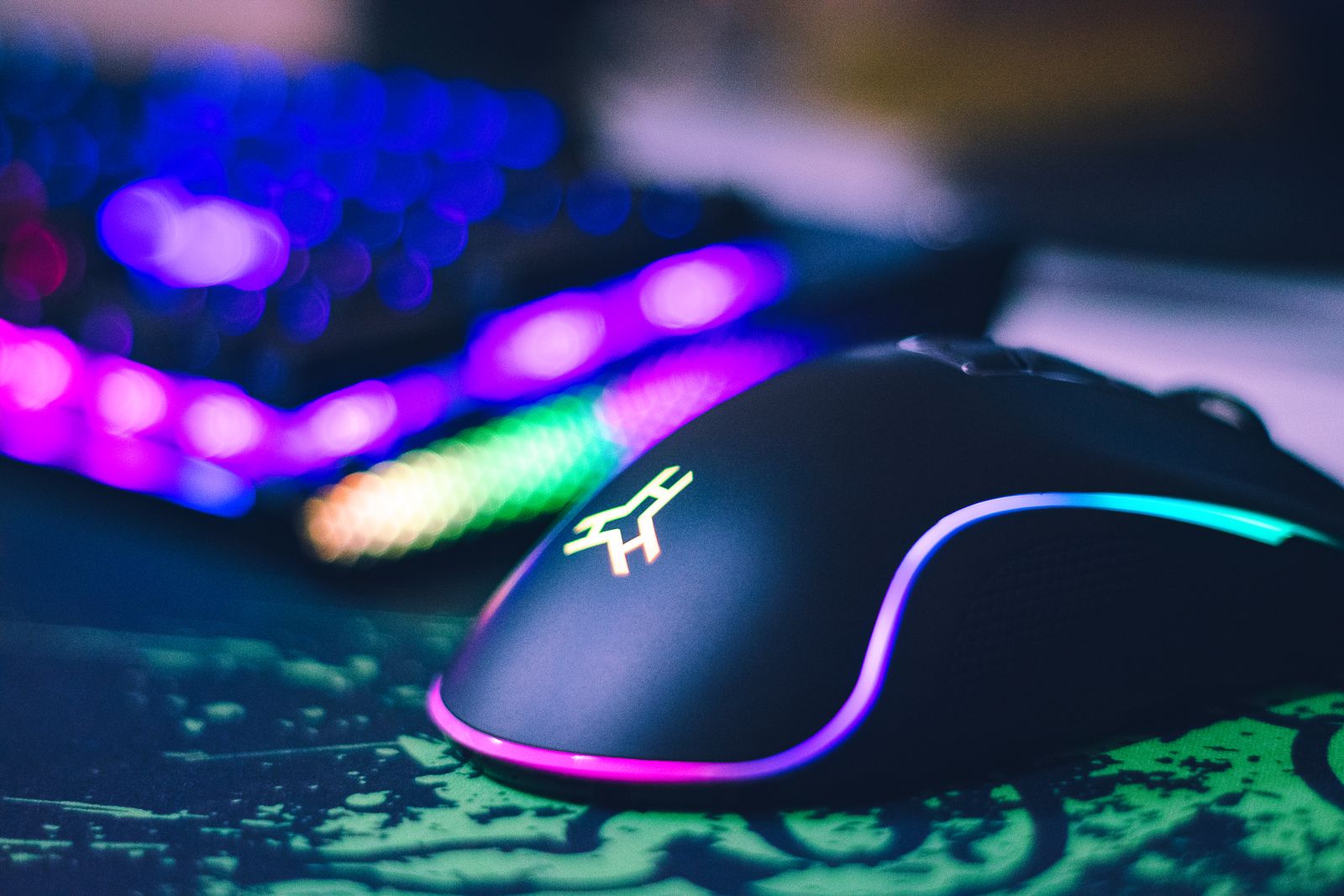
A laptop's own keyboard is built to fit inside a thin case, which means shallow keys, a cramped layout and, on many smaller laptops, no number pad. That is fine for an email on the sofa. For a day's work at a desk, a separate keyboard is usually more comfortable, and it lets you put the laptop's screen where it should be. This guide explains why a keyboard helps, how to choose between wireless and Bluetooth, which size suits the work you do, what a mechanical keyboard is, and how to make sure you get the UK layout you expect.
Why add a keyboard
So the screen can go up
The main reason is posture. On a laptop the keyboard and the screen are joined, so if the keys are at a comfortable height for your hands, the screen is too low for your eyes, and you spend the day looking down. The Health and Safety Executive's guidance on display screen equipment says that for prolonged laptop use, a separate keyboard and mouse should be used so that the screen can be raised on a stand or riser. Raise the laptop on one of the adjustable laptop stands or folding aluminium stands, put the keyboard on the desk in front of it, and both your eyes and your hands are where they should be. The guides to choosing a laptop stand and setting up a laptop desk explain the heights and distances.
The HSE's display screen equipment regulations apply to people who use screens daily for continuous spells of an hour or more as part of their work, and they include laptops used that way. Its guidance for home working follows the same lines. If you work from a laptop for most of the day, a keyboard and stand are not a luxury.
More comfortable to type on
Separate keyboards have deeper keys that move further and feel more definite. Many people type faster and make fewer mistakes on them. You can choose a size and shape that suits you, rather than the one that fitted the laptop's case.
The keys a laptop leaves out
Many laptops have no number pad, squash the arrow keys into half-height buttons, and hide Home, End, Page Up and Page Down behind a function key. If you work with figures, long documents or spreadsheets, a keyboard that brings those keys back saves a lot of small effort through the day.
A worn or broken laptop keyboard
If a key on your laptop has stopped working, or the letters have worn off, a separate keyboard lets you carry on using the laptop normally while you decide whether to have it repaired. A thin silicone keyboard cover on the laptop's own keys helps keep crumbs and spills out in future.
Wireless or Bluetooth
Keyboards connect the same ways as mice, and the choice works in much the same way.
Keyboards with a USB receiver
Wireless keyboards with a receiver come paired with a small receiver that plugs into a USB port. Plug it in and the keyboard works, with no settings. Because the receiver does the work, the keyboard usually works from the moment the computer starts, before the operating system loads, which matters if you ever need a start-up menu or have to type a password before the computer has fully started. The receiver does use a port, and most have the older USB-A plug, which a laptop with only USB-C needs a USB-C to USB-A adapter or a hub to take. Many keyboard and mouse pairs share one receiver between them, which saves a port.
Bluetooth keyboards
Bluetooth keyboards pair once in the laptop's Bluetooth settings and reconnect on their own after that. They leave every port free and work with tablets and phones as well. Many can remember several devices and switch between them with a key, so one keyboard can type on your laptop, then on a tablet, then on your phone, without pairing again. If you use a tablet for notes alongside a laptop, that is very useful.
Pairing a Bluetooth keyboard
Pairing a keyboard is the same as pairing a mouse. Put the keyboard into pairing mode, usually by holding a key or button until a light flashes. On Windows 11, open Settings, choose Bluetooth & devices, then Add device, then Bluetooth, and pick the keyboard. On a Mac, open System Settings, choose Bluetooth, and select Connect beside it. Some keyboards ask you to type a short number on the keyboard itself and press Return, to prove it is the right one. A keyboard that switches between several devices keeps a separate pairing for each, so you pair once per device.
Wired keyboards
A keyboard on a USB cable needs no batteries and no pairing, and it never drops a key press. For a desk where the keyboard never moves, it is still a good answer. Many mechanical keyboards are wired, or offer a cable as well as wireless.
Power
Wireless keyboards run on AA or AAA batteries, or a battery inside that you charge through USB-C. A keyboard without lights uses very little power, so batteries last a long time. Backlit keys are useful in a dim room but use much more, which is why most backlit keyboards turn the lights off after a short pause and many let you turn them off altogether.
Sets
Keyboard and mouse sets come matched, often sharing one receiver, and are an easy way to set up a desk in one go. The guide to choosing a wireless mouse goes through the mouse side of the choice.
Full-size, compact and number pads
Keyboards are made in several sizes, and the right one depends mostly on whether you use the number pad.
Full-size
A full-size keyboard has everything: the letter keys, a row of function keys along the top, a block of arrow keys with Insert, Delete, Home, End, Page Up and Page Down above them, and a number pad on the right. It suits anyone who types a lot of figures, works in accounts or spreadsheets, or simply likes every key in its expected place. The drawback is width: the number pad pushes the mouse further to the right, so your arm reaches out to the side to use it.
Function keys and media keys
The row of keys marked F1 to F12 along the top usually does two jobs: the F-key itself, which some programs use for shortcuts, and a second job printed on the key, such as volume, screen brightness or play and pause. A key marked Fn switches between the two. Many keyboards also have a Fn lock, so you can choose which job the row does without holding Fn every time. If you use the F-keys a lot for work, or the media keys a lot for music, check that the keyboard lets you set the one you use most as the normal one.
Compact keyboards
Compact keyboards leave out some of that to save space. The common sizes, from largest to smallest:
- Without the number pad. Often called tenkeyless. Everything else stays, including the full arrow block. The mouse comes in closer, which many people find more comfortable over a long day.
- Squeezed layouts. Often described by a percentage, such as 75 per cent. The function row and the arrow keys are kept, but packed tightly together with little or no gap between groups.
- Smaller still. Some drop the function row, then the arrow keys, and reach those through a second layer: you hold a function key and press another key to get them. These are neat and portable but take some learning, and they are not ideal if you use the arrows or function keys constantly.
Slim compact keyboards are also the best kind for travel, because they fit in a laptop bag beside the laptop.
Number pads on their own
If you only need the numbers now and then, a separate number pad gives you both: a compact keyboard most of the time, and a number pad on the desk when you are doing figures. A separate pad can also sit on the left side of the keyboard, which keeps the right side clear for the mouse, and some left-handed people prefer it there.
Height and angle
Low-profile keyboards are thin, with flat keys like a laptop's but more travel. Taller keyboards, including most mechanical ones, have deeper keys and sit higher, so a wrist rest in front helps keep your wrists level rather than bent up. Most keyboards have small feet at the back to tilt them. Many people find a flat or only slightly tilted keyboard more comfortable than one propped up steeply, so try it both ways.
Where the keyboard goes
Put the keyboard straight in front of you, with the letter keys centred on your body rather than the whole keyboard, and leave a little space in front of it so your hands and wrists have somewhere to rest between bursts of typing. The mouse goes close beside it. The laptop itself, on its stand, sits behind the keyboard at arm's length, with the top of the screen at about eye level.
Mechanical keyboards explained
Most keyboards, including the one in your laptop, use a single sheet of rubber domes under the keys. Press a key, the dome squashes and closes a contact underneath. It is quiet, cheap and thin, but every key feels a little soft and the same.
Mechanical keyboards have a separate switch under every key, each with its own spring and contacts. They feel more definite, each press is consistent, and they last a long time. Some people find them much nicer to type on all day; others find them noisy or too tall.
The three kinds of switch
- Linear. The key goes straight down smoothly, with no bump. Quiet and fast; many gamers like them.
- Tactile. You feel a small bump partway down as the key registers. This tells your fingers the press has counted, so you can type without pressing every key to the bottom. A good choice for typing.
- Clicky. A bump and an audible click. Very satisfying to some people, very annoying to anyone sitting nearby. Not the one to choose for an open-plan office or for video calls.
Switch makers give their switches colour names, and the colours often hint at the kind, but they are not the same from one maker to the next, so read the description rather than relying on the colour.
Noise
Even linear and tactile mechanical keyboards are louder than a laptop's own keys, especially when each key hits the bottom. If you share a room or are often on calls, look for switches described as quiet or silent, or add soft rings under the keycaps.
Changing the keys
The tops of the keys, called keycaps, come off a mechanical keyboard and can be swapped. Keycap sets change the look and feel, and replace worn ones. Some keyboards are described as hot-swappable, which means the switches themselves pull out and can be changed for a different kind without soldering. Before buying keycaps, check that they fit the switches on your keyboard and the layout, especially the shape of the Return key, which differs between UK and US keyboards.
Low-profile and travel mechanical keyboards
Mechanical keyboards used to be tall and heavy. Low-profile mechanical switches now exist, with shorter keys and a thinner case, giving some of the mechanical feel in a size closer to a laptop's. They are the better choice if you want a mechanical keyboard that goes in the bag, and they sit lower, so a wrist rest matters less.
Keeping it clean
Every keyboard collects crumbs, dust and hair between the keys. Turn it upside down over a bin and tap it gently, then use a soft brush or cleaning gel from the keyboard brushes and cleaning gel range to lift what is left. Wipe the key tops with a cloth that is only very slightly damp, with the keyboard switched off or unplugged. On a mechanical keyboard, keycaps can be pulled off for a thorough clean, but take a photograph of the layout first so they go back in the right places.
Gaming
Gaming keyboards are usually mechanical, with lighting and extra keys. They are covered in the guide to gaming on a laptop.
Layouts: UK and US
This is the part that catches most people out. Keyboards are made in different layouts for different countries, and a keyboard bought without checking can arrive with keys in places you do not expect.
What is different
Apple sorts keyboards into three families by the shape of the Return key: ANSI, used in North America, ISO, used in the UK and much of Europe, and a Japanese layout. A UK keyboard is an ISO layout. On it, the Return key is tall, reaching down across two rows. On a US keyboard it is a wide bar on a single row. Several symbols are also printed on different keys.
So before buying, look carefully at the photographs of the keyboard. A tall Return key is the quickest sign of a UK-style layout. If the description mentions a US or ANSI layout, it is not a UK one.
The setting must match the keyboard
What appears on screen when you press a key is decided by the layout set on the laptop, not by what is printed on the key. If a UK keyboard is used with a laptop set to US, or the other way round, some symbols come out differently from what is printed: you press one key and get another symbol. The letters and numbers are the same; it is the symbols that move. The fix is to set the laptop's layout to match the keyboard.
On Windows
Microsoft's steps for Windows 11:
- Open Settings from the Start menu, then choose Time & language, then Language & region.
- Select the three dots next to your language, then Language options.
- Under Keyboards, check whether the layout you want is listed, such as United Kingdom. If it is not, choose Add a keyboard and pick it from the list.
With more than one layout installed, hold the Windows logo key and press the Spacebar to move between them, or choose one from the language icon on the taskbar. If symbols suddenly start coming out wrong, an extra layout has often been switched to by accident, and this is how to switch back.
On a Mac
Open System Settings, choose Keyboard, then under Text Input select Edit, and add the input source you want, such as British. Control, Option and the Spacebar together move to the next input source. When you connect a keyboard the Mac does not recognise, the Keyboard Setup Assistant opens on its own to ask what kind it is; answering it correctly tells the Mac whether it is an ANSI, ISO or Japanese keyboard.
A Windows keyboard on a Mac
Most keyboards are printed for Windows, and they work with a Mac. Apple explains that on a Windows keyboard, the Alt key does the job of the Mac's Option key and the Windows logo key the job of Command. If you would rather have Command next to the Spacebar where your thumb expects it, the Mac's keyboard settings let you change what the modifier keys do. Some keyboards are printed with both sets of names, or have a switch for Mac and Windows, which makes life easier if you use both.
Questions people ask
Will a keyboard work with my Mac?
Yes. Bluetooth and receiver keyboards both work with a Mac. A Windows keyboard works too: Alt acts as Option and the Windows key as Command, and you can change that in the Mac's keyboard settings if you prefer.
Why do some symbols come out wrong when I type?
The layout set on the laptop does not match the keyboard. Set the laptop to the same layout as the keyboard, usually United Kingdom or British, as described above. On Windows, also check that you have not switched layouts by accident with the Windows key and Spacebar.
Do I need a number pad?
Only if you type a lot of figures. If you do, a full-size keyboard or a separate number pad will save time. If you rarely do, a keyboard without one lets the mouse sit closer, which is more comfortable.
Are mechanical keyboards noisy?
Louder than a laptop's keys, yes. Clicky switches are the loudest; linear and tactile ones are quieter, and switches sold as silent are quieter still. In a shared room or on calls, avoid clicky switches.
Can one keyboard work with my laptop and my tablet?
Yes, with a Bluetooth keyboard that remembers several devices and switches between them with a key. You pair each device once and then move between them in a moment.
What if my laptop has no Bluetooth?
Choose a keyboard with its own receiver, or add a small Bluetooth adapter in a USB port. Either way the keyboard will work.
Where to go next
For the keyboard itself, look at wireless keyboards, Bluetooth keyboards, compact keyboards and mechanical keyboards, with a separate number pad if you need one. A keyboard and mouse set does both at once. For the rest of the desk:
- How to choose a wireless mouse
- How to choose a laptop stand
- Setting up a laptop desk that is kind to your back
- Ergonomic mice and keyboards: what they are for and who they suit