A laptop screen is small. Connecting it to a monitor on the desk or the television in the living room gives you a bigger picture for work, films, games and video calls, and it is usually a ten-minute job once you have the right cable. Most of the trouble people have comes from one of three things: a socket on the laptop that cannot send a picture, a cable that is not up to the resolution, or a setting that has not been switched on. This guide goes through it in order: what your laptop can send, the kinds of connection, cable or adapter, setting it up on Windows and on a Mac, running two screens, and what to do when nothing appears.
Find out what your laptop can send
Before buying anything, look at the sockets on both ends: the laptop and the screen.
On the laptop
- HDMI: a wide, flat socket with angled lower corners. Many Windows laptops and some MacBook Pro models have one. Some very thin laptops use a smaller mini HDMI or micro HDMI socket instead.
- USB-C: the small oval socket. Some USB-C sockets send a picture and some do not. A lightning bolt beside it (Thunderbolt) or a D-shaped DP symbol (DisplayPort) is a good sign. No symbol does not rule it out, but you will need to check.
- Mini DisplayPort: a small socket with one angled side, found on older laptops.
- VGA: a blue, trapezium-shaped socket with three rows of pin holes, found on older business laptops.
To be sure, find the laptop's exact model and look up its specification on the maker's website. On Windows, the model is shown in Settings, under System, then About, and is usually printed on a sticker underneath the laptop. Look for the lines about display output or external displays: they tell you which sockets carry a picture, how many screens the laptop supports and at what resolution. The guide to USB-C explains why one USB-C socket can carry video while another cannot.
On the screen
Televisions almost always have HDMI inputs, usually several, each numbered. Computer monitors usually have HDMI and DisplayPort, many newer ones have USB-C, and some older ones still have VGA. Note which inputs the screen has, then match them to the laptop.
Resolution and refresh rate
Resolution is the number of dots that make up the picture: 1080p (also called Full HD), 1440p, 4K and so on. Refresh rate is how many times a second the picture is redrawn, measured in hertz. A normal monitor runs at 60Hz, and gaming monitors run faster. The picture you get is the lowest of three limits: what the laptop can send, what the cable can carry and what the screen can show. A 4K monitor connected through a socket that only manages 1080p gives you 1080p.
HDMI, DisplayPort and VGA
HDMI
HDMI carries the picture and the sound in one cable, which is why it is the standard on televisions, and it is the simplest way to connect a laptop to a TV. HDMI cables are named by what they have been made and tested to carry. The HDMI Licensing Administrator, which looks after the standard, lists these:
| Cable name | Bandwidth | What it is made for |
|---|---|---|
| High Speed HDMI Cable | up to 10.2Gbps | 1080p, and 4K at 30Hz |
| Premium High Speed HDMI Cable | up to 18Gbps | 4K at 60Hz, with HDR |
| Ultra High Speed HDMI Cable | up to 48Gbps | 4K at 120Hz and 8K at 60Hz |
| Ultra96 HDMI Cable | up to 96Gbps | the newer HDMI 2.2 features |
So for a 4K television or monitor at 60Hz, choose at least a Premium High Speed cable, and for 4K at 120Hz, which some gaming laptops can send, an Ultra High Speed cable. Certified Premium, Ultra High Speed and Ultra96 cables carry a certification label on the packaging, and the Ultra High Speed and Ultra96 labels have a QR code that you can scan with an ordinary phone camera to check the cable is genuine. HDMI version numbers such as 2.0 and 2.1 describe what the laptop and the screen support. Cables are sold by name, so look for the name rather than a version number on the cable. The full range is in HDMI cables, and everything else for HDMI, including adapters and switches, is under HDMI accessories.
DisplayPort
DisplayPort is the connection designed for computer monitors. Like HDMI it carries picture and sound. It is common on desk monitors, especially faster gaming monitors, and less common on televisions. One feature HDMI lacks is Multi-Stream Transport, which VESA, the body behind DisplayPort, describes as the ability to connect several displays to a single video output, either through a hub or by chaining monitors that support it. Whether that works depends on the laptop and the monitors, so check both before relying on it. DisplayPort cables and the rest of the DisplayPort accessories are there for monitors with this input.
VGA
VGA is the old analogue connection, still found on many projectors in schools, church halls and meeting rooms. It carries the picture only, with no sound, so sound has to come from the laptop's own speakers or a separate lead. The picture is softer than HDMI or DisplayPort, especially at higher resolutions. It is worth having a USB-C to VGA adapter in the bag if you give talks in places with older equipment.
Cable or adapter
Once you know what is at each end, the choice is straightforward.
Same socket at both ends
If the laptop and the screen both have HDMI, a single HDMI cable is all you need. The same applies to DisplayPort to DisplayPort. This is the simplest and most reliable connection.
USB-C laptop to an HDMI or DisplayPort screen
You have two options. A USB-C to HDMI cable does it in one piece, with nothing to lose and one fewer joint. A small USB-C to HDMI adapter plus an ordinary HDMI cable is more flexible: the adapter lives in the bag, and you use whatever HDMI cable is already plugged into the TV or projector. For a DisplayPort monitor the same choice applies, with a USB-C to DisplayPort adapter or cable. The whole family of adapters is under display adapters.
When you need more than a screen
If the laptop has only one or two USB-C sockets, plugging in a screen can leave nowhere for the charger or a mouse. A USB-C hub gives an HDMI socket alongside USB sockets and a charging input, all from one USB-C socket on the laptop. At a desk you return to every day, a docking station goes further, with sockets for one or more screens, a wired network, the keyboard and mouse, and charging, so the laptop connects to everything with one cable. The guide to choosing a USB-C hub or docking station goes through the differences.
USB-C laptop to a USB-C monitor
Some monitors take a USB-C cable directly. VESA describes how the picture, USB data and power can all travel at once on one cable, so a single cable can show the picture, connect the monitor's own USB sockets and charge the laptop. The cable must support video: a USB 2.0 charging cable will charge but show nothing.
Adapters work one way
Many video adapters only convert in one direction. An adapter that turns a laptop's DisplayPort output into HDMI for a TV will not usually take an HDMI laptop to a DisplayPort monitor. Read the description in the direction the picture travels: from the laptop, to the screen.
Length
Measure the route the cable will take, not the straight line between laptop and screen. Allow for the cable to drop down behind the desk, run along it and rise to the screen's socket, with a little slack so nothing pulls on the plugs. A cable that is far longer than needed only adds clutter, and very long runs at high resolutions are where picture problems most often start, so choose the shortest length that reaches comfortably.
Switches and splitters
An HDMI switch lets two laptops share one screen, switching between them with a button. An HDMI splitter does the opposite, sending one laptop's picture to two screens, but both show the same picture, which suits a shop window or a meeting room rather than a desk where you want to spread out.
Setting it up on Windows and on a Mac
With everything plugged in, switch the screen on and choose the right input. On a television, press the Input or Source button on the remote and pick the HDMI number printed beside the socket you used. Many laptops then show a picture straight away. If not, or if you want to change how the screens work together, these are the settings.
On Windows
Microsoft's own help gives the quickest route: press the Windows logo key and P together. A panel appears with four choices:
- PC screen only: the laptop's own screen, nothing on the external screen.
- Duplicate: the same picture on both, which suits a presentation or a film on the TV.
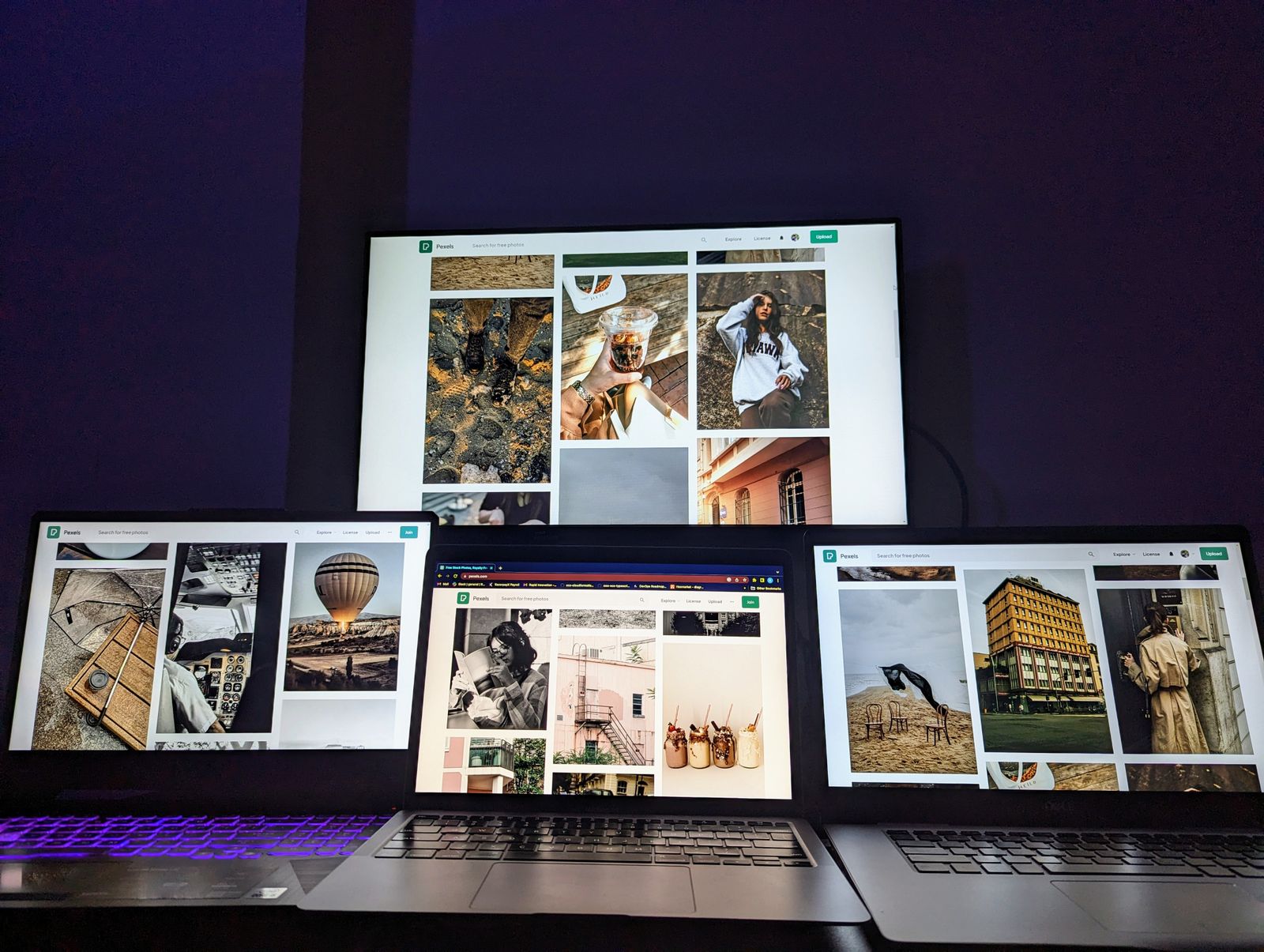
- Extend: one desktop spread across both screens, so you can drag windows from one to the other. This is the setting for working.
- Second screen only: the external screen only, with the laptop screen off.
For more control, open Settings, then System, then Display. The screens are shown as numbered boxes. Select Identify to see which number belongs to which screen, then drag the boxes so that they sit the way the screens sit on your desk, and select Apply. This matters, because the mouse moves from one screen to the other across the edge where the boxes meet. Below the boxes you can set the resolution, the scale (how large text and icons appear) and which screen is the main display, where the taskbar and new windows appear. If the external screen is not shown, open Multiple displays on the same page and select Detect.
On a Mac
Apple's help puts the settings in the Apple menu, then System Settings, then Displays. Select the external display by name, then use the "Use as" menu to choose whether it extends the desktop, mirrors the built-in display or becomes the main display. The Arrange button shows the screens as boxes that you drag into the same positions as the real screens, just as on Windows, and you can choose which screen carries the menu bar. Resolution and refresh rate are set on the same page.
Getting the picture sharp and the text a comfortable size
A screen looks sharpest at its own native resolution, the number of dots it actually has, which Windows marks as "recommended" in the resolution list and which a Mac chooses by default. If the picture looks soft or stretched, check that the resolution matches the screen. If text then looks too small, change the scale on Windows or the "looks like" size on a Mac rather than lowering the resolution, because scaling keeps the picture sharp while making everything larger. On a fast gaming monitor, the refresh rate may also need to be raised by hand: on Windows it is under Advanced display on the same Display page, and on a Mac it is in the Displays settings beside the resolution. The cable has to carry the higher rate too, which is where the cable names in the table above come in.
Sound on the TV
Over HDMI the sound usually moves to the television automatically. If it stays on the laptop, open the sound settings (Settings, then System, then Sound on Windows; System Settings, then Sound on a Mac) and choose the television as the output.
If the edges are cut off on a TV
Some televisions enlarge the picture slightly, a habit left over from broadcast TV, which cuts off the edges of the laptop's desktop. Look in the TV's picture settings for the option that fits the picture to the screen. Each maker names it differently, often something like "screen fit" or "just scan".
Two screens
Running two external screens from a laptop is a lovely way to work, but it is the part most limited by the laptop itself.
Check how many screens your laptop supports
The number of external screens is set by the laptop's graphics chip and its sockets, and it is in the specification under display support. Apple's MacBook Air is a well-known example of how much this varies: the models with the M1 and M2 chips drive one external screen; the M3 models drive two, but only with the laptop's lid closed; and Apple says the M4 models support up to two external displays in addition to the built-in screen. Apple also points out that a hub or a chain of monitors does not raise the maximum number of displays. Many Windows laptops support two or more, and Intel requires every Thunderbolt 4 laptop to support at least two 4K screens.
Ways to connect two
- One screen per socket: HDMI to one screen and a video-capable USB-C socket to the other is often the simplest.
- A docking station with two screen outputs: one cable from the laptop, and both screens connected to the dock. This needs a laptop socket that can carry two pictures, usually Thunderbolt or USB4.
- Chaining DisplayPort monitors: where the laptop and monitors support Multi-Stream Transport, the second monitor plugs into the first.
Making the set-up comfortable
With two screens, the tops should sit at about the same height so your eyes do not jump between levels. A monitor riser lifts a monitor and leaves room beneath, and a laptop stand brings the laptop's own screen up to sit alongside. The guide to setting up a laptop desk goes through screen height and distance using the HSE's guidance, and the guide to choosing a laptop stand covers the stand itself. If you want a second screen you can take with you, portable monitors sit beside the laptop on a train table or in a hotel room.
When nothing appears
Work through these in order. Most problems are fixed by the first three.
- Check the input. The screen must be switched to the input you plugged into. On a TV with several HDMI sockets this is the most common reason for "no signal".
- Check the cable at both ends. Push each plug fully home. HDMI plugs in particular can look seated when they are not.
- Tell the laptop. On Windows, press the Windows logo key and P and choose Extend or Duplicate, or open Settings, System, Display and select Detect. On a Mac, open System Settings, then Displays, and see whether the screen is listed.
- Try another socket. If you are using USB-C, the socket may not carry video. Try the other USB-C socket, or the HDMI socket if there is one.
- Try another cable. A USB-C charging cable may have no video lanes, and an older HDMI cable may not carry 4K at 60Hz. If the picture appears at a lower resolution but flickers or drops out at a higher one, the cable is the likely cause.
- Check the adapter's direction. Make sure it converts from your laptop's socket to the screen's, not the other way round.
- Restart with the screen connected. This makes the laptop look for the screen again from scratch. On Windows, running Windows Update can also bring newer graphics drivers.
If a laptop shows a picture on one screen but not on a second, check the limit on external screens described above before buying anything else.
Questions people ask
Do I need a special HDMI cable for 4K?
For 4K at 60Hz, use a Premium High Speed HDMI cable or better. For 4K at 120Hz, use an Ultra High Speed HDMI cable. An older High Speed cable is made for 1080p and for 4K at 30Hz.
Can I use my television as a second screen?
Yes. Connect it by HDMI and choose Extend rather than Duplicate. Sitting close, text can look less sharp than on a monitor, so it suits films and presentations better than spreadsheets.
Why does my MacBook Air only show one external screen?
The M1 and M2 MacBook Air models support one external display. The M3 models support two with the lid closed, and Apple says the M4 models support two alongside the built-in screen. A hub cannot add more than the Mac supports.
Can I close the lid and use only the monitor?
Yes, with a keyboard and mouse connected. On Windows, set what closing the lid does to "Do nothing" in the power settings. A Mac does this when connected to a display, a keyboard and mouse, and power.
Why is there no sound through my projector?
If it is connected by VGA, the cable carries no sound, so use the laptop's speakers or a separate lead. Over HDMI, choose the projector as the sound output.
Where to go next
The cables are in HDMI cables and DisplayPort cables, with display adapters for USB-C laptops. For the rest of the set-up:
- USB-C explained: why one socket shows a picture and another does not
- How to choose a USB-C hub or docking station: screens, sockets and charging from one cable
- Setting up a laptop desk that is kind to your back: screen height and distance
- Portable monitors and screen extenders: a second screen that travels