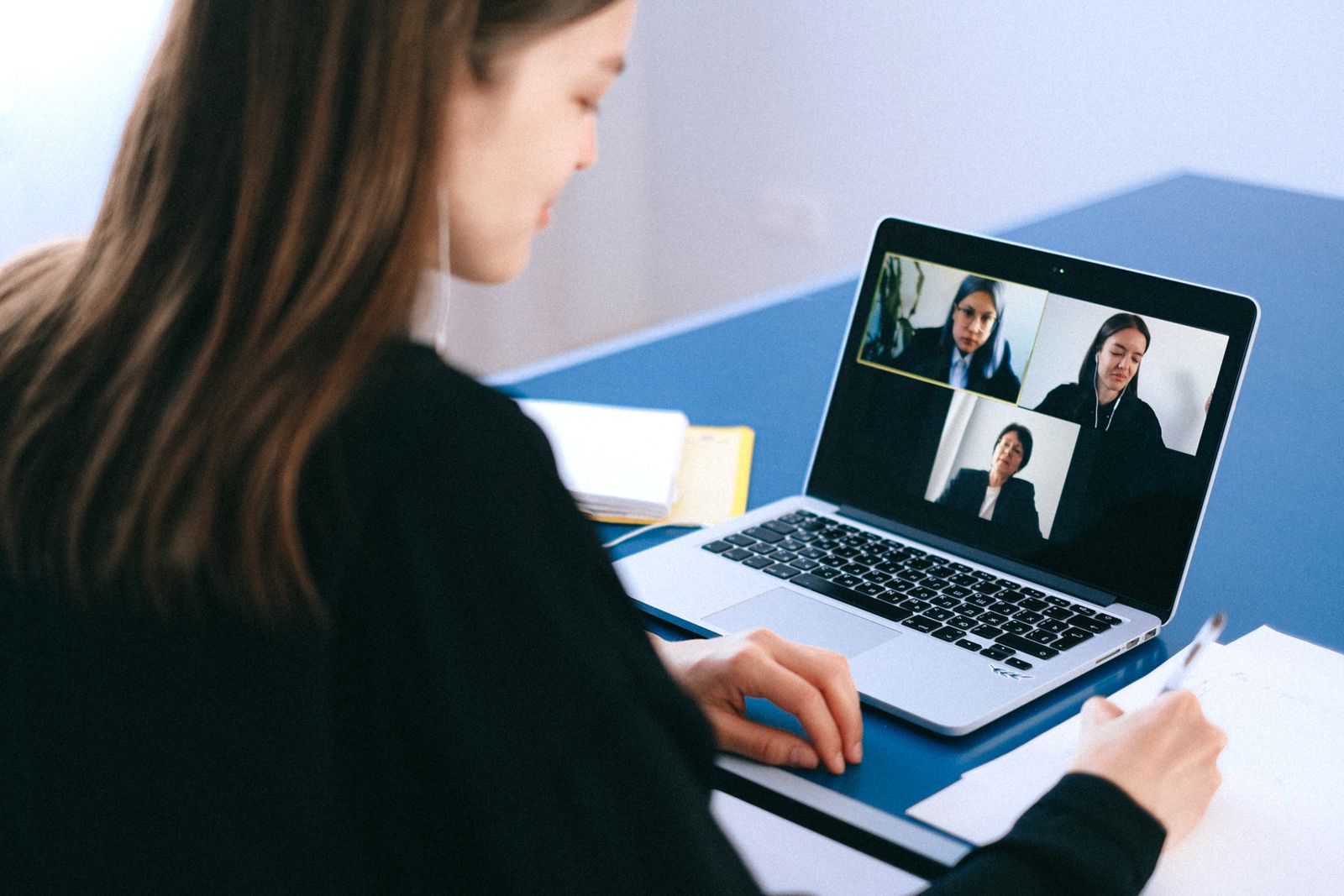
Video calls are part of ordinary life now: work meetings, interviews, doctor's appointments, catching up with family. Most laptops have a camera and microphone built in, and for many people they are fine. For others, a grainy picture, a face in shadow or a voice that sounds like it is in a tin is reason enough to add something better. This guide explains when a separate webcam is worth having, what the numbers on the box mean, why light matters more than resolution, how to get your voice across clearly, and how to mount and cover a camera.
Is the built-in camera enough
The camera in a laptop has to fit into the thin strip of frame above the screen, so it is small, with a small lens and sensor. Many laptop cameras, especially on older or less expensive models, record at 720p, and newer ones often at 1080p. In a well-lit room, for a weekly catch-up, a built-in camera is often enough.
Signs a separate webcam would help
- The picture is grainy or blotchy unless you sit right next to a window. Small sensors struggle in ordinary indoor light.
- The camera looks up your nose. When the laptop sits flat on a desk, its camera is below your eye line. Raising the laptop on a stand fixes this, but if you use the laptop closed with a separate monitor, its camera is no use at all.
- You work on a separate monitor. If you look at a big screen while the laptop's camera is off to one side, you appear to be looking away from everyone in the call. A webcam on top of the monitor puts the camera where your eyes are.
- Calls are your work. Interviews, sales calls, teaching, consultations or recording videos all reward a clearer picture.
Test what you have first
Before spending anything, see what your current camera can really do. Open the Camera app on Windows, or Photo Booth or FaceTime on a Mac, and look at yourself at the time of day you usually make calls, in the room you usually use. Then turn the desk lamp on, open the curtains, or turn to face the window, and look again. If the picture improves a great deal with better light, light is the problem, and the section on light below may solve it without a new camera. If the picture is still soft and smeared in good light, or the camera sits at the wrong angle whatever you do, a separate webcam is worth considering.
Using a phone as a webcam
Phone cameras are often much better than laptop cameras. On a Mac, Apple's Continuity Camera lets an iPhone act as the webcam: Apple lists an iPhone XR or later on iOS 16 or later, and a Mac on macOS Ventura or later, signed in to the same Apple Account, with the phone held in landscape with the rear camera facing you. A phone needs a mount to hold it steady at the top of the screen. It is a good option if you already have the phone, though the phone is then tied up for the length of the call.
Resolution and frame rate
The two numbers printed on every webcam box are resolution, the number of dots in the picture, and frame rate, the number of pictures a second.
Resolution
| Name on the box | Picture size | What it is like |
|---|---|---|
| 720p (HD) | 1280 x 720 | The level of many built-in laptop cameras. |
| 1080p (Full HD) | 1920 x 1080 | The everyday choice for calls; sharp at the sizes calls are shown. |
| 2K | Usually 2560 x 1440 | A loose name: check the actual figures on the product page. |
| 4K (UHD) | 3840 x 2160 | Most useful for recording, and for cropping in on part of the picture. |
Here is the part the boxes leave out: the call app decides how much of that resolution anyone sees. Microsoft says Teams sends video at up to 1080p and up to 30 frames a second where the internet connection allows, and lowers the quality when the connection cannot carry it. Zoom's help pages say HD video is a setting you switch on in the app, under Settings, Video & effects and Camera, and that full 1080p video is limited to some paid plans. So a 4K webcam does not send 4K into a normal video call. What a higher-resolution camera can do is give the app a cleaner picture to shrink, and let some cameras zoom or frame you without losing sharpness. For recording videos, where the file is kept at full size, the extra resolution counts.
Frame rate
Most webcams record at 30 frames a second, which looks smooth for someone talking. Some offer 60 frames a second, which makes fast movement smoother and is popular for streaming games. Since Teams sends video at up to 30 frames a second, 60 matters less for calls than for recording and streaming.
Frame rate is also tied to light. In a dim room many webcams lower the frame rate to let in more light per picture, so movement turns jerky. A camera that keeps 30 frames a second in ordinary room light is more useful than one that promises 60 only in bright conditions.
Your internet connection
The picture other people see also depends on your connection, and on its upload speed in particular, which is often much lower than the download speed on home broadband. Microsoft says Teams adjusts the video to suit the network, so on a slow or busy connection a sharp webcam is turned into a soft picture before it leaves your laptop. Microsoft also notes that Wi-Fi is not always set up to carry live video well. If calls break up, sit closer to the router, or plug the laptop into it with a cable through one of the Ethernet adapters, which gives a steadier connection than Wi-Fi in most homes.
Other things on the box
- Field of view. Given in degrees, it is how wide the camera sees. A narrower view frames one face at a desk; a wider view fits two or three people, or a whiteboard, but shows more of the room behind you.
- Focus. Autofocus keeps you sharp as you lean in or hold something up to the camera. Fixed focus is set for a typical distance from the screen and is fine if you sit still.
- Light correction. Some webcams adjust automatically to bright windows behind you or dim rooms. It helps, but it cannot make up for a badly lit room.
- Connection. Most webcams plug into a USB-A or USB-C port. Windows has had a built-in driver for cameras made to the USB Video Class standard since Windows 10, which is why most webcams work as soon as they are plugged in. Check that the product page lists your system, especially for a Chromebook.
The webcams range has cameras at the common resolutions; a camera's own page gives its frame rate, field of view and focus.
Light matters more than pixels
The biggest improvement to how you look on a call usually costs nothing. A small camera sensor needs light. In a dim room it turns up its sensitivity and the picture becomes grainy and smeared, whatever the resolution on the box. Put the same camera in good light and the picture improves more than moving from 1080p to 4K would.
Where to put the light
- Face the light, do not sit with your back to it. A window behind you turns you into a dark shape against a bright background. Turn the desk so the window is in front of you or to one side.
- Light from the front and slightly above is the most flattering. Light from directly overhead casts shadows under the eyes; light from below looks odd.
- Soft is better than harsh. Daylight through a net curtain, or a lamp shining at a wall, gives softer light than a bare bulb.
- Watch for mixed light. Cool daylight from a window on one side and a warm bulb on the other can give your face two colours.
Video call lights
Video call lights are small lights that clip to the top of the screen, or stand on the desk, and shine at your face. Many let you change the brightness and the colour, from warm yellowish light to cool bluish light, so you can match the room. A ring light puts the camera in the middle of a circle of light, which lights the face evenly. Clip-on lights that run from a USB port are the simplest for a laptop. Start with the brightness low and turn it up only until your face is clear, as a light that is too bright makes you squint.
Glasses and reflections
If you wear glasses, the screen and any light in front of you can show up as bright patches in the lenses. Raising the light a little higher, moving it slightly to one side, or turning the screen's brightness down usually clears the reflection without losing the light on your face.
What is behind you
The camera sees the room as well as you. A tidy wall or bookshelf is less distracting than a doorway with people walking past. Most call apps can blur or replace the background, which hides the room but can make the edges of your head and hands shimmer. Zoom notes on its HD pages that its virtual backgrounds must be turned off to send its full 1080p video.
Microphone and sound
People forgive a soft picture far more readily than a voice they cannot hear. Microsoft's own network guidance says that when the connection is short of bandwidth, Teams keeps the audio quality and lets the video quality drop. Sound comes first.
The microphone in the webcam
Most webcams have one or two microphones built in. They sit closer to your face than the laptop's own microphone when the laptop is off to one side, and are often an improvement for that reason alone. But a webcam microphone is still an arm's length away and picks up the room: echo from bare walls, a keyboard, a dog. For occasional calls in a quiet room it is usually fine.
When to add a headset or microphone
- Headsets with a microphone put the microphone close to your mouth and the sound in your ears, so the other people are not echoed back through your speakers. They are the best choice for noisy rooms, shared homes and open offices.
- USB microphones sit on the desk and give a fuller sound, popular for recording, podcasts and anyone who wants to sound their best without wearing a headset.
- USB speakers help when the laptop's own speakers are too quiet, though with speakers rather than headphones the microphone hears them too, so keep the volume moderate.
The guide to microphones and headsets goes into the choices in more depth.
Choosing the right microphone in the app
Once a webcam, headset and microphone are all plugged in, the laptop has several to choose from, and call apps do not always pick the one you expect. Before an important call, open the app's audio settings, choose the microphone and speaker you mean to use, and make a test call. Most apps have a test that plays your voice back.
A quieter room
Soft things absorb echo. A room with curtains, a rug, a sofa and full bookshelves sounds far better than a bare kitchen. Closing the door, turning off a fan, and muting yourself while others speak all help.
Mounting and privacy covers
Where the camera goes
The camera should be at about the height of your eyes, so you look straight into it rather than down. Most webcams have a hinged clip that hooks over the top edge of a laptop lid or a monitor and grips the back. Check the clip fits the thickness of your screen: thin laptop lids and thick monitors need different grips. Many webcams also have a standard camera screw thread on the bottom, so they can sit on a small tripod on the desk.
If you use a laptop on a stand, a raised screen brings the built-in camera or a clipped-on webcam up to eye height at the same time. The HSE's advice for a comfortable desk is to have your eyes at about the same height as the top of the screen, which is right where a camera on the top edge sits. The guide to setting up a laptop desk and the adjustable laptop stands and monitor risers cover the height.
Plugging it in
A laptop with only one or two USB-C ports may run out of sockets once a webcam, a headset and a light are plugged in. A USB-C hub adds USB-A sockets for the camera and other things; the guide to choosing a USB-C hub explains what to look for. If a webcam has a USB-A plug and your laptop only has USB-C, a USB-C to USB-A adapter solves it. A USB extension cable helps when the webcam sits on a monitor out of reach of the laptop.
Privacy covers
Many separate webcams have a built-in shutter that slides or flips over the lens. For a laptop's own camera, webcam covers are small slides that stick beside the lens and close over it when you are not on a call.
On a MacBook, read this before fitting one. Apple says not to close a MacBook, MacBook Air or MacBook Pro with a camera cover thicker than 0.1 mm, about the thickness of a sheet of printer paper, because the gap between the screen and the keyboard is made to very tight tolerances and the display may be damaged. Apple also says to avoid covers that leave sticky residue, and that a cover can interfere with the light sensor beside the camera, which runs automatic brightness and True Tone. If you fit a thicker cover, take it off before closing the lid. Apple adds that its camera is built so it cannot be turned on without the green light beside it also coming on, and suggests using that light as the alternative to a cover. Many other laptops are made with similar tight gaps, so the same care is sensible on any thin laptop: choose the thinnest cover you can, or one designed for your model.
Camera permissions
Both Windows and macOS let you choose which apps may use the camera. On Windows, it is in Settings, then Privacy & security, then Camera. On a Mac, it is in System Settings, then Privacy & Security, then Camera, where each app that has asked for the camera can be switched on or off. Checking these takes a minute and goes well with a physical cover. The guide to privacy and protection covers privacy filters and the rest.
Questions people ask
Is a 4K webcam worth it for video calls?
Not for the extra sharpness alone. Teams sends video at up to 1080p, and Zoom limits full 1080p to some paid plans. A 4K camera can still give a cleaner picture to shrink and lets some cameras frame you closely, and it counts for recording.
Why does my webcam look grainy?
Almost always because the room is too dark for the camera's sensor. Face a window or add a light in front of you before buying a new camera.
Do I need software for a webcam?
Usually not. Windows has a built-in driver for webcams made to the USB Video Class standard, so most work as soon as they are plugged in. Some webcams offer optional software for zoom, focus and colour.
Can I use a webcam cover on a MacBook?
Apple says the cover must be no thicker than 0.1 mm if you close the lid with it on, or you should remove it before closing. It suggests the green camera light as an alternative.
Should I use the webcam microphone or a headset?
The webcam microphone is fine for occasional calls in a quiet room. A headset is clearer in noisy rooms and stops the other people echoing back through your speakers.
Where should a webcam go if I use two screens?
On top of the screen you look at most during calls, at about eye height, so you appear to be looking at the people you are talking to.
Where to go next
The cameras are in webcams, with video call lights to light your face, headsets and USB microphones for your voice, and webcam covers for when the call is over. Delivery is included in every price and tracked to your door.
- Microphones and headsets for calls and recording: getting your voice across clearly
- Privacy and protection: filters, screen protectors, skins and locks
- How to choose a laptop stand: raising the screen and the camera to eye height
- Setting up a laptop desk that is kind to your back: the whole desk