A laptop collects more dirt than most things in a house. It sits on kitchen tables and sofas, travels in bags, gets touched by hands that have just been eating, and pulls dust through its vents every time the fan runs. A smeared screen is hard to read, a gritty keyboard sticks, and a laptop with dust packed into its vents runs hotter than it should. Cleaning it takes a few minutes, but the wrong cloth or the wrong spray can scratch a screen, strip its coating or let liquid in where it does real damage. This guide sets out how to do it safely, step by step, using what the laptop makers themselves say on their own support pages.
Apple, Microsoft, Dell, HP and Lenovo each publish cleaning advice. Where they differ, this guide says so; the safest course is to follow the advice for your own make and model.
Before you start: power off and unplug
Every maker begins in the same place. Shut the laptop down fully, not just to sleep, and unplug the charger. HP's guidance puts it plainly: never clean a laptop while it is on or plugged in. Apple adds that you should unplug every external power source, device and cable, so take out any USB sticks, hubs, headphones and display cables as well.
A laptop that is switched off cannot short-circuit if moisture gets where it should not, a dark screen shows smears far more clearly, and a keyboard that is off will not open programs or delete files while you wipe it.
Lenovo's Quick Clean
Some Lenovo ThinkPads have a tool called Lenovo Quick Clean, which switches off the keyboard, screen and trackpad for a short time so they can be wiped with the laptop still on. Lenovo says it opens by pressing Fn and the right Shift key together on the models that have it. It is a convenience for a quick wipe, not a reason to skip shutting down before anything involving liquid or air.
Gather what you need first
Before you start, put together what you will use, so you are not hunting for a cloth with the laptop half cleaned. For most jobs that means:
- two soft, lint-free microfibre cloths, one to use damp and one dry;
- a little clean water, and a screen cleaner if you use one;
- a can of compressed air with a thin straw, or an electric air duster;
- a soft brush for the keyboard and the edges of the ports.
Laptop cleaning kits put several of these together in one box, which is a tidy way to keep everything in one place.
Check the charger and cable while you are there
Unplugging is a good moment to look over the charger. Microsoft advises checking the power cord regularly, especially where it joins the power supply, and says that if you find any damage, you should stop using the cord. A frayed cable, a cracked plug or a charger brick that has been crushed is not something to clean and carry on with. Replace it, with a charger that has a UK three-pin plug. The guide to laptop chargers explains what to look for.
The screen
The screen is the part most people want to clean and the easiest part to damage. Laptop screens have coatings to cut glare and resist fingerprints, and harsh cleaners or rough cloths wear those coatings away. Once a coating is damaged, there is no putting it back.
Start dry
Begin with a dry, soft, lint-free cloth. Lenovo and HP both say to start this way, and often a dry wipe is all the screen needs. Wipe gently. Apple warns against excessive wiping, and Microsoft notes that its screens are coated to make them easy to clean, so you do not need to rub hard to remove fingerprints or oily marks. Pressing hard on a laptop screen can also damage the display underneath, so let the cloth do the work.
Then slightly damp, never wet
For marks that a dry cloth will not shift, every maker says the same thing in different words: put the liquid on the cloth, never on the screen. Dell says to apply water to the cloth, not the screen. Lenovo says not to apply liquids directly to the screen. Apple says not to spray cleaning products straight onto the item. A spray aimed at the screen runs down to the bottom edge and into the gap where the screen meets its frame, which is exactly where it can do harm.
The cloth should be damp, not dripping. Dell's phrase is a cloth that is damp, not dripping wet. If you squeeze it and a drop comes out, it is too wet.
What to dampen the cloth with
Plain water is the safe choice for every laptop, and it is what Apple recommends for MacBook screens. For stubborn smudges, the makers allow a little more:
- Apple says a cloth moistened with a 70 per cent isopropyl alcohol solution can be used on stubborn smudges on a MacBook screen.
- Microsoft says the cloth can be dampened with water or an isopropyl alcohol solution of 70 per cent or less, and that a screen-cleaning wipe is fine. It also says never to use glass cleaner or other chemical cleaners on a Surface screen.
- Dell says not to use window cleaner or any household cleaner on the screen, and suggests a cleaner made for LCD screens instead.
- Lenovo says a cloth dampened with water or eyeglass cleaner can be used on stubborn marks.
- HP says water or a 70 per cent isopropyl alcohol solution on the cloth, and to avoid glass cleaners that contain ammonia.
Screen sprays and cloths made for laptop and monitor screens are a convenient way to have the right cloth and a gentle cleaner together. Before you use any screen spray, read what is in it. Leave it on the shelf if it contains ammonia, bleach, hydrogen peroxide or acetone, which appear on the makers' lists of things to avoid, and spray it onto the cloth, not the screen.
Special screens
Apple has separate cleaning advice for its nano-texture glass, a matte finish offered on some of its displays and laptops. If your MacBook has it, follow Apple's own page for nano-texture displays rather than the general advice above. Touchscreen laptops follow the same rules as any other screen, with one difference between makers: Apple allows 70 per cent alcohol wipes on hard surfaces including the display, while Microsoft says not to use disinfectant wipes on any Surface touchscreen. If you are not sure, use a cloth dampened with water.
Dry before you close the lid
Lenovo says to make sure the screen is dry before closing it. A damp screen closed against the keyboard can leave marks on both, and traps the moisture in. Give it a final pass with a dry cloth and leave the lid open for a few minutes. If you use a screen protector, clean it the same gentle way.
The keyboard and trackpad
Keyboards gather two kinds of dirt: grease on the tops of the keys, and crumbs, hair and dust in the gaps between them. They need different treatment.
Crumbs and dust between the keys
Loose dirt comes out with air. Dell recommends a can of compressed air, and HP's user guides describe a can with a straw to blow out particles from between the keys. HP's advice is to tilt the laptop, hold the can upright and use short bursts rather than one long blast. Turning a can of compressed air upside down can spray out cold liquid propellant, which is why the makers say to keep it upright.
Apple gives exact steps for the keyboards on the MacBook from 2015 and the MacBook Pro from 2016 onwards. Use the straw that comes with the can and keep its tip about 1.5 centimetres from the keys. Hold the Mac at a 75-degree angle, tilted back so it is not quite upright, and spray across the keyboard from left to right. Then turn it onto its right side and spray again from left to right, then onto its left side and do the same. Turning the laptop lets the dirt fall out rather than settle further in.
A soft brush also lifts dust from between keys and around the edges without forcing it further in. Keyboard brushes and cleaning gel are made for this. Cleaning gel is a soft, sticky putty that is pressed gently onto the keys and lifted away with the dust on it. Follow the instructions on the pack, keep it off the screen, and do not push it hard into gaps where small pieces could be left behind.
Electric air dusters
Electric air dusters are rechargeable blowers that do the job of a can of compressed air without the cans. The makers do not all agree about them. Dell's guidance says not to use a vacuum or a blower because they create static, and recommends compressed air instead. HP also warns against vacuum cleaners for the same reason. Lenovo's guidance, on the other hand, mentions a hand blower with a brush for clearing dust from under the keys. If you use an electric duster, use it the same way the makers describe for compressed air: laptop off and unplugged, short bursts, nozzle held a little away from the keys. If your laptop's maker advises against blowers, follow their advice for that laptop.
Grease on the keys
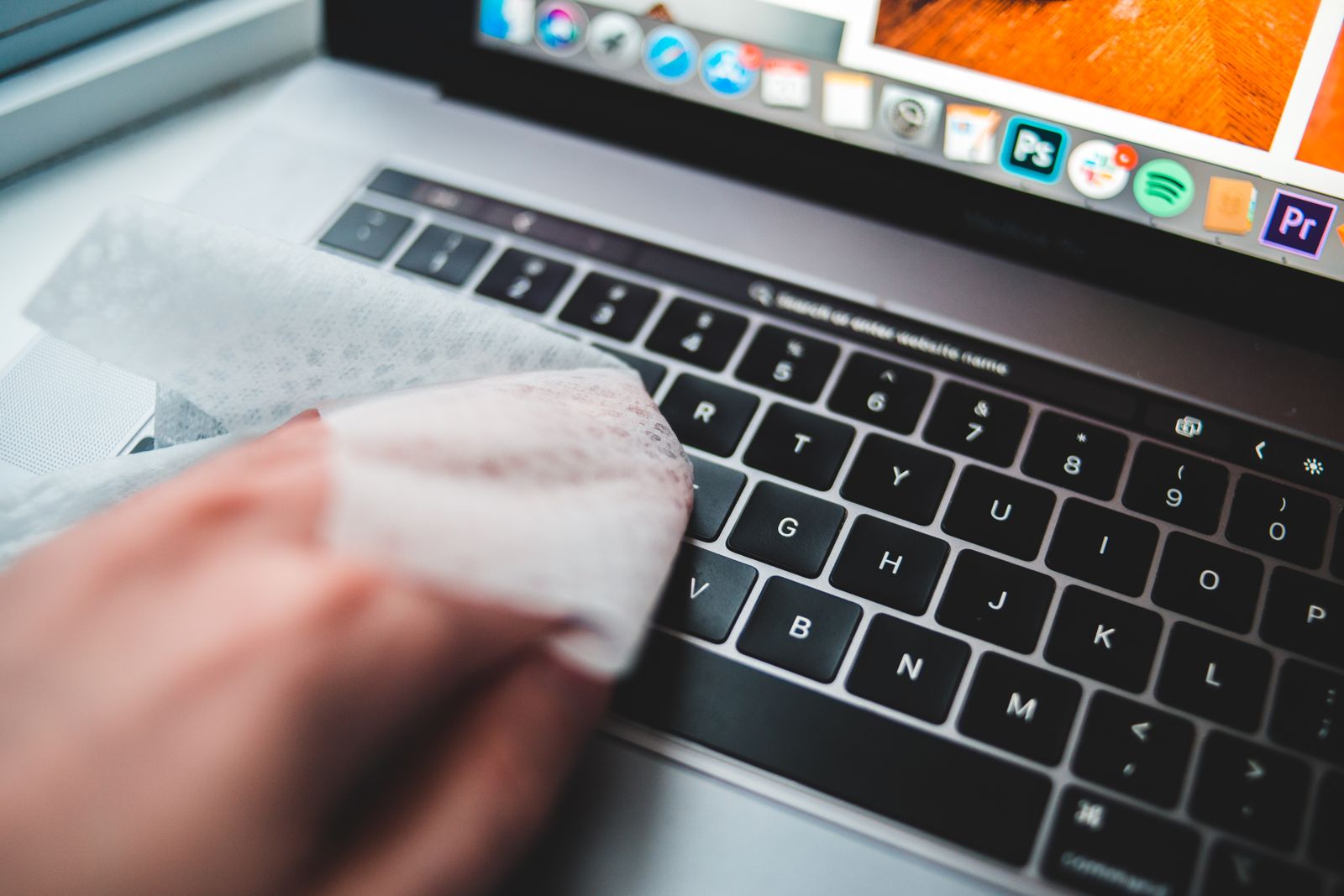
Wipe the tops of the keys with a soft cloth that is barely damp. Lenovo's advice is to wipe the keys one at a time, because wiping across several at once can let the cloth catch on the edge of a key and damage it. Microsoft suggests a cloth dampened with mild soap and water for its keyboards and Type Covers, and HP and Dell allow a cloth lightly dampened with 70 per cent isopropyl alcohol. HP's guides warn not to let liquid drip between the keys, because it can permanently damage parts underneath. A cotton bud, barely damp, reaches the edges of the keys.
Do not pull the keys off a laptop keyboard to clean underneath unless your maker's guide says it is safe for your model. Laptop keys are held on by small clips that break easily.
The trackpad and palm rests
The trackpad and the area either side of it get the most skin contact and the most grease. Wipe them with the same barely damp cloth, then dry them. Microsoft's Surface laptops with a fabric palm rest made of Alcantara have their own advice: a white lint-free cloth or screen-cleaning wipe dampened with mild soap and water, and spills cleaned within 30 minutes so they do not stain. Trackpad and palm rest protectors and keyboard covers keep the worst of the dirt off in the first place, and a keyboard cover lifts off to be washed.
External keyboards and mice
If you use a separate keyboard or mouse, Dell says to take the batteries out of a wireless keyboard before you clean it, and Apple says to switch off a wireless keyboard, take out removable batteries, or unplug a wired one, then wipe it with a lint-free cloth lightly moistened with water.
Vents and ports
Why the vents matter
A laptop's fan pulls air in through one set of vents and pushes warm air out through another. Every time it runs, it pulls in a little dust. Over months, that dust builds up on the vent grilles and the parts behind them, and the laptop has to work harder to stay cool. A laptop that has started running its fan more loudly than it used to, or getting warmer in ordinary use, often has dusty vents.
Clearing the vents
Dell and HP both recommend compressed air for the vents, and HP says to use short bursts. With the laptop off and unplugged, find the vents, usually on the underside, the sides or the back edge, and blow short bursts across the grilles. Short bursts are kinder to the fan than one long blast, which can spin it much faster than it is meant to turn. Do not use a vacuum cleaner on the vents: Dell and HP both warn that vacuums create static.
Where you use the laptop matters as much. Dell advises against using a laptop on soft surfaces such as sofas, beds and carpets, because they block the vents, and Apple's safety information says not to use a MacBook on a pillow, blanket or other soft material. The guide to keeping a laptop cool covers this in full, including cooling pads that lift the laptop and push air underneath it.
Ports
USB, HDMI and charging ports catch lint, crumbs and pocket fluff, which can stop a plug going fully home or a charger connecting. Apple's advice for cables is to keep moisture away from the connectors, and the same applies to the ports. Clear them with a short burst of air, or a dry soft brush around the opening. Never push anything metal into a port, such as a pin or a paperclip, because it can bend the contacts or cause a short. HP suggests giving the ports and edges a deeper clean every few months. Port dust plugs keep dust out of the ports you rarely use.
The case
The lid and base can be wiped with a soft cloth dampened with water. Apple says a damp, soft, lint-free cloth for the outside of a MacBook, and Lenovo says a cloth dampened with mild soap and water for the cover, without applying liquid directly. Dry it afterwards. A laptop skin or a hard shell keeps the lid itself from scratches between cleans.
What not to use
The makers' lists of things to avoid are long and they overlap. Put together, they come down to this:
- No spraying anything straight onto the laptop. Every maker says liquid goes on the cloth.
- No household or glass cleaners. Dell, Microsoft and HP all warn against window or glass cleaner on the screen, and Dell and HP name ammonia in particular.
- No bleach, hydrogen peroxide or acetone. Apple and Microsoft name bleach and hydrogen peroxide; HP adds acetone. Microsoft also names products containing chlorine.
- No aerosol sprays, solvents or abrasives. These are on Apple's list. Abrasive means anything gritty, including scouring cream and the rough side of a sponge.
- No rough cloths, paper towels or tissues. Apple says no towels or kitchen roll; HP says no paper towels, tissues or rough cloths, which can scratch screens and leave lint.
- No vacuum cleaners. Dell and HP say they create static.
- No soaking. Apple says never to submerge its products in cleaning agents, and every maker says to keep moisture out of openings.
Stronger alcohol and disinfectant wipes
The makers that allow alcohol give 70 per cent isopropyl, and Microsoft says 70 per cent or less. Stronger alcohol is not on anyone's list. Disinfectant wipes are where the makers part company: Apple allows 70 per cent isopropyl alcohol wipes, 75 per cent ethyl alcohol wipes and disinfectant wipes on hard, non-porous surfaces, while Microsoft says not to use disinfectant wipes on any Surface touchscreen. If you want to disinfect a laptop, check your own maker's page first.
If you spill something on it
A spill is not cleaning, but it is the moment people most often reach for a cloth. Switch the laptop off straight away if you can, unplug it, and do not switch it back on to see whether it still works. Lenovo says to keep it switched off and contact support. Apple says to get help from an authorised service provider as soon as possible, and notes that liquid damage is not covered under its warranty. Wipe away what you can see with a dry cloth, but do not shake liquid further into the laptop or try to dry it with a hairdryer.
How often
There is no single rule, and the makers put it differently. Microsoft says to clean the screen frequently. Dell says to clean your laptop often. HP gives a rough timetable: wipe the screen, keyboard and trackpad about once a week, clear the keyboard and vents with compressed air about once a month, and give the case, ports and keyboard edges a deeper clean every three months or so.
In practice, how often depends on how the laptop lives:
- A laptop that stays on a clean desk needs a wipe now and then, and a puff of air through the vents every month or two.
- A laptop that is used while eating, or by children, needs the keyboard and screen cleaned far more often, perhaps every few days.
- A laptop used in a dusty place, such as a workshop, a building site or a home with pets, needs its vents cleared more often.
A quick wipe often beats a big clean rarely. A laptop sleeve for carrying, and closing the lid when it is not in use, as Microsoft suggests, keep much of the dirt off between cleans. The guide to privacy and protection covers skins, screen protectors and other covers that save wear.
Questions people ask
Can I use a baby wipe or an antibacterial kitchen wipe on my laptop?
The makers do not suggest them. Household wipes can contain cleaners, fragrances and other chemicals that are not on the makers' lists of safe products, and many are wetter than a damp cloth should be. A soft cloth dampened with water is safer.
Is it safe to clean a laptop screen with water?
Yes, if the water goes on the cloth and the cloth is only damp. Apple recommends water only for MacBook screens, and the other makers list water as a safe choice. Wipe gently and dry the screen before closing the lid.
Can I use compressed air on any laptop?
Dell, HP and Apple all describe using it on their laptops. Keep the can upright, use short bursts, and switch the laptop off and unplug it first. For a MacBook keyboard, Apple's steps give the angle and distance.
Why does my laptop still get hot after I cleaned the vents?
Some dust sits on the fan and cooling fins inside, out of reach of air blown through the grille. Where you use the laptop matters too: soft surfaces block the vents. If it still runs hot on a hard, flat surface after the vents have been cleared, ask the maker or a repair service to look inside.
Where to go next
Everything for keeping a laptop clean is in laptop cleaning and care: cleaning kits, screen sprays and cloths, keyboard brushes and cleaning gel and electric air dusters. Delivery is included in every price and tracked to your door. Other guides that help:
- How to keep a laptop cool: vents, surfaces and cooling pads
- Privacy and protection: filters, screen protectors, skins and locks
- How to choose a laptop sleeve or bag: keeping it clean and safe on the move
- The laptop kit list for students: looking after a laptop on a budget