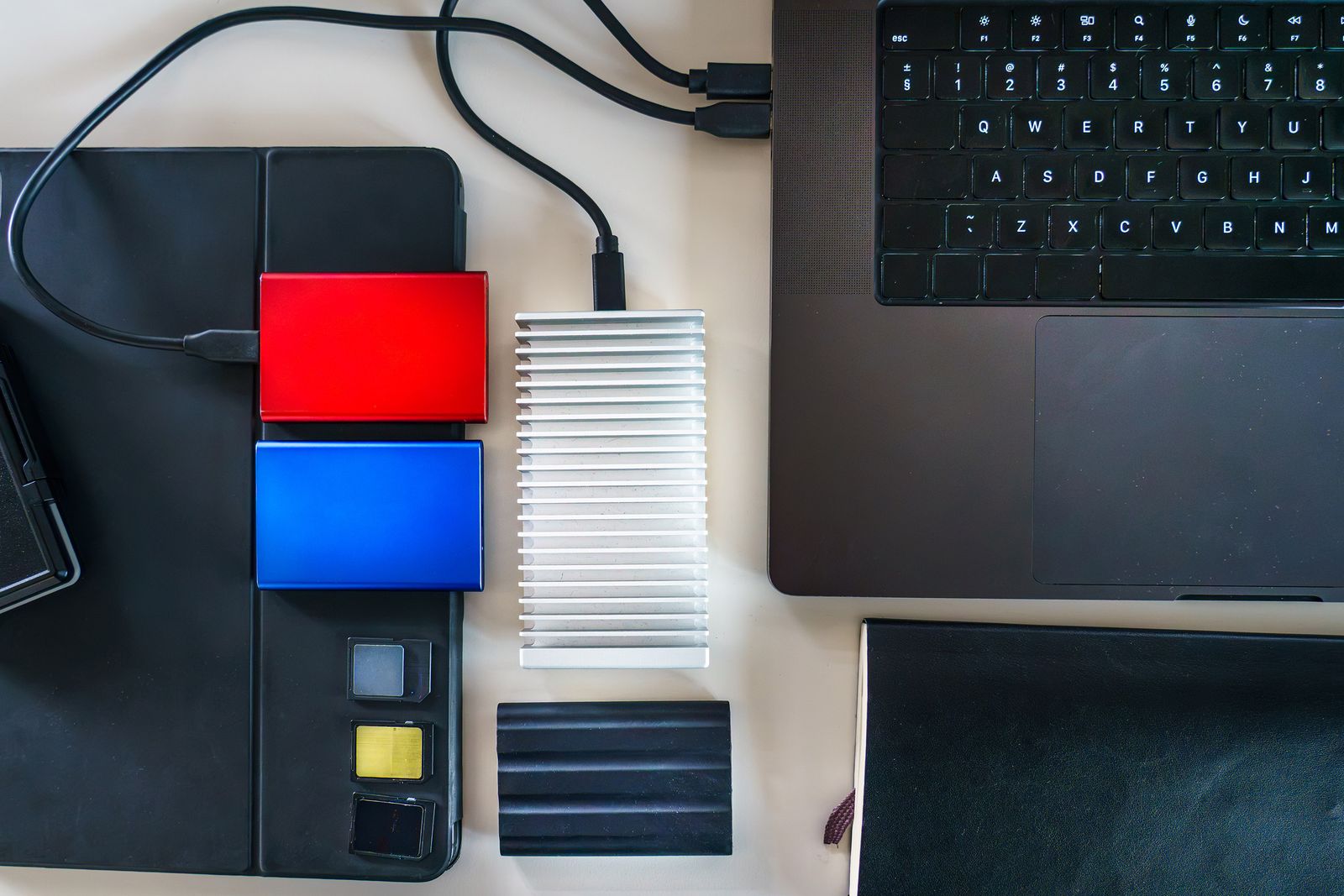
Most laptops come with less storage than people end up needing. Photographs, videos, music, old work and backups fill the drive, and a laptop's internal drive is often fixed in place or expensive to replace. An SSD enclosure is a simple answer. It is a small case that holds a solid-state drive and connects it to the laptop by USB, turning a bare drive into a fast, pocket-sized external drive. This guide explains what an enclosure does, which drives fit which enclosures, what really decides the speed you get, how to fit a drive, and why heat matters more than you might expect.
What an enclosure does
A solid-state drive, or SSD, stores data on memory chips with no moving parts. Inside a laptop or desktop, an SSD connects straight to the computer's own circuits. On its own, a bare SSD has no USB socket and no protection, so there is no way to plug it into a laptop.
An enclosure fills that gap. It does three jobs:
- It connects. Inside the case is a small circuit board with a slot or connector for the drive and a chip, usually called a bridge, that translates between the drive and USB. The laptop sees the result as an ordinary external drive.
- It protects. The case covers the drive's chips and contacts, keeps out dust and knocks, and gives you something solid to hold.
- It cools. Fast SSDs get warm when they work hard. A good enclosure, usually made of aluminium, draws that heat away from the drive. More on this below.
Why people use one
There are several common reasons to buy an enclosure:
- Extra space. An SSD in an enclosure is a fast external drive for files that do not fit on the laptop.
- Reusing an old drive. When a laptop's drive is upgraded, or an old laptop is retired, the drive that comes out can go into an enclosure and become useful again. It is also a way to copy files off a laptop that no longer starts, if its drive can be taken out.
- Backups. A separate drive is a sensible place to keep a copy of everything on the laptop.
- Moving large files. Video, photography and design work produce large files, and a fast external drive moves them between computers far more quickly than most online services. There is a range of kit for creators for this kind of work.
You can buy ready-made external SSDs, but an enclosure lets you choose the drive and its size, reuse a drive you already have, and swap the drive later. All of them are in storage enclosures.
M.2 NVMe, M.2 SATA and 2.5-inch drives
The single most important thing about an enclosure is that it must match the drive. There are three kinds of laptop SSD in common use, and they are not all interchangeable.
2.5-inch drives
A 2.5-inch drive is a flat rectangular box about the size of a deck of cards, with a SATA connector on one end. It is the shape that older laptop hard drives used, and many SSDs were made in the same shape so they could replace them. A 2.5-inch drive might be an SSD or an older spinning hard drive; both fit the same 2.5-inch drive cases. Check that the case takes the thickness of your drive, because some drives are thicker than others.
M.2 drives
An M.2 drive is a bare circuit board like a stick of chewing gum, with chips on it and a row of gold contacts on one end. M.2 is the name of the shape and the connector, not the way the drive talks to the computer. An M.2 drive can use either of two ways of working, and this is where people go wrong.
- M.2 NVMe drives use NVM Express, which the organisation behind it describes as the interface and command set for SSDs that connect over PCI Express, the fast internal connection a computer uses for things like graphics cards. Most M.2 drives in modern laptops are NVMe.
- M.2 SATA drives use SATA, the same way of working as a 2.5-inch drive, just in the M.2 shape. They were common in laptops some years ago and are slower than NVMe.
The two look almost identical. The usual clue is the notches cut into the gold edge, called keys. Kingston explains that NVMe drives normally have a single notch, called an M key, while most SATA M.2 drives have two notches, called B and M. The label on the drive, or the maker's page for its model number, settles it.
Which enclosure for which drive
M.2 SSD enclosures come in three kinds. Some take NVMe drives only. Some take SATA M.2 drives only. Some take both and work out which they have. An NVMe drive in a SATA-only enclosure will not work, and the reverse is also true, even though the drive fits the slot. Read the listing for the words NVMe, SATA, or both, and match them to your drive.
Drive lengths
M.2 drives also come in different lengths, written as a four-figure number. Kingston explains that the first two figures are the width and the rest the length in millimetres, so a 2280 drive is 22 millimetres wide and 80 millimetres long. 2280 is by far the most common size in laptops and desktops. Shorter drives, such as 2230 and 2242, are found in some thin laptops and handheld devices. Many enclosures take several lengths, with a screw or clip that moves to the right position. Check that yours takes your drive's length.
USB speeds and what limits them
The speed you get from an external drive depends on the slowest of four things: the drive, the enclosure's chip, the cable, and the port on the laptop. Spending money on one of them while another holds it back is the most common way to be disappointed.
The USB speeds
USB-IF, the organisation behind USB, describes USB speeds by the number of gigabits a second they can carry. These are the labels you will see on enclosures, cables and laptops:
| Label | Also written as | Carries up to |
|---|---|---|
| USB 5Gbps | USB 3.2 Gen 1, USB 3.0 | 5 gigabits a second |
| USB 10Gbps | USB 3.2 Gen 2 | 10 gigabits a second |
| USB 20Gbps | USB 3.2 Gen 2x2 | 20 gigabits a second, as two 10Gbps lanes |
| USB 40Gbps and 80Gbps | USB4 | 40 or 80 gigabits a second |
USB-IF has said that names such as USB 3.2 Gen 2 are meant for engineers, not shoppers, and the plain speed labels are what it wants used on boxes. Many listings still use the older names, so the table shows both. Older USB 2.0 ports carry 480 megabits a second, which is about a tenth of USB 5Gbps; plugged into one, even the fastest enclosure crawls. The guide to USB-C explains the names, and the difference between the shape of a plug and the speed behind it, in more detail.
USB4 and Thunderbolt enclosures
The fastest NVMe enclosures use USB4 or Thunderbolt, and are made for laptops with ports that support those speeds. USB-IF says USB4 works with existing USB 3.2, USB 2.0 and Thunderbolt 3 hosts and devices, running at the best speed both ends share. So a USB4 enclosure plugged into an ordinary USB-C port still works, just at that port's slower speed. These enclosures are worth their extra cost only if your laptop has a USB4 or Thunderbolt port, which is usually marked on the maker's specification page, and sometimes with a small symbol beside the port.
Bits and bytes
Drives are usually described in megabytes a second, written MB/s, while USB is described in gigabits a second. A byte is eight bits, so divide the gigabit figure by eight to compare them. USB 10Gbps works out at 1,250 megabytes a second on paper. A real file copy is always slower than the paper figure, because some of the link's capacity goes on managing the connection, but the sum shows which part is likely to hold things back.
Matching the drive to the link
SATA-IO, which looks after the SATA standard, gives the top speed of a SATA 6Gb/s connection as about 600 megabytes a second. So a SATA drive, whether 2.5-inch or M.2, cannot go faster than that whatever enclosure it is in. A USB 10Gbps enclosure already has more room than a SATA drive can use, and paying for a faster one gains nothing.
NVMe drives are a different story. A modern NVMe drive is usually faster than the USB link it is plugged into, so the link sets the pace. For an NVMe drive, the faster the enclosure, cable and port, the more of the drive's speed you get. Most NVMe enclosures are USB 10Gbps or faster.
The port and the cable
Every USB link runs at the speed of its slowest part. USB-IF's own description is that USB 3.2 devices work with older ones at the lowest speed they share. A USB 20Gbps enclosure plugged into a USB 10Gbps port runs at 10Gbps. Plugged in through a cheap cable made only for charging, it may run at USB 2.0 speed. Use the cable that comes with the enclosure, or a USB-C cable rated for the speed you need.
Check what your laptop's ports can do on the maker's specification page for your model. A laptop with only USB-A ports can use most USB-C enclosures with a USB-C to USB-A adapter or cable, at the speed of the USB-A port. A USB-C hub shares its link with everything else plugged into it, so a drive on a busy hub can slow down. The guide to USB-C hubs and docks explains why.
Fitting a drive
Fitting a drive into an enclosure takes a few minutes and no special skill. The steps differ a little between enclosures, so read the instructions that come with yours, but the pattern is the same.
Before you start
- Check the drive and enclosure match: NVMe or SATA, and the drive's length.
- Copy off anything you need. If the drive is new, or you plan to format it, anything on it will be lost. If you are rescuing files from an old drive, do not format it until they are safe.
- Work on a clean, flat, hard surface with good light, and hold the drive by its edges. Avoid touching the gold contacts or the chips.
M.2 drives
- Open the enclosure. Some slide apart, some have small screws, some lift open with a latch.
- If the enclosure has a thermal pad, a soft square that carries heat from the drive to the case, peel off its protective film.
- Slide the drive's gold edge into the slot at a slight angle, until it is fully seated. It should go in with gentle pressure; if it will not, check it is the right way round rather than forcing it.
- Press the other end of the drive down and fix it with the screw, peg or clip provided.
- Close the case, making sure the thermal pad sits against the drive.
2.5-inch drives
Most 2.5-inch cases are simpler. The drive's SATA connector pushes onto the case's connector, then the drive slides or clips into place and the cover closes. Some cases take the drive without any tools at all.
Getting the laptop to see it
A drive that already has files on it should appear as soon as it is plugged in. A brand new drive often will not, because it has never been set up. Microsoft explains that a new disk does not appear in File Explorer until it has been initialised in Disk Management. On Windows, right-click the Start button, choose Disk Management, and follow the prompt to initialise the new disk, then create a volume on it. Initialising and formatting erase everything on the drive, so be sure you have chosen the right one.
On a Mac, open Disk Utility to erase and format the drive. Apple's guide to Disk Utility explains the choices: APFS for a drive used only with modern Macs, and ExFAT for a drive that needs to work with both Macs and Windows laptops and is larger than 32 GB. ExFAT is the usual choice for an external drive that moves between computers.
Unplugging safely
Before you pull the cable out, eject the drive: on Windows from File Explorer or the icon in the corner of the taskbar, on a Mac from the eject button beside the drive in Finder. Pulling a drive out while it is still writing can damage the files on it.
Heat and cooling
SSDs have no moving parts, but they are not cold. NVMe drives in particular get warm when they work hard, such as during a long copy of large files. Kingston and Seagate both explain that when an NVMe drive gets too hot, it slows itself down to protect itself and the data on it. This is called thermal throttling. A copy that starts fast and then drops to a fraction of the speed partway through is often a drive that has got too hot. SATA drives work more slowly and produce less heat, so they are much less affected.
What helps
- A metal enclosure. Aluminium draws heat away from the drive and spreads it across the case, where the air can take it. Many NVMe enclosures have fins on the outside for the same reason.
- A thermal pad. The pad fills the gap between the drive and the case so heat can cross it. Use the pad supplied and make sure it touches the drive.
- Air around it. An enclosure left on a desk cools far better than one buried under papers, in a bag or on a cushion.
- Smaller jobs. Everyday use rarely makes a drive hot. It is very long transfers, such as copying an entire video library, that do.
An enclosure that feels warm after a long copy is normal. One that is too hot to hold comfortably is a sign to give it more air or a break. The same is true of the laptop itself, and the guide to keeping a laptop cool explains why heat slows laptops down too.
Carrying it
SSDs cope with knocks far better than spinning hard drives, but a drive in a bag still gets bumped, and the cable socket is the weakest point. A tech pouch keeps the drive, its cable and any adapter together and protected.
Questions people ask
Will an enclosure make my old drive faster?
No. The drive sets the top speed and the enclosure can only let it run at that speed or slow it down. A SATA drive will not go faster than SATA allows, which is about 600 megabytes a second, whatever case it is in.
Can I use a drive from my old laptop?
Usually, if you match the enclosure to the drive: 2.5-inch, M.2 SATA or M.2 NVMe. Some laptops, including many MacBooks, have storage fixed to the main board that cannot be taken out, so check before you open anything.
Can I start my laptop from an SSD in an enclosure?
Some laptops can start from an external drive and some cannot, and it depends on the laptop's settings and operating system. Check the maker's support pages for your model before relying on it.
Why does my drive show a smaller size than it says on the box?
Drive makers count a gigabyte as 1,000 megabytes, while Windows counts in steps of 1,024, so the same drive looks smaller on screen. Formatting also takes a little space.
Why does my new drive not appear when I plug it in?
A new drive has to be initialised and formatted before it appears, in Disk Management on Windows or Disk Utility on a Mac. If it does not appear there either, check that the drive is the type the enclosure takes and is fully seated.
Is an SSD in an enclosure a good place for a backup?
It is a good place for one copy. A backup is safest when there is more than one copy and they are kept in different places, so that a lost bag, a fire or a failed drive does not take everything. Keep the drive somewhere other than the laptop bag when you can, and copy to it regularly.
Do I need a USB 20Gbps or USB4 enclosure?
Only if your drive is NVMe and your laptop has a port that supports that speed. Otherwise the extra speed will not be used.
Where to go next
All the cases are in storage enclosures: M.2 SSD enclosures for NVMe and SATA M.2 drives, and 2.5-inch drive cases. For memory cards from a camera, there are SD card readers. Delivery is included in every price and tracked to your door. Other guides that help:
- USB-C explained: ports, cables, power and video
- How to choose a USB-C hub or docking station: more ports for a laptop
- How to keep a laptop cool: why heat slows things down
- Accessories for MacBook Air and MacBook Pro: storage and ports for a Mac